Android App Development for Beginners (2026): From Zero to Your First App
Introduction
Want to make your own phone app but not sure where to start? This Android app development guide starts from zero – you don't need any programming background. We'll install the tools, learn the basics of Kotlin and build a first app with a button that really changes a number on your phone.
By the end you will:
- Understand how Android app development works and which tools you need
- Install Android Studio and create your first project on your own
- Build screens with Jetpack Compose – the standard way Google recommends today
- Run your app on the emulator and on a real phone
- Know what to learn next, all the way to publishing on Google Play
What is Android app development, and why learn it in 2026?
Android app development means building programs that run on Android devices – phones, tablets, Wear OS watches and TVs. Android is the most used operating system in the world, and in many countries, including Thailand, most phones run it.
Reasons to start now:
- A wide job market – tech companies, banks, retailers and start-ups all need mobile developers
- All the tools are free – Android Studio, Kotlin and Google's documentation cost nothing
- Much easier to start than before – Jetpack Compose lets you build screens with short code, without juggling XML layouts and Java
- Built-in AI help – recent Android Studio versions include Gemini to explain code and fix errors, so beginners get stuck less
- Many ways to grow – sell your own apps, freelance, or move on to Kotlin Multiplatform and share code with iOS
What you need before you start
All you really need is a capable computer and an internet connection; every tool is a free download.
| Item | Minimum | Recommended |
|---|---|---|
| Operating system | Windows 10/11 64-bit, macOS, Linux | The latest version of each |
| RAM | 8 GB | 16 GB or more (the emulator uses a lot) |
| Disk space | 8 GB free | 30 GB or more free on an SSD |
| CPU | Supports virtualization | Recent Intel/AMD or Apple Silicon |
| Android phone | Optional | Testing on one is faster than the emulator |
You don't need to install a JDK separately – Android Studio comes with one. For the latest requirements see the Android Studio download page.
Tip: with only 8 GB of RAM, test on a real phone instead of the emulator – it is much smoother.
Kotlin or Java? Which language should beginners choose?
The short answer: start with Kotlin. Google made Android Kotlin-first in 2019, and its documentation, samples and new libraries such as Jetpack Compose are all designed for Kotlin.
| Topic | Kotlin | Java |
|---|---|---|
| Code length | Short and readable | Longer |
| Null safety | Built into the language, fewer crashes | You check it yourself |
| Jetpack Compose | Fully supported | Not available |
| Google samples | Almost all | Fewer and fewer |
| Existing code | Works together with Java | — |
5 Kotlin basics to know before building apps
// 1) Variables: val = read-only, var = can change
val appName = "My First App"
var count = 0

// 2) Functions
fun greet(name: String): String {
    return "Hello $name"
}

// 3) Conditions
val label = if (count > 10) "That's a lot" else "Not many yet"

// 4) Null safety: ? means the value may be null
var email: String? = null
val length = email?.length ?: 0

// 5) A data class holds data
data class Product(val name: String, val price: Double)
You don't have to memorise it all now – it sticks better while you build real apps. To try Kotlin without installing anything, use the Kotlin Playground in your browser.
How to install Android Studio, step by step
Android Studio is the main program for writing, testing and building Android apps. Install it once and you're set for a long time.
- Go to developer.android.com/studio and download the latest Stable version
- Windows: run the .exe and click Next with the defaults. macOS: drag the icon to Applications
- On first launch the Setup Wizard opens – choose Standard and wait while it downloads the Android SDK, the emulator and other tools (10–30 minutes, depending on your connection)
- Accept all licences and click Finish
- When you see Welcome to Android Studio, you're ready
If the emulator doesn't start, virtualization is usually switched off in the BIOS. Turn on Intel VT-x or AMD-V there (on Windows, also enable Windows Hypervisor Platform).
Build your first app with Jetpack Compose
Jetpack Compose is the modern way to build Android screens that Google recommends. You write screens as Kotlin functions instead of XML layouts, and the screen updates by itself when the data changes.
Step 1: create a new project
- On the Welcome screen click New Project
- Choose the Empty Activity template (the one with the Compose logo) and click Next
- Name it, for example
CounterApp, with a package name such ascom.example.counterapp - Keep Kotlin as the language and the suggested Minimum SDK, then click Finish
- Wait for the first Gradle Sync to finish (the spinner in the bottom-right corner stops)
Step 2: write a counter app
Open MainActivity.kt and replace its contents with this code:
package com.example.counterapp

import android.os.Bundle
import androidx.activity.ComponentActivity
import androidx.activity.compose.setContent
import androidx.compose.foundation.layout.*
import androidx.compose.material3.*
import androidx.compose.runtime.*
import androidx.compose.runtime.saveable.rememberSaveable
import androidx.compose.ui.Alignment
import androidx.compose.ui.Modifier
import androidx.compose.ui.tooling.preview.Preview
import androidx.compose.ui.unit.dp
import androidx.compose.ui.unit.sp

class MainActivity : ComponentActivity() {
    override fun onCreate(savedInstanceState: Bundle?) {
        super.onCreate(savedInstanceState)
        setContent {
            MaterialTheme {
                CounterScreen()
            }
        }
    }
}

@Composable
fun CounterScreen() {
    // rememberSaveable keeps the value even when the screen rotates
    var count by rememberSaveable { mutableIntStateOf(0) }

    Column(
        modifier = Modifier.fillMaxSize().padding(24.dp),
        verticalArrangement = Arrangement.Center,
        horizontalAlignment = Alignment.CenterHorizontally
    ) {
        Text(text = "Pressed", fontSize = 20.sp)
        Text(text = "$count times", fontSize = 48.sp)
        Spacer(modifier = Modifier.height(24.dp))
        Row(horizontalArrangement = Arrangement.spacedBy(12.dp)) {
            Button(onClick = { count++ }) { Text("+1") }
            OutlinedButton(onClick = { count = 0 }) { Text("Reset") }
        }
    }
}

@Preview(showBackground = true)
@Composable
fun CounterPreview() {
    MaterialTheme { CounterScreen() }
}
How this code works
@Composablemarks a function that draws UIcountis state – when it changes, Compose redraws the text automaticallyColumnstacks items top to bottom,Rowleft to right@Previewshows the screen in the Split/Design tab straight away, without running the app
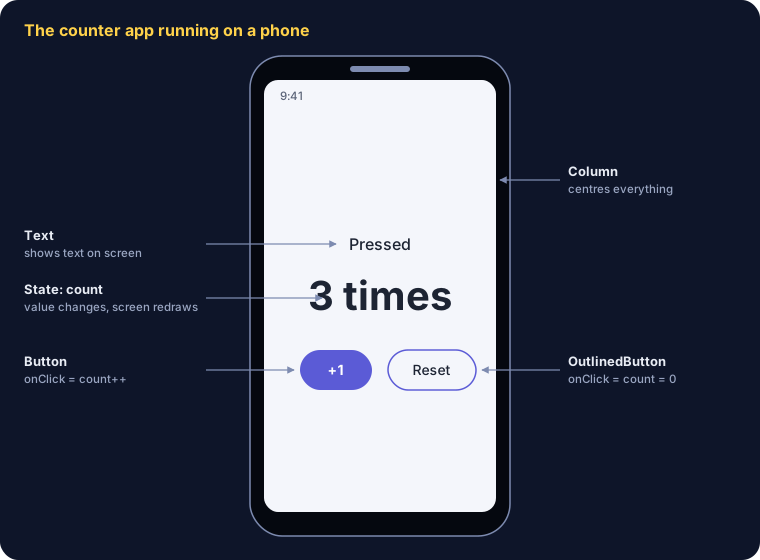
Tap +1 three times and the number becomes 3 right away, because Compose redraws the screen whenever state changes. Try changing the text or the font size and watch the Preview update – it's the fastest way to learn.
The Android project structure beginners should know
Open the Project panel on the left and pick the Android view: only a few files really matter.
| File / folder | What it does |
|---|---|
app/src/main/java/.../MainActivity.kt | The app's main code and screens |
app/src/main/AndroidManifest.xml | Declares the app name, icon, screens and permissions such as camera or internet |
app/src/main/res/ | Images, icons, texts (strings.xml) and colours |
app/build.gradle.kts | App settings such as versionCode, minSdk and the libraries you use |
gradle/libs.versions.toml | All library versions in one place |
Tip: put every text the user sees in strings.xml – it makes a multi-language app easy later.
Run your app on the emulator and on a real phone
On the emulator
- Open Device Manager (the phone icon on the right) and click + → Create Virtual Device
- Pick a model such as Pixel, choose the latest recommended system image, click Download, then Finish
- Select the new device in the toolbar and press Run ▶ (Shift + F10)
On a real phone
- Open Settings → About phone and tap Build number 7 times until it says you are a developer
- In Developer options, turn on USB debugging or Wireless debugging
- Connect the phone by USB and tap Allow on the phone
- The phone appears in the device list – select it and press Run
That's it – your counter app is now on a real phone.
Key concepts to learn after your first app
Almost every real app uses these five things; once you understand them you can build genuinely useful apps.
| Concept | What it's for | Real-app example |
|---|---|---|
| State | Data that makes the screen change | The number of items in a cart |
| Navigation | Moving between screens | List screen → detail screen |
| ViewModel | Keeps logic out of the UI; data survives rotation | Loading a product list |
| Room | An on-device database that works offline | Saving stock records |
| Retrofit / Ktor | Fetching data from internet APIs | Gold prices, weather forecasts |
Real examples: StockApp, a shop inventory app, uses an on-device database to work offline, and Fieldwork uses the camera and GPS to record field work. Both are built on the same basics as this guide.
A 3-month roadmap to learn Android development
At 1–2 hours a day, this path takes you from zero to an app on Google Play in about three months.
- Weeks 1–2: Kotlin basics – variables, functions, classes, lists and null safety
- Weeks 3–4: Compose basics – Text, Button, Column/Row, LazyColumn for lists, and state
- Weeks 5–6: several screens – Navigation Compose and ViewModel
- Weeks 7–8: storing and fetching data – Room, DataStore and Retrofit
- Weeks 9–10: a real project – build one app of your own, such as an expense tracker, a checklist or a small inventory app
- Weeks 11–12: publishing – icon, store graphics, privacy policy and upload to Google Play
Recommended free resources
- Android Basics with Compose – Google's free course made for beginners
- Kotlin Docs – the official Kotlin documentation
- Compose Samples on GitHub – real app samples from Google
- Now in Android – a production-quality sample app for studying architecture
How to publish your app on Google Play
A Google Play developer account costs a one-time fee of 25 US dollars, and new personal accounts must pass closed testing before they can publish.
- Sign up for the Google Play Console and verify your identity with an ID card or passport
- In Android Studio choose Build → Generate Signed App Bundle to create an
.aabfile with a keystore (keep the keystore and its passwords safe – losing them makes updates very hard) - Create the app in Play Console and fill in the store listing, icon, screenshots and privacy policy link
- Personal accounts created after 13 November 2023 must run closed testing with at least 12 testers for 14 days in a row before applying for production (Google's requirement)
- After 14 days, click Apply for production, wait for Google's review, and your app goes live
Tip: recruit more than 12 testers – if you drop below 12 even for one day, the 14-day count starts again. For an example of recruiting testers, see GuardPass, which is in closed testing now.
7 common mistakes beginner Android developers make
- Skipping Kotlin basics and pasting code they can't fix when it breaks
- Learning from old articles that still use XML and Java, which clashes with today's approach – always check the date
- Not reading Logcat – the red error messages in the Logcat tab explain almost every crash
- Putting everything in MainActivity instead of small composable functions and a ViewModel
- Forgetting permissions such as camera or internet in AndroidManifest.xml
- Starting with a project that's too big – a small app you can finish in 1–2 weeks is better
- Not using Git – keep your code on GitHub from day one so you can roll back, and use it as a portfolio
Frequently asked questions
Can I learn Android app development with no programming experience?
Yes. Spend 1–2 weeks on Kotlin basics, then follow Google's Android Basics with Compose course, which is made for complete beginners.
What computer do I need to build Android apps?
At least 8 GB of RAM, but 16 GB and an SSD are recommended. On a slower machine, test on a real phone instead of the emulator.
Can I build Android apps on a MacBook?
Yes. Android Studio runs on Windows, macOS and Linux, including Macs with Apple Silicon.
Should I learn Kotlin or Flutter?
If your goal is Android itself or an Android developer job, learn Kotlin. If you want Android and iOS apps from one codebase, Flutter or Kotlin Multiplatform are good choices.
How much does it cost to publish an app on Google Play?
A one-time developer registration fee of 25 US dollars. There is no yearly fee.
How long until I can build my own app?
At 1–2 hours a day, in about 2–3 months you can build a simple, useful app and put it on Google Play.
Summary
Starting Android app development in 2026 is easier than ever: install Android Studio, learn basic Kotlin and build screens with Jetpack Compose, and you can have your first app on your phone in a day. Then add Navigation, a ViewModel and a database following the 3-month roadmap until your own app is on Google Play.
Start today: open Android Studio, build the counter app from this guide, and add a −1 button as your first homework. Want to see what real Android apps look like? Have a look at Prasansoft's Android apps.
References
- Android Studio – Android Developers
- Android Developers: Latest updates
- App testing requirements for new personal developer accounts – Play Console Help