Installing and Managing Windows Server
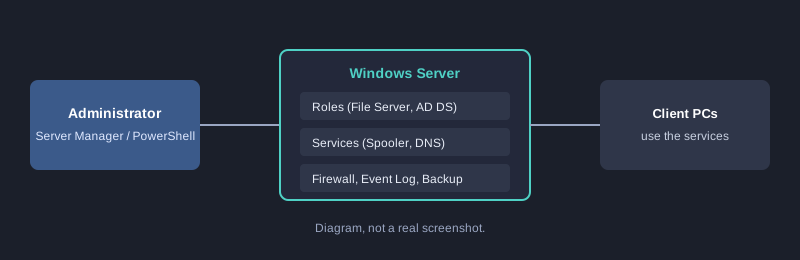
Windows Server is the operating system for servers that provide file sharing, printing, user accounts and web services. Managing it well means installing roles, managing accounts through Active Directory, checking services, and using PowerShell to act on many things at once. This article focuses on steps you can repeat and verify.
Testing note: the PowerShell commands for checking services and system information were run on Windows 11 with PowerShell 5.1. Server-only features such as Active Directory have not been run here and must be tested on a real server.
What you need
- A computer or virtual machine running Windows Server 2022 or 2025
- Administrator rights
- A fixed IP address set before installing Active Directory
Overview
Step 1: check the current system
Open PowerShell as administrator and run:
Get-CimInstance Win32_OperatingSystem | Select-Object Caption, Version
Get-Service -Name Spooler | Select-Object Name, Status
Output from the test machine:
Caption : Microsoft Windows 11 Home Single Language
Version : 10.0.26200

Name     Status
----     ------
Spooler  Running
`Get-Service` shows whether a service is running, which is the basis of monitoring.
Step 2: install a role with PowerShell
On the server, install the File Server role:
Install-WindowsFeature -Name FS-FileServer -IncludeManagementTools
Verify it:
Get-WindowsFeature -Name FS-FileServer
Commands make the setup repeatable across several servers.
Step 3: promote to a domain controller (Active Directory)
To manage user accounts and computers across an organisation, install AD DS:
Install-WindowsFeature -Name AD-Domain-Services -IncludeManagementTools
Install-ADDSForest -DomainName "example.local" -InstallDns
The command asks for a Directory Services Restore Mode password and restarts the server afterwards. Always test in a virtual machine first.
Step 4: check the firewall and ports
Get-NetFirewallProfile | Select-Object Name, Enabled
Get-NetTCPConnection -State Listen | Select-Object LocalPort, OwningProcess | Sort-Object LocalPort
The first command shows whether the firewall is enabled. The second lists the ports the server is listening on.
Step 5: review logs and backups
Get-EventLog -LogName System -Newest 20
wbadmin get versions
`Get-EventLog` shows recent system events, which helps find the cause of problems. `wbadmin` lists backup versions from Windows Server Backup.
Common mistakes
- **Automatic IP before installing AD:** this breaks DNS. Set a fixed IP first.
- **Domain name that clashes with an external network:** use an internal name such as `example.local`.
- **No backup before changes:** create a restore point or backup before installing roles or changing important settings.
Summary
Managing Windows Server means installing roles in an orderly way, checking services and ports, reviewing event logs, and backing up regularly. PowerShell makes these steps repeatable and auditable.