Making an FPS Game with Unreal Engine: From a New Project to an AI Enemy
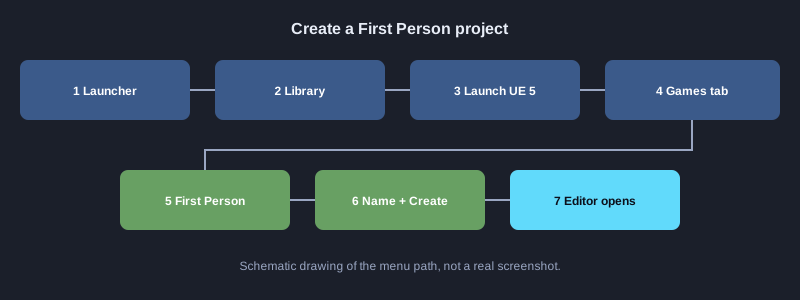
This article walks you through making a first-person shooter (FPS) with Unreal Engine 5, from the first menu click in the Epic Games Launcher to an enemy that sees the player and chases them. Each part is a set of steps you can follow one by one. It tells you where each code file goes, and the diagrams show the overall path.
What you need
You need a Windows 10 or 11 computer, a graphics card that supports DirectX 12, at least 100 GB of free disk space, and a free Epic Games account. Install Visual Studio 2022 with the Game development with C++ workload to compile the C++ code. If you only want Blueprints, you can start without C++. Note: the code here is written from the Unreal Engine 5 documentation, but it has not been compiled and tested on the machine used to write this article. The results listed are what you should see when the steps are done correctly.
Illustrations
1. Install and create an FPS project
First install Unreal Engine through the Epic Games Launcher, then create a project from a ready-made template.
1. Open the Epic Games Launcher and sign in with your Epic Games account
2. In the left menu, open the Unreal Engine section and select the Library tab
3. Click + Add Version, choose the latest Unreal Engine 5 version, and click Install
4. When installation finishes, click Launch for that version
5. In the Unreal Project Browser, select Games in the left panel
6. Select the First Person template
7. Under Project Defaults, choose C++ if you want to write code, or Blueprint if you want to start visually
8. Tick Starter Content to get basic models and materials
9. Name the project, for example FpsDemo, then click Create
**What you should see:** The editor opens with a sample level and a First Person character. Pressing Play lets you walk around and turn the camera.
2. Project structure and where scripts go
Learn what each part of the project does. C++ code goes in the Source folder, while Blueprints and models live in Content.
**Note:** All C++ scripts are in Source/FpsDemo/. Blueprints are created and edited in the editor. Do not edit files in Content/ by hand.
**Code: project-tree.txt**
FpsDemo/
├── FpsDemo.uproject        ไฟล์โปรเจกต์ ดับเบิลคลิกเพื่อเปิดในเอดิเตอร์
├── Config/                 ค่าตั้งต้นของเกม เช่น ปุ่มควบคุม
├── Content/                ไฟล์ของเกมที่สร้างในเอดิเตอร์ เช่น Blueprint โมเดล ฉาก เสียง
├── Source/
│   ├── FpsDemo/            โค้ด C++ ของเกม เขียนเป็นไฟล์ .h และ .cpp
│   │   └── FpsDemo.Build.cs   ระบุว่าโมดูลนี้ใช้ไลบรารีอะไร เช่น AIModule
│   ├── FpsDemo.Target.cs
│   └── FpsDemoEditor.Target.cs
└── Binaries/, Intermediate/, Saved/   ไฟล์ที่ UE สร้างเอง ไม่ต้องแก้
3. Import a 3D model into the project
Most models are saved as FBX files. Get them from Fab or another source you have permission to use, and check the license before using them in your game.
1. In the Content Browser at the bottom, right-click the folder you want, for example Content/Models
2. Choose Import to /Game/Models and select the .fbx file
3. In the FBX Import Options window, choose Skeletal Mesh if the model has a skeleton, or Static Mesh if it is a fixed object
4. Tick Import Materials and Textures, then click Import
5. Drag the model from the Content Browser into the level to test it
**What you should see:** The model appears in the Content Browser, and when you drag it into the level it sits in the scene.
4. Set up controls with Enhanced Input
Unreal Engine 5 uses the Enhanced Input system to separate button presses from actions, so you can change keys without editing code.
1. In the Content Browser, open the Input folder that came with the template
2. Open IA_Fire to check it is a Digital (bool) Input Action for the fire button
3. Open IMC_Default and check that the left mouse button is mapped to IA_Fire
4. To change the key, edit the mapping in IMC_Default and click Save
5. Press Play and check that a left click triggers the fire action
**What you should see:** Pressing the mapped button calls the fire function on the character every time.
5. Shoot with a line trace
Most FPS guns cast an invisible straight line from the camera forward and check what it hits. This example calls LineTraceSingleByChannel and applies damage to the hit actor.
1. Open Source/FpsDemo/FpsCharacter.h and add the Range and Damage variables and the Fire declaration shown in the code
2. Open Source/FpsDemo/FpsCharacter.cpp and add the Fire function
3. In FpsCharacter.cpp, find the OnFire function the template created and call Fire() instead of the projectile spawn code
4. Press Ctrl+Alt+F11 or click Compile in the editor to build the code
**Code: FpsCharacter_Fire.cpp**
// ไฟล์: Source/FpsDemo/FpsCharacter.h  (เพิ่มในคลาสตัวละครผู้เล่นที่ template สร้างให้)
//   UPROPERTY(EditAnywhere, Category = "Combat")
//   float Range = 10000.f;
//
//   UPROPERTY(EditAnywhere, Category = "Combat")
//   float Damage = 25.f;
//
//   void Fire();
//
// ไฟล์: Source/FpsDemo/FpsCharacter.cpp  (ฟังก์ชัน Fire ด้านล่าง)

#include "FpsCharacter.h"
#include "Camera/CameraComponent.h"
#include "Engine/World.h"
#include "Kismet/GameplayStatics.h"

void AFpsCharacter::Fire()
{
    if (!FirstPersonCameraComponent)
    {
        return;
    }

    // จุดเริ่มคือกล้อง และจุดสิ้นสุดคือระยะ Range ไปทางที่กล้องมอง
    const FVector Start = FirstPersonCameraComponent->GetComponentLocation();
    const FVector End = Start + FirstPersonCameraComponent->GetForwardVector() * Range;

    FHitResult Hit;
    FCollisionQueryParams Params;
    Params.AddIgnoredActor(this); // ไม่ให้เส้นยิงชนตัวเอง

    if (GetWorld()->LineTraceSingleByChannel(Hit, Start, End, ECC_Visibility, Params))
    {
        if (AActor* Target = Hit.GetActor())
        {
            UGameplayStatics::ApplyDamage(Target, Damage, GetController(), this, UDamageType::StaticClass());
        }
    }
}
**What you should see:** A left click at an object damages it. The Output Log shows no errors when you fire.
6. Enemy takes damage and dies
Create an enemy class from Character. It has health, takes damage through TakeDamage, and is removed when its health reaches zero.
1. In the editor, go to File > New C++ Class, choose Character as the parent, and name it EnemyCharacter
2. Open EnemyCharacter.h and add the declarations shown in the code
3. Put the code from EnemyCharacter.cpp into the file
4. Compile, then create a Blueprint from EnemyCharacter to place in the level
**Code: EnemyCharacter.cpp**
// ไฟล์: Source/FpsDemo/EnemyCharacter.h
//   UCLASS()
//   class FPSDEMO_API AEnemyCharacter : public ACharacter
//   {
//       GENERATED_BODY()
//   public:
//       AEnemyCharacter();
//       virtual float TakeDamage(float DamageAmount, FDamageEvent const& DamageEvent,
//                                AController* EventInstigator, AActor* DamageCauser) override;
//   protected:
//       UPROPERTY(EditAnywhere, Category = "Combat")
//       float Health = 100.f;
//   };
//
// ไฟล์: Source/FpsDemo/EnemyCharacter.cpp

#include "EnemyCharacter.h"
#include "EnemyAIController.h"

AEnemyCharacter::AEnemyCharacter()
{
    // ให้ AI Controller ของศัตรูเข้าควบคุมอัตโนมัติ เมื่อวางในฉากหรือสร้างขึ้นมา
    AIControllerClass = AEnemyAIController::StaticClass();
    AutoPossessAI = EAutoPossessAI::PlacedInWorldOrSpawned;
}

float AEnemyCharacter::TakeDamage(float DamageAmount, FDamageEvent const& DamageEvent,
                                  AController* EventInstigator, AActor* DamageCauser)
{
    const float Applied = Super::TakeDamage(DamageAmount, DamageEvent, EventInstigator, DamageCauser);

    Health -= Applied;
    if (Health <= 0.f)
    {
        Destroy(); // เมื่อพลังชีวิตหมด ศัตรูหายไปจากฉาก
    }
    return Applied;
}
**What you should see:** When you shoot an enemy until its health reaches zero, it disappears from the level.
7. Add a level, props and a NavMesh
Enemies need to walk on the ground, so the level needs a NavMesh, which is a map of walkable areas. Add some objects for cover too.
1. Find extra props from a source you have permission to use, such as Fab, then choose Add to Project or download and import them
2. Drag objects from the Content Browser into the level and place them with the Move and Scale tools
3. In Place Actors, search for Nav Mesh Bounds Volume and drag it into the level
4. Resize the volume so it covers the walkable area
5. Press P in the editor to show the NavMesh
**What you should see:** In P view, walkable ground is shown in green, and the area under objects is not green.
8. An AI Controller that detects the player
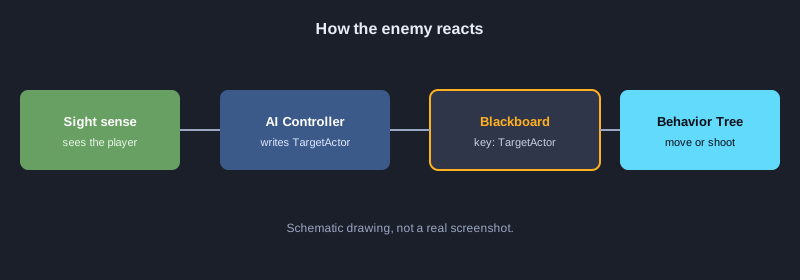
The AI Controller is the enemy's brain. It uses AI Perception to check whether the player is seen, and writes the result to a Blackboard.
1. Create a C++ class from AIController named EnemyAIController
2. Open FpsDemo.Build.cs and add "AIModule" to PublicDependencyModuleNames
3. Put the .h and .cpp code into the project and compile
4. The enemy's constructor in EnemyCharacter sets the AI Controller, so the controller takes over when the enemy is placed or spawned
**Code: EnemyAIController.cpp**
// ไฟล์: Source/FpsDemo/EnemyAIController.h
//   UCLASS()
//   class FPSDEMO_API AEnemyAIController : public AAIController
//   {
//       GENERATED_BODY()
//   public:
//       AEnemyAIController();
//   protected:
//       virtual void BeginPlay() override;
//       UFUNCTION()
//       void OnTargetPerceptionUpdated(AActor* Actor, FAIStimulus Stimulus);
//       UPROPERTY(VisibleAnywhere)
//       UAIPerceptionComponent* Perception;
//       UPROPERTY()
//       UAISenseConfig_Sight* Sight;
//       UPROPERTY(EditAnywhere, Category = "AI")
//       UBehaviorTree* BehaviorTreeAsset;
//   };
//
// ไฟล์: Source/FpsDemo/EnemyAIController.cpp
// ต้องเพิ่ม "AIModule" ใน PublicDependencyModuleNames ของ FpsDemo.Build.cs ก่อน

#include "EnemyAIController.h"
#include "BehaviorTree/BehaviorTree.h"
#include "BehaviorTree/BlackboardComponent.h"
#include "Perception/AIPerceptionComponent.h"
#include "Perception/AISenseConfig_Sight.h"
#include "Perception/AIPerceptionTypes.h"

AEnemyAIController::AEnemyAIController()
{
    Perception = CreateDefaultSubobject<UAIPerceptionComponent>(TEXT("Perception"));
    SetPerceptionComponent(*Perception);

    Sight = CreateDefaultSubobject<UAISenseConfig_Sight>(TEXT("Sight"));
    Sight->SightRadius = 1500.f;          // มองเห็นได้ไกลเท่านี้
    Sight->LoseSightRadius = 1800.f;      // ต้องไกลเกินนี้จึงจะเสียการมองเห็น
    Sight->PeripheralVisionAngleDegrees = 90.f;
    Sight->DetectionByAffiliation.bDetectEnemies = true;
    Sight->DetectionByAffiliation.bDetectNeutrals = true;
    Sight->DetectionByAffiliation.bDetectFriendlies = true;

    Perception->ConfigureSense(*Sight);
    Perception->SetDominantSense(Sight->GetSenseImplementation());
    Perception->OnTargetPerceptionUpdated.AddDynamic(this, &AEnemyAIController::OnTargetPerceptionUpdated);
}

void AEnemyAIController::BeginPlay()
{
    Super::BeginPlay();
    if (BehaviorTreeAsset)
    {
        RunBehaviorTree(BehaviorTreeAsset);
    }
}

void AEnemyAIController::OnTargetPerceptionUpdated(AActor* Actor, FAIStimulus Stimulus)
{
    // เห็นผู้เล่นเมื่อใด ให้เขียนลงช่อง TargetActor ใน Blackboard ที่ Behavior Tree ใช้อยู่
    if (UBlackboardComponent* BB = GetBlackboardComponent())
    {
        BB->SetValueAsObject(TEXT("TargetActor"), Stimulus.WasSuccessfullySensed() ? Actor : nullptr);
    }
}
**What you should see:** When the player enters the enemy's sight range and angle, the TargetActor key in the Blackboard holds the player.
9. Behavior Tree and Blackboard
A Behavior Tree is a decision diagram, for example: if there is a target, move to it and shoot; if not, patrol. The Blackboard stores the data the tree uses to decide.
1. Right-click in the Content Browser, choose Artificial Intelligence > Blackboard, and name it BB_Enemy
2. Open BB_Enemy and add a key named TargetActor of type Object
3. Right-click again, choose Artificial Intelligence > Behavior Tree, and name it BT_Enemy
4. Open BT_Enemy and set its Blackboard Asset to BB_Enemy
5. Add a Selector at the root, then a Sequence with a Blackboard condition checking that TargetActor is set, followed by a MoveTo task that uses TargetActor
6. In the enemy's Blueprint details, set the Behavior Tree asset to BT_Enemy in the AI Controller's Behavior Tree field
**What you should see:** When the enemy sees the player, it moves toward the player. When the player leaves its sight, it stops following.
10. Build and test
Check that everything works together, then fix common problems.
1. Press Compile or Ctrl+Alt+F11 to build the C++ code
2. Press Play in the editor and walk toward the enemy
3. Shoot the enemy until it disappears and check the damage matches the value you set
4. Open Window > Developer Tools > Output Log to read warnings and errors
**What you should see:** The game runs. The enemy turns toward the player when it sees them, health drops when shot, and the enemy disappears when health reaches zero.
Next steps
Next, add gunshot sounds, a score system, a start menu and enemy animations. Use the Unreal Engine Learning Portal and the Unreal Engine 5 documentation at dev.epicgames.com/documentation as the main references.
Summary
Create an FPS project from a template in the Epic Games Launcher, bring in models, write shooting with a line trace and damage for enemies, configure an AI Controller to detect the player, and connect it to a Behavior Tree and Blackboard. Each step is either a menu click or pasting code in order.