Building a First-Person Shooter in Unity: Mouse Look, Movement, Shooting and Testing
A first-person shooter (FPS) shows the world through the character's eyes. The core systems are mouse look, WASD movement, shooting with a ray, and targets that have health. This article builds each system step by step in Unity, from a new project to code that passes tests.
Note: the code keeps the Thai comments from the original version. It has not been run in the Unity Editor. The tests run against a stub Unity API written for this article, which confirms the script logic only. The full stub file is in the Thai version of this article.
What you need
- Unity Hub and the latest LTS Unity Editor
- VS Code or Visual Studio
- The basics from the 2D Unity article (GameObjects and components) help
Step 1: create a 3D project and set up input
1. Open Unity Hub, click **New project**, choose the **Universal 3D** (URP) or **3D** (Built-in) template and name it `MyFPS`.
2. Go to **Edit → Project Settings → Player**, set **Active Input Handling** to **Both** or **Input Manager (Old)**, and restart the editor when asked.
3. Check that the axes **Mouse X**, **Mouse Y**, **Horizontal**, **Vertical** and the **Jump** button exist in **Edit → Project Settings → Input Manager**. They are included in the standard templates.
Step 2: create the ground and a target
1. Right-click in the Hierarchy and choose **3D Object → Plane**. Name it `Ground` and set Scale to `X = 5, Y = 1, Z = 5`.
2. Right-click again and choose **3D Object → Cube**. Name it `Target`, place it about 10 metres ahead, for example Position `Z = 10`, `Y = 1`.
3. Add the **Target** component (written in step 6) to the cube. A cube already has a Box Collider, which the ray needs in order to hit it.
Step 3: create the player
1. Right-click in the Hierarchy, choose **Create Empty**, name it `Player` and set Position `Y = 1`.
2. Add a **Character Controller** to `Player`. It moves the character without a Rigidbody.
3. Right-click `Player` and choose **Camera** to make it a child. Set its Position to `Y = 0.6` so the view sits at eye height.
4. Delete the original Main Camera, because the child camera replaces it.
The structure is `Player` → `Camera`. `Player` will also hold `MouseLook`, `FPSMovement` and `Weapon`.
Step 4: mouse look
Create a script named `MouseLook` and paste in this code.
using UnityEngine;

// หมุนกล้องตามเมาส์: ก้ม-เงยที่กล้อง (pitch) และหันซ้าย-ขวาที่ตัวละคร (yaw)
public class MouseLook : MonoBehaviour
{
    [SerializeField] private float sensitivity = 2f;   // ความไวเมาส์
    [SerializeField] private float minPitch = -80f;    // ก้มลงได้สุดกี่องศา
    [SerializeField] private float maxPitch = 80f;     // เงยขึ้นได้สุดกี่องศา
    [SerializeField] private Transform body;           // ตัวละครที่ต้องหมุนตามแนวนอน

    private float pitch;

    public float Pitch => pitch;

    private void Update()
    {
        float mouseX = Input.GetAxis("Mouse X") * sensitivity;
        float mouseY = Input.GetAxis("Mouse Y") * sensitivity;

        // เมาส์ขึ้นคือเงยหน้า จึงต้องลบค่า mouseY
        pitch = Mathf.Clamp(pitch - mouseY, minPitch, maxPitch);
        transform.localRotation = Quaternion.Euler(pitch, 0f, 0f);

        body.Rotate(0f, mouseX, 0f);
    }
}
Key ideas:
- Up and down rotation applies to the camera, so the body does not tilt.
- Left and right rotation applies to the body, so the walking direction follows where the player looks.
- `Mathf.Clamp` limits the pitch so the view cannot flip over.
In the Inspector, drag `Player` into the **Body** field of `MouseLook` on the camera.
Step 5: WASD movement and jumping
Create a script named `FPSMovement`, paste in this code, and attach it to `Player`.
using UnityEngine;

// เดินแบบ FPS ด้วย WASD โดยใช้ CharacterController (ไม่ใช้ Rigidbody)
[RequireComponent(typeof(CharacterController))]
public class FPSMovement : MonoBehaviour
{
    [SerializeField] private float speed = 6f;        // ความเร็วเดิน
    [SerializeField] private float jumpHeight = 1.5f; // ความสูงกระโดด (เมตร)
    [SerializeField] private float gravity = -20f;    // แรงโน้มถ่วง

    private CharacterController controller;
    private float verticalVelocity;

    public bool IsGrounded => controller.isGrounded;

    private void Awake()
    {
        controller = GetComponent<CharacterController>();
    }

    private void Update()
    {
        // แกน x คือซ้าย-ขวา และแกน z คือหน้า-หลัง ทั้งคู่อิงทิศทางที่ตัวละครหันอยู่
        float h = Input.GetAxis("Horizontal");
        float v = Input.GetAxis("Vertical");
        Vector3 move = transform.right * h + transform.forward * v;

        // จำกัดความยาวเวกเตอร์ไม่ให้เดินเฉียงเร็วกว่าเดินตรง
        if (move.magnitude > 1f) move = move.normalized;
        controller.Move(move * speed * Time.deltaTime);

        // แรงโน้มถ่วงและการกระโดด
        if (controller.isGrounded && verticalVelocity < 0f)
        {
            verticalVelocity = -2f;                       // กดให้ติดพื้นเล็กน้อย
        }
        if (Input.GetButtonDown("Jump") && controller.isGrounded)
        {
            verticalVelocity = Mathf.Sqrt(jumpHeight * -2f * gravity);
        }
        verticalVelocity += gravity * Time.deltaTime;
        controller.Move(new Vector3(0f, verticalVelocity * Time.deltaTime, 0f));
    }
}
Key ideas:
- `CharacterController.Move` stops at walls for you, which suits an FPS better than setting the position directly.
- Walking diagonally must be capped, otherwise moving diagonally would be about 41 percent faster (the square root of 2).
- The formula `Sqrt(jumpHeight * -2 * gravity)` gives the starting speed that reaches the chosen jump height.
Step 6: raycast weapon and a target with health
A hitscan weapon fires a ray forward from the muzzle. If the ray hits something with a `Target` component, that target loses health.
Create a script named `Weapon` and attach it to `Player`.
using UnityEngine;

// ปืนแบบ hitscan: ยิงรังสีจากปากกระบอกปืน ถ้าโดนเป้าหมายก็ลดเลือด
public class Weapon : MonoBehaviour
{
    [SerializeField] private Transform muzzle;        // จุดปากกระบอกปืน
    [SerializeField] private float range = 100f;      // ระยะยิงสูงสุด
    [SerializeField] private int damage = 25;         // ดาเมจต่อนัด
    [SerializeField] private float fireInterval = 0.2f; // เวลาขั้นต่ำระหว่างนัด (วินาที)
    [SerializeField] private int maxAmmo = 10;        // กระสุนเต็มซอง

    private int ammo;
    private float nextFireTime;

    public int Ammo => ammo;

    private void Awake()
    {
        ammo = maxAmmo;
    }

    private void Update()
    {
        if (Input.GetMouseButtonDown(0))
        {
            TryShoot();
        }
    }

    // คืน true ถ้ายิงจริง, false ถ้ากระสุนหมดหรือยังยิงไม่ได้
    public bool TryShoot()
    {
        if (ammo <= 0 || Time.time < nextFireTime) return false;

        ammo--;
        nextFireTime = Time.time + fireInterval;

        RaycastHit hit;
        if (Physics.Raycast(muzzle.position, muzzle.forward, out hit, range))
        {
            Target target = hit.collider.GetComponent<Target>();
            if (target != null)
            {
                target.TakeDamage(damage);
            }
        }
        return true;
    }
}
Create a `Muzzle` empty object as a child of the camera, placed in front of the gun, and drag it into the **Muzzle** field of `Weapon`.
Create a script named `Target` and attach it to the cube.
using UnityEngine;

// เป้าหมายที่ถูกยิงได้: มีเลือด เมื่อเลือดหมดจะตาย
public class Target : MonoBehaviour
{
    [SerializeField] private int maxHealth = 100;

    private int health;

    public int Health => health;
    public bool IsDead => health <= 0;

    private void Awake()
    {
        health = maxHealth;
    }

    public void TakeDamage(int amount)
    {
        if (IsDead) return;

        health -= amount;
        if (health < 0) health = 0;
        if (IsDead)
        {
            Die();
        }
    }

    private void Die()
    {
        // ในเกมจริงอาจใช้ Destroy(gameObject) หรือเล่นแอนิเมชันตาย
        gameObject.SetActive(false);
    }
}
A note on the code: the first version of `Target` wrote `health = Mathf.Max(0, health - amount);`. That does not compile, because `Mathf.Max` returns a float and `health` is an int. The compiler caught it before any play test. The version above subtracts directly and clamps at zero.
Step 7: automated tests
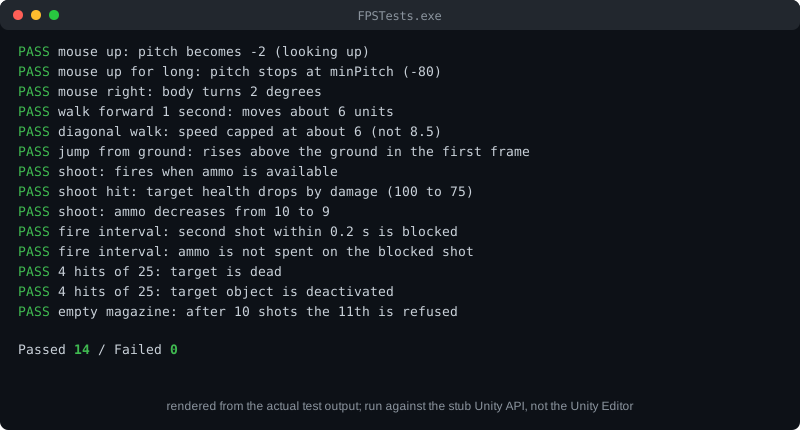
The test harness uses a stub Unity API (`UnityStubs.cs`, included in the Thai version of this article) and a test file `FPSTests.cs`. The test file checks mouse look, movement, jumping, firing, the fire interval, the ammo limit, and target death.
Compile and run:
1. Create a `build` folder and copy `UnityStubs.cs`, `FPSTests.cs` and the four scripts into it.
2. In the copies only, delete the `using UnityEngine;` line. Keep it in the real project scripts.
3. Compile with a recent C# compiler (for example `csc -langversion:latest -out:FPSTests.exe *.cs`) and run `FPSTests.exe`.
Test results
PASS  mouse up: pitch becomes -2 (looking up)
PASS  mouse up for long: pitch stops at minPitch (-80)
PASS  mouse right: body turns 2 degrees
PASS  walk forward 1 second: moves about 6 units
PASS  diagonal walk: speed capped at about 6 (not 8.5)
PASS  jump from ground: rises above the ground in the first frame
PASS  shoot: fires when ammo is available
PASS  shoot hit: target health drops by damage (100 to 75)
PASS  shoot: ammo decreases from 10 to 9
PASS  fire interval: second shot within 0.2 s is blocked
PASS  fire interval: ammo is not spent on the blocked shot
PASS  4 hits of 25: target is dead
PASS  4 hits of 25: target object is deactivated
PASS  empty magazine: after 10 shots the 11th is refused

Passed 14 / Failed 0
These results come from the stub, not from Unity. Physics, collisions, animation and real camera behaviour still need to be checked by pressing Play in the editor.
Step 8: test in the editor
Press **Play** and check:
- Moving the mouse turns the camera left and right and tilts it up and down, but not past -80 or 80 degrees.
- W, A, S and D move the character in the direction it faces.
- Space makes the character jump.
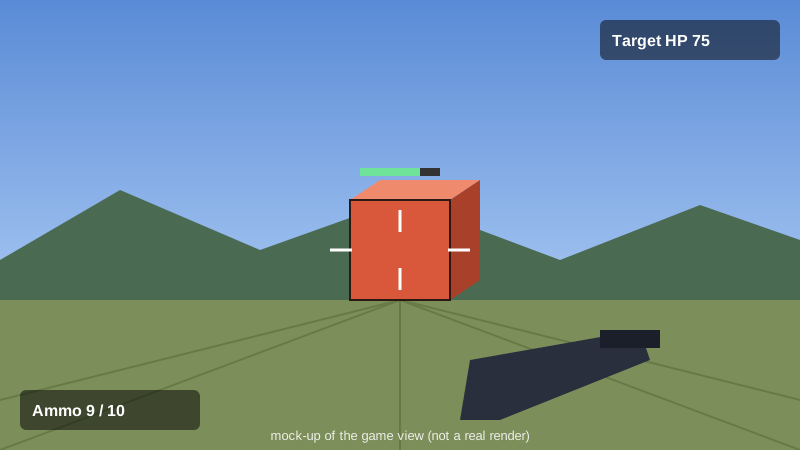
- Left-click fires. The target loses health with each hit and disappears after four hits.
- After ten shots, clicking again does nothing.
Common problems
- **The camera does not turn:** check the Active Input Handling setting, and that the Body field of `MouseLook` contains `Player`.
- **The character walks through walls:** check that the walls have colliders and that the Character Controller fits the character.
- **Shots miss:** check that the Muzzle points forward (along Z) and that the target has a collider and a `Target` component.
- **Mathf.Max error:** do not use `Mathf.Max` with an int variable. Use the check shown in the article instead.
Summary
An FPS has four main systems: camera look, movement, raycast shooting and targets with health. Each is a small script that can be tested separately. Testing caught a compile error before any play test, which saves time later. Next steps include enemies that move, an on-screen ammo counter, and reloading.