Loading 3D Models and Building a Fighting Game in Unity
A fighting game needs characters that move convincingly: punches, kicks, blocks and a death animation. Those characters come from 3D models that already have a skeleton and animations. This article covers two things together: loading a model into the game at runtime from code, and building the combat system that uses it, including attacks, blocking, health and an AI opponent.
Note: the code keeps the Thai comments from the original version. It has not been run in the Unity Editor. Tests run against a stub Unity API written for this article, which confirms the script logic only. Check the model and animations in the editor. The full stub file is in the Thai version.
What you need
- Unity Hub and the latest LTS Unity Editor
- A 3D character model with a Humanoid rig and animations, in FBX format. Free options exist, but check each source's licence before use
- The basics from the FPS article (scripts, the Inspector, compiling and running tests)
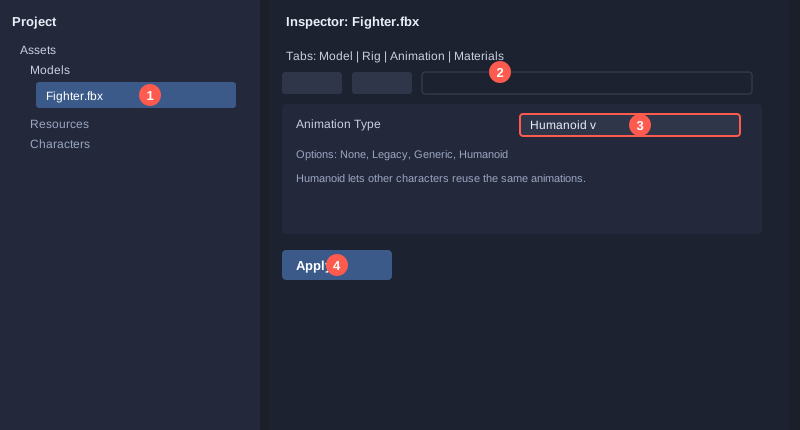
Step 1: create a project and import the model
1. In Unity Hub, click **New project**, choose the **3D (URP)** or **3D** template and name it `MyFighter`.
2. Drag the character's FBX file into `Assets/Models/`.
3. Select the FBX. In the Inspector, under **Rig**, set **Animation Type** to **Humanoid** and click **Apply**.
4. Under **Animation**, check that the clips are there: Idle, Punch, Kick, Block, Hit and Die.
Setting Humanoid matters because it lets animations from other characters work on this one.
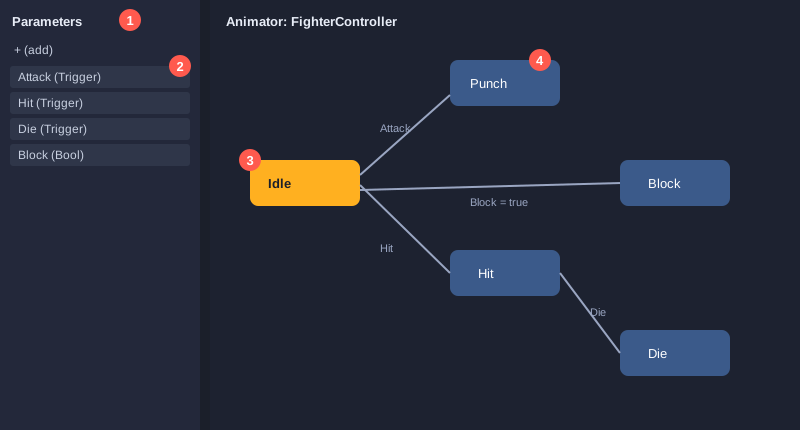
Step 2: create an Animator Controller
1. Right-click in `Assets` and choose **Create → Animation → Animator Controller**. Name it `FighterController`.
2. Double-click it to open the Animator window. Drag the Idle clip into the graph and set it as the default state (orange).
3. Create a **Trigger** parameter named `Attack`, `Hit` and `Die`, and a **Bool** named `Block`.
4. Create a Punch state reached from Idle with the `Attack` trigger, and Hit and Die states in the same way.
5. Create a Block state entered when `Block` is true and left when it is false.
Step 3: load the model at runtime from code
Loading from code is useful when a game lets the player choose among several characters without placing them all in the scene beforehand. The simplest method is to keep prefabs in `Assets/Resources/` and load them by name.
1. Drag the character prefab, with its Animator Controller already set, to `Assets/Resources/Characters/Fighter.prefab`.
2. Create a script named `ModelLoader` and paste this code.
using UnityEngine;

// โหลดโมเดลตัวละครตอนรันเกม จากโฟลเดอร์ Resources แล้วติดตั้งไว้ใต้จุดที่กำหนด
// ก่อนใช้งานให้วางไฟล์ Prefab ไว้ที่ Assets/Resources/Characters/<ชื่อ>.prefab
public class ModelLoader : MonoBehaviour
{
    [SerializeField] private string characterPath = "Characters/Fighter";  // ไม่ต้องใส่นามสกุลไฟล์
    [SerializeField] private Transform modelParent;                       // จุดที่จะวางโมเดล

    private GameObject model;
    private Animator animator;

    public GameObject Model => model;
    public Animator Animator => animator;

    private void Awake()
    {
        Load();
    }

    // คืนค่า true ถ้าโหลดสำเร็จและมี Animator ให้ควบคุม
    public bool Load()
    {
        GameObject prefab = Resources.Load<GameObject>(characterPath);
        if (prefab == null)
        {
            Debug.LogError("ไม่พบโมเดลที่ Resources/" + characterPath);
            return false;
        }

        model = Object.Instantiate(prefab, modelParent);
        animator = model.GetComponent<Animator>();
        if (animator == null)
        {
            Debug.LogError("โมเดลนี้ไม่มี Animator");
            return false;
        }
        return true;
    }
}
Key points:
- `Resources.Load<GameObject>` finds the file in the `Resources` folder without needing the extension.
- `Object.Instantiate` makes a copy of the prefab in the scene, so you can spawn it several times.
- The script checks for `null` both when finding the file and when finding the Animator, so errors appear in the Console straight away instead of failing later.
Note: `Resources` suits small projects and learning. Larger projects that load many files should use Addressables.
Step 4: the fighter
`Fighter` keeps health, takes damage, blocks, attacks, and drives the Animator so the right animation plays.
using UnityEngine;

// ตัวละครนักสู้: มีเลือด โจมตี ป้องกัน และตาย ผ่าน Animator เพื่อให้เล่นท่าทางตามเหตุการณ์
public class Fighter : MonoBehaviour
{
    [SerializeField] private int maxHealth = 100;
    [SerializeField] private int attackDamage = 10;
    [SerializeField] private float attackRange = 1.5f;     // ระยะที่โจมตีถึง (เมตร)
    [SerializeField] private float attackCooldown = 0.6f;  // เวลาพักหลังโจมตีแต่ละครั้ง (วินาที)
    [SerializeField] private float blockMultiplier = 0.5f; // ป้องกันแล้วรับดาเมจเหลือกี่เปอร์เซ็นต์

    private int health;
    private bool isBlocking;
    private float nextAttackTime;
    private Animator animator;

    public int Health => health;
    public bool IsDead => health <= 0;
    public bool IsBlocking => isBlocking;

    public void Init(Animator animatorSource)
    {
        animator = animatorSource;
        health = maxHealth;
    }

    // โจมตีคู่ต่อสู้ คืน true ถ้าการโจมตีเกิดขึ้น (ไม่ได้อยู่ในช่วงพัก ไม่ได้ตาย ไม่ได้กำลังป้องกัน)
    public bool Attack(Fighter target)
    {
        if (IsDead || isBlocking || Time.time < nextAttackTime) return false;

        nextAttackTime = Time.time + attackCooldown;
        SetTrigger("Attack");

        if (DistanceTo(target) <= attackRange)
        {
            target.TakeHit(attackDamage);
        }
        return true;
    }

    public void SetBlocking(bool value)
    {
        if (IsDead) return;
        isBlocking = value;
        animator?.SetBool("Block", value);
    }

    public void TakeHit(int damage)
    {
        if (IsDead) return;

        int finalDamage = isBlocking ? (int)(damage * blockMultiplier) : damage;
        health -= finalDamage;
        if (health < 0) health = 0;

        if (IsDead)
        {
            SetTrigger("Die");
        }
        else
        {
            SetTrigger("Hit");
        }
    }

    public float DistanceTo(Fighter other)
    {
        return Vector3.Distance(transform.position, other.transform.position);
    }

    private void SetTrigger(string name)
    {
        animator?.SetTrigger(name);
    }
}
Key points:
- The cooldown (`attackCooldown`) stops the player from spamming attacks.
- While blocking, the fighter cannot attack and takes reduced damage through `blockMultiplier`.
- Every state change goes through Animator triggers, so the game logic does not need to know how the animation plays.
- Hits are decided by simple distance. That is enough for a learning project, but real games usually use hitboxes such as `Physics.OverlapBox` that match the animation.
Step 5: the AI opponent
`FighterAI` walks toward the player and attacks when in range.
using UnityEngine;

// สมองของคู่ต่อสู้: เดินเข้าหาผู้เล่น และโจมตีเมื่ออยู่ในระยะ
[RequireComponent(typeof(Fighter))]
public class FighterAI : MonoBehaviour
{
    [SerializeField] private Fighter target;         // ผู้เล่น
    [SerializeField] private float walkSpeed = 2f;   // ความเร็วเดินเข้าหา (เมตรต่อวินาที)

    private Fighter self;

    private void Awake()
    {
        self = GetComponent<Fighter>();
    }

    private void Update()
    {
        if (self.IsDead || target == null || target.IsDead) return;

        if (self.DistanceTo(target) > 1.5f)
        {
            // ยังไกลเกินไป ให้เดินเข้าหาเป้าหมาย
            Vector3 direction = (target.transform.position - transform.position).normalized;
            transform.position = transform.position + direction * walkSpeed * Time.deltaTime;
        }
        else
        {
            // อยู่ในระยะแล้ว ลองโจมตี (ถ้าพักอยู่จะไม่โจมตี)
            self.Attack(target);
        }
    }
}
Key points:
- This AI has just two states, approach and attack. It is a good start. Real games usually use a state machine or behaviour tree that also includes guarding, dodging and choosing moves.
- The stopping distance (1.5) should match the fighter's `attackRange`, so the AI can attack once it arrives.
Step 6: decide the winner
`RoundManager` checks who has died and announces the winner.
using UnityEngine;

// ตัดสินผลแมตช์: ฝ่ายที่เหลือเลือดหรือยืนอยู่หลังอีกฝ่ายตายคือผู้ชนะ
public class RoundManager : MonoBehaviour
{
    [SerializeField] private Fighter player;
    [SerializeField] private Fighter enemy;

    // คืน "Player" หรือ "Enemy" เมื่อมีคนตาย, คืน null ถ้าการต่อสู้ยังไม่จบ
    public string GetWinner()
    {
        if (enemy.IsDead && !player.IsDead) return "Player";
        if (player.IsDead && !enemy.IsDead) return "Enemy";
        if (player.IsDead && enemy.IsDead) return "Draw";
        return null;
    }
}
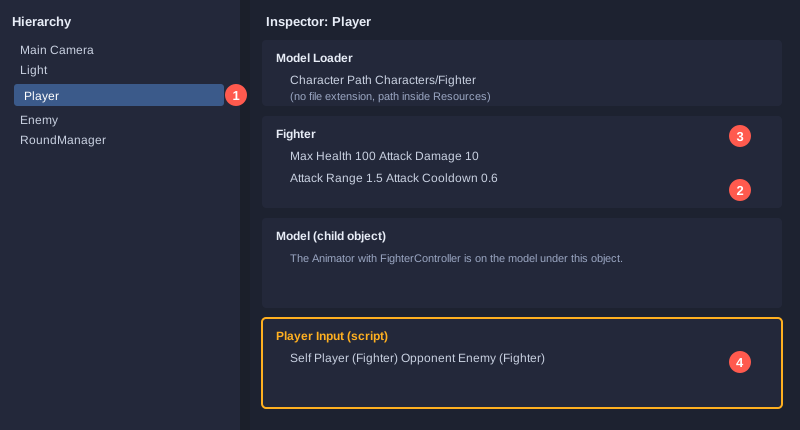
Step 7: assemble the scene and control the player
1. Add the ground and lighting to the scene.
2. Create a GameObject named `Player`. Add a `ModelLoader` with `characterPath` set to `Characters/Fighter`, and add `Fighter`.
3. Call `Init` on the `Fighter` with the Animator from the `ModelLoader`, so health starts at 100. A small scene controller script is the usual place for this.
4. Create an `Enemy` GameObject the same way, then add `FighterAI` with `Target` set to `Player`.
5. Create a `RoundManager` GameObject and link both fighters.
This simple controller uses left-click to attack and right-hold to block.
using UnityEngine;

// ผู้เล่นควบคุมด้วยเมาส์: คลิกซ้ายโจมตี คลิกขวาค้างเพื่อป้องกัน
public class PlayerInput : MonoBehaviour
{
    [SerializeField] private Fighter self;
    [SerializeField] private Fighter opponent;

    private void Update()
    {
        if (Input.GetMouseButtonDown(0))
        {
            self.Attack(opponent);
        }
        self.SetBlocking(Input.GetMouseButton(1));
    }
}
Step 8: automated tests
The tests use the same approach as the FPS article. The stub file (`FightStubs.cs`) and the 24-case test file (`FightTests.cs`) are in the Thai version. The tests cover in-range and out-of-range attacks, the cooldown, blocking, death, a dead fighter that cannot attack, AI approach and attack, model loading with a missing file and with no Animator, and the winner logic.
To compile and run: copy the stub, the test file and the four scripts (`ModelLoader.cs`, `Fighter.cs`, `FighterAI.cs`, `RoundManager.cs`) into a `build` folder, delete `using UnityEngine;` from the copies only, compile with a recent C# compiler (for example `csc -langversion:latest -out:FightTests.exe *.cs`) and run `FightTests.exe`.
Test results
PASS  attack in range: attack starts
PASS  attack in range: defender loses 10 health (100 to 90)
PASS  attack in range: defender plays Hit animation
PASS  attack: attacker plays Attack animation
PASS  attack out of range: no damage (still 100)
PASS  cooldown: first attack succeeds
PASS  cooldown: second attack at 0.3 s is refused
PASS  cooldown: only one hit landed (90)
PASS  cooldown: attack after 0.7 s is allowed
PASS  block: damage halved (100 to 95)
PASS  death: fighter is dead at 0 health
PASS  death: Die animation is played
PASS  dead fighter cannot attack
PASS  damage to a dead fighter is ignored
PASS  AI approaches the player when far
PASS  AI attacks when in range
PASS  model loader: loads the prefab from Resources
PASS  model loader: finds the Animator on the model
PASS  model loader: missing file returns false
PASS  model loader: missing file logs an error
PASS  model loader: prefab without Animator returns false
PASS  round: no winner while both are alive
PASS  round: player wins when enemy is dead
PASS  round: enemy wins when player is dead

Passed 24 / Failed 0
These results come from the stub, not Unity. Model appearance, animation timing and real hit detection still need checking in the editor.
One bug the tests helped prevent: an early version of `Fighter` used `Mathf.Max(0, health - finalDamage)`. That does not compile, because `Mathf.Max` takes floats and `health` is an int. The fix is the direct subtraction with a clamp at zero.
Step 9: test in the editor
Press **Play** and check:
- The player model loads with its Animator and plays Idle.
- Left-click plays Punch, and the enemy's health drops.
- Right-hold plays Block, and damage is reduced.
- The enemy walks toward you from a distance and attacks when close.
- When health reaches zero, the Die animation plays.
Common problems
- **The model does not appear:** check the prefab is in `Assets/Resources/Characters/` and the name in `characterPath` matches exactly.
- **The Console says there is no Animator:** check the prefab has an Animator component with a controller assigned.
- **Animations do not change:** check the trigger names in the Animator Controller match the code exactly (`Attack`, `Hit`, `Die`).
- **The model floats or turns wrongly:** check the rig is Humanoid and the clip's Root Motion setting.
- **The AI does not move:** check the AI's Target field contains the player and that the AI's `Fighter` has an Animator.
Next steps
Once the basic fight works, you could add combos (chained moves), a jump and dodge system, several selectable characters, and sound and particle effects on hits.
Summary
Loading models from code lets the game pick characters flexibly, and the Animator keeps the animation separate from the combat logic. The combat system is split into four clear parts: the fighter, the AI, the round judge and the model loader. Each part can be tested on its own, and the tests catch compile errors before you open the editor.