Building a 2D Game in Unity from Scratch: Adding a Character, Writing Code, Running and Testing
Unity is one of the most widely used game engines, for beginners and professional teams alike. A 2D game is a good place to learn the core ideas: scenes, GameObjects, components, physics and reading player input, without a large amount of complexity. This article takes you through creating a new project, adding a character to the scene, writing scripts that make the character walk and jump, making the camera follow it, and then testing that the code behaves correctly.
Note: the code in this article keeps the Thai comments from the original version. The code itself works the same in any language, and you can translate the comments if you wish.
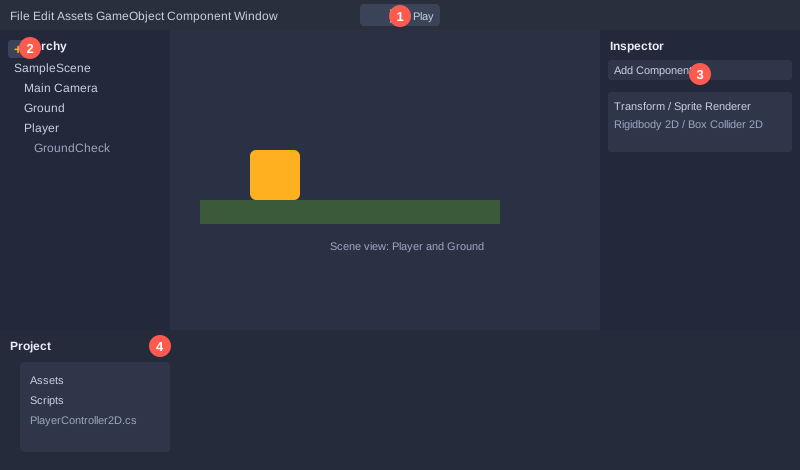
What you need
- A computer with **Unity Hub**, from unity.com
- The latest LTS version of the Unity Editor (for example Unity 6 LTS or 2022 LTS), installed through Unity Hub
- VS Code or Visual Studio. Unity Hub can offer to install an integration for you when you create a project
- A small character image in PNG format. If you have none, a coloured square generated by Unity will do
Step 1: create a 2D project
1. Open Unity Hub, click **New project** and choose the **Universal 2D** (URP) or **2D** (Built-in) template, using the names shown in Unity Hub.
2. Name the project, for example `MyPlatformer`, and click **Create project**.
3. Wait for Unity to open. You will see an empty scene called `SampleScene`.
A scene is the play area of the game. Everything in it, such as the character, the ground and the camera, is a **GameObject**, and components attached to each GameObject give it its behaviour.
Step 2: set up input
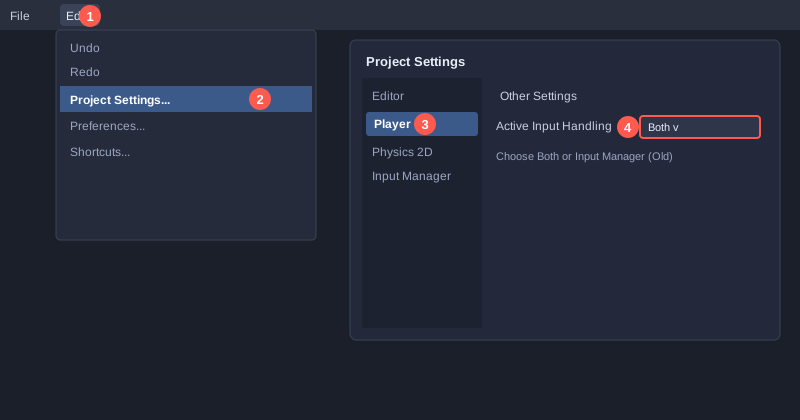
The script in this article uses the classic input system (Input Manager). To enable it:
1. Go to **Edit → Project Settings → Player**.
2. Find **Active Input Handling** and select **Both** or **Input Manager (Old)**.
3. Accept Unity's prompt to restart the editor.
The **Horizontal** axis (left and right) and the **Jump** button (Space) are already included in the default setup. Left and right use A/D or the arrow keys.
Step 3: create the ground
1. Right-click in the Hierarchy and choose **2D Object → Sprites → Square**. Name it `Ground`.
2. In the Inspector set Scale to `X = 20`, `Y = 1` to make a long floor.
3. Set Position to `X = 0`, `Y = -2`.
4. Click **Add Component** and add a **Box Collider 2D**, so the character can stand on it.
5. Create a layer called `Ground`: click the **Layer** dropdown at the top of the Inspector, choose **Add Layer**, then return to `Ground` and assign it the `Ground` layer.
The layer lets the script recognise what the character's feet are touching, so it can tell floor from walls or enemies.
Step 4: add the character
1. Right-click in the Hierarchy and choose **2D Object → Sprites → Square**. Name it `Player`.
2. Set Position to `X = 0`, `Y = 1` so the character starts above the ground.
3. If you have a character image, drag the PNG into the **Sprite** field of the Sprite Renderer.
4. Add a **Rigidbody 2D**, set **Body Type** to Dynamic and tick **Freeze Rotation Z** so the character does not topple.
5. Add a **Box Collider 2D**.
The Rigidbody 2D makes the object fall under gravity and collide with others. Without it the character would float in place.
Step 5: create a ground check point
1. Right-click `Player` in the Hierarchy and choose **Create Empty**. Name it `GroundCheck`.
2. Drag it to the character's feet, for example Position `X = 0`, `Y = -0.5`.
The script uses this point as the centre of a small circle that checks whether there is ground underneath.
Step 6: write the character controller
Right-click in the Project window and choose **Create → C# Script**. Name it `PlayerController2D`, open it, and paste in this code.
using UnityEngine;

// ควบคุมตัวละคร 2D: เดินซ้ายขวา กระโดด และหันหน้าตามทิศทาง
[RequireComponent(typeof(Rigidbody2D))]
[RequireComponent(typeof(SpriteRenderer))]
public class PlayerController2D : MonoBehaviour
{
    [SerializeField] private float moveSpeed = 5f;      // ความเร็วเดิน
    [SerializeField] private float jumpForce = 12f;     // แรงกระโดด
    [SerializeField] private Transform groundCheck;     // จุดตรวจพื้น
    [SerializeField] private float groundRadius = 0.15f;
    [SerializeField] private LayerMask groundLayer;     // เลเยอร์ที่นับว่าเป็นพื้น

    private Rigidbody2D rb;
    private SpriteRenderer sprite;
    private float moveInput;
    private bool isGrounded;
    private bool jumpRequested;

    public bool IsGrounded => isGrounded;

    private void Awake()
    {
        rb = GetComponent<Rigidbody2D>();
        sprite = GetComponent<SpriteRenderer>();
    }

    // Update ทำงานทุกเฟรม ใช้อ่านปุ่มกด แต่ยังไม่กระโดดทันที
    // เพราะค่า isGrounded ถูกอัปเดตใน FixedUpdate ถ้ากระโดดใน Update อาจใช้สถานะพื้นเก่า
    private void Update()
    {
        moveInput = Input.GetAxisRaw("Horizontal");   // -1 ซ้าย, 0 ไม่กด, 1 ขวา

        if (Input.GetButtonDown("Jump"))
        {
            jumpRequested = true;                      // จำไว้ว่าผู้เล่นกดกระโดด
        }

        if (moveInput != 0)
        {
            sprite.flipX = moveInput < 0;             // หันหน้าไปทางที่เดิน
        }
    }

    // FixedUpdate ทำงานตามจังหวะฟิสิกส์ ตรวจพื้นก่อน แล้วค่อยตัดสินใจกระโดด
    private void FixedUpdate()
    {
        // ถ้ายังไม่ได้ผูก groundCheck ใน Inspector ให้ใช้ตำแหน่งของตัวละครแทน
        Vector2 checkPosition = groundCheck != null ? groundCheck.position : transform.position;
        isGrounded = Physics2D.OverlapCircle(checkPosition, groundRadius, groundLayer);

        float verticalSpeed = rb.velocity.y;
        if (jumpRequested && isGrounded)
        {
            verticalSpeed = jumpForce;
        }
        jumpRequested = false;                         // ใช้คำขอกระโดดแล้ว

        rb.velocity = new Vector2(moveInput * moveSpeed, verticalSpeed);
    }
}
Key points:
- `[SerializeField]` shows a private field in the Inspector, so you can tune values without editing code.
- `Input.GetAxisRaw("Horizontal")` returns -1, 0 or 1, giving a clear direction.
- `Input.GetButtonDown("Jump")` is true only on the frame the key is pressed, so holding Space does not repeat the jump.
- `Physics2D.OverlapCircle` checks whether any collider on the ground layer overlaps a circle of radius `groundRadius` around the ground check point.
- Update reads input and FixedUpdate runs the physics. If the jump happened inside Update, the character could jump just after walking off an edge, because `isGrounded` would still hold the previous value. Storing a jump request and acting on it in FixedUpdate avoids this, as the test in step 10 shows.
Step 7: connect the script
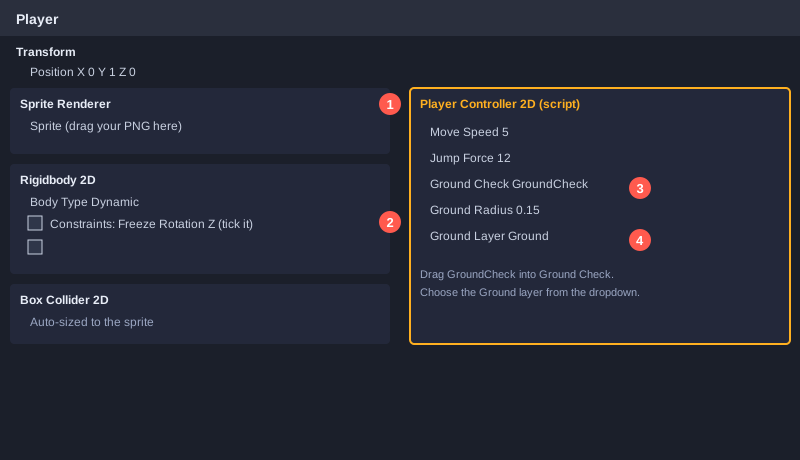
1. Drag the `PlayerController2D` script onto `Player`.
2. In the Inspector, drag `GroundCheck` into the **Ground Check** field.
3. Set **Ground Layer** to `Ground`.
4. Set **Move Speed** to 5 and **Jump Force** to 12, or choose values you like.
Step 8: make the camera follow the character
Create a script named `CameraFollow2D` and paste in this code.
using UnityEngine;

// กล้องติดตามตัวละครแบบนุ่มนวล และไม่ให้ตกเกินขอบล่างของฉาก
public class CameraFollow2D : MonoBehaviour
{
    [SerializeField] private Transform target;          // ตัวละครที่จะติดตาม
    [SerializeField] private float smoothTime = 0.2f;   // ยิ่งน้อยยิ่งตามทันเร็ว
    [SerializeField] private float minY = -2f;          // ขอบล่างของกล้อง

    private Vector3 velocity;

    private void LateUpdate()
    {
        if (target == null) return;

        Vector3 desired = new Vector3(target.position.x, Mathf.Max(target.position.y, minY), transform.position.z);
        transform.position = Vector3.SmoothDamp(transform.position, desired, ref velocity, smoothTime);
    }
}
`LateUpdate` runs after all Update calls, which suits a camera that must follow a character that has just moved this frame. `Vector3.SmoothDamp` makes the movement smooth rather than jerky.
Select **Main Camera**, add `CameraFollow2D`, drag `Player` into the **Target** field, and set the camera's Z position to `-10` so everything in the scene is in front of it.
Step 9: run the game
Press **Play** at the top of the editor and try:
- A or Left arrow: the character walks left and faces left.
- D or Right arrow: the character walks right and faces right.
- Space while on the ground: the character jumps.
- Space while in the air: the character does not jump again.
- The camera follows smoothly.
Press Play again to stop. Values changed in the Inspector during play are reset when you stop, so make any tuning changes while the game is stopped and then save the project.
Step 10: write automated tests
Trying things by hand works for a small game, but automated tests catch mistakes faster as the code grows. Unity has its own Unity Test Framework, which is worth learning. This article uses a simpler approach: it simulates Unity's frame loop with plain C#, which lets you test the script's logic without opening the editor.
The test below calls Update and FixedUpdate in order, sets up input and ground state, moves the object by its velocity, and checks the results.
using System;

public static class PlayerTests
{
    private const float Dt = 1f / 50f;   // 1 FixedUpdate equals 1/50 second
    private static int passed = 0, failed = 0;

    private static void Check(string name, bool condition)
    {
        if (condition) { passed++; Console.WriteLine("PASS  " + name); }
        else { failed++; Console.WriteLine("FAIL  " + name); }
    }

    private static PlayerController2D CreatePlayer(out Rigidbody2D rb, out SpriteRenderer sprite)
    {
        var player = new PlayerController2D();
        rb = new Rigidbody2D();
        sprite = new SpriteRenderer();
        player.Components[typeof(Rigidbody2D)] = rb;
        player.Components[typeof(SpriteRenderer)] = sprite;
        player.Call("Awake");
        return player;
    }

    private static void Step(PlayerController2D player, Rigidbody2D rb)
    {
        player.Call("Update");
        player.Call("FixedUpdate");
        player.transform.position = new Vector3(
            player.transform.position.x + rb.velocity.x * Dt,
            player.transform.position.y + rb.velocity.y * Dt, 0);
    }

    public static int Main()
    {
        // 1. Hold right and walk right
        {
            Rigidbody2D rb; SpriteRenderer sprite;
            var player = CreatePlayer(out rb, out sprite);
            Physics2D.GroundBelowPlayer = true;
            Input.HorizontalAxis = 1f;
            for (int i = 0; i < 50; i++) Step(player, rb);
            Check("walk right: x velocity equals moveSpeed (5)", Math.Abs(rb.velocity.x - 5f) < 0.001f);
            Check("walk right: x position moves about 5 units per second", Math.Abs(player.transform.position.x - 5f) < 0.2f);
            Check("walk right: faces right (flipX = false)", sprite.flipX == false);
        }

        // 2. Hold left and face left
        {
            Rigidbody2D rb; SpriteRenderer sprite;
            var player = CreatePlayer(out rb, out sprite);
            Physics2D.GroundBelowPlayer = true;
            Input.HorizontalAxis = -1f;
            Step(player, rb);
            Check("walk left: x velocity is negative", rb.velocity.x < 0);
            Check("walk left: faces left (flipX = true)", sprite.flipX == true);
        }

        // 3. No input means the character stays still
        {
            Rigidbody2D rb; SpriteRenderer sprite;
            var player = CreatePlayer(out rb, out sprite);
            Physics2D.GroundBelowPlayer = true;
            Input.HorizontalAxis = 0f;
            Step(player, rb);
            Check("no input: x velocity is 0", rb.velocity.x == 0f);
        }

        // 4. Jump from the ground
        {
            Rigidbody2D rb; SpriteRenderer sprite;
            var player = CreatePlayer(out rb, out sprite);
            Physics2D.GroundBelowPlayer = true;
            Input.HorizontalAxis = 0f;
            Step(player, rb);                    // let FixedUpdate check the ground first
            Input.JumpPressedThisFrame = true;
            Step(player, rb);
            Input.JumpPressedThisFrame = false;
            Check("jump on ground: y velocity equals jumpForce (12)", Math.Abs(rb.velocity.y - 12f) < 0.001f);
        }

        // 5. Pressing jump in mid-air must not jump again
        {
            Rigidbody2D rb; SpriteRenderer sprite;
            var player = CreatePlayer(out rb, out sprite);
            Physics2D.GroundBelowPlayer = true;
            Input.HorizontalAxis = 0f;
            Step(player, rb);
            Physics2D.GroundBelowPlayer = false; // the character has left the ground
            rb.velocity = new Vector2(0, -3f);   // falling
            Input.JumpPressedThisFrame = true;
            Step(player, rb);
            Input.JumpPressedThisFrame = false;
            Check("jump in air: y velocity unchanged (still falling)", Math.Abs(rb.velocity.y + 3f) < 0.001f);
        }

        Console.WriteLine();
        Console.WriteLine("Passed " + passed + " / Failed " + failed);
        return failed == 0 ? 0 : 1;
    }
}
The stub file shown in the Thai version of this article (`UnityStubs.cs`) provides the `Vector2`, `Rigidbody2D`, `Input`, `Physics2D` and related types, so the test runs outside Unity. The stubs do not simulate real physics or rendering. They check the calculations and the order in which the script runs, which is what this test is for. Compile the four files together with a recent C# compiler, then run the executable. In the scripts used with Unity, keep `using UnityEngine;`. Remove that line only in the copies used for the stub test.
Result of running the tests
Compiled with the Roslyn C# compiler and run, the output was:
PASS  walk right: x velocity equals moveSpeed (5)
PASS  walk right: x position moves about 5 units per second
PASS  walk right: faces right (flipX = false)
PASS  walk left: x velocity is negative
PASS  walk left: faces left (flipX = true)
PASS  no input: x velocity is 0
PASS  jump on ground: y velocity equals jumpForce (12)
PASS  jump in air: y velocity unchanged (still falling)

Passed 8 / Failed 0
A bug the test found
The first version of the controller jumped directly inside Update. The test "jump in air" failed: Update read `isGrounded` from the previous frame, which was still true, so the character jumped again while it was already airborne. In a real game this happens when the character walks off a platform edge. The fix was to store the jump request in `jumpRequested` and let FixedUpdate check the ground and decide to jump in the same step. That is the version in step 6.
This is why automated tests matter: the mistake is easy to miss by hand, but a clear test that covers the edge case finds it straight away.
Step 11: build the game
1. Open **File → Build Profiles** (called **Build Settings** in older versions).
2. Choose your platform, such as Windows or WebGL, and click **Build**.
3. Choose a folder. Unity creates an `.exe` file or a web build that others can play.
Common problems and fixes
- **The character does not move:** Check the Active Input Handling setting, and that the Rigidbody 2D Body Type is Dynamic.
- **The character falls through the ground:** Check that the ground has a Box Collider 2D, and that the character's Rigidbody 2D is not Kinematic.
- **The character cannot jump:** Check that Ground Layer is set to `Ground` and that GroundCheck sits at the character's feet.
- **The character topples over:** Tick Freeze Rotation Z on the Rigidbody 2D.
- **The camera does not follow:** Check that `Player` is in the Target field of `CameraFollow2D`.
- **A warning says velocity is obsolete:** Unity 6 provides `linearVelocity`. If your version warns about `velocity`, rename it to `linearVelocity`.
Next steps
Once the character walks and jumps, you can add coins with a Trigger Collider 2D and `OnTriggerEnter2D`, enemies that patrol, health and death, and a background made with Tilemap. All of these use the same ideas as this article.
Summary
Making a 2D game in Unity starts with understanding that everything is a GameObject made of components. The controller reads input in Update and handles physics in FixedUpdate, and automated tests catch mistakes that are hard to see by eye. Work through the steps one at a time, adjust the values in the Inspector, and make the game your own.