React from Scratch: Build a Website with 21 Examples
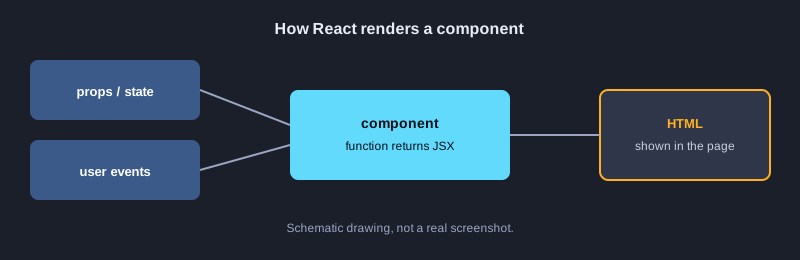
React is a JavaScript library for building interactive web pages. It splits a page into small pieces called components. Each component receives data and returns part of the page. This article takes you from rendering your first text to assembling a small website with a menu, data-driven cards and a footer. Every example is a real file that was run, and the output shown is the real output.
What you need
You need Node.js 18 or later, basic JavaScript and any editor. Install the packages with npm install [email protected] [email protected], then run each example with this article's test runner. Examples with steps click buttons in a simulated browser built with jsdom.
Illustrations
Example 1: Render your first text
A component is a function that returns JSX. This example builds a heading and converts it to HTML with renderToStaticMarkup.
import React from "react";

export function App() {
  return <h1>สวัสดี React</h1>;
}
**Real output**
<h1>สวัสดี React</h1>
Example 2: Render a list with map
Use map to turn an array into one li per item. When the data changes, the page follows without editing HTML.
import React from "react";

const fruits = ["ทุเรียน", "มังคุด", "มะม่วง"];

export function App() {
  return (
    <ul>
      {fruits.map(f => <li key={f}>{f}</li>)}
    </ul>
  );
}
**Real output**
<ul><li>ทุเรียน</li><li>มังคุด</li><li>มะม่วง</li></ul>
Example 3: Pass props to a component
Props are data that a parent gives its child. The same component can be reused with different data.
import React from "react";

function Greeting({ name, age }) {
  return <p>สวัสดี {name} อายุ {age} ปี</p>;
}

export function App() {
  return (
    <div>
      <Greeting name="สมชาย" age={20} />
      <Greeting name="สมหญิง" age={22} />
    </div>
  );
}
**Real output**
<div><p>สวัสดี สมชาย อายุ 20 ปี</p><p>สวัสดี สมหญิง อายุ 22 ปี</p></div>
Example 4: Conditional rendering
Use && and the ternary operator to choose what appears on the page.
import React from "react";

function Status({ online }) {
  return (
    <div>
      {online ? <span>ออนไลน์</span> : <span>ออฟไลน์</span>}
      {online && <em>พร้อมแชท</em>}
    </div>
  );
}

export function App() {
  return <Status online={true} />;
}
**Real output**
<div><span>ออนไลน์</span><em>พร้อมแชท</em></div>
Example 5: Fragment
When you do not want an extra div, wrap several elements in <> ... </>.
import React from "react";

function Header() {
  return (
    <>
      <h2>หัวข้อ</h2>
      <p>ไม่ต้องครอบด้วย div</p>
    </>
  );
}

export function App() {
  return <Header />;
}
**Real output**
<h2>หัวข้อ</h2><p>ไม่ต้องครอบด้วย div</p>
Example 6: Keys in a table
Build a table from data and use the id as the key so React can track each row.
import React from "react";

const students = [
  { id: 1, name: "สมชาย", score: 85 },
  { id: 2, name: "สมหญิง", score: 72 },
];

export function App() {
  return (
    <table>
      <tbody>
        {students.map(s => (
          <tr key={s.id}>
            <td>{s.name}</td>
            <td>{s.score}</td>
          </tr>
        ))}
      </tbody>
    </table>
  );
}
**Real output**
<table><tbody><tr><td>สมชาย</td><td>85</td></tr><tr><td>สมหญิง</td><td>72</td></tr></tbody></table>
Example 7: Style as an object
React styles take an object in camelCase, such as backgroundColor and borderRadius.
import React from "react";

const box = {
  padding: 12,
  backgroundColor: "#eef4ff",
  borderRadius: 8,
  color: "#1a1a1a",
};

export function App() {
  return <div style={box}>กล่องที่ตกแต่งด้วย style object</div>;
}
**Real output**
<div style="padding:12px;background-color:#eef4ff;border-radius:8px;color:#1a1a1a">กล่องที่ตกแต่งด้วย style object</div>
Example 8: children
Put JSX between an opening and closing tag so the component can wrap any content.
import React from "react";

function Card({ title, children }) {
  return (
    <section>
      <h3>{title}</h3>
      <div>{children}</div>
    </section>
  );
}

export function App() {
  return (
    <Card title="ข่าวสาร">
      <p>เนื้อหาที่ส่งเข้าไปใน children</p>
    </Card>
  );
}
**Real output**
<section><h3>ข่าวสาร</h3><div><p>เนื้อหาที่ส่งเข้าไปใน children</p></div></section>
Example 9: A counter with state
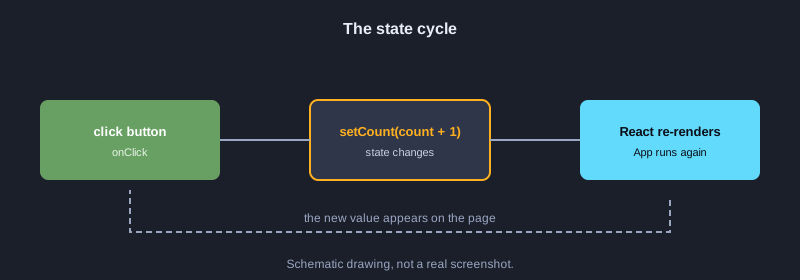
useState keeps a value that changes. Calling the setter makes React render again. This example clicks the button twice and shows the change.
import React, { useState } from "react";

export function App() {
  const [count, setCount] = useState(0);
  return (
    <div>
      <p data-out>นับ: {count}</p>
      <button id="inc" onClick={() => setCount(count + 1)}>+1</button>
    </div>
  );
}

export const steps = ["#inc", "#inc"];
**Real output**
ข้อความเริ่มต้น: นับ: 0
หลังคลิกครั้งที่ 1: นับ: 1
หลังคลิกครั้งที่ 2: นับ: 2
Example 10: A controlled input
The input value is controlled by state and updated in onChange on each keystroke. This example shows the starting value of zero characters.
import React, { useState } from "react";

export function App() {
  const [text, setText] = useState("");
  return (
    <div>
      <input id="box" value={text} onChange={e => setText(e.target.value)} />
      <p>พิมพ์แล้ว: {text.length} ตัวอักษร</p>
    </div>
  );
}
**Real output**
<div><input id="box" value=""/><p>พิมพ์แล้ว: 0 ตัวอักษร</p></div>
Example 11: An on/off switch
Store a boolean in state and flip it with !on on each click.
import React, { useState } from "react";

export function App() {
  const [on, setOn] = useState(false);
  return (
    <div>
      <p data-out>{on ? "เปิดอยู่" : "ปิดอยู่"}</p>
      <button id="toggle" onClick={() => setOn(!on)}>สลับ</button>
    </div>
  );
}

export const steps = ["#toggle", "#toggle"];
**Real output**
ข้อความเริ่มต้น: ปิดอยู่
หลังคลิกครั้งที่ 1: เปิดอยู่
หลังคลิกครั้งที่ 2: ปิดอยู่
Example 12: useEffect
An effect runs after the render. Use it for work such as loading data or setting something up when a component first appears.
import React, { useEffect, useState } from "react";

export function App() {
  const [message, setMessage] = useState("กำลังโหลด");
  useEffect(() => {
    setMessage("โหลดเสร็จแล้ว (จาก useEffect)");
  }, []);
  return <p data-out>{message}</p>;
}

export const steps = [];
**Real output**
ข้อความเริ่มต้น: โหลดเสร็จแล้ว (จาก useEffect)
Example 13: A form that saves its value
Read the input into state and save it when the button is clicked. This example starts with the name Somchai.
import React, { useState } from "react";

export function App() {
  const [name, setName] = useState("สมชาย");
  const [saved, setSaved] = useState("");
  return (
    <div>
      <input value={name} onChange={e => setName(e.target.value)} />
      <button id="save" onClick={() => setSaved(name)}>บันทึก</button>
      <p data-out>บันทึกแล้ว: {saved || "ยังไม่มี"}</p>
    </div>
  );
}

export const steps = ["#save"];
**Real output**
ข้อความเริ่มต้น: บันทึกแล้ว: ยังไม่มี
หลังคลิกครั้งที่ 1: บันทึกแล้ว: สมชาย
Example 14: A to-do list
Add an item by creating a new array with spread instead of changing the old array.
import React, { useState } from "react";

let nextId = 1;

export function App() {
  const [items, setItems] = useState([]);
  const add = () => {
    const id = nextId++;
    setItems([...items, { id, text: "งานที่ " + id }]);
  };
  return (
    <div>
      <button id="add" onClick={add}>เพิ่มงาน</button>
      <ul data-out>{items.map(i => <li key={i.id}>{i.text}</li>)}</ul>
    </div>
  );
}

export const steps = ["#add", "#add"];
**Real output**
ข้อความเริ่มต้น:
หลังคลิกครั้งที่ 1: งานที่ 1
หลังคลิกครั้งที่ 2: งานที่ 1งานที่ 2
Example 15: Context
Pass a theme value to deep components without passing props through every level.
import React, { createContext, useContext } from "react";

const ThemeContext = createContext("light");

function Button() {
  const theme = useContext(ThemeContext);
  return <button>ธีม: {theme}</button>;
}

export function App() {
  return (
    <ThemeContext.Provider value="dark">
      <Button />
    </ThemeContext.Provider>
  );
}
**Real output**
<button>ธีม: dark</button>
Example 16: useReducer
Manage state with several values or actions using an action and a reducer.
import React, { useReducer } from "react";

function reducer(state, action) {
  switch (action.type) {
    case "inc": return { count: state.count + 1 };
    case "dec": return { count: state.count - 1 };
    default: return state;
  }
}

export function App() {
  const [state, dispatch] = useReducer(reducer, { count: 0 });
  return (
    <div>
      <p data-out>ค่า: {state.count}</p>
      <button id="inc" onClick={() => dispatch({ type: "inc" })}>+</button>
      <button id="dec" onClick={() => dispatch({ type: "dec" })}>-</button>
    </div>
  );
}

export const steps = ["#inc", "#inc", "#dec"];
**Real output**
ข้อความเริ่มต้น: ค่า: 0
หลังคลิกครั้งที่ 1: ค่า: 1
หลังคลิกครั้งที่ 2: ค่า: 2
หลังคลิกครั้งที่ 3: ค่า: 1
Example 17: A custom hook
Put state logic in a function whose name starts with use so you can reuse it.
import React, { useState } from "react";

function useCounter(start) {
  const [count, setCount] = useState(start);
  return { count, increment: () => setCount(c => c + 1) };
}

export function App() {
  const { count, increment } = useCounter(10);
  return (
    <div>
      <p data-out>ค่าตอนนี้: {count}</p>
      <button id="inc" onClick={increment}>เพิ่ม</button>
    </div>
  );
}

export const steps = ["#inc"];
**Real output**
ข้อความเริ่มต้น: ค่าตอนนี้: 10
หลังคลิกครั้งที่ 1: ค่าตอนนี้: 11
Example 18: useMemo
Remember the result of an expensive calculation and recalculate only when a dependency changes.
import React, { useMemo } from "react";

const numbers = [1, 2, 3, 4, 5];

export function App() {
  const total = useMemo(() => numbers.reduce((a, b) => a + b, 0), []);
  return <p>ผลรวม = {total}</p>;
}
**Real output**
<p>ผลรวม = 15</p>
Example 19: Tabs
Choose content from an object according to the tab the user clicks. This example switches between tab A and tab B.
import React, { useState } from "react";

const content = {
  a: "เนื้อหาแท็บ A",
  b: "เนื้อหาแท็บ B",
};

export function App() {
  const [tab, setTab] = useState("a");
  return (
    <div>
      <button id="tab-a" onClick={() => setTab("a")}>แท็บ A</button>
      <button id="tab-b" onClick={() => setTab("b")}>แท็บ B</button>
      <p data-out>{content[tab]}</p>
    </div>
  );
}

export const steps = ["#tab-b", "#tab-a"];
**Real output**
ข้อความเริ่มต้น: เนื้อหาแท็บ A
หลังคลิกครั้งที่ 1: เนื้อหาแท็บ B
หลังคลิกครั้งที่ 2: เนื้อหาแท็บ A
Example 20: Load data
Load data when the component first appears, show a loading message, then show the list when loading is done.
import React, { useEffect, useState } from "react";

const DATA = ["สมชาย", "สมหญิง", "สมศักดิ์"];

export function App() {
  const [loading, setLoading] = useState(true);
  const [items, setItems] = useState([]);
  const load = () => {
    setLoading(true);
    setTimeout(() => { setItems(DATA); setLoading(false); }, 0);
  };
  useEffect(() => { load(); }, []);
  return (
    <div>
      <button id="reload" onClick={load}>โหลดใหม่</button>
      <div data-out>{loading ? <p>กำลังโหลด...</p> : <ul>{items.map(n => <li key={n}>{n}</li>)}</ul>}</div>
    </div>
  );
}

export const steps = ["#reload"];
**Real output**
ข้อความเริ่มต้น: กำลังโหลด...
หลังคลิกครั้งที่ 1: สมชายสมหญิงสมศักดิ์
Example 21: A small website from components
Combine everything into one page with a header and menu, a hero section, service cards built from data, and a footer.
import React from "react";

const menu = ["หน้าแรก", "บริการ", "ติดต่อ"];
const services = [
  { id: 1, name: "เว็บไซต์องค์กร", price: 15000 },
  { id: 2, name: "ร้านค้าออนไลน์", price: 25000 },
];

function Header() {
  return (
    <header style={{ background: "#1a2b4c", color: "#fff", padding: "12px" }}>
      <strong>บริษัทตัวอย่าง</strong>
      <nav>{menu.map(m => <a key={m} href="#" style={{ marginLeft: 12, color: "#fff" }}>{m}</a>)}</nav>
    </header>
  );
}

function Hero({ title, subtitle }) {
  return (
    <section>
      <h1>{title}</h1>
      <p>{subtitle}</p>
    </section>
  );
}

function ServiceCard({ name, price }) {
  return (
    <div style={{ border: "1px solid #ccc", borderRadius: 8, padding: 12, margin: 8 }}>
      <h3>{name}</h3>
      <p>ราคาเริ่มต้น {price.toLocaleString("en-US")} บาท</p>
    </div>
  );
}

function Footer() {
  return <footer><small>© 2026 บริษัทตัวอย่าง</small></footer>;
}

export function App() {
  return (
    <div>
      <Header />
      <main>
        <Hero title="ยินดีต้อนรับ" subtitle="เราสร้างเว็บให้ธุรกิจของคุณ" />
        <div>{services.map(s => <ServiceCard key={s.id} name={s.name} price={s.price} />)}</div>
      </main>
      <Footer />
    </div>
  );
}
**Real output**
<div><header style="background:#1a2b4c;color:#fff;padding:12px"><strong>บริษัทตัวอย่าง</strong><nav><a href="#" style="margin-left:12px;color:#fff">หน้าแรก</a><a href="#" style="margin-left:12px;color:#fff">บริการ</a><a href="#" style="margin-left:12px;color:#fff">ติดต่อ</a></nav></header><main><section><h1>ยินดีต้อนรับ</h1><p>เราสร้างเว็บให้ธุรกิจของคุณ</p></section><div><div style="border:1px solid #ccc;border-radius:8px;padding:12px;margin:8px"><h3>เว็บไซต์องค์กร</h3><p>ราคาเริ่มต้น 15,000 บาท</p></div><div style="border:1px solid #ccc;border-radius:8px;padding:12px;margin:8px"><h3>ร้านค้าออนไลน์</h3><p>ราคาเริ่มต้น 25,000 บาท</p></div></div></main><footer><small>© 2026 บริษัทตัวอย่าง</small></footer></div>
Next steps
Next, use React Router to split the site into pages, call a real API with fetch, and use Vite or Next.js to create the project. Once you understand state and props, adding features is a matter of composing more components.
Summary
React builds pages from components that take props and keep state. When state changes, React renders the affected parts again. The 21 examples cover everything from rendering to assembling a complete small website, and every output in this article comes from a real run.