React Native from Scratch: Install, Test and Deploy a Mobile App
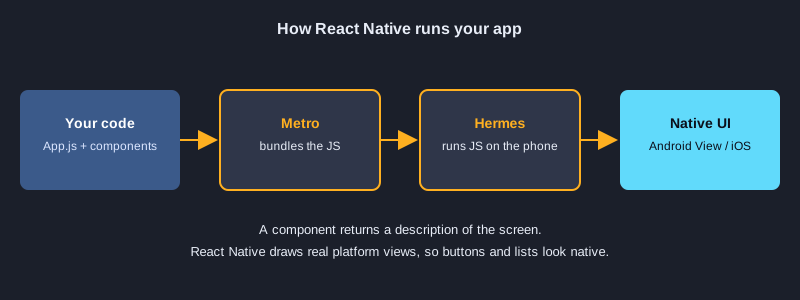
React Native lets you build Android and iOS apps with JavaScript and React. You write components once, and the same code runs on both platforms as real native views. This article starts a project with Expo, walks through six small examples, tests each one with Jest, and then shows how to export and release the app. Every code file here is the real file that was tested, and the test output is the real output.
What you need
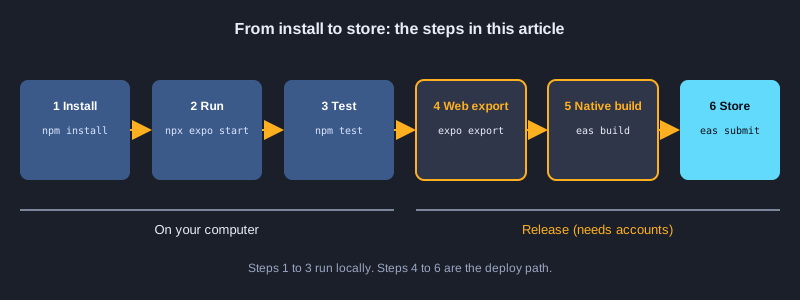
You need Node.js (this article was tested with Node 24.19.0), npm, a code editor, and a phone with the Expo Go app or an Android emulator for the run step. Tests run on your computer and need no phone. A release build needs a free Expo account for EAS Build. Publishing to Google Play needs a Google Play developer account (a one-time fee of 25 US dollars). Publishing to the App Store needs an Apple Developer account (an annual fee).
Illustrations
1. Install and create the project
Create an Expo project from the blank template, then install the testing and web packages. npx expo install chooses versions that match your Expo SDK, so use it for packages Expo supports. Start the app with npx expo start, then scan the QR code with Expo Go, or press w to open it in a browser.
npx create-expo-app@latest app --template blank
cd app
npx expo install jest-expo jest react-dom react-native-web @expo/metro-runtime
npm install -D @testing-library/react-native@14 test-renderer@1
npx expo start
Install: `package.json`
"jest": {
  "preset": "jest-expo"
},
"scripts": {
  "test": "jest"
}
Example 1: Hello: a component and StyleSheet
A component is a function that returns what to show. View and Text take the place of div and p, and StyleSheet.create organises the style objects.
import { StyleSheet, Text, View } from 'react-native';

// A component is a function that returns what to show on screen.
export default function Hello() {
  return (
    <View style={styles.box}>
      <Text style={styles.title}>Hello, React Native</Text>
    </View>
  );
}

const styles = StyleSheet.create({
  box: { padding: 16, backgroundColor: '#e8f1ff', borderRadius: 8 },
  title: { fontSize: 20, fontWeight: 'bold', color: '#1b3a6b' },
});
Real test result
✓ 1. Hello › shows the heading
Example 2: Props: pass data to a component
App gives Greeting a name through props. The same component can show different names without being edited.
import { Text } from 'react-native';

// Props are the data a parent passes in. The same component can show different names.
export default function Greeting({ name }) {
  return <Text style={{ fontSize: 18 }}>{`Hello, ${name}`}</Text>;
}
Real test result
✓ 2. Props › uses the name prop
Example 3: State: a counter with Pressable
useState keeps the count, and Pressable is the touchable element. The function form setCount(c => c + 1) always uses the latest value.
import { useState } from 'react';
import { Pressable, StyleSheet, Text, View } from 'react-native';

// State is a value that changes. Calling the setter makes React render again.
export default function Counter() {
  const [count, setCount] = useState(0);

  return (
    <View style={styles.row}>
      <Pressable
        style={styles.button}
        accessibilityRole="button"
        accessibilityLabel="decrease"
        onPress={() => setCount(c => c - 1)}>
        <Text style={styles.buttonText}>-</Text>
      </Pressable>
      <Text testID="count" style={styles.count}>{count}</Text>
      <Pressable
        style={styles.button}
        accessibilityRole="button"
        accessibilityLabel="increase"
        onPress={() => setCount(c => c + 1)}>
        <Text style={styles.buttonText}>+</Text>
      </Pressable>
    </View>
  );
}

const styles = StyleSheet.create({
  row: { flexDirection: 'row', alignItems: 'center', gap: 16 },
  button: { width: 48, height: 48, borderRadius: 24, backgroundColor: '#2f6fed', alignItems: 'center', justifyContent: 'center' },
  buttonText: { color: '#fff', fontSize: 24, fontWeight: 'bold' },
  count: { fontSize: 28, minWidth: 48, textAlign: 'center' },
});
Real test result
✓ 3. State › increments and decrements the count
Example 4: A controlled TextInput
The input value is stored in state. onChangeText updates it on each keystroke, and the preview text is calculated from that state.
import { useState } from 'react';
import { StyleSheet, Text, TextInput, View } from 'react-native';

// TextInput is controlled: its value comes from state and onChangeText updates it on each keystroke.
export default function NameForm() {
  const [name, setName] = useState('');
  const trimmed = name.trim();

  return (
    <View style={styles.box}>
      <TextInput
        testID="name-input"
        style={styles.input}
        placeholder="Your name"
        value={name}
        onChangeText={setName}
      />
      <Text testID="preview" style={styles.preview}>
        {trimmed ? `Hi, ${trimmed}!` : 'Type your name above'}
      </Text>
    </View>
  );
}

const styles = StyleSheet.create({
  box: { gap: 8 },
  input: { borderWidth: 1, borderColor: '#9aa6c2', borderRadius: 8, padding: 10, fontSize: 16 },
  preview: { fontSize: 16, color: '#333' },
});
Real test result
✓ 4. Controlled input › shows a greeting from the typed name
Example 5: A list with add
Add an item by building a new array with spread instead of changing the old one. map is fine for a short list; for a long list, use FlatList with keyExtractor.
import { useState } from 'react';
import { Pressable, StyleSheet, Text, TextInput, View } from 'react-native';

// Add an item by creating a new array with spread instead of changing the old one.
export default function TodoList() {
  const [text, setText] = useState('');
  const [items, setItems] = useState([{ id: '1', title: 'Learn components' }]);

  function addItem() {
    const title = text.trim();
    if (!title) return;
    setItems([...items, { id: `${Date.now()}-${items.length}`, title }]);
    setText('');
  }

  return (
    <View style={styles.box}>
      <View style={styles.row}>
        <TextInput
          testID="todo-input"
          style={styles.input}
          placeholder="New task"
          value={text}
          onChangeText={setText}
        />
        <Pressable testID="add" style={styles.button} accessibilityRole="button" onPress={addItem}>
          <Text style={styles.buttonText}>Add</Text>
        </Pressable>
      </View>
      {items.map(item => (
        <Text key={item.id} testID="todo-item" style={styles.item}>{item.title}</Text>
      ))}
    </View>
  );
}

const styles = StyleSheet.create({
  box: { gap: 8 },
  row: { flexDirection: 'row', gap: 8 },
  input: { flex: 1, borderWidth: 1, borderColor: '#9aa6c2', borderRadius: 8, padding: 10, fontSize: 16 },
  button: { backgroundColor: '#2f6fed', borderRadius: 8, paddingHorizontal: 16, justifyContent: 'center' },
  buttonText: { color: '#fff', fontWeight: 'bold' },
  item: { fontSize: 16, paddingVertical: 6, borderBottomWidth: StyleSheet.hairlineWidth, borderBottomColor: '#ccc' },
});
Real test result
✓ 5. List with add › adds a task and clears the input
✓ 5. List with add › ignores an empty task
Example 6: Load data with useEffect and fetch
useEffect runs after the first render. The component shows ActivityIndicator while the request is pending, then shows the users. The cleanup function ignores a late response after the component is removed.
import { useEffect, useState } from 'react';
import { ActivityIndicator, Text, View } from 'react-native';

export const USERS_URL = 'https://jsonplaceholder.typicode.com/users';

// useEffect runs after the first render. Here it loads data from a web API.
// The cleanup function ignores a response that arrives after the component is gone.
export default function Users({ url = USERS_URL }) {
  const [users, setUsers] = useState(null);
  const [error, setError] = useState(null);

  useEffect(() => {
    let active = true;
    fetch(url)
      .then(res => {
        if (!res.ok) throw new Error(`HTTP ${res.status}`);
        return res.json();
      })
      .then(data => { if (active) setUsers(data); })
      .catch(err => { if (active) setError(err.message); });
    return () => { active = false; };
  }, [url]);

  if (error) return <Text testID="error">{`Error: ${error}`}</Text>;
  if (!users) return <ActivityIndicator testID="loading" />;

  return (
    <View testID="users" style={{ gap: 6 }}>
      {users.map(u => <Text key={u.id}>{u.name}</Text>)}
    </View>
  );
}
Real test result
✓ 6. Load data › shows a loading indicator while the request is pending
✓ 6. Load data › shows the users after the request finishes
✓ 6. Load data › shows an error when the response is not ok
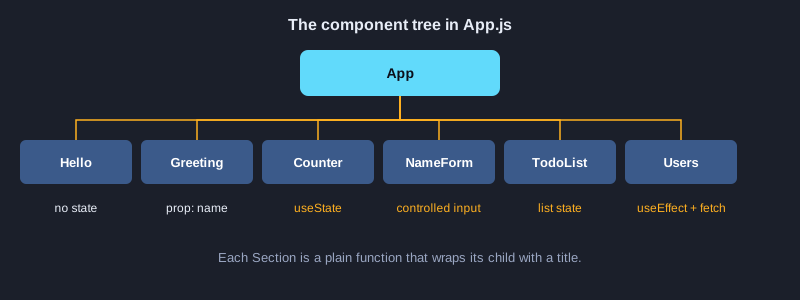
Put everything together in App.js
import { StatusBar } from 'expo-status-bar';
import { ScrollView, StyleSheet, Text, View } from 'react-native';

import Hello from './src/examples/Hello';
import Greeting from './src/examples/Greeting';
import Counter from './src/examples/Counter';
import NameForm from './src/examples/NameForm';
import TodoList from './src/examples/TodoList';
import Users from './src/examples/Users';

// The root component combines smaller components, just like the examples in the article.
export default function App() {
  return (
    <ScrollView contentContainerStyle={styles.container}>
      <StatusBar style="auto" />
      <Text style={styles.heading}>React Native Examples</Text>

      <Section title="1. Hello"><Hello /></Section>
      <Section title="2. Props"><Greeting name="Somchai" /></Section>
      <Section title="3. State"><Counter /></Section>
      <Section title="4. Controlled input"><NameForm /></Section>
      <Section title="5. List with add"><TodoList /></Section>
      <Section title="6. Load data"><Users /></Section>
    </ScrollView>
  );
}

function Section({ title, children }) {
  return (
    <View style={styles.section}>
      <Text style={styles.sectionTitle}>{title}</Text>
      {children}
    </View>
  );
}

const styles = StyleSheet.create({
  container: { padding: 20, paddingTop: 60, gap: 24 },
  heading: { fontSize: 26, fontWeight: 'bold' },
  section: { gap: 10 },
  sectionTitle: { fontSize: 14, fontWeight: '600', color: '#2f6fed', textTransform: 'uppercase' },
});
2. Test each example with Jest
The test runner is Jest with the jest-expo preset, which prepares React Native to run on Node. @testing-library/react-native renders a component and works with it the way a user would: find a text or a label, press it, or change its text. In version 14, render and fireEvent are async, so every call is written with await. The Users tests replace global.fetch with a mock function, so no network request is sent during the tests. Run npm test to run them all.
npm test
Test file
import { fireEvent, render, screen } from '@testing-library/react-native';

import Hello from '../src/examples/Hello';
import Greeting from '../src/examples/Greeting';
import Counter from '../src/examples/Counter';
import NameForm from '../src/examples/NameForm';
import TodoList from '../src/examples/TodoList';
import Users from '../src/examples/Users';

describe('1. Hello', () => {
  it('shows the heading', async () => {
    await render(<Hello />);
    expect(screen.getByText('Hello, React Native')).toBeTruthy();
  });
});

describe('2. Props', () => {
  it('uses the name prop', async () => {
    await render(<Greeting name="Somchai" />);
    expect(screen.getByText('Hello, Somchai')).toBeTruthy();
  });
});

describe('3. State', () => {
  it('increments and decrements the count', async () => {
    await render(<Counter />);
    expect(screen.getByTestId('count')).toHaveTextContent('0');
    await fireEvent.press(screen.getByLabelText('increase'));
    await fireEvent.press(screen.getByLabelText('increase'));
    expect(screen.getByTestId('count')).toHaveTextContent('2');
    await fireEvent.press(screen.getByLabelText('decrease'));
    expect(screen.getByTestId('count')).toHaveTextContent('1');
  });
});

describe('4. Controlled input', () => {
  it('shows a greeting from the typed name', async () => {
    await render(<NameForm />);
    expect(screen.getByTestId('preview')).toHaveTextContent('Type your name above');
    await fireEvent.changeText(screen.getByTestId('name-input'), '  Somchai ');
    expect(screen.getByTestId('preview')).toHaveTextContent('Hi, Somchai!');
  });
});

describe('5. List with add', () => {
  it('adds a task and clears the input', async () => {
    await render(<TodoList />);
    await fireEvent.changeText(screen.getByTestId('todo-input'), 'Buy milk');
    await fireEvent.press(screen.getByTestId('add'));
    expect(screen.getByText('Buy milk')).toBeTruthy();
    expect(screen.getByTestId('todo-input')).toHaveProp('value', '');
  });

  it('ignores an empty task', async () => {
    await render(<TodoList />);
    await fireEvent.press(screen.getByTestId('add'));
    expect(screen.getAllByTestId('todo-item')).toHaveLength(1);
  });
});

describe('6. Load data', () => {
  afterEach(() => {
    delete global.fetch;
  });

  it('shows a loading indicator while the request is pending', async () => {
    global.fetch = jest.fn(() => new Promise(() => {}));
    await render(<Users url="https://test.local/users" />);
    expect(screen.getByTestId('loading')).toBeTruthy();
  });

  it('shows the users after the request finishes', async () => {
    global.fetch = jest.fn(() =>
      Promise.resolve({ ok: true, json: () => Promise.resolve([{ id: 1, name: 'Leanne Graham' }]) }),
    );
    await render(<Users url="https://test.local/users" />);
    expect(await screen.findByText('Leanne Graham')).toBeTruthy();
    expect(global.fetch).toHaveBeenCalledWith('https://test.local/users');
  });

  it('shows an error when the response is not ok', async () => {
    global.fetch = jest.fn(() => Promise.resolve({ ok: false, status: 500 }));
    await render(<Users url="https://test.local/broken" />);
    expect(await screen.findByTestId('error')).toHaveTextContent('Error: HTTP 500');
  });
});
Real output
Test Suites: 1 passed, 1 total
Tests:       9 passed, 9 total
Snapshots:   0 total
Time:        1.934 s, estimated 3 s
Ran all test suites.
3. Export and release
npx expo export --platform web writes a static website to the dist folder. You can host that folder on Cloudflare Pages, Netlify or any static host. npx expo export --platform android writes the JavaScript bundle that the native app loads, and shows its size. A store release uses EAS Build, which builds the APK or AAB in Expo's cloud and then submits it. The EAS commands below need an Expo account and store accounts, so they were not run for this article. The two export commands were run, and their real output is shown.
npx expo export --platform web
npx expo export --platform android
npx eas-cli@latest login
npx eas-cli@latest build --platform android --profile preview
npx eas-cli@latest submit --platform android
Real output (export --platform web)
Starting Metro Bundler

Web Bundled 324ms index.js (155 modules)

› web bundles (1):
_expo/static/js/web/index-2cd770f3379787ce05344930a3b77994.js (411KB)

› Files (3):
favicon.ico (15KB)
index.html (1.2KB)
metadata.json (49B)

Exported: dist
Real output (export --platform android)
Starting Metro Bundler

Android Bundled 4251ms index.js (622 modules)

› android bundles (1):
_expo/static/js/android/index-2f8b5ff9ff67c29c92fd35ff3cb9dfec.hbc (1.6MB)

› Files (1):
metadata.json (150B)

Exported: dist
Next steps
Next, add navigation with Expo Router, which uses one file per screen. Save data with AsyncStorage or expo-sqlite. Before you publish, prepare the app name, icons, a privacy policy and store screenshots, and test on a real phone, because the emulator does not show everything. For iOS you need an Apple Developer account, and EAS Build can build it without a Mac.
Summary
A React Native app is a tree of components that draws native views. Expo prepares the project, Jest checks each example, and the export or EAS Build step turns the project into a web site or a release file. Start with small components, test each one, and deploy when the app works.