Building a React Login Page: From the Form to a Protected Page
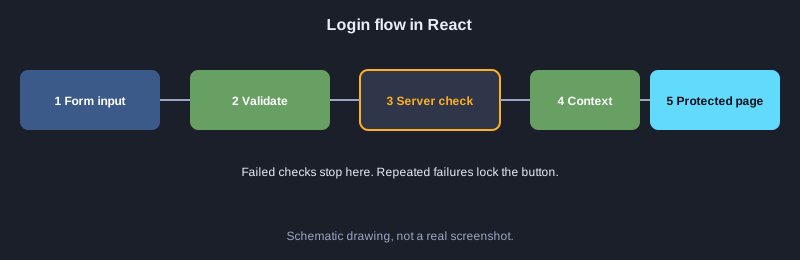
A login page is one of the most common parts of any website. This article builds one in React step by step: the form structure, controlled inputs, validation, a simulated sign-in, locking after repeated failures, shared user state with Context, and a protected page that hides content from people who are not signed in. Every example was run and the output shown is the real output.
What you need
You need Node.js 18 or later and basic React knowledge. The examples use React 18.3.1 and run with this article's test runner, which clicks buttons in a simulated browser with jsdom. Important: checking passwords in the browser is only for learning. A real system must check passwords on the server, store them as hashes, and use HTTPS.
Illustrations
Example 1: Login form structure
Start with a form that has an email field, a password field and a submit button. renderToStaticMarkup shows the HTML that React produces.
import React from "react";

export function App() {
  return (
    <form>
      <h2>เข้าสู่ระบบ</h2>
      <label>อีเมล<input type="email" name="email" /></label>
      <label>รหัสผ่าน<input type="password" name="password" /></label>
      <button type="submit">เข้าสู่ระบบ</button>
    </form>
  );
}
Real output
<form><h2>เข้าสู่ระบบ</h2><label>อีเมล<input type="email" name="email"/></label><label>รหัสผ่าน<input type="password" name="password"/></label><button type="submit">เข้าสู่ระบบ</button></form>
Example 2: Show or hide the password
Keep the visibility in state and switch the input type between password and text when the button is clicked.
1. Click the show password button once, from off to on
import React, { useState } from "react";

export function App() {
  const [show, setShow] = useState(false);
  return (
    <div>
      <input type={show ? "text" : "password"} value="secret1" readOnly />
      <button id="toggle" onClick={() => setShow(!show)}>แสดงรหัสผ่าน</button>
      <p data-out>แสดงรหัสผ่าน: {show ? "เปิด" : "ปิด"}</p>
    </div>
  );
}

export const steps = ["#toggle"];
Real output
ข้อความเริ่มต้น: แสดงรหัสผ่าน: ปิด
หลังคลิกครั้งที่ 1: แสดงรหัสผ่าน: เปิด
Example 3: Validate the input
The validate function returns a list of error messages. Show them only after the user submits, so the form does not complain while they are still typing.
import React, { useState } from "react";

// กติกาการตรวจสอบ: คืนรายการข้อความแจ้งเตือน ถ้าไม่มีข้อผิดพลาดจะได้อาร์เรย์ว่าง
export function validate(email, password) {
  const errors = [];
  if (!email) errors.push("กรอกอีเมล");
  else if (!/^\S+@\S+\.\S+$/.test(email)) errors.push("รูปแบบอีเมลไม่ถูกต้อง");
  if (password.length < 6) errors.push("รหัสผ่านอย่างน้อย 6 ตัว");
  return errors;
}

export function App() {
  const [email, setEmail] = useState("");
  const [password, setPassword] = useState("");
  const [submitted, setSubmitted] = useState(false);
  const errors = validate(email, password);
  return (
    <div>
      <input value={email} onChange={e => setEmail(e.target.value)} />
      <input value={password} onChange={e => setPassword(e.target.value)} />
      <button id="submit" onClick={() => setSubmitted(true)}>ส่งฟอร์ม</button>
      <p data-out>{!submitted ? "ยังไม่ส่งฟอร์ม" : errors.length ? errors.join(" | ") : "ไม่มีข้อผิดพลาด"}</p>
    </div>
  );
}

export const steps = ["#submit"];
Real output
ข้อความเริ่มต้น: ยังไม่ส่งฟอร์ม
หลังคลิกครั้งที่ 1: กรอกอีเมล | รหัสผ่านอย่างน้อย 6 ตัว
Example 4: Simulated sign-in
Compare the email and password with sample data, then show a success or account-not-found message. This example starts with correct values.
import React, { useState } from "react";

// ตัวอย่างฐานข้อมูลผู้ใช้จำลอง จริง ๆ ต้องตรวจที่เซิร์ฟเวอร์เท่านั้น
const USERS = { "[email protected]": "secret1" };

export function login(email, password) {
  if (USERS[email] === undefined) return { ok: false, message: "ไม่พบบัญชีนี้" };
  if (USERS[email] !== password) return { ok: false, message: "รหัสผ่านไม่ถูกต้อง" };
  return { ok: true, message: "เข้าสู่ระบบสำเร็จ: " + email };
}

export function App() {
  const [email, setEmail] = useState("[email protected]");
  const [password, setPassword] = useState("secret1");
  const [result, setResult] = useState("ยังไม่ได้ลองเข้าสู่ระบบ");
  return (
    <div>
      <input value={email} onChange={e => setEmail(e.target.value)} />
      <input value={password} onChange={e => setPassword(e.target.value)} />
      <button id="submit" onClick={() => setResult(login(email, password).message)}>เข้าสู่ระบบ</button>
      <p data-out>{result}</p>
    </div>
  );
}

export const steps = ["#submit"];
Real output
ข้อความเริ่มต้น: ยังไม่ได้ลองเข้าสู่ระบบ
หลังคลิกครั้งที่ 1: เข้าสู่ระบบสำเร็จ: [email protected]
Example 5: Lock after repeated failures
Count wrong passwords, and disable the button when the limit is reached, to slow down repeated guessing.
import React, { useState } from "react";

const MAX_TRIES = 3;

export function App() {
  const [password, setPassword] = useState("wrong");
  const [tries, setTries] = useState(0);
  const [message, setMessage] = useState("");
  const locked = tries >= MAX_TRIES;

  function submit() {
    if (locked) return;
    if (password === "secret1") {
      setMessage("เข้าสู่ระบบสำเร็จ");
      return;
    }
    const next = tries + 1;
    setTries(next);
    setMessage(next >= MAX_TRIES ? "ล็อกชั่วคราว ลองใหม่ภายหลัง" : `รหัสผ่านไม่ถูกต้อง (ครั้งที่ ${next} จาก ${MAX_TRIES})`);
  }

  return (
    <div>
      <input value={password} onChange={e => setPassword(e.target.value)} />
      <button id="submit" disabled={locked} onClick={submit}>เข้าสู่ระบบ</button>
      <p data-out>{message || "พร้อมใช้งาน"}</p>
    </div>
  );
}

export const steps = ["#submit", "#submit", "#submit"];
Real output
ข้อความเริ่มต้น: พร้อมใช้งาน
หลังคลิกครั้งที่ 1: รหัสผ่านไม่ถูกต้อง (ครั้งที่ 1 จาก 3)
หลังคลิกครั้งที่ 2: รหัสผ่านไม่ถูกต้อง (ครั้งที่ 2 จาก 3)
หลังคลิกครั้งที่ 3: ล็อกชั่วคราว ลองใหม่ภายหลัง
Example 6: Remember me option
A checkbox controlled by state, with the status shown to the user straight away.
import React, { useState } from "react";

export function App() {
  const [remember, setRemember] = useState(false);
  return (
    <div>
      <label>
        <input id="remember" type="checkbox" checked={remember} onChange={e => setRemember(e.target.checked)} />
        จดจำการเข้าสู่ระบบ
      </label>
      <p data-out>จดจำการเข้าสู่ระบบ: {remember ? "เปิด" : "ปิด"}</p>
    </div>
  );
}

export const steps = ["#remember"];
Real output
ข้อความเริ่มต้น: จดจำการเข้าสู่ระบบ: ปิด
หลังคลิกครั้งที่ 1: จดจำการเข้าสู่ระบบ: เปิด
Example 7: Store user state with Context
Create an AuthContext so that the status bar and its buttons can reach the user data without passing props through several levels.
import React, { createContext, useContext, useState } from "react";

// เก็บสถานะผู้ใช้ไว้ที่ Context เพื่อให้ทุกส่วนของหน้าเข้าถึงได้โดยไม่ต้องส่ง props ต่อกันหลายชั้น
const AuthContext = createContext(null);

function StatusBar() {
  const { user, login, logout } = useContext(AuthContext);
  return (
    <div>
      <p data-out>สถานะ: {user ? "สวัสดี " + user : "ยังไม่ได้เข้าสู่ระบบ"}</p>
      {user
        ? <button id="logout" onClick={logout}>ออกจากระบบ</button>
        : <button id="login" onClick={() => login("สมชาย")}>เข้าสู่ระบบ</button>}
    </div>
  );
}

export function App() {
  const [user, setUser] = useState(null);
  const value = { user, login: setUser, logout: () => setUser(null) };
  return (
    <AuthContext.Provider value={value}>
      <StatusBar />
    </AuthContext.Provider>
  );
}

export const steps = ["#login", "#logout"];
Real output
ข้อความเริ่มต้น: สถานะ: ยังไม่ได้เข้าสู่ระบบ
หลังคลิกครั้งที่ 1: สถานะ: สวัสดี สมชาย
หลังคลิกครั้งที่ 2: สถานะ: ยังไม่ได้เข้าสู่ระบบ
Example 8: A page that needs sign-in
If there is no user, the page asks the visitor to sign in. If there is a user, it shows the dashboard. This is the idea behind protected routes.
1. Sign in, then sign out
import React, { useState } from "react";

// หน้าที่ต้องเข้าสู่ระบบก่อนจึงจะเห็น ถ้ายังไม่มีผู้ใช้จะแสดงข้อความให้เข้าสู่ระบบแทน
function Dashboard({ user }) {
  if (!user) return <p data-out>กรุณาเข้าสู่ระบบก่อน</p>;
  return <p data-out>หน้าแดชบอร์ดของ {user}</p>;
}

export function App() {
  const [user, setUser] = useState(null);
  return (
    <div>
      <button id="login" onClick={() => setUser("สมชาย")}>เข้าสู่ระบบ</button>
      <button id="logout" onClick={() => setUser(null)}>ออกจากระบบ</button>
      <Dashboard user={user} />
    </div>
  );
}

export const steps = ["#login", "#logout"];
Real output
ข้อความเริ่มต้น: กรุณาเข้าสู่ระบบก่อน
หลังคลิกครั้งที่ 1: หน้าแดชบอร์ดของ สมชาย
หลังคลิกครั้งที่ 2: กรุณาเข้าสู่ระบบก่อน
Example 9: The complete login page
The final page combines the form, inputs with correct autocomplete hints, the remember option and a forgot password link.
import React from "react";

// หน้าเข้าสู่ระบบแบบสมบูรณ์ที่รวมทุกส่วนไว้ด้วยกัน: ฟอร์ม ช่องกรอก ตัวเลือกจดจำ และลิงก์ลืมรหัสผ่าน
export function App() {
  return (
    <main>
      <h1>เข้าสู่ระบบ</h1>
      <form>
        <label>อีเมล<input type="email" name="email" autoComplete="username" /></label>
        <label>รหัสผ่าน<input type="password" name="password" autoComplete="current-password" /></label>
        <label><input type="checkbox" name="remember" /> จดจำการเข้าสู่ระบบ</label>
        <button type="submit">เข้าสู่ระบบ</button>
      </form>
      <a href="/forgot">ลืมรหัสผ่าน?</a>
    </main>
  );
}
Real output
<main><h1>เข้าสู่ระบบ</h1><form><label>อีเมล<input type="email" name="email" autoComplete="username"/></label><label>รหัสผ่าน<input type="password" name="password" autoComplete="current-password"/></label><label><input type="checkbox" name="remember"/> จดจำการเข้าสู่ระบบ</label><button type="submit">เข้าสู่ระบบ</button></form><a href="/forgot">ลืมรหัสผ่าน?</a></main>
Next steps
Next, connect the login page to a real API with fetch, use an HTTP-only cookie or a secure token, and add a forgot password flow that sends a reset link by email.
Summary
A good login page combines a form controlled by state, validation, a limit on repeated failures, shared user state with Context and a page that checks sign-in before it shows data. A real system must always check access on the server.