PlateVision for Sale: License Plate Recognition and Entry-Exit System, with Detection Engine and Models
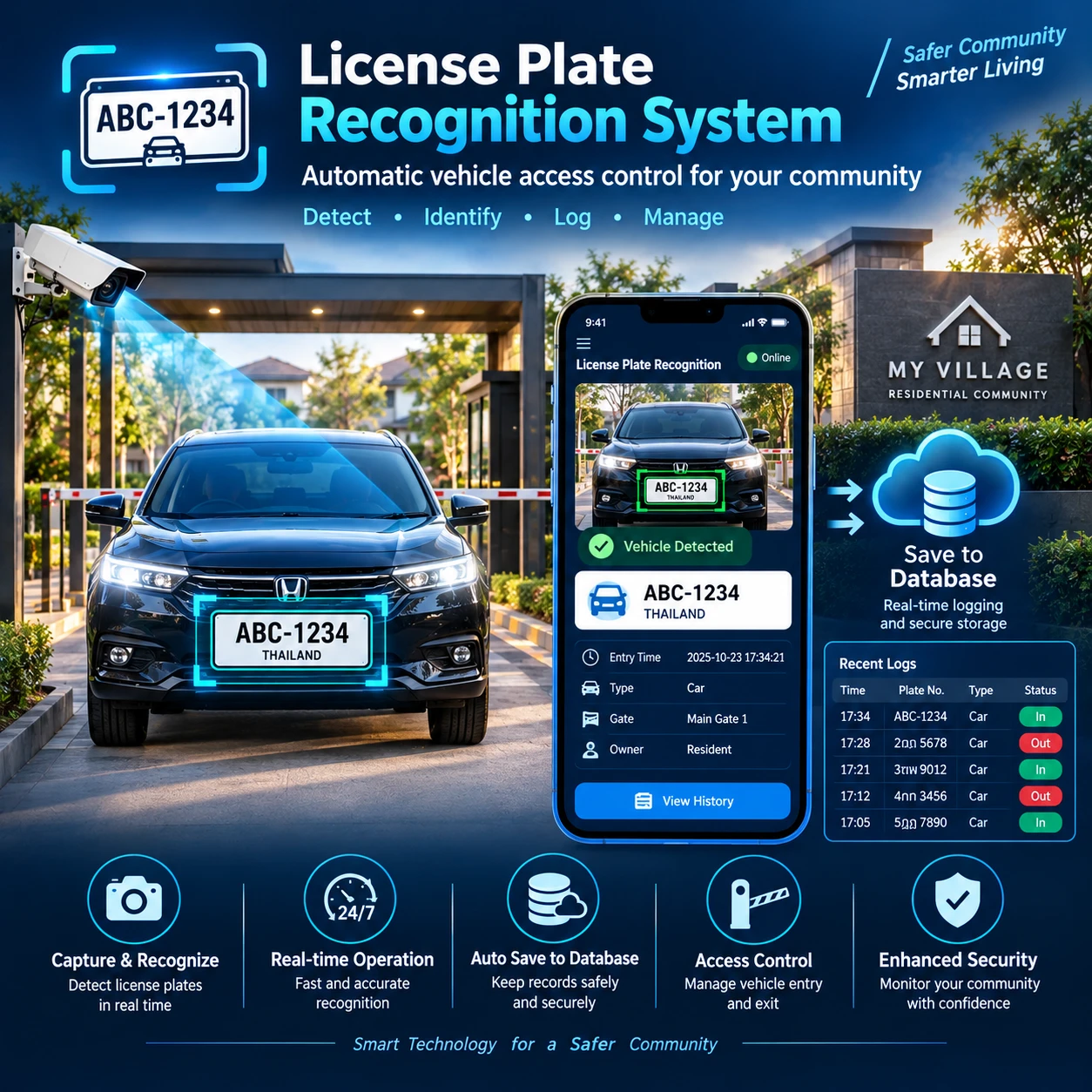
PlateVision is a web-based license plate system that shows you instantly which vehicle entered or left, which plates are inside right now, and which plates need an alert. Everything is in one page you open in a browser. It suits car parks, housing estates and factories. This article follows the system's real workflow from camera to report, describes every menu, and includes diagrams and a camera setup guide with mounting distances.
1. Overview and workflow
The system works in order. A camera sends images, the system reads the plate and records a detection. If the plate matches the watchlist, an alert is created. If a vehicle enters or leaves the area, the entry is recorded on the Entry and Exit page. Staff see everything from the left menu and can export reports.
1. A camera sends images (USB, IP via RTSP, a video file or a picture)
2. The system detects the vehicle and reads the plate from the image
3. The detection is saved to History, and an alert is created if the plate is on the watchlist
4. The entry or exit is recorded and time inside is calculated
5. Staff check the data, acknowledge alerts and view reports
Every part connects, from the camera image through to the report.
2. Dashboard: system overview
The first page shows the status of every camera, whether it is online, and the latest detections. Use it to confirm the system is working before the day starts.
1. Open Dashboard from the first menu
2. Check the camera status cards for any offline camera
3. Check the latest detections to confirm images are being read
Staff can see the system status on one page.
3. Live Detection: live view and plate test
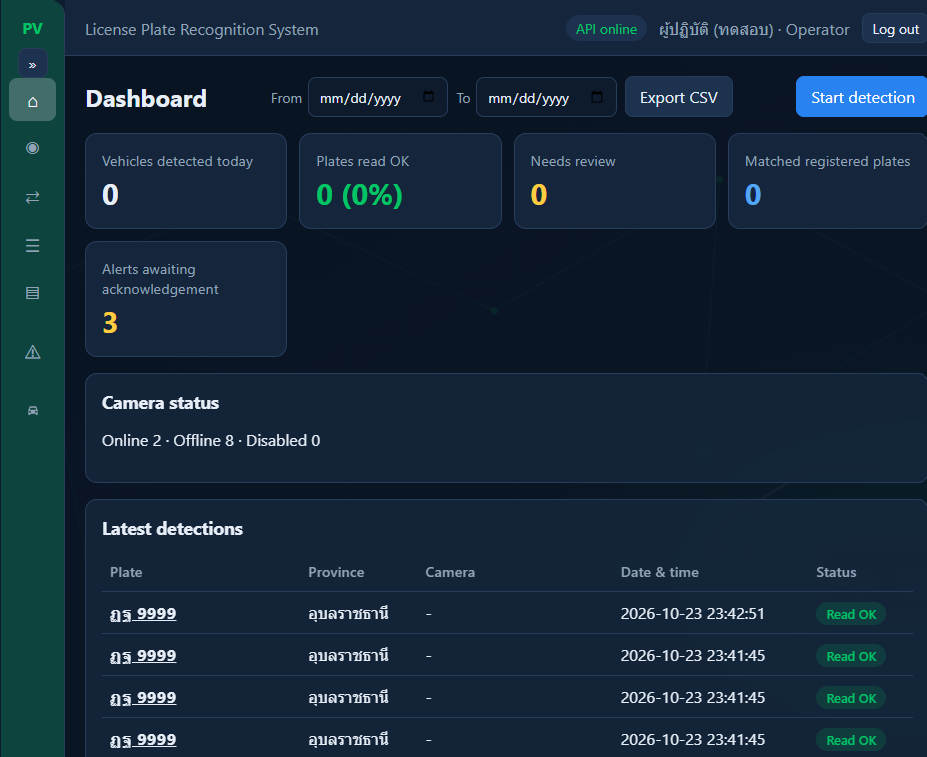
This page shows live images from all online cameras, saves detection results from a selected camera, and includes a plate-reading test on an uploaded image. Use it to check whether a new camera reads plates before installing it.
1. Open Live Detection from the overview menu
2. View the live image from each online camera
3. Choose to save detection results when you want to keep a history
4. Use the image test section to see results without waiting for a real vehicle
You get live images and plate readings that can be checked immediately.
4. Entry and Exit (Visits)
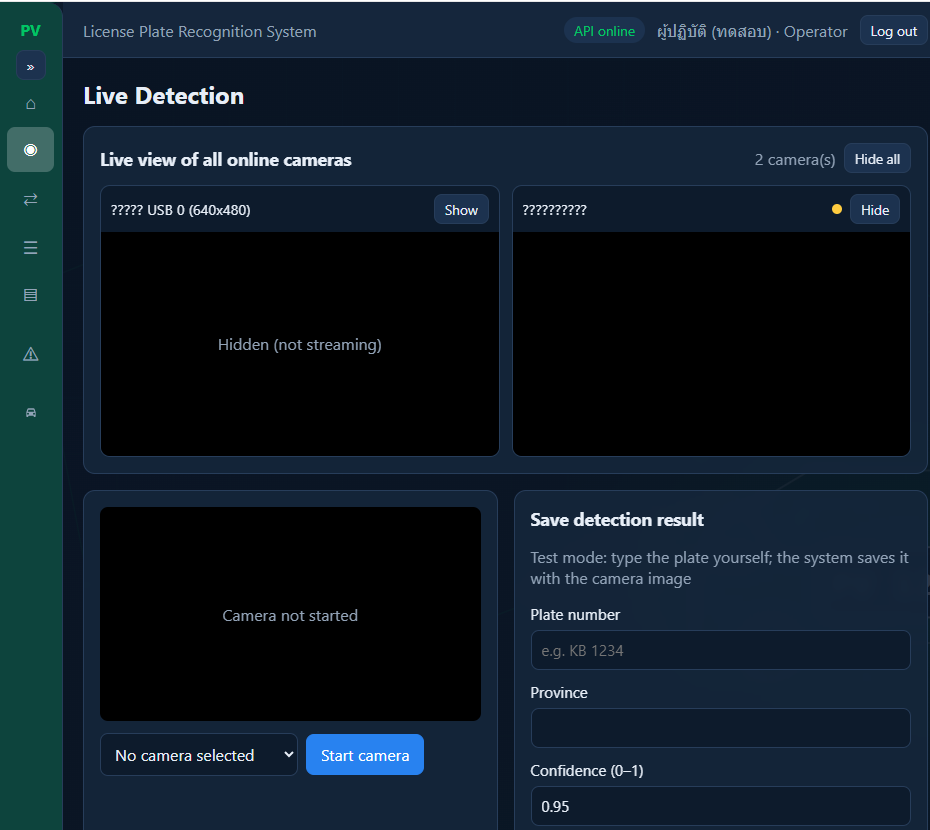
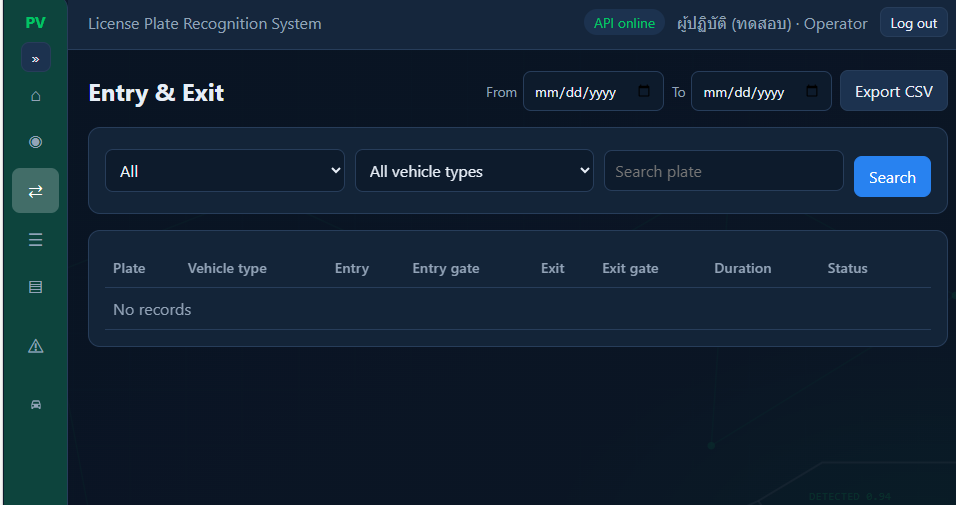
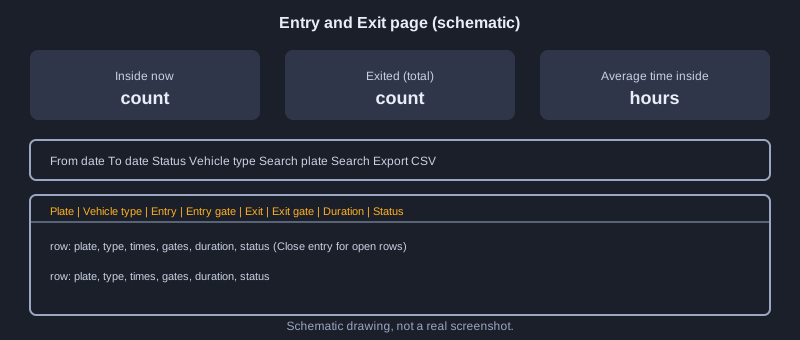
This is the page staff use most. Three summary cards at the top show the number of vehicles inside now, the total number that have exited, and the average time inside. Below are filters for status (all, inside, exited), vehicle type, date range and a plate search box. The table shows plate, vehicle type, entry time, entry gate, exit time, exit gate, duration and status.
1. Choose a date range with From and To
2. Choose a status or vehicle type from the filters
3. Type a plate in the search box and press Search
4. Press Export CSV to download the data with the current filters
Open entries show the duration so far, and a Close entry button closes an entry left open.
5. Detection history (History)
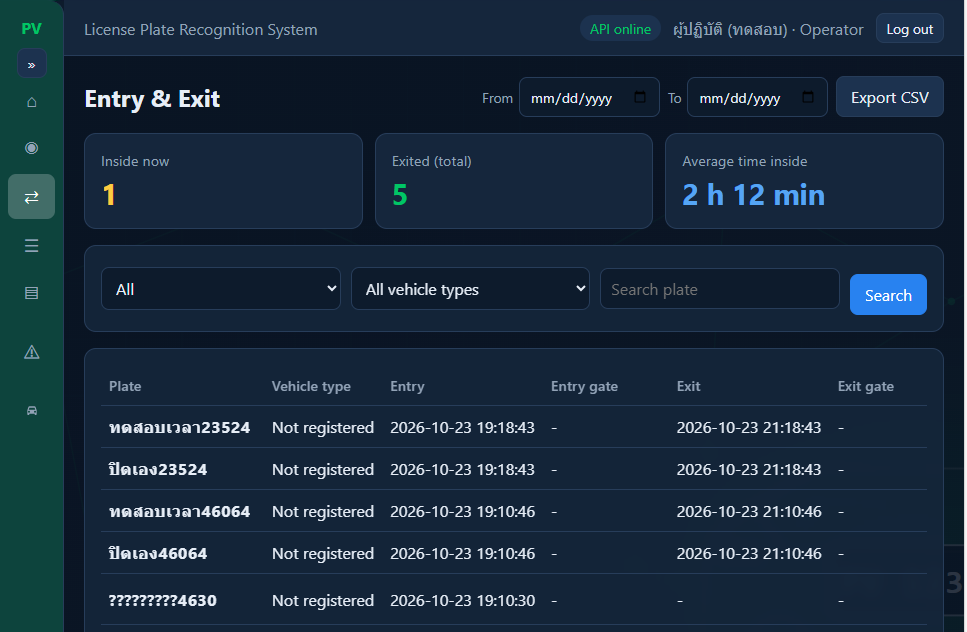
Every plate the system reads is saved here. You can search by plate, province and camera, filter to items waiting for review, and open each detail. The table shows plate, province, camera, date and time, reading confidence and status, with paging and CSV export.
1. Type a plate, or choose a province and camera, to search
2. Tick waiting for review to see items not yet confirmed
3. Open an item to see the image and details
4. Export CSV or move through the pages
You can search past readings and correct misread plates.
6. Alerts
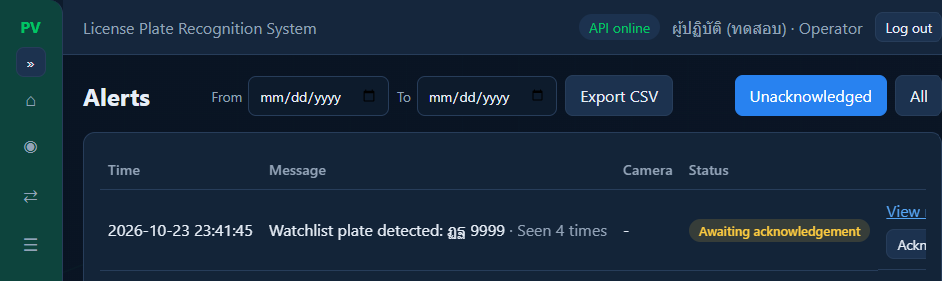
When a plate read matches the watchlist, the system creates an alert. This page shows the time, message, camera and status. If the same watchlisted plate is seen again, the system increases a repeat count instead of adding a new row. Staff can acknowledge an alert, open the related detection, and filter for alerts not yet acknowledged.
1. Open Alerts and check items waiting to be acknowledged
2. Open the related detection to check the image and plate
3. Acknowledge the alert once it has been handled
Unacknowledged alerts stay visible until someone handles them.
7. Vehicle list
Register known vehicles with plate, province, owner name, type and status. There are five types: member, staff, watchlist, other and unregistered. Status is active or disabled. You can search by plate or owner name. The types are used to classify vehicles on the Entry and Exit page and in alerts.
1. Press add vehicle and enter the plate, province and owner name
2. Choose the type and status
3. Save, then search to confirm the record is correct
Registered vehicles are classified automatically in Entry and Exit and in alerts.
8. Reports
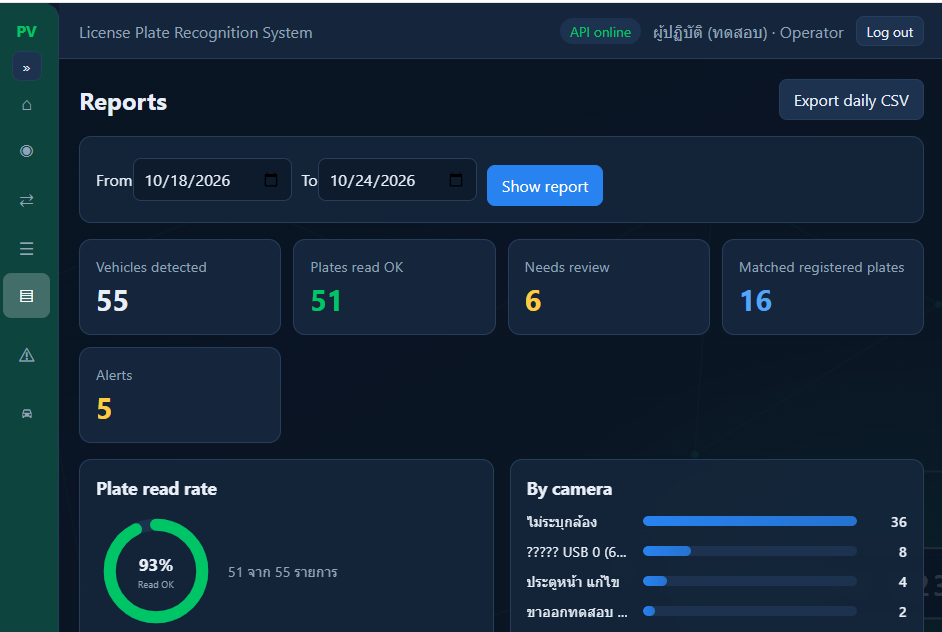
This page summarises the plate read rate as a percentage, breaks results down by camera, lists frequently seen plates, and gives a daily summary. Use it to see which camera reads well and which needs its angle or lens changed.
1. Open Reports and choose a period
2. Check the overall read rate
3. Compare results by camera
4. Check frequent plates and the daily summary
You can see which camera reads poorly and plan a change of angle or lens.
9. Cameras and gates (Devices)
This menu is for admin users only. Add and edit connected cameras and entry or exit gates. Once a gate is assigned to a camera, the system records the entry and exit gate in the Entry and Exit page.
1. Open Cameras and gates from the Devices menu
2. Add or edit a camera using a supported type
3. Add a gate and set it as an entry or exit gate
Assigned gates appear in the entry gate and exit gate columns.
10. Settings
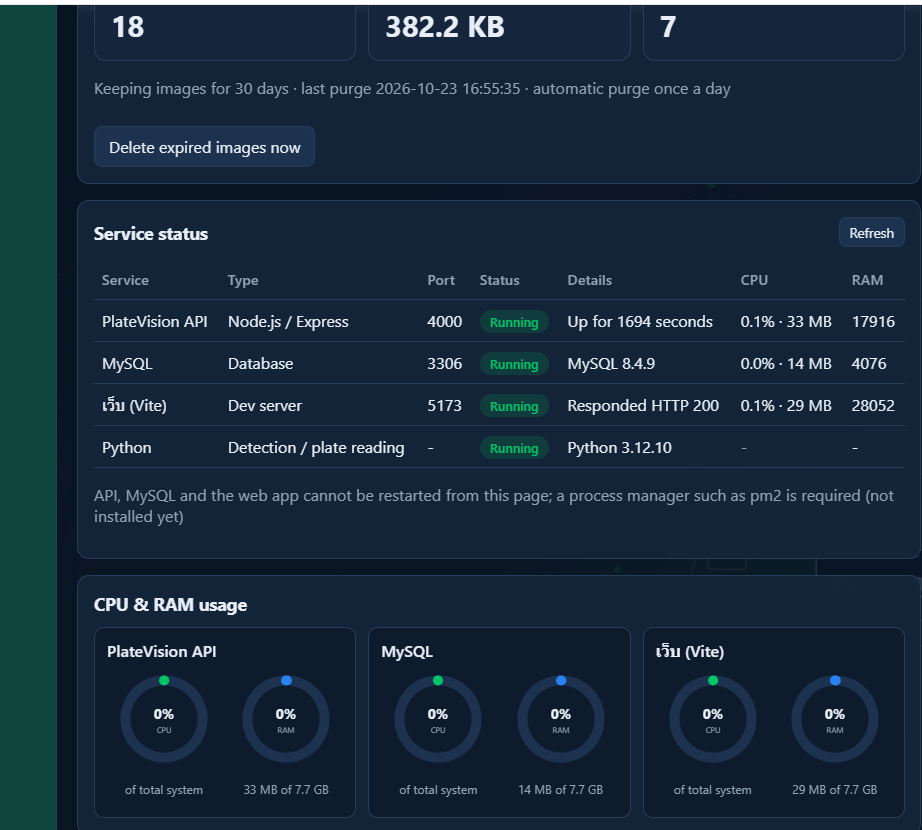
For admin users only. Choose the interface language, set system options, set how long images are kept and how personal data is hidden, check the status of each service, and monitor CPU and RAM use.
1. Choose the language from the language section
2. Set how long images are kept and whether personal data is hidden
3. Check service status and resource use from time to time
Admins control data retention and check the machine's health from one page.
11. Users and roles
The User Management page adds users and resets their passwords. There are two roles. Admin sees every menu. Operator sees daily menus such as Entry and Exit, Alerts and History. Device and settings menus are hidden from non-admin users.
1. Add a new user and assign a role
2. Give gate staff an operator account
3. Reset a password when a user forgets it
Each person sees only the menus they need.
12. Interface languages
The interface is translated into Thai, English, Japanese, Chinese, Arabic, Spanish, French, Hindi, Korean and Vietnamese. Choose the language from Settings.
Staff and visitors can read the screens in their own language.
13. Supported camera types
The system supports four camera types. Choose by the job. Test sources suit learning. IP cameras over RTSP suit real use.
| Camera type | How to connect | Notes |
|---|---|---|
| USB camera (webcam) | Plug in USB, then scan on the Devices page | Good for testing, short range |
| IP camera (network camera) | RTSP URL such as rtsp://user:pass@IP:554/stream1 | Recommended for real use |
| Video file (for example mp4) | Set the file when running | For testing |
| Image file (jpg, png) | Set the file when running | For testing |
An IP camera using RTSP is the better choice for real car parks and roads.
14. Connecting an IP camera over RTSP
Most IP cameras provide a stream link in RTSP form, containing the username, password, IP address, port and stream path, for example rtsp://user:[email protected]:554/stream1. Find these details in the camera manual or its settings page. Change the default camera password before connecting.
1. Find the camera IP on the same network as the machine running PlateVision
2. Build the RTSP URL in the camera's format
3. On the Devices page, add an IP camera and paste the URL
4. Open the live view to check the image and plates are clear
The live image from the IP camera appears, ready for plate reading.
15. Plate reading distance by lens
The distance at which plates can be read depends on the camera resolution and the lens focal length. Assume a car plate is 34 cm wide and the plate should be at least 150 to 200 pixels wide in the image. The table below gives estimates.
| Camera | Lens | Good reading distance |
|---|---|---|
| USB webcam 640x480 | Fixed lens | 1 to 2 m |
| IP camera 2MP | 4 to 18 mm (car park) | 2 to 8 m |
| IP camera 2MP | 12 to 40 mm (road) | 7 to 25 m |
| IP camera 4MP or higher | 12 to 40 mm | Further, and more accurate |
Choose the lens to match the distance the vehicle passes, not just the price.
16. Camera angle and height
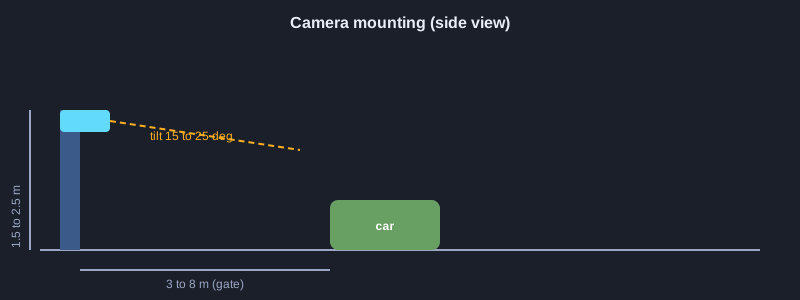
Height, tilt and direction affect plate sharpness as much as the lens does. Gate car parks suit a height of 1.5 to 2.5 m. Roads and highways suit 3 to 6 m. Tilt the camera down 15 to 25 degrees and point it toward the approaching traffic so it captures the front plate.
The plate should be near the centre of the image, not at the edge, and not lit straight into the lens.
Why choose PlateVision
- **Install on Windows** and start using it right away, with no code to write. Use it from your browser.
- **Plug and play** Plug in a USB camera, scan on the cameras and gates page, and it starts recording data right away.
- **IP cameras over RTSP** for car parks, roads and real project entrances.
- **See who enters and leaves at once** The Entry and Exit page shows vehicles inside now, durations and the gates used.
- **Watchlist alerts** with repeat counts, acknowledged from one screen.
- **Reports and CSV export** Plate read rate, results by camera and exports for your records.
- **Role-based access** Admins and gate staff see different menus.
- **10 interface languages** including Thai, English, Japanese, Chinese and Arabic.
Interested? Contact us for a quotation and a trial on the contact page. We can help assess camera positions on site before you decide.
Price: 100 USD
Contact: [email protected]
Article link: https://prasansoft.app/platevision-review/