Raspberry Pi and IoT with Python: 100 Examples from Zero to Professional
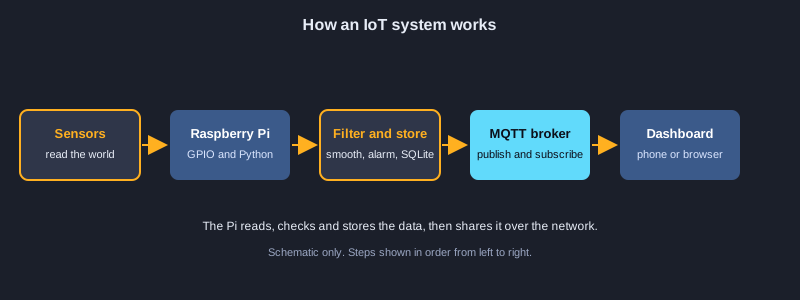
A Raspberry Pi is a small computer that can read sensors, switch relays and send data over the network, which makes it a common base for IoT (Internet of Things) projects. This article takes you from your first Python program to a complete sensor pipeline in 100 examples. You will learn Python basics, process sensor data, control pins with GPIO, read sensors over I2C, SPI and 1-Wire, send data with HTTP and MQTT, build a small web dashboard, store readings in SQLite, and run everything as a service that starts at boot. Honesty note: the examples that run on any computer were executed here and their real output is shown after the code. The others need a Raspberry Pi, a network service or a system service, so they were syntax-checked only and their output is not shown.
What you need
A Raspberry Pi 3, 4 or 5 running Raspberry Pi OS, a microSD card, a power supply, and a network connection. Python 3.10 or newer is included in Raspberry Pi OS. For the hardware examples you will need an LED, a resistor, a push button, jumper wires and a few sensors. Most examples run on any computer with Python 3.10 or newer, which is how the runnable examples were tested.
How to run an example
Save an example as main.py and run it with python3 main.py. Examples marked as runnable show the real output of a run on a computer. Shell examples are configuration files for the Pi and are not run here.
Topic 1: Getting Started with Python on the Pi
Python is the usual language for Raspberry Pi projects because it is easy to read and has libraries for almost every sensor. These first examples cover output, variables, types and arithmetic.
Running your first program
Save a file with a .py extension and run it with python3 on the Pi. print writes text to the terminal, and f-strings put variables inside the text with {name}. Python reads the file from top to bottom, so the order of lines matters.
Types and what they mean
Numbers can be int (whole) or float (decimal), text is str, True and False are bool, and None means no value. Use type() to check what a value is. Sensor readings are usually float, while pin numbers are int.
Arithmetic for sensor maths
/ always gives a float, // divides and drops the fraction, and % gives the remainder. round() limits the decimal places you show. Use these operators to convert raw readings and to group values.
Illustrations
Example 1: Hello from the Pi
Your first Python program on Raspberry Pi OS.
print("Hello from my Raspberry Pi!")
Output:
Hello from my Raspberry Pi!
Example 2: Variables and f-strings
Store values and print them inside text.
sensor_name = "DHT22"
temperature = 27.5
print(f"{sensor_name} reads {temperature} °C")
Output:
DHT22 reads 27.5 °C
Example 3: Data types
The basic Python types and their names.
for value in (42, 3.14, "pi", True, None):
    print(repr(value), type(value).__name__)
Output:
42 int
3.14 float
'pi' str
True bool
None NoneType
Example 4: Arithmetic, floor division and rounding
Division, remainder and rounding for sensor maths.
readings = 17
per_group = 5
print(readings / per_group)
print(readings // per_group, readings % per_group)
print(round(3.14159, 2))
Output:
3.4
3 2
3.14
Example 5: Working with text
Clean up device names and check prefixes.
status = "  ONLINE  "
clean = status.strip().lower()
print(clean, clean.startswith("on"), len(clean))
Output:
online True 6
Example 6: Unit conversion
Turn Celsius into Fahrenheit with a function.
def celsius_to_fahrenheit(c):
    return c * 9 / 5 + 32

for c in (0, 25, 37.5):
    print(f"{c} C = {celsius_to_fahrenheit(c):.1f} F")
Output:
0 C = 32.0 F
25 C = 77.0 F
37.5 C = 99.5 F
Topic 2: Decisions and Loops
A Pi project reacts to its inputs. Conditions decide what happens, and loops repeat the work, such as sampling a sensor every few seconds.
if, elif and else
Conditions are checked from top to bottom, and the first true branch runs. Put the most specific check first. A chained comparison such as 20 <= t <= 25 checks a whole range in one line.
for, while, break and continue
for repeats over a range or a sequence. while repeats until a condition changes. break leaves the loop, and continue skips the current pass, which is useful to ignore a bad reading and keep going.
Truthiness and the match statement
Empty values such as an empty string or list count as false. The match statement, from Python 3.10, matches a command against several patterns, which is a clean way to handle text commands from a phone app.
Example 7: if, elif and else
Choose an action from a temperature.
temperature = 31
if temperature >= 35:
    print("Too hot: stop the fan test")
elif temperature >= 28:
    print("Warm: run the fan")
else:
    print("Comfortable")
Output:
Warm: run the fan
Example 8: The for loop with range
Repeat work a fixed number of times.
for minute in range(0, 15, 5):
    print(f"minute {minute}")
Output:
minute 0
minute 5
minute 10
Example 9: The while loop
Repeat until a condition changes.
countdown = 3
while countdown > 0:
    print("sampling in", countdown)
    countdown -= 1
print("start")
Output:
sampling in 3
sampling in 2
sampling in 1
start
Example 10: break and continue
Skip bad readings and stop on a fault.
for reading in [21, None, 23, 99, 24]:
    if reading is None:
        continue
    if reading > 50:
        print("sensor fault, stop")
        break
    print("ok", reading)
Output:
ok 21
ok 23
sensor fault, stop
Example 11: Truthiness
Which values count as true or false.
for value in ("", "Pi", 0, 5, [], [1]):
    print(repr(value), "is true" if value else "is false")
Output:
'' is false
'Pi' is true
0 is false
5 is true
[] is false
[1] is true
Example 12: Chained comparisons
Check that a value is inside a range.
humidity = 55
print(40 <= humidity <= 60)
print(humidity > 60 or humidity < 40)
Output:
True
False
Example 13: Conditional expression
A one-line if-else that gives a value.
reading = 12
state = "ON" if reading < 15 else "OFF"
print(state)
Output:
ON
Example 14: The match statement
Map text commands to actions.
def describe(command):
    match command:
        case "on" | "1":
            return "turn relay on"
        case "off" | "0":
            return "turn relay off"
        case _:
            return "unknown command"

for c in ("on", "0", "blink"):
    print(c, "->", describe(c))
Output:
on -> turn relay on
0 -> turn relay off
blink -> unknown command
Topic 3: Functions and the Standard Library
Functions give a name to a task you repeat. The standard library already contains maths, statistics and time functions, so you rarely need to write them yourself.
Defining functions
def creates a function, and return sends a value back. Default arguments give sensible values when a caller leaves them out, and keyword arguments make the call readable, such as sample(4, unit='volts').
Returning and passing many values
A function can return several values as a tuple, which the caller unpacks. *args accepts any number of positional values, and **kwargs accepts any number of named values, which suits logging helpers.
lambda, map, filter and recursion
A lambda is a small unnamed function, useful with map and filter to transform a list. A recursive function calls itself and must have a stop condition; factorial is the classic example.
Example 15: Functions with default arguments
Give a function sensible defaults.
def sample(pin, samples=3, unit="raw"):
    return f"read pin {pin} x{samples} ({unit})"

print(sample(4))
print(sample(4, 10, unit="volts"))
Output:
read pin 4 x3 (raw)
read pin 4 x10 (volts)
Example 16: Returning several values
Return a minimum and a maximum together.
def min_max(values):
    return min(values), max(values)

low, high = min_max([19.5, 22.0, 18.2])
print(f"low {low}, high {high}")
Output:
low 18.2, high 22.0
Example 17: *args and **kwargs
Accept any number of positional and named values.
def log_event(*parts, **fields):
    text = " ".join(str(p) for p in parts)
    extra = ", ".join(f"{k}={v}" for k, v in fields.items())
    print(text, "|", extra)

log_event("door", "opened", sensor="reed-1", room="kitchen")
Output:
door opened | sensor=reed-1, room=kitchen
Example 18: lambda, map and filter
Convert raw ADC values in one line.
raw = [512, 1023, 0, 768]
volts = list(map(lambda x: round(x * 3.3 / 1023, 2), raw))
nonzero = list(filter(lambda v: v > 0, volts))
print(volts)
print(nonzero)
Output:
[1.65, 3.3, 0.0, 2.48]
[1.65, 3.3, 2.48]
Example 19: Standard library: math and statistics
Use the built-in maths and statistics modules.
import math
import statistics

samples = [2.0, 4.0, 4.5, 3.5]
print(round(math.sqrt(16), 2), math.pi > 3.14)
print(statistics.mean(samples), statistics.median(samples))
Output:
4.0 True
3.5 3.75
Example 20: Recursion
A function that calls itself, with a stop condition.
def factorial(n):
    if n <= 1:
        return 1
    return n * factorial(n - 1)

print(factorial(5), factorial(10))
Output:
120 3628800
Topic 4: Data Structures for Devices and Readings
A Pi project keeps lists of readings, dictionaries of device settings and sets of unique names. Choosing the right structure keeps the code short and fast.
Lists and comprehensions
A list keeps an ordered sequence you can change. A list comprehension builds a new list from an old one in a single line, such as converting a list of Celsius values to Fahrenheit.
Dictionaries for named values
A dictionary maps a key to a value, which is ideal for one device's settings or one reading with its fields. Use get() to read a key that might be missing, and sorted() to print keys in order.
Tuples, sets and slicing
A tuple is a fixed group of values. A set holds unique items and supports union and intersection. Slices such as values[-2:] take part of a list, and [::-1] reverses it.
Example 21: Lists
Add, insert and remove items.
readings = [20.1, 20.4]
readings.append(20.9)
readings.insert(0, 19.8)
readings.remove(20.4)
print(readings, len(readings), readings[-1])
Output:
[19.8, 20.1, 20.9] 3 20.9
Example 22: List comprehensions
Build a new list from an old one.
celsius = [0, 10, 20, 30]
fahrenheit = [c * 9 / 5 + 32 for c in celsius if c != 10]
print(fahrenheit)
Output:
[32.0, 68.0, 86.0]
Example 23: Tuples and unpacking
Fixed groups of values that cannot change.
location = ("kitchen", 2, 3.5)
room, floor, height = location
print(room, floor, height)
try:
    location[0] = "garage"
except TypeError as e:
    print("tuples cannot change:", type(e).__name__)
Output:
kitchen 2 3.5
tuples cannot change: TypeError
Example 24: Dictionaries
Store named values for a device.
device = {"name": "node-1", "pin": 17, "online": True}
device["pin"] = 22
device["room"] = "garage"
print(device.get("name"), device.get("temp", "n/a"), len(device))
Output:
node-1 n/a 4
Example 25: Sorted dictionary output
Print the counts of each event in order.
counts = {"motion": 4, "door": 1, "temp": 9}
for name in sorted(counts):
    print(f"{name:<8}{counts[name]:>3}")
Output:
door      1
motion    4
temp      9
Example 26: Sets
Unique values and set operations.
seen = {"kitchen", "garage"}
seen.add("kitchen")
new = {"garage", "attic"}
print(len(seen), sorted(seen | new), sorted(seen & new))
Output:
2 ['attic', 'garage', 'kitchen'] ['garage']
Example 27: Slicing
Take parts of a list, and reverse it.
samples = [1, 2, 3, 4, 5, 6, 7]
print(samples[:3], samples[-2:], samples[::2])
print(samples[::-1])
Output:
[1, 2, 3] [6, 7] [1, 3, 5, 7]
[7, 6, 5, 4, 3, 2, 1]
Example 28: Lists of dictionaries
Filter a list of devices that are online.
devices = [
    {"id": "a1", "online": True},
    {"id": "b2", "online": False},
    {"id": "c3", "online": True},
]
online = [d["id"] for d in devices if d["online"]]
print("online:", online)
Output:
online: ['a1', 'c3']
Topic 5: Text, Files and Data Formats
Sensor data must be saved and shared. Text files, CSV and JSON are the formats most IoT projects use, and the standard library reads and writes all three.
Reading and writing files
Open a file with a with block so it closes automatically, and use encoding='utf-8' for text. Path objects from pathlib work on any operating system and make file names easy to join.
CSV and JSON
The csv module writes rows with a header, which spreadsheets and data tools understand. The json module turns dictionaries into text for web services and MQTT messages, and back again.
Formatting tables and dates
Format widths such as {name:<10} line up columns in the terminal. datetime formats timestamps with strftime and adds durations with timedelta, so readings can be grouped by time.
Example 29: Formatting table output
Line up columns with format widths.
rows = [("Temp", 27.456), ("Humidity", 55.0), ("Pressure", 1013.2)]
for name, value in rows:
    print(f"{name:<10}{value:>10.1f}")
Output:
Temp            27.5
Humidity        55.0
Pressure      1013.2
Example 30: Reading and writing text files
Save and load sensor values in a file.
from pathlib import Path

log = Path("sensor_log.txt")
with log.open("w", encoding="utf-8") as f:
    f.write("21.5\n22.0\n22.4\n")
with log.open("r", encoding="utf-8") as f:
    values = [float(line) for line in f]
log.unlink()
print("read", len(values), "values, last", values[-1])
Output:
read 3 values, last 22.4
Example 31: CSV files
Write and read a table of readings.
import csv
from pathlib import Path

path = Path("readings.csv")
with path.open("w", newline="", encoding="utf-8") as f:
    writer = csv.writer(f)
    writer.writerow(["time", "temp_c"])
    writer.writerows([["08:00", 21.5], ["08:05", 21.9]])
with path.open(newline="", encoding="utf-8") as f:
    for row in csv.DictReader(f):
        print(row["time"], float(row["temp_c"]) + 1)
path.unlink()
Output:
08:00 22.5
08:05 22.9
Example 32: JSON
Convert data to and from JSON text.
import json

payload = {"device": "node-1", "readings": [21.5, 21.9], "ok": True}
text = json.dumps(payload, indent=2)
print(text)
print(json.loads(text)["readings"][1])
Output:
{
  "device": "node-1",
  "readings": [
    21.5,
    21.9
  ],
  "ok": true
}
21.9
Example 33: Paths
Work with file names and folders safely.
from pathlib import PurePosixPath

path = PurePosixPath("/home/pi/projects/iot/config.json")
print(path.name, path.suffix, path.parent)
print(path.parent / "logs")
Output:
config.json .json /home/pi/projects/iot
/home/pi/projects/iot/logs
Example 34: Dates and times
Format and add to date and time values.
from datetime import datetime, timedelta

start = datetime(2026, 1, 15, 8, 0)
later = start + timedelta(minutes=90)
print(start.strftime("%Y-%m-%d %H:%M"), "->", later.strftime("%H:%M"))
Output:
2026-01-15 08:00 -> 09:30
Topic 6: Errors, Logging and Timing
A device runs for months without a person watching it. It must survive bad readings, log what happened and measure its own timing.
Handling errors with try and except
Put code that can fail in try, catch the specific exception, and keep running. finally runs whether or not an error happened, so it is the right place to turn off an output or close a file.
Logging instead of print
The logging module records messages with a level such as INFO or WARNING, and you choose the level to show. Logs can be sent to a file, which you need once the Pi runs without a screen.
Defensive checks and timing
assert rejects impossible values early during development. time.perf_counter measures elapsed time precisely, which helps you find slow code on a small computer.
Example 35: try and except
Handle a bad reading without stopping.
def parse_temperature(text):
    try:
        return float(text)
    except ValueError:
        print(f"bad reading: {text!r}")
        return None

print(parse_temperature("23.4"))
print(parse_temperature("23,4"))
Output:
23.4
bad reading: '23,4'
None
Example 36: finally and cleanup
Always clean up, even after an error.
from pathlib import Path

target = Path("demo_state.txt")
try:
    with target.open("w", encoding="utf-8") as f:
        f.write("on")
    print("saved")
finally:
    target.unlink(missing_ok=True)
    print("cleaned up")
Output:
saved
cleaned up
Example 37: Custom exceptions
Raise a clear error for an impossible sensor value.
class SensorError(Exception):
    """Raised when a sensor gives an impossible value."""

def check(value):
    if value < -40 or value > 85:
        raise SensorError(f"value {value} is outside the sensor range")
    return value

try:
    check(120)
except SensorError as e:
    print("sensor error:", e)
Output:
sensor error: value 120 is outside the sensor range
Example 38: Logging
Record messages with levels instead of print.
import logging

logging.basicConfig(level=logging.INFO, format="%(levelname)s %(message)s")
log = logging.getLogger("node-1")
log.info("started")
log.warning("battery at 18%")
log.debug("this line is hidden at INFO level")
Output:
Example 39: Defensive checks with assert
Reject invalid input early.
def set_pwm(duty):
    assert 0 <= duty <= 100, "duty must be 0 to 100"
    return duty

print(set_pwm(50))
try:
    set_pwm(150)
except AssertionError as e:
    print("rejected:", e)
Output:
50
rejected: duty must be 0 to 100
Example 40: Measuring elapsed time
Time a piece of code with a precise clock.
import time

start = time.perf_counter()
total = sum(i * i for i in range(200_000))
elapsed = time.perf_counter() - start
print("sum of squares:", total)
print("took measurable time:", elapsed >= 0)
Output:
sum of squares: 2666646666700000
took measurable time: True
Topic 7: Processing Sensor Data
Raw sensor values are noisy and often in the wrong units. These examples turn raw numbers into useful readings: calibrated, smoothed, checked for outliers and compared against thresholds.
Calibration and unit conversion
An ADC returns raw counts. Two known reference points give a straight-line calibration, so you can convert counts to volts. Store the calibration with the device, because each sensor differs.
Smoothing and hysteresis
A moving average over the last few readings removes spikes. Hysteresis uses two thresholds, one to switch on and one to switch off, so a relay does not chatter when the value sits near one limit.
Statistics and outliers
The mean, median and standard deviation describe a window of readings. The median ignores extreme values, so it is a good way to remove a bad spike before averaging.
Example 41: Calibrating raw ADC values
Turn raw numbers into volts with two reference points.
RAW_MIN, RAW_MAX = 102, 921      # readings at 0 V and at full scale
VOLT_MAX = 3.3

def to_volts(raw):
    return (raw - RAW_MIN) * VOLT_MAX / (RAW_MAX - RAW_MIN)

for raw in (102, 512, 921):
    print(raw, "->", round(to_volts(raw), 3), "V")
Output:
102 -> 0.0 V
512 -> 1.652 V
921 -> 3.3 V
Example 42: Moving average filter
Smooth noisy readings over a window.
from collections import deque

window = deque(maxlen=3)
def smooth(value):
    window.append(value)
    return sum(window) / len(window)

for reading in [20.0, 25.0, 21.0, 40.0, 22.0]:
    print(f"raw {reading:5.1f}  smoothed {smooth(reading):6.2f}")
Output:
raw  20.0  smoothed  20.00
raw  25.0  smoothed  22.50
raw  21.0  smoothed  22.00
raw  40.0  smoothed  28.67
raw  22.0  smoothed  27.67
Example 43: Hysteresis for a fan relay
Stop a relay switching on and off too quickly.
def relay_state(temp, currently_on, on_at=24.0, off_at=22.0):
    if not currently_on and temp >= on_at:
        return True
    if currently_on and temp <= off_at:
        return False
    return currently_on

state = False
for t in [21.0, 23.0, 24.5, 23.5, 22.5, 21.9]:
    state = relay_state(t, state)
    print(t, "fan", "ON" if state else "OFF")
Output:
21.0 fan OFF
23.0 fan OFF
24.5 fan ON
23.5 fan ON
22.5 fan ON
21.9 fan OFF
Example 44: Pressure units and rounding
Convert hPa to inHg and round correctly.
def hpa_to_inhg(hpa):
    return hpa * 0.02953

pressure = 1013.25
print(f"{pressure} hPa = {hpa_to_inhg(pressure):.2f} inHg")
print(round(2.5), round(3.5))
Output:
1013.25 hPa = 29.92 inHg
2 4
Example 45: Statistics over a window
Mean, spread and range of recent readings.
import statistics

window = [21.4, 21.6, 21.5, 21.9, 21.7]
print("mean", round(statistics.mean(window), 2))
print("stdev", round(statistics.pstdev(window), 3))
print("range", round(max(window) - min(window), 2))
Output:
mean 21.62
stdev 0.172
range 0.5
Example 46: Removing outliers with the median
Ignore values far from the typical reading.
import statistics

def remove_outliers(values, tolerance=3.0):
    med = statistics.median(values)
    return [v for v in values if abs(v - med) <= tolerance]

raw = [21.5, 21.7, 85.0, 21.6, -40.0, 21.8]
print(remove_outliers(raw))
Output:
[21.5, 21.7, 21.6, 21.8]
Example 47: Rate of change
How fast a value is rising per minute.
def rate_per_minute(prev_value, prev_minute, value, minute):
    if minute == prev_minute:
        return 0.0
    return (value - prev_value) / (minute - prev_minute)

print(round(rate_per_minute(20.0, 0, 21.2, 4), 2), "C per minute")
Output:
0.3 C per minute
Example 48: A reading as a data class
Describe a reading with a small class.
from dataclasses import dataclass, asdict

@dataclass
class Reading:
    device: str
    temperature_c: float
    humidity_pct: float

r = Reading("node-1", 21.5, 48.0)
print(r)
print(asdict(r))
Output:
Reading(device='node-1', temperature_c=21.5, humidity_pct=48.0)
{'device': 'node-1', 'temperature_c': 21.5, 'humidity_pct': 48.0}
Topic 8: GPIO: Controlling LEDs, Buttons, Motors and Relays
The 40-pin header lets the Pi switch outputs and read inputs. The examples show LEDs, buttons, PWM dimming, servos, a distance sensor and relays. Always check your wiring against the pin diagram before powering it.
Outputs, inputs and pull-up resistors
Set a pin as an output to drive an LED through a resistor, or as an input to read a button. A pull-up resistor keeps the input high until the button connects it to ground, so the pin never floats.
PWM and servos
Pulse-width modulation switches a pin on and off quickly; the share of on time sets the brightness or the position of a servo. The gpiozero library hides most of the timing work.
Relays, sensors and safe shutdown
A relay switches higher-power devices, such as a pump, so the Pi only drives its small control coil. Always turn outputs off in a finally block and call cleanup, so a crash does not leave a motor running.
Example 49: Blink an LED (GPIO)
Switch an LED on and off from a Raspberry Pi pin.
import time
import RPi.GPIO as GPIO

LED_PIN = 17
GPIO.setmode(GPIO.BCM)
GPIO.setup(LED_PIN, GPIO.OUT)

try:
    for _ in range(5):
        GPIO.output(LED_PIN, GPIO.HIGH)
        time.sleep(0.5)
        GPIO.output(LED_PIN, GPIO.LOW)
        time.sleep(0.5)
finally:
    GPIO.cleanup()
This example needs a Raspberry Pi, a network service or a system service, so it was checked for syntax only. No output is shown.
Example 50: Read a button with a pull-up
Detect a button press safely with a debounce delay.
import time
import RPi.GPIO as GPIO

BUTTON_PIN = 27
GPIO.setmode(GPIO.BCM)
GPIO.setup(BUTTON_PIN, GPIO.IN, pull_up_down=GPIO.PUD_UP)

try:
    while True:
        if GPIO.input(BUTTON_PIN) == GPIO.LOW:   # pressed connects the pin to GND
            print("button pressed")
            time.sleep(0.2)                      # simple debounce
        time.sleep(0.01)
finally:
    GPIO.cleanup()
This example needs a Raspberry Pi, a network service or a system service, so it was checked for syntax only. No output is shown.
Example 51: PWM dimming
Change an LED's brightness with pulse-width modulation.
import time
import RPi.GPIO as GPIO

GPIO.setmode(GPIO.BCM)
GPIO.setup(18, GPIO.OUT)
pwm = GPIO.PWM(18, 1000)          # 1 kHz
pwm.start(0)
try:
    for duty in range(0, 101, 10):
        pwm.ChangeDutyCycle(duty)
        time.sleep(0.1)
finally:
    pwm.stop()
    GPIO.cleanup()
This example needs a Raspberry Pi, a network service or a system service, so it was checked for syntax only. No output is shown.
Example 52: LED with gpiozero
A simpler, safer GPIO library for LEDs.
from gpiozero import LED
from time import sleep

led = LED(17)
for _ in range(3):
    led.on()
    sleep(0.5)
    led.off()
    sleep(0.5)
This example needs a Raspberry Pi, a network service or a system service, so it was checked for syntax only. No output is shown.
Example 53: Button callbacks
React to a button press without a polling loop.
from gpiozero import Button
from signal import pause

button = Button(27)
button.when_pressed = lambda: print("pressed")
button.when_released = lambda: print("released")
pause()
This example needs a Raspberry Pi, a network service or a system service, so it was checked for syntax only. No output is shown.
Example 54: Servo control
Move a servo to set positions.
from gpiozero import Servo
from time import sleep

servo = Servo(12)
for position in (-1, 0, 1, 0):   # -1 = left, 0 = centre, 1 = right
    servo.value = position
    sleep(1)
This example needs a Raspberry Pi, a network service or a system service, so it was checked for syntax only. No output is shown.
Example 55: Ultrasonic distance sensor
Measure distance with an HC-SR04 sensor.
import time
import RPi.GPIO as GPIO

TRIG, ECHO = 23, 24
GPIO.setmode(GPIO.BCM)
GPIO.setup(TRIG, GPIO.OUT)
GPIO.setup(ECHO, GPIO.IN)

def distance_cm():
    GPIO.output(TRIG, False)
    time.sleep(0.05)
    GPIO.output(TRIG, True)
    time.sleep(0.00001)
    GPIO.output(TRIG, False)
    while GPIO.input(ECHO) == 0:
        start = time.time()
    while GPIO.input(ECHO) == 1:
        end = time.time()
    return (end - start) * 34300 / 2   # speed of sound, there and back

print(round(distance_cm(), 1), "cm")
GPIO.cleanup()
This example needs a Raspberry Pi, a network service or a system service, so it was checked for syntax only. No output is shown.
Example 56: Relay with a safe default
Switch a pump safely and always turn it off.
from gpiozero import OutputDevice

relay = OutputDevice(22, active_high=True, initial_value=False)
relay.on()     # power the pump
relay.off()    # always end with the relay off
This example needs a Raspberry Pi, a network service or a system service, so it was checked for syntax only. No output is shown.
Example 57: Buzzer tones
Play simple tones on a buzzer.
from gpiozero import TonalBuzzer
from time import sleep

buzzer = TonalBuzzer(26)
for note in (0.0, 0.5, 1.0):
    buzzer.play(note)
    sleep(0.3)
buzzer.stop()
This example needs a Raspberry Pi, a network service or a system service, so it was checked for syntax only. No output is shown.
Example 58: Safe GPIO shutdown
Make outputs safe before the program exits.
import RPi.GPIO as GPIO

GPIO.setmode(GPIO.BCM)
GPIO.setup(17, GPIO.OUT)
try:
    GPIO.output(17, GPIO.HIGH)
    raise RuntimeError("simulated fault")
except RuntimeError as e:
    print("error:", e)
finally:
    GPIO.output(17, GPIO.LOW)   # make the output safe before cleanup
    GPIO.cleanup()
This example needs a Raspberry Pi, a network service or a system service, so it was checked for syntax only. No output is shown.
Topic 9: Sensors over I2C, SPI, 1-Wire and the Camera
Many sensors talk to the Pi over a bus. I2C uses two wires and an address, SPI uses four wires and a chip select, and 1-Wire uses one data wire. The camera module is a special case with its own library.
I2C: scanning and reading registers
Each I2C device has an address. Scan the bus first to find what is connected. Read the chip ID register to confirm the sensor, then write its control register and read the data bytes.
SPI and analogue inputs
The Pi has no analogue inputs, so an ADC such as the MCP3008 converts voltages over SPI. Send the channel number, then build the 10-bit value from the reply bytes.
1-Wire, DHT sensors and the camera
A DS18B20 on 1-Wire shows up as a file in /sys/bus/w1; enable the interface in raspi-config first. DHT sensors sometimes fail, so retry. The camera module captures stills and frames with picamera2.
Example 59: Scan the I2C bus
Find which sensors are connected.
from smbus2 import SMBus

with SMBus(1) as bus:
    found = []
    for address in range(0x03, 0x78):
        try:
            bus.read_byte(address)
            found.append(hex(address))
        except OSError:
            pass
print("devices:", found)
This example needs a Raspberry Pi, a network service or a system service, so it was checked for syntax only. No output is shown.
Example 60: Read a BMP280 pressure sensor
Check the chip ID and read raw pressure bytes over I2C.
from smbus2 import SMBus

ADDRESS = 0x76
with SMBus(1) as bus:
    chip_id = bus.read_byte_data(ADDRESS, 0xD0)
    print("chip id", hex(chip_id), "(expect 0x58)")
    bus.write_byte_data(ADDRESS, 0xF4, 0b00100111)   # normal mode, oversampling x1
    raw = bus.read_i2c_block_data(ADDRESS, 0xF7, 6)
print("raw bytes", raw)
This example needs a Raspberry Pi, a network service or a system service, so it was checked for syntax only. No output is shown.
Example 61: DHT22 temperature and humidity
Read a DHT22 and retry when it is not ready.
import time
import board
import adafruit_dht

dht = adafruit_dht.DHT22(board.D4)
for _ in range(5):
    try:
        print(f"{dht.temperature:.1f} C  {dht.humidity:.0f} %")
    except RuntimeError as e:
        print("sensor not ready:", e)   # DHT sensors fail sometimes; just retry
    time.sleep(2)
This example needs a Raspberry Pi, a network service or a system service, so it was checked for syntax only. No output is shown.
Example 62: Analogue input with an MCP3008
Read analogue voltages over SPI.
import spidev

spi = spidev.SpiDev()
spi.open(0, 0)                  # bus 0, device 0
spi.max_speed_hz = 1_350_000

def read_channel(channel):
    cmd = [1, (8 + channel) << 4, 0]
    reply = spi.xfer2(cmd)
    return ((reply[1] & 3) << 8) | reply[2]   # 10-bit value, 0 to 1023

print("channel 0 raw:", read_channel(0))
spi.close()
This example needs a Raspberry Pi, a network service or a system service, so it was checked for syntax only. No output is shown.
Example 63: DS18B20 temperature over 1-Wire
Read a waterproof temperature sensor from the kernel.
from pathlib import Path
import glob

device_dirs = glob.glob("/sys/bus/w1/devices/28-*")
if not device_dirs:
    raise SystemExit("no DS18B20 found: enable 1-Wire in raspi-config")
lines = (Path(device_dirs[0]) / "w1_slave").read_text().splitlines()
if lines[0].endswith("YES"):
    milli = int(lines[1].split("t=")[1])
    print(f"{milli / 1000:.3f} C")
This example needs a Raspberry Pi, a network service or a system service, so it was checked for syntax only. No output is shown.
Example 64: Retries for flaky sensors
Try a read again before giving up.
import time

def read_with_retries(read_fn, attempts=3, delay=1.0):
    for attempt in range(1, attempts + 1):
        try:
            return read_fn()
        except OSError as e:
            print(f"attempt {attempt} failed: {e}")
            time.sleep(delay)
    raise RuntimeError("sensor unavailable after retries")
This example needs a Raspberry Pi, a network service or a system service, so it was checked for syntax only. No output is shown.
Example 65: Calibration saved in JSON
Keep calibration values in a file and reload them.
import json
from pathlib import Path

CONFIG = Path("calibration.json")
DEFAULTS = {"offset_c": 0.0, "scale": 1.0}

def load():
    if CONFIG.exists():
        return {**DEFAULTS, **json.loads(CONFIG.read_text(encoding="utf-8"))}
    return dict(DEFAULTS)

def save(cfg):
    CONFIG.write_text(json.dumps(cfg, indent=2), encoding="utf-8")

cfg = load()
cfg["offset_c"] = -0.4
save(cfg)
print("saved:", load())
CONFIG.unlink()
Output:
saved: {'offset_c': -0.4, 'scale': 1.0}
Example 66: Take a still photo
Capture a picture with the Pi camera module.
from picamera2 import Picamera2
from time import sleep

cam = Picamera2()
cam.configure(cam.create_still_configuration())
cam.start()
sleep(2)                      # let the auto-exposure settle
cam.capture_file("photo.jpg")
cam.stop()
This example needs a Raspberry Pi, a network service or a system service, so it was checked for syntax only. No output is shown.
Example 67: Motion detection from camera frames
Compare frames to spot movement.
import numpy as np
from picamera2 import Picamera2

cam = Picamera2()
cam.configure(cam.create_preview_configuration(main={"size": (320, 240), "format": "YUV420"}))
cam.start()
previous = None
for _ in range(20):
    frame = cam.capture_array()[:240].astype(np.int16)
    if previous is not None and np.mean(np.abs(frame - previous)) > 10:
        print("motion")
    previous = frame
cam.stop()
This example needs a Raspberry Pi, a network service or a system service, so it was checked for syntax only. No output is shown.
Topic 10: Networking with Sockets and HTTP
An IoT device must talk to other computers. Sockets are the low-level base, HTTP is how web services and APIs work, and robust code handles timeouts, retries and offline periods.
TCP and UDP sockets
A TCP socket is a reliable connection, and UDP sends single messages with no connection. Binding to port 0 lets the operating system choose a free port, which keeps examples from clashing.
HTTP requests with timeouts
requests makes HTTP calls in one line. Always set a timeout, or a dead network hangs the program. raise_for_status turns an error response into an exception you can handle.
Retries, backoff and offline queues
Retry failed requests with exponential backoff, waiting longer each time, so a busy server is not flooded. When the network is down, keep readings in a queue and send them when it returns.
Example 68: TCP echo server and client
Send bytes to a server and read the reply.
import socket
import threading

def serve(server):
    conn, _ = server.accept()
    with conn:
        data = conn.recv(1024)
        conn.sendall(b"echo: " + data)

server = socket.socket(socket.AF_INET, socket.SOCK_STREAM)
server.bind(("127.0.0.1", 0))            # port 0: let the OS choose a free port
server.listen(1)
port = server.getsockname()[1]
thread = threading.Thread(target=serve, args=(server,))
thread.start()

with socket.create_connection(("127.0.0.1", port)) as client:
    client.sendall(b"temp=21.5")
    print(client.recv(1024).decode())
thread.join()
server.close()
Output:
echo: temp=21.5
Example 69: UDP messages on the loopback
Send a datagram without a connection.
import socket

receiver = socket.socket(socket.AF_INET, socket.SOCK_DGRAM)
receiver.bind(("127.0.0.1", 0))
addr = receiver.getsockname()

sender = socket.socket(socket.AF_INET, socket.SOCK_DGRAM)
sender.sendto(b"humidity=48", addr)
data, _ = receiver.recvfrom(1024)
print("received:", data.decode())
sender.close()
receiver.close()
Output:
received: humidity=48
Example 70: POST readings to a web service
Send a sensor reading as JSON over HTTPS.
import requests

reading = {"device": "node-1", "temperature_c": 21.5}
response = requests.post(
    "https://api.example.com/readings",
    json=reading,
    timeout=5,
)
response.raise_for_status()
print("server said:", response.status_code)
This example needs a Raspberry Pi, a network service or a system service, so it was checked for syntax only. No output is shown.
Example 71: GET JSON from an API with a timeout
Fetch data and handle failures without hanging.
import requests

try:
    r = requests.get("https://api.example.com/forecast", params={"city": "Bangkok"}, timeout=5)
    r.raise_for_status()
    data = r.json()
    print(data.get("temp_c"))
except requests.RequestException as e:
    print("request failed:", e)
This example needs a Raspberry Pi, a network service or a system service, so it was checked for syntax only. No output is shown.
Example 72: Retry with exponential backoff
Wait longer after each failed attempt.
import random
import time

def with_backoff(fn, tries=4, base=0.1):
    for n in range(tries):
        try:
            return fn()
        except ConnectionError:
            wait = base * (2 ** n)
            print(f"try {n + 1} failed, waiting {wait:.1f}s")
            time.sleep(wait)
    raise ConnectionError("gave up")

random.seed(3)
calls = {"n": 0}
def flaky():
    calls["n"] += 1
    if calls["n"] < 3:
        raise ConnectionError("network down")
    return "uploaded"

print(with_backoff(flaky))
Output:
try 1 failed, waiting 0.1s
try 2 failed, waiting 0.2s
uploaded
Example 73: Send JSON with urllib
Send a request with only the standard library.
import json
import urllib.request

body = json.dumps({"device": "node-1", "humidity_pct": 48}).encode()
req = urllib.request.Request(
    "https://api.example.com/readings",
    data=body,
    headers={"Content-Type": "application/json"},
    method="POST",
)
with urllib.request.urlopen(req, timeout=5) as resp:
    print("status", resp.status)
This example needs a Raspberry Pi, a network service or a system service, so it was checked for syntax only. No output is shown.
Example 74: A status web server
Serve a small status page on the Pi.
from http.server import BaseHTTPRequestHandler, HTTPServer
import json

class Status(BaseHTTPRequestHandler):
    def do_GET(self):
        body = json.dumps({"status": "ok", "uptime_s": 42}).encode()
        self.send_response(200)
        self.send_header("Content-Type", "application/json")
        self.end_headers()
        self.wfile.write(body)

HTTPServer(("0.0.0.0", 8000), Status).serve_forever()
This example needs a Raspberry Pi, a network service or a system service, so it was checked for syntax only. No output is shown.
Example 75: Check the network before sending
Queue data when the internet is down.
import socket

def internet_ok(host="1.1.1.1", port=53, timeout=3):
    try:
        with socket.create_connection((host, port), timeout=timeout):
            return True
    except OSError:
        return False

print("online" if internet_ok() else "offline, queue the data")
This example needs a Raspberry Pi, a network service or a system service, so it was checked for syntax only. No output is shown.
Topic 11: MQTT: Publish and Subscribe
MQTT is the standard messaging protocol for IoT. Devices publish readings to topics, a broker delivers them, and any number of subscribers receive them. It is light enough for small devices and tolerant of weak networks.
Topics, publish and subscribe
A topic is a path such as home/kitchen/temperature. Publish sends a message to a topic through the broker. Subscribe with wildcards: + matches one level and # matches everything below.
Quality of service and retained messages
QoS 0 is fire-and-forget, QoS 1 guarantees delivery at least once, and QoS 2 delivers exactly once. A retained message is stored by the broker, so a new subscriber immediately gets the last value.
Last will, TLS and discovery
A last-will message is published by the broker when a device disconnects unexpectedly, which detects offline devices. Use TLS and a password from the environment for a broker on the internet. Home Assistant can find sensors through a discovery message sent to a special topic.
Example 76: MQTT: publish telemetry
Send readings to a broker on a topic.
import json
import time
import paho.mqtt.client as mqtt

client = mqtt.Client(mqtt.CallbackAPIVersion.VERSION2, client_id="node-1")
client.connect("broker.local", 1883, keepalive=60)
client.loop_start()

payload = {"temp_c": 21.5, "ts": int(time.time())}
client.publish("home/kitchen/temperature", json.dumps(payload), qos=1)
time.sleep(1)
client.loop_stop()
client.disconnect()
This example needs a Raspberry Pi, a network service or a system service, so it was checked for syntax only. No output is shown.
Example 77: MQTT: subscribe to messages
Receive readings from many devices with wildcards.
import paho.mqtt.client as mqtt

def on_connect(client, userdata, flags, reason_code, properties):
    client.subscribe("home/+/temperature")

def on_message(client, userdata, msg):
    print(msg.topic, "->", msg.payload.decode())

client = mqtt.Client(mqtt.CallbackAPIVersion.VERSION2)
client.on_connect = on_connect
client.on_message = on_message
client.connect("broker.local", 1883)
client.loop_forever()
This example needs a Raspberry Pi, a network service or a system service, so it was checked for syntax only. No output is shown.
Example 78: MQTT: QoS and retained messages
Choose delivery guarantees and keep the last value.
import paho.mqtt.client as mqtt

client = mqtt.Client(mqtt.CallbackAPIVersion.VERSION2)
client.connect("broker.local", 1883)
client.loop_start()

# QoS 0 = at most once, 1 = at least once, 2 = exactly once
client.publish("home/door/state", "closed", qos=1, retain=True)   # last value is kept
client.loop_stop()
client.disconnect()
This example needs a Raspberry Pi, a network service or a system service, so it was checked for syntax only. No output is shown.
Example 79: MQTT: last will for offline detection
Tell everyone when a device drops off.
import paho.mqtt.client as mqtt

client = mqtt.Client(mqtt.CallbackAPIVersion.VERSION2, client_id="node-1")
client.will_set("home/node-1/status", payload="offline", qos=1, retain=True)
client.publish("home/node-1/status", "online", qos=1, retain=True)   # set on connect
client.connect("broker.local", 1883)
client.loop_forever()
This example needs a Raspberry Pi, a network service or a system service, so it was checked for syntax only. No output is shown.
Example 80: MQTT over TLS
Encrypt the broker connection.
import ssl
import paho.mqtt.client as mqtt

client = mqtt.Client(mqtt.CallbackAPIVersion.VERSION2)
client.tls_set(ca_certs="/etc/ssl/certs/ca-certificates.crt",
               tls_version=ssl.PROTOCOL_TLS_CLIENT)
client.username_pw_set("node-1", "use-a-secret-from-env-not-code")
client.connect("broker.example.com", 8883)
client.loop_forever()
This example needs a Raspberry Pi, a network service or a system service, so it was checked for syntax only. No output is shown.
Example 81: Home Assistant discovery message
Publish a sensor so Home Assistant finds it.
import json

config = {
    "name": "Kitchen temperature",
    "unique_id": "node-1_kitchen_temp",
    "state_topic": "home/kitchen/temperature",
    "unit_of_measurement": "°C",
    "device_class": "temperature",
    "value_template": "{{ value_json.temp_c }}",
}
topic = "homeassistant/sensor/node-1_kitchen_temp/config"
print(topic)
print(json.dumps(config, ensure_ascii=False, indent=2))
Output:
homeassistant/sensor/node-1_kitchen_temp/config
{
  "name": "Kitchen temperature",
  "unique_id": "node-1_kitchen_temp",
  "state_topic": "home/kitchen/temperature",
  "unit_of_measurement": "°C",
  "device_class": "temperature",
  "value_template": "{{ value_json.temp_c }}"
}
Example 82: MQTT topic wildcards
Check which topics a subscription matches.
def topic_matches(pattern, topic):
    p_parts = pattern.split("/")
    t_parts = topic.split("/")
    for i, part in enumerate(p_parts):
        if part == "#":
            return True
        if i >= len(t_parts):
            return False
        if part != "+" and part != t_parts[i]:
            return False
    return len(p_parts) == len(t_parts)

tests = [
    ("home/+/temperature", "home/kitchen/temperature", True),
    ("home/#", "home/kitchen/humidity", True),
    ("home/+/temperature", "home/kitchen/humidity", False),
]
for pattern, topic, expected in tests:
    matched = topic_matches(pattern, topic)
    print(pattern, topic, "match" if matched else "no match", "(as expected)" if matched == expected else "(UNEXPECTED)")
Output:
home/+/temperature home/kitchen/temperature match (as expected)
home/# home/kitchen/humidity match (as expected)
home/+/temperature home/kitchen/humidity no match (as expected)
Topic 12: Web Dashboards and APIs with Flask
Flask is a small Python web framework. With a few lines it serves a status page, returns JSON or accepts readings from other devices, so you can see your Pi from a phone or a browser.
Routes and responses
A route decorator such as @app.get('/') ties a URL to a function. The function returns text, a page or JSON with jsonify. Use the 0.0.0.0 address to accept connections from the local network.
Accepting data with validation
A POST route reads JSON from the request. Validate the type and range before storing anything, and return a 400 status when the data is wrong, so the sender knows what to fix.
Background threads and dashboards
A background thread reads the sensor while the web server answers requests. Keep shared data simple and safe. A small HTML template turns the latest readings into a page that anyone on the network can view.
Example 83: Flask hello endpoint
Serve a first web route on the Pi.
from flask import Flask

app = Flask(__name__)

@app.get("/")
def hello():
    return "Raspberry Pi is alive"

if __name__ == "__main__":
    app.run(host="0.0.0.0", port=5000)
This example needs a Raspberry Pi, a network service or a system service, so it was checked for syntax only. No output is shown.
Example 84: Flask JSON endpoint
Return the latest reading as JSON.
from flask import Flask, jsonify

app = Flask(__name__)
latest = {"temp_c": 21.5, "humidity_pct": 48}

@app.get("/api/latest")
def get_latest():
    return jsonify(latest)

app.run(host="0.0.0.0", port=5000)
This example needs a Raspberry Pi, a network service or a system service, so it was checked for syntax only. No output is shown.
Example 85: Flask POST with validation
Accept readings and reject bad values with an error code.
from flask import Flask, request, jsonify

app = Flask(__name__)
readings = []

@app.post("/api/readings")
def add_reading():
    data = request.get_json(silent=True) or {}
    temp = data.get("temp_c")
    if not isinstance(temp, (int, float)) or not -40 <= temp <= 85:
        return jsonify(error="temp_c must be a number from -40 to 85"), 400
    readings.append(temp)
    return jsonify(saved=len(readings)), 201

app.run(port=5000)
This example needs a Raspberry Pi, a network service or a system service, so it was checked for syntax only. No output is shown.
Example 86: A small HTML dashboard
Render a page that shows the latest temperature.
from flask import Flask, render_template_string

app = Flask(__name__)
PAGE = """
<h1>Kitchen</h1>
<p>Temperature: {{ temp }} °C</p>
"""

@app.get("/")
def home():
    return render_template_string(PAGE, temp=21.5)

app.run(port=5000)
This example needs a Raspberry Pi, a network service or a system service, so it was checked for syntax only. No output is shown.
Example 87: Flask with a background sensor thread
Read the sensor continuously while the web server runs.
import threading
import time
from flask import Flask, jsonify

app = Flask(__name__)
state = {"temp_c": None}

def sensor_loop():
    while True:
        state["temp_c"] = 21.5          # replace with the real sensor read
        time.sleep(5)

threading.Thread(target=sensor_loop, daemon=True).start()

@app.get("/api/temp")
def temp():
    return jsonify(state)

app.run(port=5000)
This example needs a Raspberry Pi, a network service or a system service, so it was checked for syntax only. No output is shown.
Topic 13: Storing and Summarising Readings
A device that logs for a year needs storage that is simple and does not fill the SD card. SQLite is a single file database that ships with Python, and CSV files are good for simple history.
SQLite tables and inserts
SQLite stores tables in one file. Use ? placeholders in INSERT statements, which protects against SQL injection and handles quoting. Call commit after writing so the data is saved.
Aggregates and time buckets
GROUP BY with AVG and COUNT summarises readings per device. Grouping timestamps by minute, such as the first five characters of an ISO time, gives simple one-minute averages.
Retention and append-only logs
Delete old rows on a schedule so the storage stays small. An append-only CSV file adds one line per reading and writes the header only once, which is simple and robust.
Example 88: SQLite: create and insert
Store readings in a database file.
import sqlite3

conn = sqlite3.connect(":memory:")   # use "readings.db" to keep data on the Pi
conn.execute("""CREATE TABLE readings (
    ts TEXT NOT NULL, device TEXT NOT NULL, temp_c REAL NOT NULL)""")
rows = [("2026-01-15T08:00", "node-1", 21.5), ("2026-01-15T08:05", "node-1", 21.9)]
conn.executemany("INSERT INTO readings VALUES (?, ?, ?)", rows)
conn.commit()
print(conn.execute("SELECT COUNT(*) FROM readings").fetchone()[0], "rows stored")
conn.close()
Output:
2 rows stored
Example 89: SQLite: aggregate queries
Average and count readings per device.
import sqlite3

conn = sqlite3.connect(":memory:")
conn.execute("CREATE TABLE readings (device TEXT, temp_c REAL)")
conn.executemany("INSERT INTO readings VALUES (?, ?)",
                 [("node-1", 21.5), ("node-1", 22.5), ("node-2", 19.0)])
for device, avg, n in conn.execute(
        "SELECT device, AVG(temp_c), COUNT(*) FROM readings GROUP BY device ORDER BY device"):
    print(f"{device}: average {avg:.2f} from {n} readings")
conn.close()
Output:
node-1: average 22.00 from 2 readings
node-2: average 19.00 from 1 readings
Example 90: CSV history logger
Append readings to a history file with a header.
import csv
from pathlib import Path

LOG = Path("sensor_history.csv")
FIELDS = ["ts", "temp_c"]

def log_reading(ts, temp_c):
    new_file = not LOG.exists()
    with LOG.open("a", newline="", encoding="utf-8") as f:
        writer = csv.DictWriter(f, fieldnames=FIELDS)
        if new_file:
            writer.writeheader()
        writer.writerow({"ts": ts, "temp_c": temp_c})

log_reading("08:00", 21.5)
log_reading("08:05", 21.9)
print(LOG.read_text(encoding="utf-8"))
LOG.unlink()
Output:
ts,temp_c
08:00,21.5
08:05,21.9
Example 91: Bucketing readings by minute
Group readings into one-minute averages.
from collections import defaultdict
from statistics import mean

readings = [("08:00:10", 21.4), ("08:00:40", 21.6), ("08:01:05", 21.9)]
buckets = defaultdict(list)
for ts, value in readings:
    buckets[ts[:5]].append(value)     # keep HH:MM
for minute in sorted(buckets):
    print(minute, round(mean(buckets[minute]), 2))
Output:
08:00 21.5
08:01 21.9
Example 92: Data retention
Delete old rows to keep the Pi's storage small.
import sqlite3

conn = sqlite3.connect(":memory:")
conn.execute("CREATE TABLE readings (day INTEGER, temp_c REAL)")
conn.executemany("INSERT INTO readings VALUES (?, ?)", [(d, 20.0 + d / 10) for d in range(1, 11)])
keep_from = 6
deleted = conn.execute("DELETE FROM readings WHERE day < ?", (keep_from,)).rowcount
conn.commit()
remaining = conn.execute("SELECT COUNT(*) FROM readings").fetchone()[0]
print("deleted", deleted, "kept", remaining)
conn.close()
Output:
deleted 5 kept 5
Topic 14: Running as a Service and Configuration
A project is useful only if it starts by itself after a power cut and keeps running. systemd runs services at boot, cron runs jobs on a schedule, and environment variables keep settings out of the code.
systemd services
A unit file describes how to run the program, the working folder, the user and what to do on failure with Restart=on-failure. Enable the service so it starts at boot, and read its logs with journalctl.
Scheduled jobs with cron
A crontab line runs a command at fixed times, such as every five minutes. Redirect the output to a log file so you can see what happened while you were away.
Configuration from the environment
Read settings such as the device ID, the reporting interval and the broker address from environment variables with safe defaults. You can change them in the service file without editing the code.
Example 93: systemd service at boot
Run the logger automatically when the Pi starts.
# /etc/systemd/system/sensor-logger.service
[Unit]
Description=Sensor logger
After=network-online.target
Wants=network-online.target

[Service]
ExecStart=/usr/bin/python3 /home/pi/iot/logger.py
WorkingDirectory=/home/pi/iot
Restart=on-failure
RestartSec=5
User=pi

[Install]
WantedBy=multi-user.target

# enable and start it:
# sudo systemctl daemon-reload
# sudo systemctl enable --now sensor-logger.service
# journalctl -u sensor-logger -f
This example needs a Raspberry Pi, a network service or a system service, so it was checked for syntax only. No output is shown.
Example 94: Scheduled jobs with cron
Run a script every five minutes.
# edit the schedule with: crontab -e
# every 5 minutes, record the time and the readings file size
*/5 * * * * /usr/bin/python3 /home/pi/iot/snapshot.py >> /home/pi/iot/cron.log 2>&1
# every day at 02:30, remove logs older than 30 days
30 2 * * * find /home/pi/iot/logs -name "*.csv" -mtime +30 -delete
This example needs a Raspberry Pi, a network service or a system service, so it was checked for syntax only. No output is shown.
Example 95: Heartbeat file for a watchdog
Write a timestamp so a watchdog can see the program is alive.
import time
from pathlib import Path

HEARTBEAT = Path("heartbeat.txt")

def beat(count):
    HEARTBEAT.write_text(f"{count} {time.time():.0f}", encoding="utf-8")

for i in range(3):
    beat(i)
    print("beat", i, "written")
    time.sleep(0.05)
print("last:", HEARTBEAT.read_text(encoding="utf-8").split()[0])
HEARTBEAT.unlink()
Output:
beat 0 written
beat 1 written
beat 2 written
last: 2
Example 96: Configuration from environment variables
Read settings with safe defaults.
import os

def get_config():
    return {
        "device_id": os.environ.get("DEVICE_ID", "node-1"),
        "interval_s": int(os.environ.get("INTERVAL_S", "60")),
        "broker": os.environ.get("MQTT_HOST", "localhost"),
    }

print(get_config())
Output:
{'device_id': 'node-1', 'interval_s': 60, 'broker': 'localhost'}
Topic 15: Logging, Security and a Complete Pipeline
The last topics bring everything together: rotating logs so the SD card does not fill, secrets kept out of the code, validation of incoming data, and a full pipeline from sensor to alarm.
Rotating logs and heartbeats
A rotating file handler limits the size of each log file and keeps a few old ones. A heartbeat file with a timestamp lets a watchdog check that the program is still alive.
Secrets and validation
Keep passwords and tokens in environment variables, and never print them. Validate every incoming value for type and range before it reaches storage or an alarm, because sensors and networks can send anything.
Putting the pipeline together
A pipeline reads a sensor, smooths the value with a window, compares it to a threshold, raises an alarm flag and stores each step. Each stage is small and testable, which is how professional IoT code is organised.
Example 97: Rotating log files
Keep logs from filling the SD card.
import logging
from logging.handlers import RotatingFileHandler
from pathlib import Path

path = Path("iot.log")
handler = RotatingFileHandler(path, maxBytes=200, backupCount=2, encoding="utf-8")
log = logging.getLogger("iot")
log.setLevel(logging.INFO)
log.addHandler(handler)
for i in range(20):
    log.info("reading %d: temp=21.%d", i, i % 10)
handler.close()
print("files:", sorted(p.name for p in Path(".").glob("iot.log*")))
for p in Path(".").glob("iot.log*"):
    p.unlink()
Output:
files: ['iot.log', 'iot.log.1', 'iot.log.2']
Example 98: Secrets from the environment
Load passwords from the environment and never print them.
import os

def require_secret(name):
    value = os.environ.get(name)
    if not value:
        raise SystemExit(f"set {name} in the environment (do not write it in the code)")
    return value

def mask(secret):
    return secret[:2] + "*" * (len(secret) - 2)

os.environ["MQTT_PASSWORD"] = "example-secret"   # demo only
token = require_secret("MQTT_PASSWORD")
print("loaded secret:", mask(token))
Output:
loaded secret: ex************
Example 99: Validating incoming sensor data
Check type and range before storing a reading.
from dataclasses import dataclass

@dataclass
class Sample:
    device: str
    temp_c: float

def validate(raw):
    errors = []
    if not isinstance(raw.get("device"), str) or not raw["device"]:
        errors.append("device is required")
    temp = raw.get("temp_c")
    if not isinstance(temp, (int, float)):
        errors.append("temp_c must be a number")
    elif not -40 <= temp <= 85:
        errors.append("temp_c out of sensor range")
    if errors:
        return None, errors
    return Sample(raw["device"], float(temp)), []

print(validate({"device": "node-1", "temp_c": 21.5}))
print(validate({"device": "", "temp_c": 300}))
Output:
(Sample(device='node-1', temp_c=21.5), [])
(None, ['device is required', 'temp_c out of sensor range'])
Example 100: A complete small pipeline
Read, smooth, detect an alarm and store the results.
import sqlite3
from collections import deque

def fake_sensor(n):
    base = [21.0, 21.2, 21.1, 35.0, 21.3, 21.4]     # 35.0 is a spike
    return base[n % len(base)]

window = deque(maxlen=3)
conn = sqlite3.connect(":memory:")
conn.execute("CREATE TABLE readings (tick INTEGER, raw REAL, smooth REAL, alarm INTEGER)")

for tick in range(6):
    raw = fake_sensor(tick)
    window.append(raw)
    smooth = sum(window) / len(window)
    alarm = 1 if smooth > 25 else 0
    conn.execute("INSERT INTO readings VALUES (?, ?, ?, ?)", (tick, raw, smooth, alarm))
    print(f"tick {tick}: raw {raw:5.1f} smooth {smooth:5.2f} alarm {alarm}")

alarms = conn.execute("SELECT COUNT(*) FROM readings WHERE alarm = 1").fetchone()[0]
print("alarm ticks:", alarms)
conn.close()
Output:
tick 0: raw  21.0 smooth 21.00 alarm 0
tick 1: raw  21.2 smooth 21.10 alarm 0
tick 2: raw  21.1 smooth 21.10 alarm 0
tick 3: raw  35.0 smooth 25.77 alarm 1
tick 4: raw  21.3 smooth 25.80 alarm 1
tick 5: raw  21.4 smooth 25.90 alarm 1
alarm ticks: 3
Practice Project: A Room Monitor
Build one monitor that uses ideas from every section. Write it yourself first, then compare with the examples. Test the pure Python parts on your computer before you connect hardware.
1. Write a function that converts raw readings to temperature, using two calibration points, and test it with three values.
2. Smooth the readings with a moving average of the last five values and add hysteresis for a fan with thresholds 24 and 22.
3. Store each reading in an SQLite table, and print the average per minute after ten readings.
4. Publish the latest reading to an MQTT topic every 60 seconds, and handle a broker that is offline by queuing readings.
5. Create a systemd service that starts the monitor at boot, and read its logs with journalctl.
Next steps
Next, learn an IoT platform such as Home Assistant or Node-RED, add secure device identity and over-the-air updates, and study Raspberry Pi Pico for microcontroller work. Test every hardware example with your own wiring first, and check the Raspberry Pi documentation for the pin numbers of your model.
Summary
A Raspberry Pi becomes a real IoT device when it reads sensors reliably, processes the data, stores it, sends it over the network and runs without help. Through 100 examples, this article covered Python basics, decisions and loops, functions, data structures, files and formats, error handling and logging, sensor processing, GPIO, I2C, SPI, 1-Wire and the camera, sockets and HTTP, MQTT, Flask, SQLite, systemd and cron, and a complete pipeline. Build the room monitor in the lab, and change one thing at a time to learn how each part behaves.