Palo Alto Next-Generation Firewall: Setup Concepts from Zones to Security Policy
A Palo Alto Networks next-generation firewall (NGFW) does more than open and close ports. It identifies the application behind a connection, the user who started it, and the content inside it, then applies a policy to each of these. This article explains the setup in the order you will meet it: planning the network, first access, interfaces and zones, security policy, NAT, security profiles, decryption, remote access, and monitoring. Each section has a diagram or a checklist, so you can follow the design before you touch the device.
What you need
You should know basic IP addressing and subnetting, and what a router and a switch do. It helps to have read the CCNA-level article on this site. You need a lab or a test device, or at least a Palo Alto simulator or lab image provided by the vendor, to practise the steps. Work on a device you own or are allowed to configure, and never change a production firewall without a written plan and a rollback path.
Illustrations
Topic 1: What a next-generation firewall does
A traditional firewall decides from the source and destination IP address and the port number. That is no longer enough, because many applications, such as web browsers and video calls, use port 443 or other common ports. An NGFW reads the traffic itself and decides by what the traffic is, who sent it and what it carries.
Traditional firewall versus NGFW
A stateless or port-based firewall would allow everything on port 443. An NGFW can allow a web browser to a news site and block a file-sharing app that also uses port 443. This is possible because it identifies the application at layer 7 instead of trusting the port number alone.
The three identities: App-ID, User-ID, Content-ID
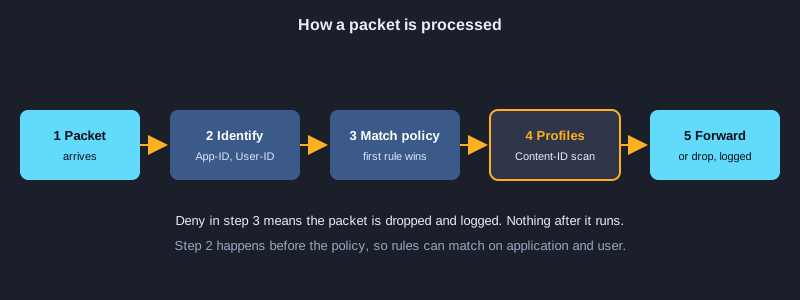
App-ID identifies the application, such as a specific video-call app, even when it hides inside HTTPS. User-ID maps an IP address to a directory user or group, so rules can say 'the sales group' instead of an IP range. Content-ID inspects the payload for threats, malicious files, data leaks and URL categories.
Where it sits in the network
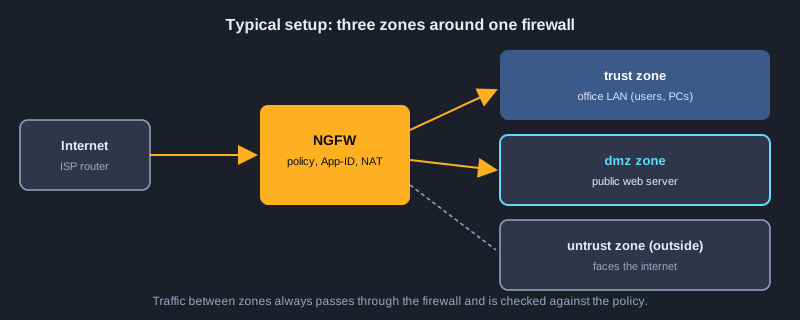
The firewall usually sits between the internet router and the internal network. Every packet that crosses between zones passes through it. Placing it in the wrong spot, for example behind a NAT device that hides the real source, makes User-ID and logs much less useful.
Topic 2: Planning the setup before you configure
Most firewall problems come from unclear design, not from the device. Before opening the web interface, write down the network you are protecting, the traffic you want to allow, and the order in which you will build it.
Draw the concept
Draw the internet link, the firewall, the internal LAN, and any DMZ with public servers. Label each interface with its zone and IP address. A simple diagram like this is the most useful document in the whole project, because it tells you where each rule belongs.
Write an IP and zone plan
For each interface, record the zone (for example untrust, trust, dmz), the IP address and mask, the default gateway, and the purpose. Keep the plan in one document. Changing an address later is much easier when you know which rules and NAT entries depend on it.
List the traffic you need
Write each required flow in plain language: 'staff can reach the internet on web and HTTPS', 'the internet can reach the web server on HTTPS only', 'branch office connects to the head office on a VPN'. Each sentence becomes one security rule, and anything not in the list is denied.
Plan the rollback
Before the first change, save a copy of the configuration and note how to restore it. Plan a maintenance window for changes that affect live traffic, and tell the users who will be affected.
Topic 3: First access and initial setup
A new firewall needs a management address, a secure admin account, and its licences and content updates before it can protect anything. The exact menu names vary between PAN-OS versions, so check the documentation for your version.
Connect to the management interface
Connect a computer to the management port with a cable, and give the computer an address on the same network as the management interface. Open the web interface with the address printed in the vendor guide. Use the default account only once, then change its password immediately and create named admin accounts for each person.
Set the hostname, time and DNS
Give the device a clear hostname such as fw-hq-01. Set the correct time zone and an NTP server, because logs and certificates depend on accurate time. Set DNS servers so that the device can check updates and resolve names.
Licences, updates and content
Activate the subscription licences you have bought, then download the latest software version and the threat, application and URL database updates. Install them in the order the vendor recommends, and read the release notes. An out-of-date threat database is a common reason for missed attacks.
Restrict who can manage the firewall
Allow management access only from a dedicated admin subnet, and turn off management on internet-facing interfaces. Use strong authentication, and where possible use an external directory or a second factor for admin logins.
Device configuration: Set the management address, time and admin account
Give the firewall a name, a management address and gateway, DNS and NTP servers, and the time zone. Allow management only from the admin subnet, create a named superuser, and commit with a description. Then check the system information and download the latest content updates.
# PAN-OS CLI: first access, management settings and updates
configure
set deviceconfig system hostname fw-hq-01
set deviceconfig system ip-address 192.168.1.10 netmask 255.255.255.0 default-gateway 192.168.1.1
set deviceconfig system dns-setting servers primary 8.8.8.8
set deviceconfig system timezone Asia/Bangkok
set deviceconfig system ntp-servers primary-ntp-server ntp-server-addr pool.ntp.org
set deviceconfig system permitted-ip 192.168.1.0/24
set mgt-config users netadmin permissionrole superuser
set mgt-config users netadmin password
commit description "initial setup"
exit
# Operational mode: check and update content
show system info
request content upgrade check
request content upgrade download latest
request content upgrade install version latest
Topic 4: Interfaces, zones and routing
An interface is a physical port with an address. A zone is a named group of interfaces that share a trust level. Security policies are written between zones, not between interfaces, so zones are the most important design choice in the firewall.
Layer 3 interfaces
Give each data port an IP address, mask and a virtual router, then assign the port to a zone. The virtual router holds the routing table for the interfaces that belong to it. A small setup usually needs only one virtual router.
Standard zones
A common design uses three zones. The untrust zone faces the internet and is treated as hostile. The trust zone holds internal users and is treated as safe, but not fully trusted. The DMZ holds public servers that the internet must reach, and it is kept separate so a compromised server cannot reach the trust zone freely.
Routing to the internet and back
Set a default route toward the internet router, and add static routes or a dynamic protocol for any internal networks behind other routers. Check that return traffic has a route back, because the firewall drops traffic it cannot route. A quick test with a ping from each zone shows whether the routing is correct before any policy is added.
Zone protection
Each zone can have protection settings, such as limits on floods and scans, that stop common attacks before the policy is checked. Enable them on the untrust zone first, and watch the logs for false positives before making them stricter.
Device configuration: Configure interfaces, zones and the default route
Assign an address to each data port, put each port in its zone, and add all ports to the virtual router. The default route sends traffic for the internet to the ISP gateway. Use show routing route and a ping to check the route before you write any security rule.
# PAN-OS CLI: interfaces, zones, virtual router and default route
configure
set network interface ethernet ethernet1/1 layer3 ip 203.0.113.2/30
set network interface ethernet ethernet1/2 layer3 ip 10.10.10.1/24
set network interface ethernet ethernet1/3 layer3 ip 172.16.10.1/24
set zone untrust network layer3 ethernet1/1
set zone trust network layer3 ethernet1/2
set zone dmz network layer3 ethernet1/3
set network virtual-router default interface [ ethernet1/1 ethernet1/2 ethernet1/3 ]
set network virtual-router default routing-table ip static-route default-route destination 0.0.0.0/0 nexthop ip-address 203.0.113.1
commit
exit
# Operational mode: check interfaces and routes
show interface all
show routing route
ping source 10.10.10.1 host 8.8.8.8
Topic 5: Security policy: rules, order and default deny
A security policy is an ordered list of rules. Each rule matches a source zone, a destination zone, source and destination addresses or users, an application or service, and then allows or denies the traffic. Rules are read from top to bottom, and the first match decides.
Rule fields that matter
A rule has a name, source and destination zones, source and destination addresses, users, applications, services (ports), and an action such as allow or deny. Use applications instead of ports whenever you can. A rule that says 'web browsing' is clearer and safer than one that says 'TCP port 80 and 443'.
Order of rules and the default rules
Put the most specific rules first and the broad rules last. PAN-OS includes default rules at the bottom: an intrazone default that allows traffic inside one zone, and an interzone default that denies traffic between zones. Because the interzone default denies, you must add an explicit allow for every flow you want between zones.
Start strict, then relax with evidence
Begin with a rule that denies and logs, check the logs to see what is really being used, then write allow rules for the flows you have confirmed. This prevents the common mistake of allowing too much because a rule was copied from another site.
Profiles on allowed traffic
An allow rule can attach security profiles, such as antivirus and threat prevention, to the traffic it permits. Allowing a flow without profiles means the firewall identifies the application but does not inspect the content, so turn on profiles for any traffic that brings in files or web content.
Device configuration: Write security rules and the default deny
The first rule allows the office to browse the web and logs each session. The second rule lets internet users reach the DMZ web server on its private address after NAT. The interzone default rule denies everything else between zones. Move the most specific rules to the top, then use the policy match test to confirm.
# PAN-OS CLI: security rules (order matters; the first match wins)
configure
set rulebase security rules allow-web-out from trust to untrust source 10.10.10.0/24 destination any application [ web-browsing ssl ] service application-default action allow log-end yes
set rulebase security rules allow-web-to-dmz from untrust to dmz source any destination 172.16.10.10 application web-browsing service application-default action allow log-end yes
set rulebase default-security-rules rules interzone-default log-end yes
move rulebase security rules allow-web-out top
commit
exit
# Operational mode: check which rule a flow would match
test security-policy-match from trust to untrust source 10.10.10.20 destination 8.8.8.8 protocol 6 destination-port 443
Topic 6: NAT: translating addresses
NAT changes the source or destination address of traffic as it passes through the firewall. Outbound users usually need source NAT to share a public address. Servers in the DMZ usually need destination NAT so that outside users can reach them at a public address.
Source NAT for the office
Dynamic source NAT, often called dynamic IP and port, lets many internal hosts share the public address of the untrust interface. Create the NAT rule from the trust zone to the untrust zone, and make sure the security policy allows the traffic.
Destination NAT for a public server
Destination NAT maps a public IP address and port to the private server address. For example, public address 203.0.113.10 port 443 can map to the web server in the DMZ on its private address. The security policy must allow the traffic to the private address after the translation, which is a frequent source of confusion.
Check the order and test
NAT and security policy both affect a flow, so check the sequence in the documentation for your version. After every NAT change, test from a real client on each side, and check the traffic log to see the original and translated addresses.
Device configuration: Set source NAT and destination NAT
The outbound rule translates office addresses to the outside interface address. The web server rule maps public address 203.0.113.10 port 443 to the DMZ server. The security rule above must allow traffic to the private address, because the policy is checked after the translation.
# PAN-OS CLI: source NAT for the office and destination NAT for the DMZ web server
configure
set rulebase nat rules outbound-to-internet from trust to untrust source any destination any service any nat-type ipv4 to-interface ethernet1/1 source-translation dynamic-ip-and-port interface-address interface ethernet1/1
set rulebase nat rules web-server-dnat from untrust to untrust source any destination 203.0.113.10 service service-https nat-type ipv4 to-interface ethernet1/1 destination-translation translated-address 172.16.10.10 translated-port 443
commit
exit
# Operational mode: check sessions and the translated addresses
show session all filter destination 203.0.113.10
Topic 7: Threat prevention, URL filtering and decryption
Security profiles and decryption are where the NGFW goes beyond the address and port. They inspect what is inside the connection, but they also need careful planning so that legitimate traffic is not broken.
The main security profiles
Antivirus scans files for known malware. Anti-spyware blocks command-and-control traffic from infected hosts. Vulnerability protection blocks attempts to exploit known weaknesses. URL filtering blocks or warns on categories of websites. File blocking stops certain file types from being downloaded or uploaded. Start with the default or best-practice profile, then adjust it using the logs.
Decryption: inspecting encrypted traffic
Most web traffic is encrypted with TLS, and a firewall cannot inspect what it cannot read. Decryption lets the firewall act as a trusted party by presenting its own certificate to the client, which requires that the client trusts the firewall's certificate authority. Decryption raises privacy and legal questions, so decide with the owners of the network which traffic is decrypted, and document the decision. Some traffic, such as banking and health services, is often excluded.
Certificate and trust setup
To decrypt, the firewall needs a forward-trust certificate that the internal clients trust, and it must handle pinned apps that refuse the substituted certificate. Test each new decryption rule with a client you control, and keep an exclusion list ready for apps that break.
Topic 8: Remote access VPN and high availability
Two features often come up in a real setup. Remote access lets staff connect from home or travel, and high availability keeps the network running when one firewall fails.
GlobalProtect VPN concept
GlobalProtect is the remote access VPN for Palo Alto firewalls. A portal tells the client which gateway to use, and the gateway creates an encrypted tunnel. Once connected, the user is in a security zone with the same policies as the office, and User-ID can tie the session to the directory user. Plan the IP pool for remote clients so it does not overlap with internal networks.
Site-to-site VPN
A site-to-site IPsec tunnel joins two offices. Both sides need matching phase 1 and phase 2 settings, the same pre-shared key or certificate, and routes or proxy IDs that cover the right networks. A tunnel that is up but not passing traffic is almost always a routing or policy problem on one side.
High availability
A pair of firewalls can run in active-passive mode, where the standby takes over if the active unit fails, or in active-active mode, where both process traffic. The two units synchronise their configuration and session table over a dedicated link. Test failover in a window with the business aware, because a badly configured pair can cause an outage that a single firewall would not.
Topic 9: Commit, logs and troubleshooting
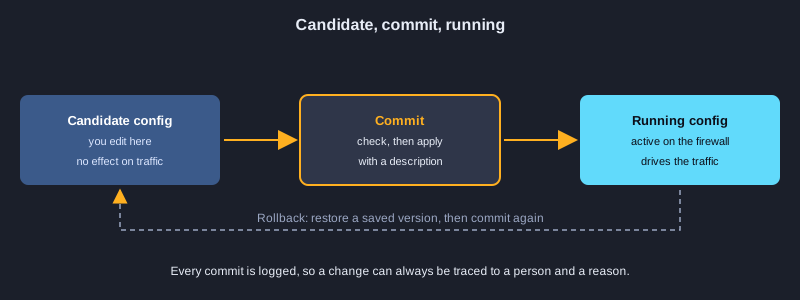
The firewall has a candidate configuration, which you edit, and a running configuration, which is active. Nothing you change affects traffic until you commit. Logs and built-in tools then show whether the change works.
Candidate, running and commit
Changes are written to the candidate configuration. Commit makes them active, and you can preview the changes before committing. Save a named configuration before a big change, so that you can roll back to it if something goes wrong. Commit with a clear description so the audit log explains each change.
Traffic and threat logs
The traffic log shows each session with the source, destination, application, user, rule name and action. The threat log shows matches against security profiles. When a user says a site is blocked, search the traffic log for their IP, find the rule that matched, then check whether the rule, the profile or the URL category caused the block.
Troubleshooting order
Work through the same order as the traffic: is the link up, is the route present, is NAT correct, is a security rule matched, and do the profiles block it. The Test commands in the CLI can show which rule a flow would match, and a packet capture shows what leaves and arrives on each interface.
Monitoring and reporting
Use dashboards, scheduled reports and alerts for critical threats, failed VPN tunnels, and interface errors. Review logs regularly, not only when something breaks, because most attacks are visible in the logs before they cause damage.
Device configuration: Save, commit and roll back safely
Show the pending differences before you commit, save a named version, and commit with a description that the audit log can show. If a change breaks traffic, load the saved version and commit it again. Read the traffic log to confirm what the rules allow and deny.
# PAN-OS CLI: review changes, save a named configuration, commit with a description, roll back
configure
show config diff
save config to before-web-change
commit description "allow web from office, NAT for the DMZ web server"
exit
# Later, if the change causes a problem: load the saved version, check it, then commit
configure
load config from before-web-change
commit description "rollback: web change"
exit
# Operational mode: read the logs
show log traffic
Practise in a lab
Firewall skills come from doing, so build a small lab with three networks: the internet side, the office LAN, and a DMZ with a web server. Use a lab image or a simulator from the vendor where available, and work through these steps in order.
1. Draw the concept and write the IP and zone plan for the three networks.
2. Set up management access, change the default password, and create a named admin account.
3. Configure the three interfaces, assign each to its zone, and add a default route and the routes for the internal networks.
4. Check connectivity with ping from each zone before adding any security policy.
5. Add a security rule that allows the office to reach the internet on web traffic, and a default deny for everything else.
6. Add destination NAT so the DMZ web server is reachable from the untrust side, and add the matching security rule.
7. Attach a threat prevention profile to the allowed rules, then check the logs for matches.
8. Commit, test each flow, and roll back to the saved configuration to confirm the rollback works.
Next steps
After the setup, learn the policy-based troubleshooting flow until you can find a blocked flow in minutes, then study GlobalProtect and site-to-site VPN, then high availability. Keep a change log for every commit. Most outages come from an untracked change, not from a single bad rule.
Summary
A Palo Alto NGFW identifies applications, users and content, not only ports and addresses. A good setup starts with a concept diagram, a zone and IP plan, and a list of required flows. Then comes the management setup, the interfaces and zones, ordered security rules with an explicit allow for each flow, NAT for outbound and public servers, and profiles for inspection. Commit deliberately, read the logs, and keep a rollback.