Learn to Write HTML from Scratch
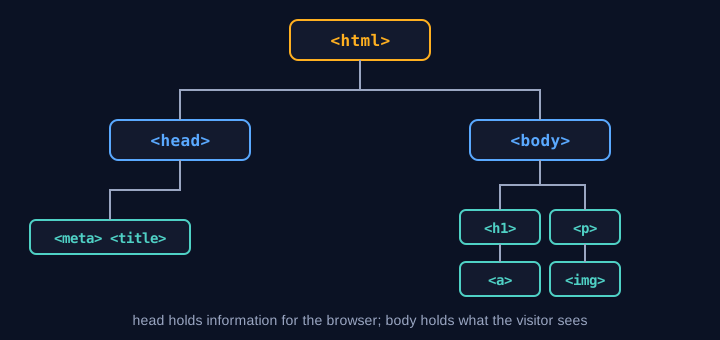
Every web page you have ever opened, whether a news site, a shop or a personal blog, has a basic structure written in HTML. HTML is not a programming language in the sense of calculations or loops. It is a markup language that tells the browser what each part of the page is: a heading, a paragraph, an image, a link or a form. This tutorial starts from zero and takes you to a working personal profile page.
What HTML is
HTML stands for HyperText Markup Language. "HyperText" refers to text connected by links, and "Markup" refers to tags that label the meaning of the content. The browser reads an HTML file from top to bottom, interprets the tags as the structure of the page, and displays it to the user.
HTML does not set colours or font sizes directly. That is the job of CSS, and making the page interactive is the job of JavaScript. The three work together like the frame of a house (HTML), its paint and décor (CSS), and its electrical wiring that makes things move (JavaScript).
Tools you need
Writing HTML needs only two tools.
1. **A text editor:** Notepad on Windows works, but VS Code is free and recommended because it highlights tags and autocompletes code.
2. **A web browser:** Chrome, Edge or Firefox to open the file and see the result.
Create a new folder called `my-website` and inside it create a file called `index.html`. The name `index.html` is the standard name browsers and web servers recognise as the home page.
Your first web page
Open `index.html` and type the following.
<!DOCTYPE html>
<html lang="en">
<head>
  <meta charset="UTF-8">
  <meta name="viewport" content="width=device-width, initial-scale=1.0">
  <title>My Home Page</title>
</head>
<body>
  <h1>Hello, world</h1>
  <p>This is the first web page I wrote myself.</p>
</body>
</html>
Look at the structure piece by piece.
- `<!DOCTYPE html>` tells the browser this is an HTML5 document. It must be the very first line.
- `<html lang="en">` is the main container of the page. The `lang` value tells the browser and search engines the main language of the page, which also helps screen readers.
- `<head>` holds information the visitor does not see directly, such as the character set, the page title and mobile settings.
- `<meta charset="UTF-8">` declares the UTF-8 character encoding, which lets all languages display correctly.
- `<title>` is the name shown on the browser tab.
- `<body>` holds everything the visitor sees on the screen.
Save the file and double-click it to open it in your browser. You will see the heading and paragraph you wrote.
How to save and run every example
1. Create a folder called `my-website` on your desktop.
2. Inside it, create a new file called `index.html`. The examples later in the article list the file name to use for each one in the table below.
3. Copy the code from an example and paste it in place of the file's contents.
4. Save as UTF-8. In Notepad choose "Save As" and set the encoding to UTF-8. Check that the file really ends in `.html`, not `.html.txt`.
5. Double-click the file to open it in your browser, or press F5 after each save to refresh it.
6. If you use VS Code, install the Live Server extension so the page refreshes automatically whenever you save.
Examples with images, such as the gallery or the coffee shop, need the image files in the same folder as the HTML, with names that match the `src` value exactly. If a name does not match, the browser shows a broken image frame with the `alt` text instead.
Text and headings
HTML provides heading tags from `<h1>` to `<h6>`. `<h1>` is the most important heading and should normally appear only once per page. `<h2>` to `<h6>` are used for subheadings in order.
<h1>My story</h1>
<h2>Childhood</h2>
<p>I was born in Bangkok and loved reading from an early age.</p>
<p>I enjoy <strong>programming</strong> and <em>photography</em>.</p>
<p>This line breaks<br>onto a new line.</p>
`<p>` is a paragraph. `<strong>` makes text bold and signals that it is important, while `<em>` makes it italic and signals emphasis. `<br>` starts a new line without starting a new paragraph. It has no closing tag.
Links and images
The `<a>` tag creates a link, and its `href` value is the destination.
<a href="https://www.example.com">Visit the example website</a>
<a href="about.html">Go to my About page</a>
The first link leads to an external website, and the second opens `about.html` in the same folder.
The `<img>` tag displays an image. It needs a `src` value pointing to the image, and you should always include `alt` text that describes the image for people who cannot see it or when the image fails to load.
<img src="photo.jpg" alt="Photo of a landscape at sunrise" width="400">
Lists
An unordered list uses `<ul>`, an ordered list uses `<ol>`, and each item uses `<li>`.
<h2>Languages I want to learn</h2>
<ul>
  <li>HTML</li>
  <li>CSS</li>
  <li>JavaScript</li>
</ul>

<h2>Installation steps</h2>
<ol>
  <li>Download the program</li>
  <li>Install it following the steps</li>
  <li>Open the program and start using it</li>
</ol>
Tables
Tables use the `<table>` tag. Each row is a `<tr>`, header cells are `<th>`, and data cells are `<td>`.
<table>
  <tr>
    <th>Subject</th>
    <th>Score</th>
  </tr>
  <tr>
    <td>Mathematics</td>
    <td>85</td>
  </tr>
  <tr>
    <td>English</td>
    <td>78</td>
  </tr>
</table>
Use tables only for genuinely tabular data. Do not use them to lay out an entire page, because this makes the page harder for screen readers to interpret.
Forms
Forms let visitors send information back to a server. A contact form, for example, has fields for name, email and a message.
<form action="/send" method="post">
  <label for="name">Name:</label>
  <input type="text" id="name" name="name" required>

  <label for="email">Email:</label>
  <input type="email" id="email" name="email" required>

  <label for="message">Message:</label>
  <textarea id="message" name="message" rows="4"></textarea>

  <button type="submit">Send message</button>
</form>
The `<label>` tag links to its input through `for`, which must match the input's `id`. This lets a visitor click the label to focus the field, and it helps screen readers announce what each field is for. The `required` attribute stops the form from being submitted while the field is empty, and `type="email"` asks the browser to check the email format.
Semantic tags
Apart from `<div>`, which has no particular meaning, HTML5 provides semantic tags that describe the structure of a page clearly.
- `<header>` the top of a page or article
- `<nav>` a navigation menu
- `<main>` the main content of the page; use one per page
- `<section>` a thematic group of content with its own heading
- `<article>` self-contained content such as a post or story
- `<footer>` the bottom of a page or article
<body>
  <header>
    <h1>My website</h1>
    <nav>
      <a href="index.html">Home</a>
      <a href="about.html">About</a>
    </nav>
  </header>
  <main>
    <article>
      <h2>First article</h2>
      <p>The content of the article.</p>
    </article>
  </main>
  <footer>
    <p>Copyright 2026</p>
  </footer>
</body>
Semantic tags help search engines understand your page and let screen-reader users jump to the section they need more quickly.
Attributes: id and class
Attributes are extra information placed inside a tag, such as the `href`, `src` and `alt` values already seen. The two most used are `id` and `class`.
- `id` must be unique on the page and identifies a single element.
- `class` can be shared by many elements and is used to group them for styling with CSS.
<p id="intro" class="highlight">This paragraph has an identifier and belongs to the highlight group.</p>
<p class="highlight">This paragraph is in the same group.</p>
Connecting CSS and JavaScript
To make the page look better, keep the styling in a CSS file and link it in the `<head>` with a `<link>` tag.
<link rel="stylesheet" href="style.css">
The file `style.css` might contain the following.
body {
  font-family: sans-serif;
  background-color: #f5f7fb;
  color: #1a1a1a;
}
h1 {
  color: #2255aa;
}
JavaScript is connected with a `<script>` tag. It is best placed just before `</body>`, so the page content loads first.
<script src="main.js"></script>
A small project: a personal profile page
Bring everything together by building a personal profile page.
<!DOCTYPE html>
<html lang="en">
<head>
  <meta charset="UTF-8">
  <meta name="viewport" content="width=device-width, initial-scale=1.0">
  <title>My Profile</title>
  <link rel="stylesheet" href="style.css">
</head>
<body>
  <header>
    <h1>Alex Example</h1>
    <nav>
      <a href="#about">About</a>
      <a href="#skills">Skills</a>
      <a href="#contact">Contact</a>
    </nav>
  </header>

  <main>
    <section id="about">
      <h2>About me</h2>
      <img src="me.jpg" alt="Photo of Alex" width="160">
      <p>I am a web developer learning something new every day.</p>
    </section>

    <section id="skills">
      <h2>Skills</h2>
      <ul>
        <li>HTML</li>
        <li>CSS</li>
        <li>JavaScript</li>
      </ul>
    </section>

    <section id="contact">
      <h2>Contact</h2>
      <p>Email: <a href="mailto:[email protected]">[email protected]</a></p>
    </section>
  </main>

  <footer>
    <p>Built with HTML</p>
  </footer>
</body>
</html>
The link `#about` points to the element with `id="about"` on the same page, so the menu scrolls straight to that section. The `mailto:` link opens the visitor's email program.
Worked example: a coffee shop menu, step by step
Let's write a menu page for an imaginary coffee shop to practise combining several tags. Start with the basic skeleton.
<!DOCTYPE html>
<html lang="en">
<head>
  <meta charset="UTF-8">
  <title>Garden Coffee Menu</title>
</head>
<body>
  <h1>Garden Coffee Menu</h1>
  <p>Open every day, 8:00 to 18:00.</p>
</body>
</html>
Line by line:
- `<h1>` is the shop name, the single main heading of the page.
- `<p>` is ordinary text, such as opening hours, which needs no special emphasis.
Next, add a drinks section. Use `<h2>` for subheadings and `<ul>` with `<li>` for lists.
<h2>Hot coffee</h2>
<ul>
  <li>Espresso, 45 baht</li>
  <li>Latte, 55 baht</li>
  <li>Cappuccino, 55 baht</li>
</ul>

<h2>Cold drinks</h2>
<ul>
  <li>Iced americano, 60 baht</li>
  <li>Green tea latte, 50 baht</li>
</ul>
Then put the prices into a table so they are easier to compare, using `<table>`, `<th>` and `<td>` as described earlier.
<table>
  <tr>
    <th>Drink</th>
    <th>Size</th>
    <th>Price</th>
  </tr>
  <tr>
    <td>Latte</td>
    <td>Small</td>
    <td>55 baht</td>
  </tr>
  <tr>
    <td>Latte</td>
    <td>Large</td>
    <td>65 baht</td>
  </tr>
</table>
Finally, add a photo of the shop and a link back to the home page to make the page genuinely usable.
<img src="shop.jpg" alt="The front of Garden Coffee, shaded by trees" width="600">
<p><a href="index.html">Back to home</a></p>
Save the combined file and open it in your browser. You will see a menu with a heading, lists, a table and an image. Change a drink name or a price, refresh the browser, and the result appears immediately. This edit-save-refresh loop is the basic workflow you will use every day when writing web pages.
Common beginner mistakes and how to fix them
- **Forgetting a closing tag:** Writing `<p>text` without `</p>` can distort the page. Check that every opening tag has a matching closing tag.
- **Using `<br>` to create paragraph spacing:** Use separate `<p>` tags for paragraphs. Repeated `<br>` tags are not a substitute.
- **Leaving out `alt` on images:** Screen-reader users then cannot tell what the picture shows. Always add a short description.
- **Reusing an `id`:** Each `id` must be unique on the page. A duplicate can break links and CSS.
- **Wrong file path:** Make sure file and folder names match exactly, letter for letter. Many servers treat uppercase and lowercase as different.
- **Changes not appearing:** Save the file, then refresh the browser, or press Ctrl+F5 to force a full reload.
When something breaks, open the browser's developer tools (press F12 and choose the Console tab). The error message usually points to the line causing the problem, which speeds up fixing it considerably.
More tags and commands worth knowing
Beyond the basic tags, HTML has many more that make pages richer. Here are commonly used ones with short examples.
Emphasis and inline meaning
<p>Old price <s>100 baht</s>, now only <mark>80 baht</mark></p>
<p>Water is H<sub>2</sub>O and E = mc<sup>2</sup></p>
<p>Note: <small>tax not included</small></p>
<p>What does <abbr title="HyperText Markup Language">HTML</abbr> stand for?</p>
<p>Meeting on <time datetime="2026-10-30">30 October</time></p>
`<mark>` highlights text, `<sub>` and `<sup>` create subscript and superscript, `<abbr>` shows the full term on hover, and `<time>` gives a date that both people and machines can read.
Quotations and code
<blockquote cite="https://example.com/source">
  Learning is repeated practice.
</blockquote>
<p>Example command: <code>console.log("hi")</code></p>
<pre>
  This line keeps its spacing
  and line breaks exactly as typed.
</pre>
`<blockquote>` marks a quotation from another source, `<code>` displays a command inside a sentence, and `<pre>` preserves all spacing and line breaks.
Grouping content
<figure>
  <img src="chart.png" alt="Monthly sales chart" width="500">
  <figcaption>Monthly sales, 2026</figcaption>
</figure>

<details>
  <summary>Click to see how to sign up</summary>
  <p>Enter your name and email, then confirm.</p>
</details>

<dl>
  <dt>HTML</dt>
  <dd>The language that structures web pages.</dd>
  <dt>CSS</dt>
  <dd>The language that styles web pages.</dd>
</dl>
`<figure>` and `<figcaption>` pair an image with its caption. `<details>` hides content until the visitor clicks, and `<dl>` pairs terms with their descriptions.
Video, audio and embedded frames
<video controls width="480" poster="cover.jpg">
  <source src="clip.mp4" type="video/mp4">
  Your browser does not support video.
</video>

<audio controls>
  <source src="song.mp3" type="audio/mpeg">
</audio>

<iframe src="https://www.example.com/map" width="400" height="300" title="Shop location map"></iframe>
`controls` shows playback buttons. An `<iframe>` embeds another page inside yours. Always give it a `title`, so screen-reader users know what the frame contains.
More form controls
<form>
  <fieldset>
    <legend>Newsletter channels</legend>
    <input type="checkbox" id="mail" name="channel" value="mail">
    <label for="mail">Email</label>
    <input type="radio" id="sms" name="plan" value="sms">
    <label for="sms">SMS</label>
  </fieldset>

  <label for="city">City:</label>
  <select id="city" name="city">
    <option value="bkk">Bangkok</option>
    <option value="cnx">Chiang Mai</option>
  </select>

  <label for="visit">Visit date:</label>
  <input type="date" id="visit" name="visit">

  <label for="qty">Quantity:</label>
  <input type="number" id="qty" name="qty" min="1" max="10" value="1">
</form>
Checkboxes allow several choices, while radio buttons with the same `name` allow only one. `<select>` creates a drop-down menu, and `type="date"` or `type="number"` gives the browser the right control for the kind of data.
Dividers and progress indicators
<hr>
<p>Download is 70% complete</p>
<progress value="70" max="100"></progress>
<meter value="0.6" min="0" max="1">60%</meter>
`<hr>` marks a thematic break, not just a decorative line. `<progress>` shows a task in progress, while `<meter>` shows a measured value within a range.
Ten more HTML examples
These are patterns you will meet on real sites. Each one can be copied and used as a starting point, and each comes with an explanation of why it is written that way.
Example 1: a travel journal
<article>
  <h2>Chiang Mai, 3 days 2 nights</h2>
  <p>A trip in early year, with cool weather.</p>
  <ol>
    <li>Day one: Wat Phra That Doi Suthep</li>
    <li>Day two: Warorot Market</li>
    <li>Day three: Doi Inthanon</li>
  </ol>
</article>
The journal uses `<article>` because it is self-contained content that can be read on its own. It uses `<ol>` because the order of the days carries meaning. A `<ul>` would lose that sequence.
Example 2: a registration form with validation
<form action="/register" method="post">
  <label for="username">Username (4 to 12 English letters):</label>
  <input type="text" id="username" name="username"
         pattern="[A-Za-z]{4,12}" required>

  <label for="password">Password (at least 8 characters):</label>
  <input type="password" id="password" name="password"
         minlength="8" required>

  <label for="birth">Date of birth:</label>
  <input type="date" id="birth" name="birth">

  <button type="submit">Register</button>
</form>
`pattern` checks the text against a regular expression, `minlength` sets a minimum length, and `required` makes the field mandatory. The browser asks the user to correct the input before sending, which reduces server work. The server must still check everything itself, because anyone can bypass the browser's checks.
Example 3: a photo gallery
<section>
  <h2>Trip photos</h2>
  <figure>
    <img src="doi1.jpg" alt="A sea of mist on Doi Inthanon" width="300">
    <figcaption>Morning mist</figcaption>
  </figure>
  <figure>
    <img src="temple.jpg" alt="An old temple among tall trees" width="300">
    <figcaption>A temple in the old town</figcaption>
  </figure>
</section>
Each image sits in a `<figure>` with a `<figcaption>`, so the caption is genuinely attached to the picture. The `alt` text should describe what the image shows, not just say "photo".
Example 4: a nested navigation menu
<nav>
  <ul>
    <li><a href="index.html">Home</a></li>
    <li>
      <a href="shop.html">Shop</a>
      <ul>
        <li><a href="shop-shirts.html">Shirts</a></li>
        <li><a href="shop-bags.html">Bags</a></li>
      </ul>
    </li>
    <li><a href="contact.html">Contact</a></li>
  </ul>
</nav>
The menu is a nested list because the structure really has levels. Screen readers can announce how many items there are and how deep each one sits.
Example 5: a frequently asked questions section
<h2>Frequently asked questions</h2>
<details>
  <summary>When will my order arrive?</summary>
  <p>Delivery takes 1 to 3 working days, depending on your area.</p>
</details>
<details>
  <summary>Can I return an item?</summary>
  <p>Yes, within 7 days if the item has not been used.</p>
</details>
`<details>` shortens the page and works without JavaScript, while staying accessible to everyone.
Example 6: a package comparison table
<table>
  <caption>Package comparison</caption>
  <thead>
    <tr>
      <th scope="col">Feature</th>
      <th scope="col">Basic</th>
      <th scope="col">Pro</th>
    </tr>
  </thead>
  <tbody>
    <tr>
      <th scope="row">Storage</th>
      <td>5 GB</td>
      <td>50 GB</td>
    </tr>
    <tr>
      <th scope="row">Monthly price</th>
      <td>99 baht</td>
      <td>299 baht</td>
    </tr>
  </tbody>
</table>
`<caption>` names the table, `<thead>` and `<tbody>` separate the header from the content, and `scope` states whether a header applies to a column or a row. Screen readers rely on these to describe the data correctly.
Example 7: a quotation with its source
<figure>
  <blockquote cite="https://example.com/book">
    <p>Do not fear going slowly. Fear standing still.</p>
  </blockquote>
  <figcaption>From the book <cite>The Writer's Path</cite></figcaption>
</figure>
Use `<cite>` for the title of a work, not the name of its author. The `cite` attribute on `<blockquote>` points to the source.
Example 8: a search box with suggestions
<form action="/search" method="get" role="search">
  <label for="q">Search products</label>
  <input type="search" id="q" name="q" list="suggest" placeholder="e.g. coffee">
  <datalist id="suggest">
    <option value="Medium roast coffee">
    <option value="Dark roast coffee">
    <option value="Green tea">
  </datalist>
  <button type="submit">Search</button>
</form>
`type="search"` gives the field a clear button. `<datalist>` offers suggestions as the user types. With `method="get"`, the search terms appear in the URL, so the results can be shared or bookmarked.
Example 9: internal links with ids
<nav>
  <a href="#intro">Introduction</a> |
  <a href="#terms">Terms</a>
</nav>

<h2 id="intro">Introduction</h2>
<p>The introduction text...</p>

<h2 id="terms">Terms</h2>
<dl>
  <dt>URL</dt>
  <dd>The address of a resource on the web.</dd>
  <dt>DNS</dt>
  <dd>The system that converts domain names into IP addresses.</dd>
</dl>
A link beginning with `#` points to an `id` on the same page, so the browser scrolls to that heading without loading a new page.
Example 10: meta tags for search engines and sharing
<head>
  <meta charset="UTF-8">
  <meta name="description" content="Learn to build websites with HTML from the beginning.">
  <meta name="viewport" content="width=device-width, initial-scale=1.0">
  <meta property="og:title" content="Learn HTML from the beginning">
  <meta property="og:type" content="article">
  <link rel="canonical" href="https://example.com/html-course/">
</head>
`description` is the summary that search engines often show under the page title. `og:title` and `og:type` control how a link looks when shared on social media. `canonical` names the main version of a page, which helps avoid duplicate-content problems.
Expected results for the extra examples
| Example | Save as | What you should see in the browser |
|---|---|---|
| 1. Travel journal | trip.html | A heading "Chiang Mai, 3 days 2 nights" followed by a numbered list of days 1 to 3 |
| 2. Registration form | register.html | Fields for username, password and date of birth. If the username is shorter than 4 letters, the browser refuses to submit and asks you to fix it |
| 3. Photo gallery | gallery.html | Two photos, each with a caption underneath (the image files must be in the same folder) |
| 4. Nested menu | menu.html | Three main menu items, with two sub-items under "Shop" (without CSS they simply appear as an indented list) |
| 5. FAQ | faq.html | Two questions. Clicking one opens its answer, and clicking again hides it |
| 6. Comparison table | table.html | A table with a caption above, column headers "Basic" and "Pro", and bold row headers |
| 7. Quotation with source | quote.html | The quote in an indented block, with the source line below it |
| 8. Search box | search.html | A search field that shows a clear button when you type; clicking it shows suggestions (depending on the browser) |
| 9. Internal links | anchor.html | Clicking "Terms" scrolls straight to the Terms heading, and the address changes to end with `#terms` |
| 10. Meta tags | head.html | Nothing visible on the page. Check them with View Source, or F12 and the Elements tab inside `<head>` |
Good habits from the start
- Set the correct `lang` on `<html>` and include `alt` text on every image.
- Use tags for their meaning, not only for their appearance.
- Close every tag and keep your code indented so it is easy to read.
- Check your page with the W3C Markup Validator to find errors.
- Test the page at phone width, because many visitors arrive from mobile devices.
Next steps
Once you understand HTML, learn CSS to style your pages, then JavaScript to make them respond to visitors. Later you can learn Git to manage your code, and frameworks such as React or Vue when projects grow larger.
Conclusion
HTML is the foundation of every web page. Understanding the basic structure, from `<html>`, `<head>` and `<body>` through text, links, images, lists, tables and forms, lets you build working pages right away. Start with small pages, add complexity gradually, and practise a little every day. You will improve quickly.