FortiGate Next-Generation Firewall: Setup Concepts from Interfaces to Troubleshooting

A FortiGate is a next-generation firewall from Fortinet. It inspects traffic by policy, applies security profiles such as antivirus, web filtering and intrusion prevention, and terminates VPN tunnels. This article walks through a complete setup in the order you will meet it: what the device does, how to plan the network, first access, interfaces and routing, firewall policies, virtual IP publishing, security profiles, site-to-site VPN, and high availability with troubleshooting. Each section includes a diagram or a checklist, and the device configuration examples show the FortiOS commands for each step.
What you need
You should know IP addressing and subnetting, and what a router and a switch do. It helps to have read the CCNA article and the Palo Alto NGFW article on this site, because the same ideas of zones, policies and NAT apply here. To practise, use a lab unit, a FortiGate VM in a lab, or the vendor's evaluation image. Work only on a device you own or are allowed to configure, and never change a production firewall without a written plan and a rollback path.
Illustrations
Topic 1: What a FortiGate does
A FortiGate combines a stateful firewall with security inspection, VPN and routing in one appliance. Fortinet calls this a unified threat management (UTM) approach when several inspection engines run on the same traffic. Its interfaces, zones and policies decide what passes, and its profiles decide what is inspected.
Firewall, UTM and the Security Fabric
The stateful firewall tracks each connection and allows return traffic automatically. On top of that, the UTM features inspect content: antivirus scans files, the web filter groups websites into categories, and the intrusion prevention system (IPS) detects attacks. Many FortiGates also join the Security Fabric, where they share threat information with other Fortinet devices.
The policy decides, the profile inspects
A firewall policy matches a source interface, destination interface, source and destination addresses, a service, and a schedule. If the policy accepts the traffic, the profiles attached to that policy inspect it. A policy with no profiles only checks addresses and ports, so profiles are what give the FortiGate its next-generation features.
Where it sits and what it sees
The FortiGate usually sits between the internet router and the internal network. Every packet that crosses between interfaces is seen by the firewall. If it sits behind a device that hides the real source address, user-based policies and logs become much less useful.
Topic 2: Planning the setup before you configure
Most firewall problems come from an unclear design, not from the device. Write down the network you protect, the traffic you want to allow, and the order in which you will build the configuration.
Draw the concept
Draw the internet link, the FortiGate, the office LAN, and a DMZ with public servers. Label each port with its name (port1, port2, port3), its role (WAN, LAN, DMZ) and its IP address. This diagram tells you where each policy belongs, so keep it with the configuration.
Write an interface and address plan
For each port, record the role, the IP address and mask, the purpose, and the subnet behind it. Add the address objects you will need, such as the sales subnet and the web server. A written plan makes it easy to change an address later, because you can see which policies depend on it.
List the traffic you need
Write each required flow in plain language: the sales subnet can browse the internet on HTTP and HTTPS; the internet can reach the DMZ web server on HTTPS only; the branch office connects to the head office on IPsec. Each sentence becomes one policy, and any traffic not on the list is denied by the implicit deny at the end.
Plan the rollback
Before the first change, back up the configuration and note how to restore it. Plan a maintenance window for changes that touch live traffic, and tell the users who will be affected.
Topic 3: First access and initial setup
A new FortiGate needs a hostname, a secure admin account, DNS, interface addresses, and licences and updates before it can protect anything. The GUI menus differ between FortiOS versions, so the commands in this article are a guide. Check them against the documentation for your version.
Connect and change the default password
Connect a computer to the management port and open the web interface at the address in the vendor guide. Log in with the default account once, then change the password immediately and create named admin accounts for each person with the least privilege they need.
Restrict who can manage the unit
Set trusted hosts on each admin account so that logins work only from the admin subnet. Remove management access (ping, HTTPS, SSH) from the WAN port, and allow it only on the LAN or a dedicated management interface. Turn on two-factor authentication for admin logins if the unit supports it.
Set DNS, time and hostname
Give the unit a clear name such as FGT-HQ-01. Set DNS servers so that the unit can check licences, updates and names. Accurate time matters for logs, certificates and VPN, so set the time from a reliable NTP source.
Licences, FortiGuard updates and firmware
Activate the licences you have bought, which enable the FortiGuard services: antivirus, IPS, web filtering and application control. Check that the signature databases are current, and install the firmware version recommended by Fortinet for your model. Read the release notes first, and keep the old firmware image so you can roll back.
Device configuration: Set the hostname, admin access, DNS and interfaces
Name the FortiGate, set DNS servers, and restrict the admin account to a trusted subnet. Give the WAN port the public address and mark its role, and give the LAN port its private gateway address. Use get system interface physical to check that each port is up.
# FortiOS CLI: hostname, admin access, DNS and interfaces
config system global
    set hostname FGT-HQ-01
end
config system dns
    set primary 8.8.8.8
end
config system admin
    edit "netadmin"
        set accprofile "super_admin"
        set password <strong-password>
        set trusthost1 192.168.1.0 255.255.255.0
    next
end
config system interface
    edit "port1"
        set alias WAN
        set mode static
        set ip 203.0.113.2 255.255.255.252
        set role wan
        set allowaccess ping https ssh
    next
    edit "port2"
        set alias LAN
        set mode static
        set ip 10.10.10.1 255.255.255.0
        set role lan
        set allowaccess ping https ssh
    next
end
# Check
get system status
get system interface physical
Topic 4: Interfaces, zones, addresses and routing
Each port is an interface with an address. A zone groups interfaces that share a trust level, so that a policy can refer to one name instead of several ports. Address objects name subnets and hosts. Routing tells the unit where to send traffic that is not on a directly connected network.
Physical ports and their roles
Set each port to static mode with an IP address and mask, and give it a role (WAN, LAN or DMZ). The role helps the GUI and the defaults make sense, while the policies still decide what passes. Use the alias to show a readable name in the interface list.
Zones group the ports
A zone holding port2 and port4 lets one policy cover both ports of the office LAN. Policies can then refer to the zone name, which is easier to read and to change. Keep zones consistent with your design diagram.
Static routes and the default route
A default route sends traffic for unknown destinations to the ISP gateway through the WAN port. Static routes add the networks behind other routers. Check the routing table with get router info routing-table all, and confirm that the return path exists, because the unit cannot route traffic it has no route for.
Address objects
Create an address object for each subnet and server, such as SALES-NET or WEB-SERVER, and use the names in policies. Address objects make policies easy to read, and one change to the object updates every policy that uses it.
Device configuration: Create zones, a default route and an address object
A zone groups the LAN ports so that policies can refer to one name. The static route sends internet traffic out through port1 to the ISP gateway. Address objects give a name to a subnet so that policies stay easy to read. Check the routes with get router info routing-table all.
# FortiOS CLI: zones, a default route and an address object
config system zone
    edit "LAN"
        set interface "port2"
    next
end
config router static
    edit 1
        set device "port1"
        set gateway 203.0.113.1
    next
end
config firewall address
    edit "SALES-NET"
        set subnet 10.10.10.0 255.255.255.0
    next
end
# Check
get router info routing-table all
diagnose ip address list
Topic 5: Firewall policies: order, implicit deny and logging
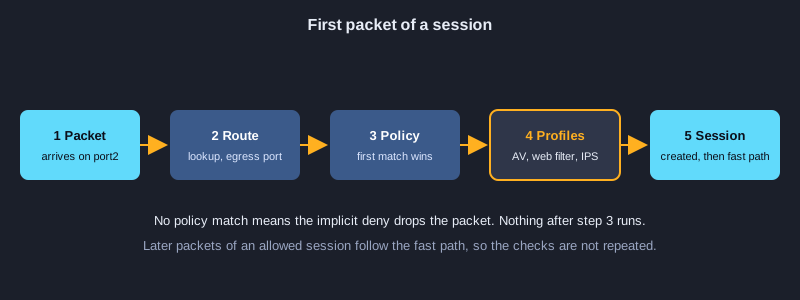
A firewall policy is an ordered list of rules. The unit checks the policies from the top down and applies the first one that matches the source interface, destination interface, addresses, service and schedule. If no policy matches, the traffic is dropped by the implicit deny.
Policy fields that matter
A policy has a name, source and destination interfaces, source and destination addresses, a service (such as HTTP or HTTPS), a schedule (always, or a time range), an action (accept or deny), NAT on or off, the security profiles, and logging. Name each policy so that the log explains which rule matched.
Order and the implicit deny
Put specific policies above general ones, because the first match wins. Every FortiGate ends with an implicit deny that you cannot see, so any flow you have not written a policy for is dropped. Test each new policy with a client and check the logs before you move to the next one.
Logging and the policy lookup
Turn on logging for the policies that matter, and use all or utm logging to see inspection results. The command diagnose firewall iprope lookup shows which policy a flow would match, and it saves time when a user says a site is blocked.
Start strict, then relax with evidence
Begin with a deny-and-log policy for a new flow, check the logs to see what is actually used, then write an accept policy for the traffic you have confirmed. This stops you from allowing more than you need because a policy was copied from another unit.
Device configuration: Write an outbound policy with security profiles
Policy 10 lets the sales subnet reach the internet on HTTP and HTTPS, applies NAT to the outgoing interface, and runs the antivirus, web filter and IPS profiles. The diagnose firewall iprope lookup command shows which policy a given flow would match, which is useful before you test with a real client.
# FortiOS CLI: outbound policy for the sales network with security profiles
config firewall policy
    edit 10
        set name "allow-sales-web"
        set srcintf "port2"
        set dstintf "port1"
        set srcaddr "SALES-NET"
        set dstaddr "all"
        set action accept
        set schedule "always"
        set service "HTTP" "HTTPS"
        set nat enable
        set utm-status enable
        set av-profile "default"
        set webfilter-profile "default"
        set ips-sensor "default"
        set logtraffic all
    next
end
# Check which policy a flow would match
diagnose firewall iprope lookup 10.10.10.20 0 8.8.8.8 443 port2 6
Topic 6: Virtual IPs: publishing an internal server
A virtual IP (VIP) is an address object that maps an external address and port to an internal server. The policy then allows the traffic to the VIP, not to the private address. This is how an internet user reaches the web server in the DMZ.
How the translation works
A user connects to the public address 203.0.113.10 on port 443. The FortiGate translates the destination to 172.16.10.10 on the same port and forwards the traffic to the DMZ interface. The reply is translated back automatically, because the session is tracked.
The policy uses the VIP
The policy from the internet interface to the DMZ interface uses the VIP as its destination. Remember that the policy checks the address after the translation in the reverse direction. A common mistake is to allow the private address in the policy, which does not match the traffic that arrives.
Check the sessions
Use diagnose sys session filter and diagnose sys session list to see the original and translated addresses for each session. If a client gets no answer, check the VIP, the policy and the server's own firewall, in that order.
Device configuration: Publish a server with a virtual IP and a policy
A virtual IP maps the public address and port to the private DMZ server. The policy must then allow the traffic to the virtual IP and send it to the DMZ interface. Check the sessions with diagnose sys session to confirm the translation is working.
# FortiOS CLI: a virtual IP (DNAT) for the DMZ web server and the policy that allows it
config firewall vip
    edit "WEB-SERVER"
        set extintf "port1"
        set extip 203.0.113.10
        set mappedip "172.16.10.10"
        set portforward enable
        set extport 443
        set mappedport 443
    next
end
config firewall policy
    edit 20
        set name "allow-web-to-dmz"
        set srcintf "port1"
        set dstintf "port3"
        set srcaddr "all"
        set dstaddr "WEB-SERVER"
        set action accept
        set schedule "always"
        set service "HTTPS"
        set ips-sensor "default"
        set logtraffic all
    next
end
# Check the sessions for the web server
diagnose sys session filter dst 172.16.10.10
diagnose sys session list
Topic 7: Security profiles and SSL inspection
Profiles are where the FortiGate looks inside the traffic. They give it its next-generation features, but they also need planning, because encrypted traffic cannot be inspected without decryption, and decryption affects privacy and some applications.
The main profiles
The antivirus profile scans files for malware. The web filter profile blocks or warns on website categories. The IPS sensor detects and blocks attack patterns. Application control identifies applications such as chat or file sharing. Start with the default profiles, then change them using the logs.
Encrypted traffic and SSL inspection
Most web traffic uses TLS, so the profiles cannot read it unless the unit decrypts it. SSL inspection lets the FortiGate present its own certificate to the client, which requires the client to trust the FortiGate's certificate authority. Certificate inspection checks only the certificate and does not decrypt the content, which is the safer first step.
Exemptions for banking and health
Some sites, such as banking and health services, break when their certificates are replaced, and their data is sensitive. Exempt them from decryption, and document the decision together with the network owners.
Topic 8: Site-to-site IPsec VPN
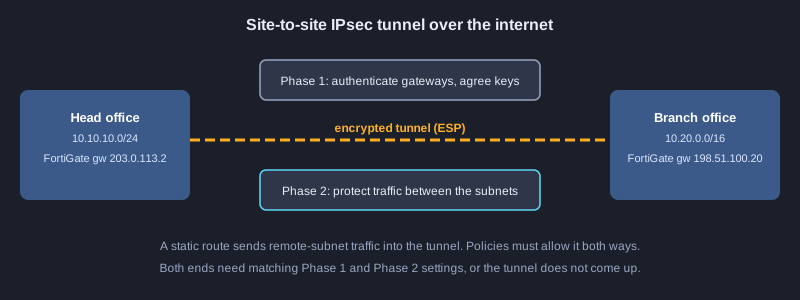
An IPsec tunnel joins two offices across the internet with encryption. Phase 1 builds a secure channel between the two gateways. Phase 2 creates the protected tunnel for the traffic between the two subnets. Both ends must match, or the tunnel stays down.
Phase 1 and Phase 2
Phase 1 authenticates the two gateways with a pre-shared key or a certificate and agrees on the encryption and hashing methods. Phase 2 agrees on the protected subnets and the methods for the data itself. A mismatch in either phase is the most common reason a tunnel does not come up.
Routing and policies
A static route sends traffic for the remote subnet into the tunnel interface. Then the policies must allow the traffic between the local LAN and the tunnel, and in the other direction. A tunnel that is up but passes no traffic is almost always missing a route or a policy on one side.
Check the tunnel
Use get vpn ipsec tunnel summary to see whether the tunnel is up, and diagnose vpn ike gateway list to see the Phase 1 status. The IKE debug output shows each step of the negotiation when something fails, and you must turn it off after the test.
Device configuration: Build a site-to-site IPsec tunnel
Both ends need matching Phase 1 and Phase 2 settings, the same pre-shared secret, and subnets that cover each other's networks. A static route sends traffic for the remote subnet into the tunnel, and policies must then allow it. Check the tunnel with get vpn ipsec tunnel summary.
# FortiOS CLI: site-to-site IPsec tunnel to the branch office
config vpn ipsec phase1-interface
    edit "to-branch"
        set interface "port1"
        set peertype any
        set net-device disable
        set proposal aes256-sha256
        set remote-gw 198.51.100.20
        set psksecret <shared-secret>
    next
end
config vpn ipsec phase2-interface
    edit "to-branch-p2"
        set phase1name "to-branch"
        set proposal aes256-sha256
        set src-subnet 10.10.10.0 255.255.255.0
        set dst-subnet 10.20.0.0 255.255.0.0
    next
end
config router static
    edit 2
        set device "to-branch"
        set dst 10.20.0.0 255.255.0.0
    next
end
# Check the tunnel
get vpn ipsec tunnel summary
diagnose vpn ike gateway list
Topic 9: High availability and troubleshooting
Two FortiGates can work as a cluster so that the network keeps running when one unit fails. The same skills also help you find the cause of a problem quickly, which saves more time than any change you make at random.
Active-passive cluster
In active-passive mode the primary unit processes traffic, and the secondary takes over if the primary fails. The units share their configuration and session state over a dedicated heartbeat link. The unit with the higher priority becomes primary, and the override setting decides whether it takes back the role after recovery.
Test the failover
Plan a failover test in a window the business knows about. Check the cluster status with get system ha status before and after the test, and confirm that the users keep their connections. A badly configured cluster can cause an outage that a single firewall would not.
Follow one flow with debug
When a flow fails, follow it step by step. Set a filter for the client address, enable the flow debug, start a trace for a few packets, and read the output: the route, the policy match, the profile results. Disable the debug as soon as you have the answer, because the debug output uses a lot of CPU.
Logs, backups and monitoring
Review the traffic and event logs regularly, not only when something breaks. Keep a backup of the configuration before each change, and record the change and the reason. Dashboards and alerts for VPN failures, licence expiry and interface errors catch problems early.
Device configuration: Set up active-passive HA and troubleshoot a flow
The primary unit has the higher priority, and the heartbeat port connects the two units. Use diagnose debug flow to follow one connection step by step: route lookup, policy match, and then the profiles. Turn the debug off with diagnose debug disable as soon as you have the answer, because debug output uses a lot of CPU.
# FortiOS CLI: active-passive HA, then the basic diagnose commands for troubleshooting
config system ha
    set group-name "FGT-HA"
    set mode a-p
    set hbdev "port8" 50
    set priority 200
    set override disable
    set password <ha-password>
end
# Troubleshooting: follow one flow and look at the debug output
diagnose debug reset
diagnose debug flow filter addr 10.10.10.20
diagnose debug flow show console enable
diagnose debug enable
diagnose debug flow trace start 20
diagnose debug disable
get system ha status
Practise in a lab
FortiGate skills come from doing, so build a small lab with three networks: the internet side, the office LAN, and a DMZ with a web server. Use a FortiGate VM or an evaluation image, and work through these steps in order.
1. Draw the concept and write the interface and address plan for the three networks.
2. Set the hostname, DNS, and a named admin account, and restrict admin access to the admin subnet.
3. Configure the three ports with their roles and addresses, then add the default route.
4. Check connectivity from each network with ping before you add any policy.
5. Add the outbound policy for the sales subnet with NAT and the default profiles, then test from a client.
6. Create the virtual IP for the DMZ web server and the matching policy, then check the sessions.
7. Build a site-to-site IPsec tunnel to a second lab unit, add the routes and policies, and check the tunnel status.
8. Back up the configuration, make one change, follow a flow with debug, then restore the backup to confirm that the rollback works.
Next steps
After the setup, practise finding a blocked flow in minutes with the policy lookup and the debug commands. Then study SSL VPN and FortiClient for remote users, and the Security Fabric for shared threat information. Keep a change log for every change you make. Most outages come from a change nobody recorded, not from a single bad policy.
Summary
A FortiGate inspects traffic by policy and applies security profiles to it. A good setup starts with a concept diagram, an interface and address plan, and a list of required flows. Then comes the first access, the interfaces, zones and routes, ordered policies with an explicit allow for each flow, virtual IPs for servers, profiles and SSL inspection, IPsec tunnels for branch offices, and high availability. Back up before each change, follow flows with debug when something fails, and turn the debug off afterwards.