F5 BIG-IP LTM Load Balancing: Setup Concepts from VLANs to Failover

F5 BIG-IP Local Traffic Manager (LTM) sits in front of a group of servers and spreads client requests across them. It checks which servers are healthy, keeps related requests on the same server when needed, offloads TLS encryption, and takes over automatically when a second unit is standing by. This article walks through a complete setup in the order you will meet it: what LTM does, planning the design, first access and networking, pools and health monitors, virtual servers, load-balancing methods and persistence, SSL offload, high availability, and troubleshooting. The configuration examples show the tmsh commands for each step.
What you need
You should know IP addressing, subnetting, VLANs and what a router and a switch do. It helps to have read the CCNA article and the load-balancing ideas in the FortiGate article on this site. To practise, use a BIG-IP lab unit or the vendor's virtual edition for a lab. Work only on a unit you own or are allowed to configure, and never change a production load balancer without a written plan and a rollback path.
Illustrations
Topic 1: What BIG-IP LTM does
A load balancer makes a group of servers look like one service. Clients connect to one address, and LTM decides which server handles each request. This gives more capacity, lets you remove a server for maintenance without an outage, and hides server failures from users. LTM works at the transport and application layers, so its decisions can use TCP details and HTTP content.
Why use a load balancer
One web server has a limit on the number of users it can serve. Adding servers helps only if something spreads the requests across them. LTM spreads the load, checks each server, and stops sending traffic to a server that is down. Users see one address, and the team can change the servers without changing the address.
Local traffic management and the other F5 products
LTM balances traffic inside a data centre. Global Traffic Manager (GTM, now DNS-based load balancing) chooses between data centres. Application Security Manager (ASM, now Advanced WAF) adds web application firewall features. Learn LTM first, because the same objects, such as pools and virtual servers, are used by the other products.
The data path
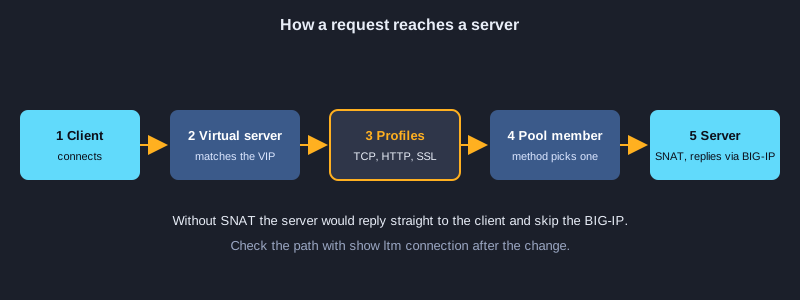
A request arrives at the virtual server address, passes through the profiles, is matched to a pool, and is sent to a member. The member's reply returns through the BIG-IP, which is why the BIG-IP must sit on the path between clients and servers or handle the return traffic with SNAT.
Topic 2: Planning the design before you configure
Most load-balancer outages come from a design nobody wrote down, not from the device. Before you open the configuration utility, plan the networks, the servers, the health checks and the failover.
Draw the concept
Draw the clients, the external network, the BIG-IP, the internal network with the web servers, and the standby unit. Label each port with its VLAN and each address with its purpose: virtual server address, self IP, server address, and management address. This drawing is the reference for every later step.
Write the address plan
Record the virtual server address that users connect to, the self IP for each VLAN, the server addresses, the default gateway, and the management address. Keep the management network separate from the traffic networks. Changing an address later is easy when every dependent object is listed.
Decide how the servers will be checked
Decide what a healthy server means for each service. A web server can be checked with an HTTP request to a health page, and a database with a TCP connection. A check that only tests the port can mark a broken application as healthy, so test what users actually need.
Plan the rollback
Save the configuration before the first change, and write down how to restore it. Plan a maintenance window for any change that moves live traffic, and tell the people who depend on the service.
Topic 3: First access, VLANs, self IPs and routing
A new BIG-IP needs a hostname, DNS, NTP, a licence and its networking before it can carry traffic. The configuration utility and the command line both work. The examples here use tmsh, the BIG-IP command-line tool, because the same commands can be saved and repeated.
Hostname, DNS and NTP
Give the unit a full name such as bigip01.example.local. Set DNS servers so that names resolve, and NTP so that logs, certificates and failover messages carry the correct time. Change the default administrator password at the first login and create named accounts for each person.
VLANs map to ports
A VLAN is a network segment on the BIG-IP. Assign each physical port to a VLAN, with or without a VLAN tag, depending on what the switch expects. The external VLAN faces the clients and the internal VLAN faces the servers. Keep the two networks separate, because the BIG-IP routes between them.
Self IPs
A self IP is an address on a VLAN that the BIG-IP uses for its own traffic, such as health checks and routing. Give each VLAN a self IP inside its subnet. Set allow-service to default only where it is needed, and never allow management services on the external VLAN.
The default route
The default route sends traffic for unknown destinations to the gateway. Check the route with a ping to a client and a server. A server that can reach the BIG-IP but cannot reply usually has a missing route on the server side, so check the server's default gateway as well.
Device configuration: Set the hostname, DNS, NTP, VLANs and self IPs
Name the unit, set DNS and NTP, put the external and internal ports into VLANs, and give each VLAN a self IP that the unit uses for its own traffic. The default route sends traffic for the internet through the ISP gateway. Save the configuration, then check the self IPs and the interfaces.
# tmsh: hostname, DNS, NTP, VLANs, self IPs and the default route
tmsh modify sys global-settings hostname bigip01.example.local
tmsh modify sys dns name-servers add { 8.8.8.8 }
tmsh modify sys ntp servers add { pool.ntp.org }
tmsh create net vlan external interfaces add { 1.1 }
tmsh create net vlan internal interfaces add { 1.2 { untagged } }
tmsh create net self 203.0.113.5/24 vlan external allow-service default
tmsh create net self 10.10.10.5/24 vlan internal allow-service default
tmsh create net route default network default gw 203.0.113.1
tmsh save sys config
# Check
tmsh list net self
tmsh show net interface
Topic 4: Pools, members and health monitors
A pool is a group of servers that provide the same service. A pool member is one server and port in the pool. A health monitor checks each member and marks it up or down, so the BIG-IP never sends a request to a server that cannot answer.
Pool and members
Add each server and its port as a member, for example 10.10.10.11:80. Members in one pool should run the same application and content, because the BIG-IP sends each request to any member it chooses. Give each member a ratio or priority when the servers have different capacity.
HTTP monitors
An HTTP monitor sends a request, such as GET /health, and checks that the reply contains the expected text, such as 200 OK. A monitor that checks the real application is far more useful than one that only checks that the port is open. Set the interval and timeout so that a failed server is removed quickly, but not so quickly that one slow reply removes it.
Member states
A member can be up, down, disabled or forced offline. Disabled lets existing connections finish but sends no new ones, which is useful before maintenance. Forced offline stops all traffic at once, including existing connections. Choose the state deliberately, because it changes what users experience.
Marking a server for maintenance
Disable the member, wait until its connections drain, make the change, enable the member again, and check that the monitor marks it up. Doing this one server at a time keeps the service running.
Device configuration: Create a health monitor and a pool
A monitor sends a request to each server and marks it up only when the answer matches. The pool groups the servers, applies the monitor to each member, and chooses the balancing method. A member that fails its monitor is removed from rotation automatically.
# tmsh: a health monitor and a pool with two web servers
tmsh create ltm monitor http web_mon defaults-from http send "GET /health HTTP/1.0\r\n\r\n" recv "200 OK"
tmsh create ltm pool web_pool members add { 10.10.10.11:80 10.10.10.12:80 } monitor web_mon load-balancing-mode round-robin
tmsh save sys config
# Check
tmsh show ltm pool web_pool members
tmsh list ltm monitor http web_mon
Topic 5: Virtual servers, SNAT and profiles
A virtual server is the address and port that clients connect to. It is the front door of the service. It has a destination address and port, a protocol, a pool, profiles that control how the traffic is handled, and a way to translate the source address.
Destination, protocol and pool
A virtual server for the web service might be 203.0.113.10:443 with TCP, sending traffic to web_pool. Clients use this address only. The pool and its members are hidden behind it, so the team can change the servers without changing the address that users know.
Profiles
Profiles control how the traffic is processed. The TCP profile tunes the connection, the HTTP profile reads the requests so that LTM can make decisions by URL or header, and the client-side SSL profile terminates encryption. Use only the profiles the service needs, because each profile adds processing.
SNAT automap
Without a source translation, the servers see the client's address and reply straight to it, bypassing the BIG-IP, and the connection breaks. SNAT automap rewrites the source to a self IP on the internal VLAN, so the servers reply through the BIG-IP. Check the connections with show ltm connection to confirm the flow.
Testing the virtual server
Test from a real client, not only from the BIG-IP. Check the virtual server status, then look at the pool and its members. If the virtual server is available but users get errors, the problem is usually a profile, a certificate, or the application on the server.
Device configuration: Publish the pool with a virtual server
The virtual server is the address clients connect to. It sends the traffic to the pool, applies the profiles (TCP, HTTP, and client-side SSL), and uses SNAT automap so that the servers reply through the BIG-IP. Check the connections with show ltm connection.
# tmsh: a virtual server that publishes the pool on 203.0.113.10:443
tmsh create ltm virtual vs_web destination 203.0.113.10:443 ip-protocol tcp pool web_pool profiles add { tcp http clientssl } source-address-translation { type automap }
tmsh save sys config
# Check
tmsh list ltm virtual vs_web
tmsh show ltm virtual vs_web
tmsh show ltm connection
Topic 6: Load-balancing methods and persistence
The load-balancing method decides which member gets each new connection. Persistence decides when a client should keep returning to the same member, for example when the server keeps the user's login session in its own memory.
Round robin and ratio
Round robin gives each member one connection in turn. It works well when all servers are the same and requests are similar. Ratio methods give stronger servers a larger share. The method is set on the pool, and you can test a change with a few clients before you apply it to all users.
Least connections and fastest
Least connections sends each new request to the member with the fewest active connections. It suits requests that take very different amounts of time. Fastest sends requests to the member that has replied most quickly recently. Pick the method that matches the work the servers do, not the one with the most options.
Persistence
Persistence keeps a client on the same member for a time. Cookie persistence inserts a value in the browser that identifies the member, and it is the usual choice for web applications. Source address persistence uses the client's IP and is weaker, because many users behind one address all land on the same server.
When persistence causes trouble
A persistence record that points to a member that has gone down can break a user's session until the record expires. Keep the persistence timeout short where possible, and make the application able to recover from a lost session.
Topic 7: SSL offload and certificates
Encrypting and decrypting TLS costs processor time on every server. SSL offload moves that work to the BIG-IP. The BIG-IP holds the certificate, decrypts the client traffic, and sends plain HTTP to the servers over the internal network, where the traffic is protected by the network design.
How the offload works
The client-side SSL profile holds the certificate and private key. The client's TLS session ends at the BIG-IP, which reads the request and forwards it to a member on port 80. The server then needs no certificate for the public name, which simplifies renewals.
Certificates and keys
Store the private key on the BIG-IP only, and protect the management access that can export it. Plan certificate renewal in advance, because an expired certificate stops the service for every user. Use a certificate that matches the public name in the virtual server's address.
Re-encryption and when to use it
If the traffic must stay encrypted on the internal network, the BIG-IP can open a new TLS session to the server with a server-side SSL profile. This costs more processing but protects the traffic inside the data centre. Choose it when the internal network is not trusted.
Topic 8: High availability and sync-failover
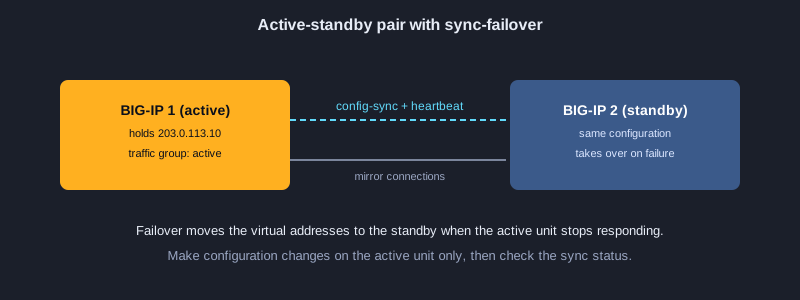
Two BIG-IP units can run as an active-standby pair. The standby unit has the same configuration and takes over the virtual addresses when the active unit fails. Clients usually see a short interruption, not an outage, if the failover is set up correctly.
Device groups and config-sync
A sync-failover device group lists the units that share the configuration. Config-sync copies changes from one unit to the others over a dedicated network. Make changes on the active unit only, and check the sync status afterwards, because a change on the standby is overwritten by the next sync.
Failover triggers
The standby takes over when the active unit loses its heartbeat, when a monitored traffic group fails, or when an administrator forces a failover. Test each trigger in a planned window, and confirm which addresses move and that the sessions survive.
Testing failover without an outage
Run a planned failover during a quiet period, watch the connections and the traffic group, and fail back if the result is not what you expected. A failover that has never been tested is a risk, not a protection.
Device configuration: Set up active-standby sync-failover
The two units share their configuration through a config-sync address and a mirror address on a dedicated network. The device group keeps the configuration aligned, and failover moves the traffic to the standby unit when the active unit fails. Test the failover in a planned window.
# tmsh: a sync-failover device group for an active-standby pair (run on the primary unit)
tmsh modify cm device bigip01.example.local configsync-ip 10.10.20.5 unicast-address { { ip 10.10.20.5 } } mirror-ip 10.10.20.5
tmsh create cm device-group failover-group type sync-failover devices add { bigip01.example.local bigip02.example.local } auto-sync enabled
tmsh run cm config-sync to-group failover-group
# Check
tmsh show cm sync-status
tmsh show sys failover
Topic 9: Troubleshooting and monitoring
When something breaks, work through the data path in order: the client, the virtual server, the profiles, the pool, the member, and the server. Each step has a command or a log that shows whether the request got that far.
Start with the pool members
Show the pool members to see which server is down, and read the monitor result. A member marked down by its monitor usually means the health check failed, not that the user traffic is wrong. Check the application on the server before you blame the load balancer.
Read the logs
The LTM log records monitor changes, virtual server state changes and configuration errors. Read it after every failure. Logs show the time of each event, which helps you match a user's report to a change or to a server outage.
Capture the traffic
A packet capture on the BIG-IP or on the server shows whether the request arrives, what the server answers, and where the connection stops. Capture only as long as you need, and filter by host and port, because a full capture on a busy unit slows it down.
Save and document the fix
After the fix, save the configuration and write down what failed, what changed and how you confirmed it. The record shortens the next investigation, and it shows the team that the change was checked.
Device configuration: Check members and troubleshoot a failed server
When users report errors, show the pool members to see which server is down, then read the LTM log for the monitor result. A packet capture on the server side shows whether the request reaches the server and what it answers. Fix the server, or the monitor, and check again before you close the case.
# tmsh: check a pool member that is down, then look at the logs and capture the traffic
tmsh show ltm pool web_pool members
tmsh show ltm pool web_pool members detail
tmsh show sys hardware
tail -n 50 /var/log/ltm
tcpdump -ni 0.0:nnn -s0 host 10.10.10.11 and port 80
Practise in a lab
Load-balancer skills come from doing, so build a small lab with three networks: clients, the BIG-IP in the middle, and two web servers on the internal network. Use a BIG-IP virtual edition or a lab unit, and work through these steps in order.
1. Draw the concept and write the address plan for the external and internal networks.
2. Set the hostname, DNS and NTP, and create a named admin account.
3. Create the external and internal VLANs, add a self IP to each, and add the default route.
4. Check connectivity from a client to the external self IP, and from the BIG-IP to each web server.
5. Create an HTTP health monitor and a pool with the two web servers.
6. Create a virtual server on the external address, with SNAT automap, and test from a client.
7. Stop one web server, watch the monitor mark it down, then start it again and confirm that it returns to the pool.
8. Save the configuration, make one change, and restore the saved version to confirm that the rollback works.
Next steps
After the basics, practise the monitor and pool design for a real application, then study SSL profiles and certificate renewal, then high availability testing. Keep a record of every change you make to the virtual servers and pools. Most outages come from a change that nobody wrote down, not from a single wrong setting.
Summary
BIG-IP LTM spreads client requests across a pool of healthy servers behind one virtual server address. A good setup starts with a concept drawing and an address plan, then the hostname, VLANs, self IPs and the default route, then pools with real health monitors, a virtual server with SNAT, a load-balancing method that fits the work, and optionally SSL offload and an active-standby pair. Save the configuration before each change, and troubleshoot in data-path order.