Docker from Zero to Professional: 100 Examples with Dockerfile, Compose and CI/CD
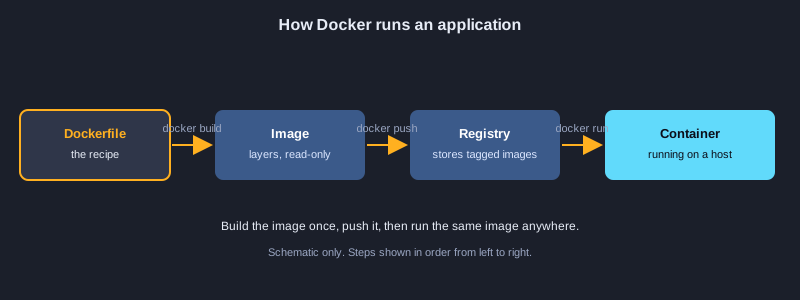
Docker packages an application and everything it needs into a container, so the same software runs the same way on a laptop, a server and in the cloud. This article takes you from your first container to a production-minded setup in 100 examples. You will learn the Docker CLI, images and registries, writing Dockerfiles with multi-stage builds, volumes and networking, Docker Compose for multi-container apps, configuration and secrets, resource limits and health checks, container security, debugging, CI/CD pipelines, and a first look at Kubernetes and Swarm. Honesty note: Docker was not installed on the computer used to prepare this article, so none of the 100 examples were executed here. Every command and file is written to match the official Docker syntax and checked by reading, and you should run each one yourself before you rely on it.
What you need
Docker Desktop on Windows or macOS, or Docker Engine on Linux, with the Docker Compose plugin (docker compose version should work). A text editor such as Visual Studio Code with the Docker extension is helpful. Basic command-line knowledge is enough to start. Some examples use a sample Python or Node.js project, and some use a private registry, so use placeholders such as registry.example.com and never paste real passwords into commands.
How to use an example
Bash examples use the Docker CLI and Docker Compose. Dockerfile examples go into a file named Dockerfile in your project folder. YAML examples go into compose.yaml or the Kubernetes file named in the text.
Topic 1: Getting Started with Docker
A container is an isolated process with its own file system and network, built from an image. Learn the core ideas, check your installation and run your first containers.
Images, containers and registries
An image is a read-only template made of layers. A container is a running instance of an image. A registry such as Docker Hub or Azure Container Registry stores images so other machines can download them.
Why containers help
Containers bundle the application with its libraries, so it behaves the same on every machine. They start in seconds and share the host kernel, so they use far less memory than full virtual machines.
Checking the installation
Run docker version to see the client and the server. If the server line is missing, Docker Desktop or the Docker service is not running yet, so start it before you run any container command.
Illustrations
Example 1: Check that Docker is installed
Confirm the client can reach the Docker engine.
docker --version
docker info --format "server: {{.ServerVersion}}"
*This example was not run here because Docker was not installed on the computer that prepared this article.*
Example 2: Run hello-world
Your first container, downloaded and run in one command.
docker run hello-world
*This example was not run here because Docker was not installed on the computer that prepared this article.*
Example 3: Pull an image
Download an image without starting a container.
docker pull nginx:1.27
*This example was not run here because Docker was not installed on the computer that prepared this article.*
Example 4: List local images
See which images are stored on this computer.
docker images
docker image ls --filter "reference=nginx"
*This example was not run here because Docker was not installed on the computer that prepared this article.*
Example 5: Inspect an image
Read the architecture and operating system of an image.
docker image inspect nginx:1.27 --format "arch={{.Architecture}} os={{.Os}}"
*This example was not run here because Docker was not installed on the computer that prepared this article.*
Example 6: Check disk usage
See how much space images, containers and volumes take.
docker system df
*This example was not run here because Docker was not installed on the computer that prepared this article.*
Topic 2: Running and Managing Containers
The docker run command creates a container from an image. You publish ports, read logs, run commands inside and clean up containers that are no longer needed.
Detached and interactive modes
-d runs a container in the background and -it attaches a terminal. --rm removes the container when it stops, which suits short experiments.
Ports and names
-p host:container publishes a port, so 8080:80 sends host port 8080 to port 80 in the container. --name gives a container a readable name that you can use in later commands.
Life cycle and cleanup
Stopped containers keep their data until you remove them. Use docker ps -a to see them and docker rm to delete them, and prune regularly on machines that build often.
Example 7: Run a container in the background
Start a detached container and list it.
docker run -d --name web nginx:1.27
docker ps
*This example was not run here because Docker was not installed on the computer that prepared this article.*
Example 8: Publish a port
Reach a container web server from the host.
docker run -d --name web-8080 -p 8080:80 nginx:1.27
curl http://localhost:8080
*This example was not run here because Docker was not installed on the computer that prepared this article.*
Example 9: Start a temporary shell
Use --rm so the container is deleted when you exit.
docker run -it --rm alpine:3.20 sh
*This example was not run here because Docker was not installed on the computer that prepared this article.*
Example 10: List containers
Show running containers and the ones that have stopped.
docker ps
docker ps -a --format "table {{.Names}}\t{{.Status}}\t{{.Image}}"
*This example was not run here because Docker was not installed on the computer that prepared this article.*
Example 11: Read container logs
Show the last lines or follow the output live.
docker logs --tail 50 web
docker logs -f web
*This example was not run here because Docker was not installed on the computer that prepared this article.*
Example 12: Run a command inside a container
Open a shell or run one command in a running container.
docker exec -it web sh
docker exec web cat /etc/nginx/nginx.conf
*This example was not run here because Docker was not installed on the computer that prepared this article.*
Example 13: Stop, start and restart
Control the life cycle of a container.
docker stop web
docker start web
docker restart web
*This example was not run here because Docker was not installed on the computer that prepared this article.*
Example 14: Remove containers
Delete containers you no longer need.
docker rm -f web web-8080
docker container prune -f
*This example was not run here because Docker was not installed on the computer that prepared this article.*
Topic 3: Images and Registries
An image has a name, a tag and a digest. Tags can change, digests cannot, so you need both to tag, share and reproduce software exactly.
Tags and digests
latest is only a tag and it moves whenever the publisher updates it. A digest such as sha256 followed by a long hash identifies one exact image, which is the way to make a deployment reproducible.
Pushing to a registry
Log in, tag the image with the full registry address and push it. Other machines can then pull the same image by name. Never push images that contain secrets.
Reading image history
docker history shows each layer, the instruction that made it and its size. It helps you find large layers and check that a password was never written into an image.
Example 15: Tag an image
Give an image a name and version that you own.
docker tag nginx:1.27 mycompany/nginx:1.0.0
docker images mycompany/nginx
*This example was not run here because Docker was not installed on the computer that prepared this article.*
Example 16: Push an image to a registry
Upload an image so other machines can pull it.
docker login registry.example.com
docker tag mycompany/nginx:1.0.0 registry.example.com/team/nginx:1.0.0
docker push registry.example.com/team/nginx:1.0.0
*This example was not run here because Docker was not installed on the computer that prepared this article.*
Example 17: Push to Azure Container Registry
Log in with the Azure CLI and push to your registry.
az acr login --name <registry-name>
docker tag mycompany/nginx:1.0.0 <registry-name>.azurecr.io/nginx:1.0.0
docker push <registry-name>.azurecr.io/nginx:1.0.0
*This example was not run here because Docker was not installed on the computer that prepared this article.*
Example 18: Run a local registry
Start a private registry on your own computer for testing.
docker run -d -p 5000:5000 --restart unless-stopped --name registry registry:2
docker tag nginx:1.27 localhost:5000/nginx:1.27
docker push localhost:5000/nginx:1.27
*This example was not run here because Docker was not installed on the computer that prepared this article.*
Example 19: Pin an image by digest
A digest is a fingerprint that never changes, unlike a tag.
docker pull nginx:1.27
docker image inspect nginx:1.27 --format "{{index .RepoDigests 0}}"
docker run -d nginx@sha256:<digest-from-the-line-above>
*This example was not run here because Docker was not installed on the computer that prepared this article.*
Example 20: Read the layers of an image
See which instruction created each layer and how big it is.
docker history nginx:1.27
docker history --no-trunc --format "{{.Size}}\t{{.CreatedBy}}" nginx:1.27
*This example was not run here because Docker was not installed on the computer that prepared this article.*
Topic 4: Writing Dockerfiles
A Dockerfile is a text recipe. Each instruction creates a layer, so the order and content of the instructions decide the size, the speed of rebuilds and what runs when the container starts.
Core instructions
FROM chooses the base image. COPY and RUN add files and commands. WORKDIR sets the folder for later instructions. CMD and ENTRYPOINT define what the container runs.
ARG versus ENV
ARG exists only while the image is built. ENV stays in the image and is visible to the running container. Use ARG for build choices and ENV for settings the program reads.
Building and tagging
docker build -t name:tag . sends the folder to the builder. Only files that the Dockerfile copies are used, so keep the build context small with a .dockerignore file.
Example 21: A minimal Dockerfile
The smallest useful recipe: a base image and one command.
FROM alpine:3.20
CMD ["echo", "Hello from a container"]
*This example was not run here because Docker was not installed on the computer that prepared this article.*
Example 22: Build and run the image
Turn a Dockerfile into an image and start it.
docker build -t hello-image:1.0 .
docker run --rm hello-image:1.0
*This example was not run here because Docker was not installed on the computer that prepared this article.*
Example 23: Dockerfile for a Python app
Install dependencies and copy the code into a slim image.
FROM python:3.12-slim
WORKDIR /app
COPY requirements.txt .
RUN pip install --no-cache-dir -r requirements.txt
COPY . .
CMD ["python", "app.py"]
*This example was not run here because Docker was not installed on the computer that prepared this article.*
Example 24: Dockerfile for a Node.js app
Install production packages and expose a port.
FROM node:20-alpine
WORKDIR /app
COPY package*.json ./
RUN npm ci --omit=dev
COPY . .
EXPOSE 3000
CMD ["node", "server.js"]
*This example was not run here because Docker was not installed on the computer that prepared this article.*
Example 25: ARG and ENV
Set build-time values and run-time environment variables.
FROM alpine:3.20
ARG APP_VERSION=dev
ENV APP_VERSION=$APP_VERSION
ENV APP_PORT=8080
CMD ["sh", "-c", "echo version=$APP_VERSION port=$APP_PORT"]
*This example was not run here because Docker was not installed on the computer that prepared this article.*
Example 26: Pass build arguments
Change the version at build time without editing the file.
docker build --build-arg APP_VERSION=1.4.2 -t vars-image:1.4.2 .
docker run --rm -e APP_PORT=9000 vars-image:1.4.2
*This example was not run here because Docker was not installed on the computer that prepared this article.*
Example 27: WORKDIR and COPY
Set the working folder and copy files into the image.
FROM alpine:3.20
WORKDIR /srv/site
COPY ./site/ ./
# ADD can unpack archives, but COPY is clearer for plain files
RUN ls -la /srv/site
*This example was not run here because Docker was not installed on the computer that prepared this article.*
Example 28: ENTRYPOINT and CMD
Choose the fixed program and its default arguments.
FROM alpine:3.20
RUN apk add --no-cache curl
ENTRYPOINT ["curl", "-s"]
CMD ["https://example.com"]
*This example was not run here because Docker was not installed on the computer that prepared this article.*
Topic 5: Image Best Practices
Good images are small, reproducible, fast to build and safe to run. Multi-stage builds, layer ordering, pinned versions, non-root users and health checks cover most of the practice.
Multi-stage builds
A build stage holds compilers and tools, and a final stage copies only the result. The final image stays small and contains no source code or build tools that an attacker could use.
Layer caching
Docker reuses a layer when its instruction and inputs have not changed, and it rebuilds everything after the first change. Copy dependency files and install them before you copy the source code.
Users, versions and checks
Run as a numeric non-root user, pin base image versions, add labels for the owner and version, and use HEALTHCHECK so Docker can report whether the application actually works.
Example 29: Exclude files with .dockerignore
Keep secrets, Git data and dependencies out of the build.
cat > .dockerignore <<'EOF'
.git
node_modules
*.log
.env
EOF
docker build -t app:1.0 .
*This example was not run here because Docker was not installed on the computer that prepared this article.*
Example 30: Multi-stage build for Go
Compile in a large image and ship only the program.
FROM golang:1.23 AS build
WORKDIR /src
COPY go.mod ./
COPY . .
RUN CGO_ENABLED=0 go build -o /out/app .

FROM gcr.io/distroless/static-debian12
COPY --from=build /out/app /app
ENTRYPOINT ["/app"]
*This example was not run here because Docker was not installed on the computer that prepared this article.*
Example 31: Multi-stage build for a front-end
Build the assets, then serve them with Nginx.
FROM node:20-alpine AS build
WORKDIR /app
COPY package*.json ./
RUN npm ci
COPY . .
RUN npm run build

FROM nginx:1.27-alpine
COPY --from=build /app/dist /usr/share/nginx/html
*This example was not run here because Docker was not installed on the computer that prepared this article.*
Example 32: Run as a non-root user
Limit damage if the application is attacked.
FROM python:3.12-slim
RUN useradd --create-home --uid 10001 appuser
WORKDIR /home/appuser/app
COPY --chown=appuser:appuser . .
USER appuser
CMD ["python", "app.py"]
*This example was not run here because Docker was not installed on the computer that prepared this article.*
Example 33: Pin base image versions
Avoid surprises from a changing latest tag.
# Avoid "latest": it changes without warning
FROM python:3.12.5-slim-bookworm
# Pin system packages when the build must be reproducible
RUN apt-get update && apt-get install -y --no-install-recommends curl=8.* \
 && rm -rf /var/lib/apt/lists/*
*This example was not run here because Docker was not installed on the computer that prepared this article.*
Example 34: Order layers for the cache
Copy dependency files first so builds stay fast.
FROM node:20-alpine
WORKDIR /app
# Dependencies change less often than source code, so copy them first
COPY package.json package-lock.json ./
RUN npm ci
COPY . .
CMD ["npm", "start"]
*This example was not run here because Docker was not installed on the computer that prepared this article.*
Example 35: Add image labels
Record the title, version and owner inside the image.
FROM alpine:3.20
LABEL org.opencontainers.image.title="sample-api" \
      org.opencontainers.image.version="1.4.2" \
      org.opencontainers.image.maintainer="[email protected]"
*This example was not run here because Docker was not installed on the computer that prepared this article.*
Example 36: HEALTHCHECK
Let Docker know whether the application is working.
FROM nginx:1.27-alpine
HEALTHCHECK --interval=30s --timeout=3s --retries=3 \
  CMD wget -qO- http://localhost/ || exit 1
*This example was not run here because Docker was not installed on the computer that prepared this article.*
Topic 6: Volumes and Persistent Data
Containers are disposable, but databases and uploads are not. Volumes and bind mounts keep data outside the container's writable layer, so it survives restarts and upgrades.
Named volumes
A named volume is managed by Docker and stored outside the container. Use it for databases, because the data stays when you remove the container and you can back it up with a helper container.
Bind mounts
A bind mount maps a folder from your computer into the container. It is convenient during development so that code changes appear immediately, but it gives the container direct access to host files, so use :ro when it only needs to read.
Backup and temporary data
Back up a volume by running a small container that mounts the volume and writes a tar file. Use tmpfs for scratch files that should live in memory and disappear when the container stops.
Example 37: Create a named volume
Keep data that must outlive a container.
docker volume create app-data
docker volume ls
docker volume inspect app-data
*This example was not run here because Docker was not installed on the computer that prepared this article.*
Example 38: Use a named volume with a database
Store PostgreSQL data safely across container restarts.
docker run -d --name db -e POSTGRES_PASSWORD=<strong-password> \
  -v app-data:/var/lib/postgresql/data postgres:16
docker exec db psql -U postgres -c "select 1"
*This example was not run here because Docker was not installed on the computer that prepared this article.*
Example 39: Bind mount a host folder
Share a folder from your computer during development.
docker run --rm -it -v "$(pwd)/site:/usr/share/nginx/html:ro" -p 8081:80 nginx:1.27-alpine
*This example was not run here because Docker was not installed on the computer that prepared this article.*
Example 40: Read-only mount
Let a container read configuration but not change it.
docker run --rm -v /srv/config:/etc/app:ro alpine:3.20 ls -l /etc/app
*This example was not run here because Docker was not installed on the computer that prepared this article.*
Example 41: Back up a volume
Archive volume data to a tar file with a helper container.
docker run --rm -v app-data:/data -v "$(pwd):/backup" alpine:3.20 \
  tar czf /backup/app-data-backup.tgz -C /data .
*This example was not run here because Docker was not installed on the computer that prepared this article.*
Example 42: Restore a volume
Put the archived data back into a new volume.
docker volume create app-data-restored
docker run --rm -v app-data-restored:/data -v "$(pwd):/backup" alpine:3.20 \
  tar xzf /backup/app-data-backup.tgz -C /data
*This example was not run here because Docker was not installed on the computer that prepared this article.*
Example 43: tmpfs for scratch data
Keep temporary files in memory and remove them on stop.
docker run --rm --tmpfs /tmp:rw,size=64m alpine:3.20 sh -c "echo scratch > /tmp/x && cat /tmp/x"
*This example was not run here because Docker was not installed on the computer that prepared this article.*
Topic 7: Container Networking
Docker gives containers their own network. User-defined networks let containers find each other by name, and port publishing decides which services are reachable from outside.
Bridge and user-defined networks
The default bridge network gives containers IP addresses only. A user-defined bridge network also provides DNS, so one container can reach another by its name, for example http://api or redis://cache.
Publishing ports safely
Ports are published to all interfaces by default. Bind to 127.0.0.1 to keep a database private to your computer. EXPOSE only documents a port and does not open it.
Multiple networks
A container can join several networks. Put a database on a back network and a web proxy on a front network so that only the services that need the database can reach it.
Example 44: List and inspect networks
See the networks Docker created and their address ranges.
docker network ls
docker network inspect bridge --format "{{range .IPAM.Config}}{{.Subnet}}{{end}}"
*This example was not run here because Docker was not installed on the computer that prepared this article.*
Example 45: Create a user-defined network
Give related containers their own private network.
docker network create app-net
docker run -d --name api --network app-net nginx:1.27
docker run --rm --network app-net alpine:3.20 wget -qO- http://api
*This example was not run here because Docker was not installed on the computer that prepared this article.*
Example 46: Find containers by name
Use container names as host names on a network.
docker run -d --name cache --network app-net redis:7-alpine
docker run --rm --network app-net redis:7-alpine redis-cli -h cache ping
*This example was not run here because Docker was not installed on the computer that prepared this article.*
Example 47: Connect a container to a second network
Let a service reach two separate networks.
docker network create back-net
docker network connect back-net api
docker inspect api --format "{{json .NetworkSettings.Networks}}"
*This example was not run here because Docker was not installed on the computer that prepared this article.*
Example 48: Publish on one interface only
Keep a database reachable from this computer only.
docker run -d -p 127.0.0.1:5432:5432 --name pg -e POSTGRES_PASSWORD=<strong-password> postgres:16
*This example was not run here because Docker was not installed on the computer that prepared this article.*
Example 49: Expose versus publish
EXPOSE documents a port; -p makes it reachable from the host.
FROM node:20-alpine
# EXPOSE only documents the port; it does not open it to the host
EXPOSE 3000
CMD ["node", "server.js"]
*This example was not run here because Docker was not installed on the computer that prepared this article.*
Example 50: Use the host network
Share the host network stack on Linux for special cases.
docker run --rm --network host alpine:3.20 sh -c "ip addr show eth0 | head -3"
*This example was not run here because Docker was not installed on the computer that prepared this article.*
Topic 8: Docker Compose Basics
Compose describes a multi-container application in one YAML file. One command starts, stops and inspects every service, network and volume in the project.
The compose file
The services key lists each container. Each service has an image or a build section, plus ports, environment, volumes and networks. Compose creates a shared network for the project automatically.
Commands
docker compose up -d starts the project, docker compose ps shows its state, docker compose logs -f follows output and docker compose down stops and removes the containers and the default network.
Overrides
compose.yaml holds the shared settings and compose.override.yaml is merged automatically. Keep local changes in the override file so the main file stays the same for every environment.
Example 51: A minimal Compose file
Describe a web service in one YAML file.
services:
  web:
    image: nginx:1.27-alpine
    ports:
      - "8080:80"
*This example was not run here because Docker was not installed on the computer that prepared this article.*
Example 52: Start and stop a Compose project
Bring a whole multi-container app up and down.
docker compose up -d
docker compose ps
docker compose down
*This example was not run here because Docker was not installed on the computer that prepared this article.*
Example 53: Build an image inside Compose
Let Compose build the image from a Dockerfile.
services:
  api:
    build:
      context: ./api
      dockerfile: Dockerfile
    ports:
      - "3000:3000"
*This example was not run here because Docker was not installed on the computer that prepared this article.*
Example 54: Environment variables in Compose
Set settings for each service in the file.
services:
  api:
    build: ./api
    environment:
      APP_ENV: development
      LOG_LEVEL: info
*This example was not run here because Docker was not installed on the computer that prepared this article.*
Example 55: Wait for another service
Use depends_on to control start order.
services:
  api:
    build: ./api
    depends_on:
      - db
  db:
    image: postgres:16
*This example was not run here because Docker was not installed on the computer that prepared this article.*
Example 56: Named volumes in Compose
Keep database files across restarts of the project.
services:
  db:
    image: postgres:16
    environment:
      POSTGRES_PASSWORD: <strong-password>
    volumes:
      - db-data:/var/lib/postgresql/data
volumes:
  db-data:
*This example was not run here because Docker was not installed on the computer that prepared this article.*
Example 57: Logs, exec and one-off commands
Run tests or tools inside the project.
docker compose logs -f api
docker compose exec db psql -U postgres
docker compose run --rm api npm test
*This example was not run here because Docker was not installed on the computer that prepared this article.*
Example 58: Override files for development
Keep production settings and local changes apart.
# compose.yaml holds the shared settings
services:
  api:
    build: ./api
# compose.override.yaml is merged automatically on "docker compose up"
services:
  api:
    volumes:
      - ./api:/app
    environment:
      DEBUG: "1"
*This example was not run here because Docker was not installed on the computer that prepared this article.*
Topic 9: Compose for Real Applications
Real applications have a web tier, a database, a cache and a proxy. Compose connects them, waits for them to become ready and lets you scale the parts that need more capacity.
Web, database and cache
Give each service one job, store database files in a named volume and reach each service by its name. Pass the connection string through an environment variable rather than hard-coding a host.
Start order and health
depends_on only waits for a container to start. Add a healthcheck to the database and use condition: service_healthy so the application starts only when the database accepts connections.
Scaling and isolation
docker compose up --scale changes the number of copies of a stateless service. Split networks so that the public proxy can reach the API but cannot reach the database directly.
Example 59: Profiles for optional services
Start admin tools only when you ask for them.
services:
  api:
    build: ./api
  pgadmin:
    image: dpage/pgadmin4
    profiles: ["tools"]
*This example was not run here because Docker was not installed on the computer that prepared this article.*
Example 60: Start a profile
Enable an optional service from the command line.
docker compose up -d
docker compose --profile tools up -d
*This example was not run here because Docker was not installed on the computer that prepared this article.*
Example 61: Web app with PostgreSQL
A complete app with a database and persistent data.
services:
  web:
    build: ./web
    ports:
      - "8000:8000"
    depends_on:
      - db
  db:
    image: postgres:16
    environment:
      POSTGRES_DB: shop
      POSTGRES_USER: shop
      POSTGRES_PASSWORD: <strong-password>
    volumes:
      - pg-data:/var/lib/postgresql/data
volumes:
  pg-data:
*This example was not run here because Docker was not installed on the computer that prepared this article.*
Example 62: Add Redis as a cache
Connect a fast key-value store by service name.
services:
  web:
    build: ./web
    environment:
      REDIS_URL: redis://cache:6379
  cache:
    image: redis:7-alpine
    command: ["redis-server", "--save", "", "--appendonly", "no"]
*This example was not run here because Docker was not installed on the computer that prepared this article.*
Example 63: Nginx as a reverse proxy
Send web traffic to the app through one entry point.
services:
  proxy:
    image: nginx:1.27-alpine
    ports:
      - "80:80"
    volumes:
      - ./proxy/default.conf:/etc/nginx/conf.d/default.conf:ro
    depends_on:
      - app
  app:
    build: ./app
*This example was not run here because Docker was not installed on the computer that prepared this article.*
Example 64: Wait until the database is healthy
Start the app only after the database accepts queries.
services:
  api:
    build: ./api
    depends_on:
      db:
        condition: service_healthy
  db:
    image: postgres:16
    environment:
      POSTGRES_PASSWORD: <strong-password>
    healthcheck:
      test: ["CMD-SHELL", "pg_isready -U postgres"]
      interval: 5s
      retries: 10
*This example was not run here because Docker was not installed on the computer that prepared this article.*
Topic 10: Configuration and Secrets
Configuration changes between environments, and secrets must never end up in an image or in Git. Use environment variables, env files and secret files, and read them safely in your program.
Environment variables and .env files
Compose reads a .env file for variable substitution in the compose file. Add .env to .gitignore, and commit a .env.example file with placeholder values so other developers know what to set.
Secrets as files
A file-based secret is mounted under /run/secrets inside the container. Reading a file keeps the value out of docker inspect output and out of process lists, which environment variables can leak into.
Never bake secrets into images
A value copied into a layer stays in the image history even after a later step deletes it. Pass secrets at run time, check the history with docker history, and rotate any secret that was ever pushed.
Example 65: Scale a service
Run several copies of a worker.
docker compose up -d --scale worker=3
docker compose ps worker
*This example was not run here because Docker was not installed on the computer that prepared this article.*
Example 66: Front-end and back-end networks
Keep the database off the public network.
services:
  proxy:
    image: nginx:1.27-alpine
    networks: [front]
    ports: ["80:80"]
  api:
    build: ./api
    networks: [front, back]
  db:
    image: postgres:16
    networks: [back]
networks:
  front:
  back:
*This example was not run here because Docker was not installed on the computer that prepared this article.*
Example 67: Load variables from .env
Keep local values out of the Compose file.
cat > .env <<'EOF'
POSTGRES_PASSWORD=<strong-password>
APP_PORT=8000
EOF
docker compose config
*This example was not run here because Docker was not installed on the computer that prepared this article.*
Example 68: Use env_file
Load a whole group of settings from a file.
services:
  api:
    build: ./api
    env_file:
      - ./config/api.env
*This example was not run here because Docker was not installed on the computer that prepared this article.*
Example 69: A Compose secret file
Give a password to a service without putting it in the image.
services:
  api:
    build: ./api
    secrets:
      - db_password
secrets:
  db_password:
    file: ./secrets/db_password.txt
*This example was not run here because Docker was not installed on the computer that prepared this article.*
Example 70: Read configuration in Python
Use defaults and convert environment strings to numbers.
import os

db_host = os.environ.get("DB_HOST", "localhost")
db_port = int(os.environ.get("DB_PORT", "5432"))
print(f"connect to {db_host}:{db_port}")
*This example was not run here because Docker was not installed on the computer that prepared this article.*
Example 71: Read a secret file in Python
Load a password from the secret path inside the container.
from pathlib import Path

secret_file = Path("/run/secrets/db_password")
password = secret_file.read_text(encoding="utf-8").strip()
print("password length:", len(password))
*This example was not run here because Docker was not installed on the computer that prepared this article.*
Example 72: Settings at run time
Override values for one run and check the image history.
docker run --rm -e LOG_LEVEL=debug -e DB_HOST=db.internal app:1.0
docker history --no-trunc app:1.0 | grep -i password || echo "no password in the layers"
*This example was not run here because Docker was not installed on the computer that prepared this article.*
Topic 11: Resources, Health and Logs
A container can use all the memory and CPU of its host if you allow it. Limits, restart policies, health checks and log rotation keep services stable and the disk from filling up.
Memory and CPU limits
--memory stops a container that uses too much RAM, and --cpus limits its share of processor time. Set limits from measured usage with docker stats instead of guessing.
Restart policies
unless-stopped restarts a container after a crash or a host reboot, but not after you stop it yourself. Use it for long-running services, and fix the cause of repeated crashes instead of relying on restarts.
Logs and health
Docker keeps container output in the log driver. Limit json-file size with max-size and max-file. The health status shows starting, healthy or unhealthy, which load balancers and orchestrators can use.
Example 73: Memory limit
Stop a runaway process from using all the RAM.
docker run -d --name api-mem --memory 256m --memory-swap 256m nginx:1.27-alpine
docker stats --no-stream api-mem
*This example was not run here because Docker was not installed on the computer that prepared this article.*
Example 74: CPU limit
Give a container half a CPU core.
docker run -d --name api-cpu --cpus 0.5 nginx:1.27-alpine
*This example was not run here because Docker was not installed on the computer that prepared this article.*
Example 75: Restart policy
Restart the service after a crash or a reboot.
docker run -d --name worker --restart unless-stopped app:1.0
docker inspect worker --format "{{.HostConfig.RestartPolicy.Name}}"
*This example was not run here because Docker was not installed on the computer that prepared this article.*
Example 76: Limit log size
Keep log files from filling the disk.
docker run -d --name api-logs \
  --log-driver json-file --log-opt max-size=10m --log-opt max-file=3 nginx:1.27-alpine
*This example was not run here because Docker was not installed on the computer that prepared this article.*
Example 77: Read the health status
Check whether a container is healthy, starting or unhealthy.
docker ps --format "table {{.Names}}\t{{.Status}}"
docker inspect --format "{{.State.Health.Status}}" api
*This example was not run here because Docker was not installed on the computer that prepared this article.*
Example 78: Clean up unused objects
Remove stopped containers and dangling images safely.
docker container prune -f
docker image prune -f
docker volume ls -qf dangling=true
*This example was not run here because Docker was not installed on the computer that prepared this article.*
Topic 12: Container Security
A container shares the host kernel, so a careless configuration can give an attacker more access than intended. Least privilege, read-only file systems, scanning and up-to-date base images reduce the risk.
Least privilege
Run as a non-root user, drop Linux capabilities you do not need with --cap-drop ALL, and add back only the specific ones required. Use no-new-privileges to stop processes from gaining rights.
Read-only file systems
--read-only prevents the container from changing its own files. Provide tmpfs mounts for the few directories that must be writable, such as /tmp or a PID folder.
Scanning and updates
Scan images with Docker Scout or another scanner, rebuild regularly to pick up patched base images, and fail the build when critical vulnerabilities are found. Never run containers with --privileged unless you have a specific reason.
Example 79: Drop Linux capabilities
Remove powers the application does not need.
docker run -d --name locked --cap-drop ALL --cap-add NET_BIND_SERVICE -p 80:80 nginx:1.27-alpine
*This example was not run here because Docker was not installed on the computer that prepared this article.*
Example 80: Read-only root filesystem
Stop the container from writing to its own system files.
docker run -d --name ro-app --read-only --tmpfs /tmp --tmpfs /var/run nginx:1.27-alpine
*This example was not run here because Docker was not installed on the computer that prepared this article.*
Example 81: Run as a numeric user
Choose the user ID instead of trusting a name.
docker run --rm --user 10001:10001 alpine:3.20 id
*This example was not run here because Docker was not installed on the computer that prepared this article.*
Example 82: Block privilege escalation
Prevent processes from gaining more rights.
docker run -d --name hardened --security-opt no-new-privileges:true nginx:1.27-alpine
*This example was not run here because Docker was not installed on the computer that prepared this article.*
Example 83: Scan an image for vulnerabilities
Find known CVEs in the packages inside the image.
docker scout cves nginx:1.27-alpine
docker scout quickview nginx:1.27-alpine
*This example was not run here because Docker was not installed on the computer that prepared this article.*
Example 84: Secure settings in Compose
Combine the hardening options in one service.
services:
  api:
    build: ./api
    user: "10001:10001"
    read_only: true
    cap_drop: [ALL]
    security_opt: ["no-new-privileges:true"]
    tmpfs: [/tmp]
*This example was not run here because Docker was not installed on the computer that prepared this article.*
Topic 13: Debugging and Troubleshooting
When a container fails, the answers are in its logs, its inspect data, its events and its processes. A systematic routine finds most problems in minutes.
Logs, events and inspect
Read docker logs first. docker events shows what Docker did and when, and docker inspect shows the exit code, the environment, the mounts and the network, so you can compare the running container with what you expected.
Resource and process checks
docker stats shows CPU and memory per container, and docker top lists the processes. An exit code of 137 often means the kernel killed the process for using too much memory, which you can confirm with OOMKilled.
Network debugging
Run a tools image in the same network namespace with --network container:name, then use curl, dig and ping from inside. This tests the container's real view of the network without changing it.
Example 85: Follow Docker events
Watch containers start, stop and fail in real time.
docker events --filter type=container --since 10m
*This example was not run here because Docker was not installed on the computer that prepared this article.*
Example 86: Watch resource use
See CPU and memory per container.
docker stats --format "table {{.Name}}\t{{.CPUPerc}}\t{{.MemUsage}}"
*This example was not run here because Docker was not installed on the computer that prepared this article.*
Example 87: List processes in a container
See what is running inside without opening a shell.
docker top web
*This example was not run here because Docker was not installed on the computer that prepared this article.*
Example 88: Read one field from inspect
Get the exit code and whether the kernel killed the process.
docker inspect web --format "{{.State.ExitCode}} {{.State.OOMKilled}}"
*This example was not run here because Docker was not installed on the computer that prepared this article.*
Example 89: Copy files in and out
Fetch a config file or put a fix into a container.
docker cp web:/etc/nginx/nginx.conf ./nginx.conf
docker cp ./nginx.conf web:/etc/nginx/nginx.conf
*This example was not run here because Docker was not installed on the computer that prepared this article.*
Example 90: Debug with a network tools image
Share the network of a container and test it with curl and dig.
docker run --rm -it --network container:web nicolaka/netshoot
# inside the tools shell: curl -v http://localhost:80
*This example was not run here because Docker was not installed on the computer that prepared this article.*
Topic 14: CI/CD Pipelines for Images
A pipeline builds, tests, scans and pushes an image every time the code changes. Automation makes each image traceable to a commit and keeps releases the same from one run to the next.
Build and push in CI
A pipeline logs in with a short-lived credential, builds the image, runs the tests and pushes it with a tag that includes the commit. The same steps work in GitHub Actions and Azure Pipelines.
Tagging strategy
Tag each image with the Git commit for traceability, and move a version tag only when a release is approved. Avoid relying on latest in production, because it hides which code is running.
Runner hygiene
CI runners accumulate layers and volumes. Prune the build cache on a schedule and set limits on the cache size so that the build machine does not fill its disk and fail unpredictably.
Example 91: Build and push in GitHub Actions
Automate the image build for every push to main.
name: build-image
on:
  push:
    branches: [main]
jobs:
  build:
    runs-on: ubuntu-latest
    permissions:
      contents: read
      packages: write
    steps:
      - uses: actions/checkout@v4
      - uses: docker/build-push-action@v6
        with:
          context: .
          push: true
          tags: ghcr.io/example/app:${{ github.sha }}
*This example was not run here because Docker was not installed on the computer that prepared this article.*
Example 92: Build an image in Azure Pipelines
Use the Docker task with a service connection.
trigger:
  - main
pool:
  vmImage: ubuntu-latest
steps:
  - task: Docker@2
    inputs:
      command: buildAndPush
      containerRegistry: my-acr-connection
      repository: sample-api
      tags: |
        $(Build.BuildId)
*This example was not run here because Docker was not installed on the computer that prepared this article.*
Example 93: Tag an image with the Git commit
Trace each image back to the exact source code.
SHA=$(git rev-parse --short HEAD)
docker build -t app:$SHA .
docker tag app:$SHA app:latest
echo "built app:$SHA"
*This example was not run here because Docker was not installed on the computer that prepared this article.*
Example 94: Clean the build cache on a CI runner
Keep the build machine from running out of disk.
docker builder prune --filter until=72h -f
docker image prune -a --filter until=168h -f
*This example was not run here because Docker was not installed on the computer that prepared this article.*
Topic 15: Production and Orchestration
A single host is fine for a small service. When you need several machines, self-healing and rolling updates, an orchestrator such as Kubernetes or Docker Swarm runs the containers for you.
Production checklist
Pin image versions, set memory limits, define restart policies, add health checks, bind ports to the interface you intend, keep secrets outside the image, and log to a central place.
Kubernetes basics
A Deployment keeps a number of replicas running and performs rolling updates. A Service gives the replicas one stable address. The same container image runs unchanged in both Compose and Kubernetes.
Swarm and when to use it
Docker Swarm uses the same Compose-style file in a stack and runs services across several machines. Kubernetes has a larger ecosystem and is common in managed cloud services, so choose the tool your team can operate.
Example 95: Production Compose settings
Pin the version, limit memory, restart and check health.
services:
  api:
    image: registry.example.com/team/api:1.4.2
    restart: unless-stopped
    env_file: ./config/api.env
    ports:
      - "127.0.0.1:8000:8000"
    deploy:
      resources:
        limits:
          memory: 512M
    healthcheck:
      test: ["CMD", "curl", "-f", "http://localhost:8000/health"]
      interval: 30s
      timeout: 3s
      retries: 3
*This example was not run here because Docker was not installed on the computer that prepared this article.*
Example 96: A Kubernetes Deployment
Run three copies of the same image in a cluster.
apiVersion: apps/v1
kind: Deployment
metadata:
  name: api
spec:
  replicas: 3
  selector:
    matchLabels:
      app: api
  template:
    metadata:
      labels:
        app: api
    spec:
      containers:
        - name: api
          image: registry.example.com/team/api:1.4.2
          ports:
            - containerPort: 8000
          resources:
            limits:
              memory: 512Mi
              cpu: "500m"
*This example was not run here because Docker was not installed on the computer that prepared this article.*
Example 97: A Kubernetes Service
Give the copies one stable address inside the cluster.
apiVersion: v1
kind: Service
metadata:
  name: api
spec:
  selector:
    app: api
  ports:
    - port: 80
      targetPort: 8000
  type: ClusterIP
*This example was not run here because Docker was not installed on the computer that prepared this article.*
Example 98: Deploy a Docker Swarm stack
Run the same services across several machines.
docker swarm init
docker stack deploy -c stack.yml shop
docker service ls
*This example was not run here because Docker was not installed on the computer that prepared this article.*
Example 99: Check containers with the Docker SDK
Read container states from Python code.
import docker

client = docker.from_env()
for c in client.containers.list():
    state = c.attrs["State"].get("Health", {}).get("Status", "no healthcheck")
    print(c.name, state)
*This example was not run here because Docker was not installed on the computer that prepared this article.*
Example 100: A release checklist script
Stop the release if the image runs as root or has critical CVEs.
#!/usr/bin/env bash
set -euo pipefail
IMAGE="$1"
docker image inspect "$IMAGE" > /dev/null
USER_ID=$(docker run --rm --entrypoint id "$IMAGE" -u)
[ "$USER_ID" != "0" ] || { echo "image runs as root"; exit 1; }
docker scout cves --exit-code --only-severity critical "$IMAGE"
echo "release checks passed for $IMAGE"
*This example was not run here because Docker was not installed on the computer that prepared this article.*
Lab: Build, Run and Release a Small Web App
Put the whole article together in one project: a small web app, a Dockerfile with a multi-stage build, a Compose file with a database and a volume, health checks and a release check.
1. Create a folder with a small app and a requirements.txt file, then write a Dockerfile that runs it as a non-root user with a HEALTHCHECK.
2. Add a .dockerignore file and build the image with a version tag, for example docker build -t lab-web:1.0.0 .
3. Write a compose.yaml with the web service and a PostgreSQL service that uses a named volume and a healthcheck, and start it with docker compose up -d.
4. Check the health status with docker compose ps and read the logs with docker compose logs -f web.
5. Run docker scout cves on the image, fix what you can by updating the base image, and rebuild.
6. Run the release checklist from example 100 against your image and stop the release if it fails.
7. Stop the project with docker compose down, then remove the named volume only when you no longer need its data.
Next steps
After the lab, read the official Docker documentation for your chosen runtime, practise on a separate project, and learn one orchestrator in depth when your service needs more than one machine. Keep the examples in this article in a repository so you can run them again after every Docker update.
Summary
Docker turns an application into an image that runs the same everywhere. You learned to run and manage containers, pin images with tags and digests, write efficient Dockerfiles with multi-stage builds, keep data in volumes, connect services with networks, describe whole applications with Compose, handle configuration and secrets safely, limit resources, harden containers, debug systematically, automate builds in CI/CD and prepare for production orchestration.