CCNA Networking Topics Explained in Detail: What Each Topic Is, How It Works and Why It Matters
CCNA is Cisco's entry-level certification for network engineers. The exam (200-301) covers how devices connect, how data finds its way across networks, how to keep networks secure, and how to automate them. This article goes through each main topic in detail. For every topic you will see what it is, how it works step by step, the common mistakes, and what it looks like in a real network.
What you need
No programming is needed. You should be comfortable using a computer, and you should know roughly what an IP address is. For the lab section you will need a network simulator such as Cisco Packet Tracer.
Illustrations
Topic 1: The OSI model and TCP/IP
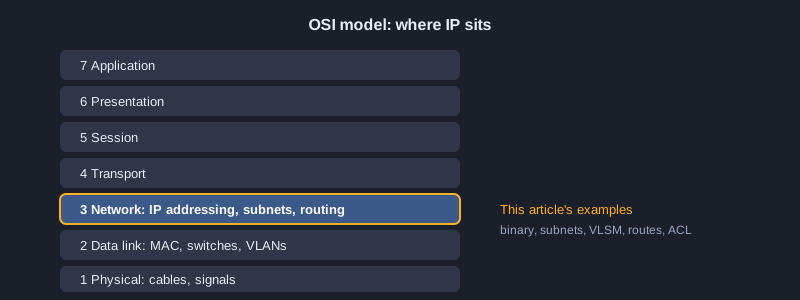
Networking is hard to troubleshoot when everything is one big problem. Models split it into layers, so each layer has one job and one set of protocols. The OSI model has seven layers. TCP/IP is the four-layer model used on the internet, and the two map onto each other.
The seven OSI layers
Layer 7 Application (HTTP, DNS, DHCP as seen by programs), 6 Presentation (encoding, encryption formats), 5 Session (opening and closing dialogues), 4 Transport (TCP and UDP, ports, reliability), 3 Network (IP addresses and routing), 2 Data link (MAC addresses, frames, switches), 1 Physical (cables, signals, connectors). A useful memory aid is 'All People Seem To Need Data Processing' from layer 7 down to layer 1.
Encapsulation: how data goes down the layers
When you send a web page, each layer adds its own header. The transport layer adds a port number, the network layer adds source and destination IP addresses, and the data link layer adds source and destination MAC addresses and a trailer. The receiving side removes the headers in reverse order. Each layer only reads its own header, which is why a fault can be isolated to one layer.
Using layers to troubleshoot
If a PC cannot reach the internet, check from the bottom up. Is the link light on (layer 1)? Does the switch port show the right VLAN (layer 2)? Is the IP address and default gateway correct (layer 3)? Is the port number open on the server (layer 4)? This method is faster than changing random settings.
TCP/IP in practice
The TCP/IP model has four layers: Network Access, Internet, Transport, and Application. The Internet layer corresponds to OSI layer 3, and the Network Access layer covers OSI layers 1 and 2. Engineers use TCP/IP names when talking about the internet and OSI numbers when talking about layers in a device.
Topic 2: IPv4 addressing and subnetting
An IPv4 address is 32 bits. People write it as four decimal numbers (octets), each 0 to 255. Subnetting uses the prefix length to decide which part of the address identifies the network and which part identifies the host.
Network part and host part
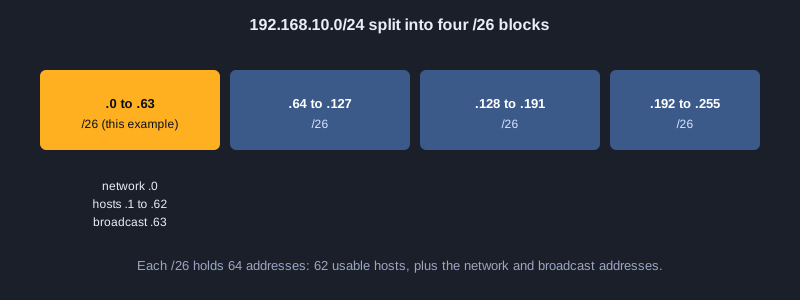
In 192.168.10.77/26, the /26 means the first 26 bits are the network and the last 6 bits are the host. Hosts in the same network share the same first 26 bits. Changing the prefix changes the size of the network: /24 has 256 addresses, /25 has 128, /26 has 64, /27 has 32, and so on.
Network, broadcast and host range
The network address is the first address in the block, with all host bits set to 0. The broadcast address is the last address, with all host bits set to 1. Every address between them is a usable host address, except that the first and last ones are reserved. For 192.168.10.77/26 the block is 192.168.10.64 to 192.168.10.127, the usable hosts are .65 to .126, and there are 62 of them.
Subnet masks and wildcard masks
The subnet mask writes the network bits as 1s, so /26 is 255.255.255.192. The wildcard mask is the opposite, 0.0.0.63, and Cisco ACLs and OSPF use it. Converting between them is a common exam task: subtract each octet from 255 to get the wildcard.
Finding the block size quickly
Take 256 minus the last non-255 octet of the mask. For /26 the mask ends in 192, so 256 minus 192 gives 64, the block size. The network addresses are then 0, 64, 128, 192. This trick answers 'which subnet does this address belong to' in seconds.
Device configuration: Give each router interface an address
Set the LAN and WAN interfaces with an IPv4 address and mask, then bring each interface up with no shutdown. Check with show ip interface brief: each interface should show up and up.
! Router R1: LAN and WAN interfaces with IPv4 addresses
enable
configure terminal
 hostname R1
 interface GigabitEthernet0/0
  description LAN-Sales
  ip address 192.168.10.1 255.255.255.192
  no shutdown
 exit
 interface GigabitEthernet0/1
  description WAN-to-ISP
  ip address 203.0.113.2 255.255.255.252
  no shutdown
 exit
end
write memory
! Check
show ip interface brief
Topic 3: VLSM and address planning
Fixed-size subnets waste addresses. A point-to-point link needs 2 addresses, but a fixed /24 gives 254. VLSM (Variable Length Subnet Masking) lets each network use a different prefix, sized to its own need.
How VLSM works
Start with the largest requirement. Give the biggest network the smallest prefix that fits its hosts, then place the next network directly after the first, and so on. For 50 hosts you need 6 host bits (62 usable), so /26. For 20 hosts, /27 (30 usable). For 2 hosts, /30 (2 usable).
Alignment rule
Every block must start at a multiple of its own size. A /27 (32 addresses) can start at .0, .32, .64, and so on, but not at .10. Ignoring this rule causes overlapping subnets, which is the most common VLSM mistake.
Summarisation
Neighbouring subnets can be combined into one larger route. For example 10.1.0.0/24 and 10.1.1.0/24 summarise to 10.1.0.0/23. Good planning lets routers advertise one route instead of many, which keeps routing tables small.
Planning checklist
Count hosts for each network and add room for growth, sort them from largest to smallest, allocate blocks with alignment, and write down the network, first host, last host, and gateway for each one. A written plan prevents most lab and production addressing errors.
Topic 4: Ethernet, switches and VLANs
Switches connect devices inside one local network. They work at layer 2 and use MAC addresses, which are 48-bit hardware addresses, to decide where to send each frame.
MAC address table
When a frame arrives, the switch records the source MAC address and the port it came from. When it needs to send to a destination MAC it already knows, it forwards only to that port. If the destination is unknown or is a broadcast, it floods the frame to all ports except the incoming one.
Collision and broadcast domains
Each switch port is its own collision domain, so devices do not collide with each other. A broadcast domain is the set of devices that receive each other's broadcasts. A switch keeps broadcast domains as large as the network, and a router or a VLAN is what splits them.
VLANs: separating networks on one switch
A VLAN is a numbered logical network. Ports are assigned to a VLAN, so hosts in VLAN 10 cannot reach hosts in VLAN 20 at layer 2. Each VLAN usually gets its own subnet, and a router or layer 3 switch is needed to move traffic between them. VLANs improve security and reduce broadcasts.
Access ports and trunks
An access port carries one VLAN and connects to an end device. A trunk carries many VLANs between switches, using 802.1Q tags to mark which VLAN each frame belongs to. The native VLAN on a trunk carries untagged frames, and both ends must agree on it.
Spanning Tree Protocol
Redundant links create loops. Without protection, a broadcast would circulate forever and fill the network. Spanning Tree Protocol (STP) blocks some ports so that only one active path exists. If the active link fails, STP unblocks a backup path. Each switch elects a root bridge, and the port with the lowest cost to that root stays open.
Device configuration: Create VLANs and access ports on the switch
Create VLAN 10 and VLAN 20, put the user ports in them, and make the link to the other switch a trunk that carries both VLANs. Port security limits the sales port to two learned MAC addresses and restricts any others.
! Switch SW1: VLANs, access ports, trunk and port security
enable
configure terminal
 vlan 10
  name SALES
 exit
 vlan 20
  name IT
 exit
 interface range FastEthernet0/1 - 10
  switchport mode access
  switchport access vlan 10
 exit
 interface range FastEthernet0/11 - 20
  switchport mode access
  switchport access vlan 20
 exit
 interface FastEthernet0/1
  switchport port-security
  switchport port-security maximum 2
  switchport port-security violation restrict
  switchport port-security mac-address sticky
 exit
 interface GigabitEthernet0/1
  switchport mode trunk
  switchport trunk allowed vlan 10,20
  switchport trunk native vlan 99
 exit
end
write memory
! Check
show vlan brief
show interfaces trunk
show port-security interface FastEthernet0/1
Topic 5: Routing: routing tables, static routes and OSPF
A router connects different networks at layer 3. It decides the next hop for each packet by looking in its routing table, which lists the networks it knows and how to reach them.
Reading a routing table
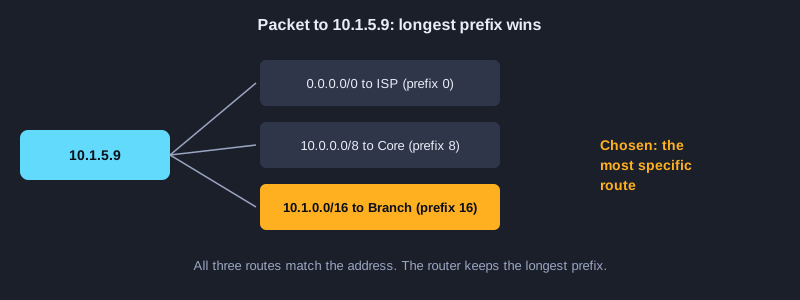
Each route has a destination network, a prefix, the next hop or exit interface, and an administrative distance and metric. Directly connected networks have a distance of 0 and are added automatically. Static routes have distance 1 by default. The router uses the route with the longest matching prefix, and breaks ties with the lowest administrative distance.
Static routes
A static route is typed by the administrator, for example ip route 10.2.0.0 255.255.255.0 192.168.1.2. It is simple, predictable and uses no bandwidth to advertise. It does not notice failures on its own, so it suits small networks and default routes to an ISP.
Default route
The default route 0.0.0.0/0 matches any destination. It is used only when no other route matches. A branch router usually has a default route pointing to the head office or the ISP, which keeps its routing table small.
OSPF: a link-state protocol
OSPF routers exchange information about links and their state. Each router builds the same map of the network and runs Dijkstra's algorithm to find the shortest path to every destination, using cost. OSPF converges quickly after a failure and supports areas to keep large networks manageable. Neighbours form adjacencies by exchanging Hello packets.
Administrative distance and metrics
When a router learns the same route from two sources, administrative distance decides which source to trust. Static is 1, OSPF is 110. The metric then decides between routes from the same source. OSPF uses cost, which is based on bandwidth.
Device configuration: Add a static route and OSPF
A static route tells the router the way to a network it does not see directly. OSPF lets routers learn internal networks from each other automatically. The passive-interface command stops OSPF hellos on the LAN, where they are not needed.
! Router R1: a static route to the IT network and OSPF for internal networks
enable
configure terminal
 ip route 10.2.0.0 255.255.255.0 192.168.1.2
 ip route 0.0.0.0 0.0.0.0 203.0.113.1
 router ospf 1
  router-id 1.1.1.1
  network 192.168.10.0 0.0.0.63 area 0
  network 10.0.0.0 0.255.255.255 area 0
  passive-interface GigabitEthernet0/0
 exit
end
write memory
! Check
show ip route
show ip ospf neighbor
Topic 6: NAT and PAT
Private IP ranges such as 10.0.0.0/8, 172.16.0.0/12 and 192.168.0.0/16 are reserved for internal use. Traffic from them cannot be routed on the public internet, so the border router translates addresses.
Inside local, inside global
Terms used in NAT: the inside local address is the private address of a host, and the inside global address is the public address it appears as outside the network. Outside addresses are the addresses of the remote hosts. Translation happens at the border between inside and outside interfaces.
Static NAT
Static NAT creates a fixed one-to-one mapping, for example 192.168.1.10 always becomes 203.0.113.10. It is used for servers that must be reached from outside, such as a web server or mail server.
Dynamic NAT
Dynamic NAT assigns a public address from a pool to a private host when it first connects, and returns it when the session is over. It still needs one public address per active host, so it does not save many addresses.
PAT (NAT overload)
PAT maps many private hosts to one public address by changing the source port for each session. The router keeps a translation table of inside address and port against outside address and port. This is how a home or office network with dozens of devices uses one public IP address.
Device configuration: Configure PAT and static NAT
Many inside hosts share the outside address through overload (PAT). The web server gets a fixed mapping from public port 80 to its private address. Mark each interface as inside or outside, or NAT does nothing.
! Router R1 (edge): PAT for the inside LAN, and static NAT for a public web server
enable
configure terminal
 access-list 1 permit 192.168.10.0 0.0.0.63
 ip nat inside source list 1 interface GigabitEthernet0/1 overload
 ip nat inside source static tcp 192.168.20.10 80 203.0.113.10 80
 interface GigabitEthernet0/0
  ip nat inside
 exit
 interface GigabitEthernet0/1
  ip nat outside
 exit
end
write memory
! Check
show ip nat translations
show ip nat statistics
Topic 7: Access control lists
An ACL is an ordered list of rules that permit or deny traffic. Routers and switches use them to filter packets, for example to stop a guest network from reaching the server network.
Rule order matters
The device checks rules from the top down and applies the first match. It does not look at the rest of the list. A broad rule placed above a specific one hides the specific one, so the most specific rules go first.
Implicit deny
Every ACL ends with an invisible deny-all rule. If a packet matches no rule, it is dropped. A common mistake is to write only deny rules and expect everything else to pass, but the implicit deny blocks it.
Standard and extended ACLs
A standard ACL filters only on source address. Place it close to the destination. An extended ACL can filter on source and destination addresses, protocol, and port numbers, for example allowing only TCP port 443. Place it close to the source so unwanted traffic is dropped early.
Wildcard masks in ACLs
ACLs use wildcard masks instead of subnet masks. A wildcard of 0.0.0.255 matches a /24 network, and 0.0.0.0 matches one exact host. Writing 'any' stands for 0.0.0.0 255.255.255.255.
Applying the ACL
An ACL does nothing until it is applied to an interface in a direction. Inbound filters traffic arriving at the interface, and outbound filters traffic leaving it. Choosing the right direction is one of the most important decisions when configuring a filter.
Device configuration: Write an extended ACL
The ACL blocks Telnet from the sales subnet to the server and permits the rest. The rule order matters: the deny line must come before the permit. Apply it inbound on the LAN interface so the traffic is checked when it enters the router.
! Extended ACL on R1: block Telnet from the sales LAN to the server, allow everything else
enable
configure terminal
 ip access-list extended SERVER-IN
  remark Block Telnet from sales to the server
  deny tcp 192.168.10.0 0.0.0.63 host 192.168.20.10 eq telnet
  permit ip any any
 exit
 interface GigabitEthernet0/0
  ip access-group SERVER-IN in
 exit
end
write memory
! Check
show ip access-lists SERVER-IN
Topic 8: Network services: DHCP, DNS, NTP and logging
Hosts depend on several services to work properly. Without them, you would have to type every address, name and time by hand.
DHCP: automatic addresses
DHCP follows four steps called DORA: Discover (the client broadcasts a request), Offer (a server offers an address), Request (the client accepts), and Acknowledge (the server confirms the lease). The server also gives the default gateway, DNS server and lease time. A router can act as a DHCP server for a small branch network.
DNS: names to addresses
DNS translates names such as www.example.com into IP addresses. A client asks its configured DNS server, which may ask other servers up the hierarchy. Records include A (IPv4 address), AAAA (IPv6), MX (mail server) and CNAME (alias). Errors in DNS often look like a network fault, so test with both name and IP address.
NTP: keeping clocks in step
NTP synchronises device clocks with a time source. The accurate time matters for log correlation, when a network incident happens across several devices, and for certificates, which are valid only within a time window. A device can be set as a client of a time server or as the server for others.
Syslog and SNMP
Syslog sends event messages from devices to a central log server, where you can search them. Each message has a severity level from 0 (emergency) to 7 (debug). SNMP lets a manager poll devices for counters such as interface traffic, and it can send traps when something happens. SNMP version 3 adds authentication and encryption.
Device configuration: Set up DHCP, DNS, NTP and logging
The DHCP pool hands out addresses to the sales LAN, and the excluded range keeps the router and servers out of the pool. DNS, NTP and the syslog host make the network names, clocks and logs work together.
! DHCP for the sales LAN, plus DNS, NTP and logging
enable
configure terminal
 ip dhcp excluded-address 192.168.10.1 192.168.10.10
 ip dhcp pool SALES
  network 192.168.10.0 255.255.255.192
  default-router 192.168.10.1
  dns-server 192.168.20.53
  lease 7
 exit
 ip domain-name example.local
 ntp server 192.168.20.123
 logging host 192.168.20.514
 service timestamps log datetime msec
end
write memory
! Check
show ip dhcp binding
show ntp status
show logging
Topic 9: Security basics and automation
Security starts with protecting the device itself, then the traffic through it. Automation reduces the number of manual changes that can go wrong.
Securing device access
Use SSH instead of Telnet, because Telnet sends passwords in plain text. Set a strong enable secret, a banner that warns unauthorised users, and an idle timeout on the console and VTY lines. Limit VTY access to a management subnet with an ACL.
Port security
Port security limits how many MAC addresses a switch port may learn, and can shut the port down if a new device connects. It stops someone from plugging in a switch or spoofing a MAC address on a public port. A sticky mode saves the learned addresses to the running config.
AAA: authentication, authorisation, accounting
AAA controls who can log in (authentication), what they can do after logging in (authorisation), and records what they did (accounting). It usually uses a central server such as TACACS+ or RADIUS, so accounts are managed in one place.
Automation and programmability
Configuring many devices by hand is slow and error-prone. APIs let software read and change devices directly. REST APIs use HTTP methods (GET, POST, PUT, DELETE) and send data in JSON, a text format of keys and values. Controllers such as Cisco DNA Center push one policy to many devices at once.
Device configuration: Secure access to the switch
Only SSH is allowed on the VTY lines, users log in with a local account, idle sessions time out, and an access list limits management to one subnet. Use your own strong passwords and never store real ones in shared notes.
! Securing device access on SW1: SSH only, local login, timeout, management subnet only
enable
configure terminal
 hostname SW1
 ip domain-name example.local
 crypto key generate rsa modulus 2048
 username admin privilege 15 secret <strong-password>
 enable secret <strong-password>
 banner motd #Authorised users only#
 ip access-list standard MGMT-ONLY
  permit 192.168.20.0 0.0.0.255
  deny any
 exit
 line vty 0 4
  transport input ssh
  login local
  exec-timeout 5 0
  access-class MGMT-ONLY in
 exit
end
write memory
! Check
show ip ssh
show running-config | section line vty
Practice in a lab
CCNA is a hands-on exam, so reading about a topic is not enough. Build a small network in a simulator with two switches, two routers and three PCs. Follow the steps below, and check each result before moving on.
1. Plan the addresses first. Use the VLSM method on a /24 for three networks: 50, 20 and 2 hosts.
2. Configure the PCs with an address, mask and default gateway from your plan.
3. Create two VLANs on the switch, put one PC in each, and check that they cannot reach each other.
4. Connect the switches with a trunk, then check the native VLAN.
5. Add a static route on each router and test with ping and traceroute.
6. Add an ACL that blocks one PC from reaching a server, apply it in the right direction, and test again.
Next steps
After the basics, go deeper into one topic at a time, starting with subnetting and routing, because most other topics depend on them. Write a plan for every lab before you configure anything. Most lab problems come from a wrong mask, a wrong gateway, or a wrong VLAN.
Summary
CCNA covers how devices connect, how packets are routed between networks, how to keep them secure, and how to automate them. The core ideas are subnetting, switching with VLANs, routing with the longest-prefix rule, NAT, ACLs, and basic network services. Learn each idea, then check it in a lab.