Angular from Zero to 100 Examples: Components, Templates, Signals, Forms, Routing, HTTP and Every Kind of Property
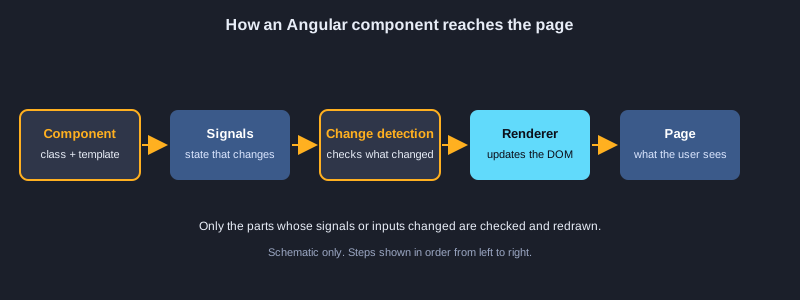
Angular is a framework from Google for building large, structured web applications with TypeScript. This article builds from creating a project to 100 working examples. You will learn components and templates, the control-flow syntax, pipes, inputs and outputs, every kind of property a component can hold, lifecycle hooks, dependency injection, routing, reactive and template-driven forms, HTTP with RxJS, directives, signals, testing and deployment. Each example is a short snippet. The TypeScript snippets were checked for correct syntax with the TypeScript 5.6 parser; the templates and the build commands are shown as written in an Angular 19 project.
What you need
Node.js 20 or newer with npm, a code editor such as Visual Studio Code, and a browser. Install the Angular CLI with npm install -g @angular/cli. You should know basic HTML, CSS and JavaScript. Knowing what a class and a function are will help with the TypeScript examples.
How to use an example
TypeScript examples go into a standalone Angular project, in the component or service file they name. Command examples run in the project terminal, and HTML examples are templates for the component's HTML file.
Topic 1: Project Setup and Your First Component
An Angular app is a tree of components. The CLI creates the project, and each component is a class with a decorator that gives it a selector and a template.
Creating the project
ng new creates the project with the files for a standalone application, which means components do not need an NgModule. ng serve starts a development server with live reload, and ng generate creates the files for a new component, service or pipe.
Bootstrapping and configuration
main.ts calls bootstrapApplication with the root component and an application configuration. The configuration lists providers, such as the router and the HTTP client, in one place.
Components, selectors and styles
The @Component decorator sets the selector, which is the HTML tag, the template and the styles. Styles apply only to that component because Angular adds a unique attribute to its elements, so two components can both use a class called card safely.
Illustrations
Example 1: Create a project with the CLI
Install the Angular CLI and generate a standalone app.
npm install -g @angular/cli
ng new blog --standalone --routing --style=css
cd blog
ng serve
Example 2: Generate a component
The CLI creates the files for a new component.
ng generate component hello
# short form
ng g c hello --standalone
Example 3: Bootstrap the application
Start the root component with the app configuration.
import { bootstrapApplication } from '@angular/platform-browser';
import { AppComponent } from './app/app.component';
import { appConfig } from './app/app.config';

bootstrapApplication(AppComponent, appConfig)
  .catch((err) => console.error(err));
Example 4: A standalone component
A component that needs no NgModule.
import { Component } from '@angular/core';

@Component({
  selector: 'app-root',
  standalone: true,
  template: '<h1>Hello, Angular!</h1>',
})
export class AppComponent {}
Example 5: Multi-line inline template
Write a template across several lines with backticks.
import { Component } from '@angular/core';

@Component({
  selector: 'app-card',
  standalone: true,
  template: `
    <section>
      <h2>Welcome</h2>
      <p>This template spans several lines.</p>
    </section>
  `,
})
export class CardComponent {}
Example 6: Component styles
Styles that apply only to this component.
import { Component } from '@angular/core';

@Component({
  selector: 'app-badge',
  standalone: true,
  template: '<span class="badge">New</span>',
  styles: [`.badge { background: #3366ff; color: white; padding: 4px 8px; border-radius: 6px; }`],
})
export class BadgeComponent {}
Example 7: App configuration with providers
Register the router and other services in one place.
import { ApplicationConfig } from '@angular/core';
import { provideRouter } from '@angular/router';
import { routes } from './app.routes';

export const appConfig: ApplicationConfig = {
  providers: [provideRouter(routes)],
};
Example 8: The root element in index.html
app-root is where Angular draws the application.
<!doctype html>
<html lang="en">
<head>
  <meta charset="utf-8">
  <title>Blog</title>
  <base href="/">
</head>
<body>
  <app-root></app-root>
</body>
</html>
Topic 2: Templates and Data Binding
The template is HTML with extra syntax. It shows values from the component, sends user actions back, and keeps inputs and values in sync.
Interpolation and expressions
Double curly braces show a value in text, and the expression can calculate, use a ternary operator, or use the safe navigation operator ?. so a missing object does not cause an error.
Property, attribute and class bindings
Square brackets bind a DOM property, such as [disabled]. Attribute binding with attr. is needed for HTML attributes that have no matching property, such as aria labels. Class and style bindings add classes or inline styles from a value.
Event binding and two-way binding
Parentheses listen to events, such as (click). Two-way binding with [(ngModel)] keeps a form field and a component value equal, which needs FormsModule. A template reference variable such as #box names an element for the rest of the template.
Example 9: Interpolation
Show a value inside text with double curly braces.
import { Component } from '@angular/core';

@Component({
  selector: 'app-greeting',
  standalone: true,
  template: '<p>Hello, {{ name }}! You have {{ count + 1 }} message(s).</p>',
})
export class GreetingComponent {
  name = 'Ada';
  count = 2;
}
Example 10: Template expressions
Calculate values, use ternaries and safe navigation in the template.
<p>{{ price * quantity }}</p>
<p>{{ isLoggedIn ? 'Welcome back' : 'Please sign in' }}</p>
<p>{{ user?.name ?? 'Guest' }}</p>
Example 11: Property binding
Set an element property from a component value.
<img [src]="photoUrl" [alt]="photoAlt" width="120">
<button [disabled]="saving">Save</button>
Example 12: Attribute binding
Set an HTML attribute that has no matching property.
<button [attr.aria-label]="closeLabel">X</button>
<td [attr.colspan]="columns">Total</td>
Example 13: Event binding
Run a component method when the user clicks.
import { Component } from '@angular/core';

@Component({
  selector: 'app-counter',
  standalone: true,
  template: `
    <p>Clicked {{ clicks }} times</p>
    <button (click)="increment()">Click me</button>
  `,
})
export class CounterComponent {
  clicks = 0;
  increment() {
    this.clicks++;
  }
}
Example 14: Two-way binding with ngModel
Keep an input and a component value in sync.
import { Component } from '@angular/core';
import { FormsModule } from '@angular/forms';

@Component({
  selector: 'app-name-field',
  standalone: true,
  imports: [FormsModule],
  template: `
    <input [(ngModel)]="name">
    <p>You typed: {{ name }}</p>
  `,
})
export class NameFieldComponent {
  name = '';
}
Example 15: Class binding
Add or remove CSS classes from a value.
<div [class.active]="isActive" [class.error]="hasError">Panel</div>
<div [ngClass]="{ 'big': size === 'lg', 'hidden': !visible }">Box</div>
Example 16: Style binding
Set inline styles from a component value.
<p [style.color]="textColor" [style.font-size.px]="fontSize">Styled text</p>
Example 17: Template reference variable
Name an element so another part of the template can use it.
<input #nameBox type="text">
<button (click)="greet(nameBox.value)">Greet</button>
Topic 3: Control Flow: @if, @for, @switch and @defer
Since Angular 17 the template has built-in blocks for conditions and loops. They replace the older structural directives and are easier to read.
@if and @else
@if shows a block only when its condition is true. @else if and @else choose one of several blocks. Blocks can nest, so an if can sit inside a for.
@for with track and @empty
@for repeats a block for each item. track tells Angular which item is which, so only changed rows are redrawn. @empty shows a message when the list has no items. track is required.
@switch and @defer
@switch chooses a block by the value of an expression, with @default as the fallback. @defer loads a part of the page later, for example when it becomes visible or when the user interacts with it, and shows @placeholder or @loading until then.
Example 18: @if
Show a block only when a condition is true.
@if (items.length > 0) {
  <p>You have {{ items.length }} items.</p>
}
Example 19: @if with @else
Choose one of several blocks.
@if (isLoggedIn) {
  <p>Welcome back!</p>
} @else if (isGuest) {
  <p>Browsing as a guest.</p>
} @else {
  <p>Please sign in.</p>
}
Example 20: @for with track
Repeat a block for each item; track gives each item a stable identity.
<ul>
  @for (fruit of fruits; track fruit.id) {
    <li>{{ fruit.name }}</li>
  }
</ul>
Example 21: @for with @empty
Show a message when the list has no items.
@for (post of posts; track post.id) {
  <article>{{ post.title }}</article>
} @empty {
  <p>No posts yet.</p>
}
Example 22: @switch
Choose a block by the value of an expression.
@switch (status) {
  @case ('draft') { <span>Draft</span> }
  @case ('published') { <span>Live</span> }
  @default { <span>Unknown</span> }
}
Example 23: @defer with placeholder
Load a part of the page later, showing a placeholder first.
@defer (on viewport) {
  <app-heavy-chart />
} @placeholder {
  <p>Chart will load when visible.</p>
} @loading {
  <p>Loading chart...</p>
}
Example 24: @let for a local value
Name a value once and use it several times in the template.
@let total = price * quantity;
<p>Total: {{ total }}</p>
Topic 4: Pipes
A pipe transforms a value in the template, for example to format a date or money. The value in the component stays the same.
Built-in formatting pipes
date, currency, number, uppercase, lowercase, titlecase and slice format values in the template. Pass arguments after a colon, such as date: 'longDate' or currency: 'USD'.
json, keyvalue and async
json shows an object as text, which is useful when you debug. keyvalue loops over the keys and values of an object. async subscribes to an Observable and shows its latest value, and unsubscribes for you when the component is destroyed.
Custom pipes
A class decorated with @Pipe and implementing transform defines a new pipe. Write a pipe when you format the same kind of value in many places, and keep it free of side effects so Angular can reuse its result.
Example 25: Date pipe
Format a date for display.
<p>{{ today | date: 'longDate' }}</p>
<p>{{ today | date: 'shortTime' }}</p>
Example 26: Currency and number pipes
Format money and decimal numbers.
<p>{{ 1234.5 | currency: 'USD' }}</p>
<p>{{ 3.14159 | number: '1.2-2' }}</p>
Example 27: Text pipes
Change the case or cut part of a string in the template.
<p>{{ 'angular' | uppercase }}</p>
<p>{{ 'HELLO' | lowercase }}</p>
<p>{{ 'hello world' | titlecase }}</p>
<p>{{ 'Angular' | slice: 0 : 3 }}</p>
Example 28: json and keyvalue pipes
Show an object for debugging, or loop over its keys and values.
<pre>{{ user | json }}</pre>
<ul>
  @for (item of settings | keyvalue; track item.key) {
    <li>{{ item.key }}: {{ item.value }}</li>
  }
</ul>
Example 29: async pipe
Subscribe to an Observable and show its latest value.
import { Component } from '@angular/core';
import { AsyncPipe } from '@angular/common';
import { Observable, of } from 'rxjs';

@Component({
  selector: 'app-clock',
  standalone: true,
  imports: [AsyncPipe],
  template: '<p>Value: {{ value$ | async }}</p>',
})
export class ClockComponent {
  value$: Observable<number> = of(42);
}
Example 30: Custom pipe
Write your own pipe that shortens text.
import { Pipe, PipeTransform } from '@angular/core';

@Pipe({ name: 'shorten', standalone: true })
export class ShortenPipe implements PipeTransform {
  transform(value: string, max = 20): string {
    return value.length > max ? value.slice(0, max) + '...' : value;
  }
}
Topic 5: Components Talking to Each Other
Data flows down from parent to child through inputs, and events flow up through outputs. Components that are not parent and child can share a service instead.
Inputs
input() declares a value the parent sets. Give it a default, use input.required when the parent must set it, or add an alias when the attribute name should differ. The older @Input decorator still works.
Outputs and @Output
output() declares an event that the child emits with .emit(). The parent listens with the event binding, such as (liked)='save()'. The older @Output with EventEmitter behaves the same way.
Projection, queries and shared services
ng-content lets a parent place its own content in a child. viewChild and contentChild find elements or templates by a name. A shared service with a Subject or signal lets distant components communicate.
Example 31: input() signal
Receive a value from the parent with a default.
import { Component, input } from '@angular/core';

@Component({
  selector: 'app-user-card',
  standalone: true,
  template: '<p>Hello, {{ name() }}</p>',
})
export class UserCardComponent {
  name = input<string>('Guest');
}
Example 32: Required input
Force the parent to provide the value.
import { Component, input } from '@angular/core';

@Component({
  selector: 'app-price',
  standalone: true,
  template: '<p>{{ amount() }} THB</p>',
})
export class PriceComponent {
  amount = input.required<number>();
}
Example 33: output() event
Send an event from the child to the parent.
import { Component, output } from '@angular/core';

@Component({
  selector: 'app-like-button',
  standalone: true,
  template: '<button (click)="liked.emit()">Like</button>',
})
export class LikeButtonComponent {
  liked = output<void>();
}
Example 34: EventEmitter with @Output
The older way to emit events from a child component.
import { Component, EventEmitter, Output } from '@angular/core';

@Component({
  selector: 'app-search-box',
  standalone: true,
  template: '<input (keyup.enter)="submit($event)">',
})
export class SearchBoxComponent {
  @Output() searched = new EventEmitter<string>();

  submit(event: Event) {
    this.searched.emit((event.target as HTMLInputElement).value);
  }
}
Example 35: viewChild signal query
Get a reference to an element inside the component template.
import { Component, ElementRef, viewChild } from '@angular/core';

@Component({
  selector: 'app-focus',
  standalone: true,
  template: '<input #box type="text">',
})
export class FocusComponent {
  box = viewChild<ElementRef<HTMLInputElement>>('box');

  focusBox() {
    this.box()?.nativeElement.focus();
  }
}
Example 36: Content projection with ng-content
Let the parent place its own content inside the child.
import { Component } from '@angular/core';

@Component({
  selector: 'app-panel',
  standalone: true,
  template: `
    <section class="panel">
      <ng-content></ng-content>
    </section>
  `,
})
export class PanelComponent {}
Example 37: contentChild and ng-template
Accept a template from the parent and render it for each item.
import { Component, contentChild, TemplateRef } from '@angular/core';

@Component({
  selector: 'app-list',
  standalone: true,
  imports: [],
  template: `
    @for (item of items; track item) {
      <ng-container [ngTemplateOutlet]="itemTpl()" [ngTemplateOutletContext]="{ $implicit: item }"></ng-container>
    }
  `,
})
export class ListComponent {
  items = ['a', 'b'];
  itemTpl = contentChild<TemplateRef<unknown>>('itemTpl');
}
Example 38: Host binding and host listener
Bind to the host element and listen to its events.
import { Component, HostBinding, HostListener } from '@angular/core';

@Component({
  selector: 'app-hover-card',
  standalone: true,
  template: '<p>Hover me</p>',
})
export class HoverCardComponent {
  @HostBinding('class.highlighted') highlighted = false;

  @HostListener('mouseenter') onEnter() {
    this.highlighted = true;
  }

  @HostListener('mouseleave') onLeave() {
    this.highlighted = false;
  }
}
Example 39: Host metadata
Set host classes and attributes in the decorator.
import { Component } from '@angular/core';

@Component({
  selector: 'app-tag',
  standalone: true,
  template: '<ng-content></ng-content>',
  host: {
    'role': 'note',
    '[class.small]': 'small',
  },
})
export class TagComponent {
  small = true;
}
Example 40: Shared service for messages
Send messages between components that are not parent and child.
import { Injectable } from '@angular/core';
import { Subject } from 'rxjs';

@Injectable({ providedIn: 'root' })
export class MessageBus {
  private messages = new Subject<string>();
  messages$ = this.messages.asObservable();

  send(text: string) {
    this.messages.next(text);
  }
}
Topic 6: Properties of Every Kind
A component has several kinds of property. Each kind suits a different need: plain values, read-only values, computed values, reactive signals, and two-way values.
Plain, readonly and optional properties
A plain property is a field with a value, and it can change. readonly stops reassignment after the field is set. A question mark on a property, such as email?, means the value may be missing, so the code must handle undefined.
Getters, setters and static properties
A getter runs code when the property is read, and a setter runs code when it is written. A static property belongs to the class itself, not to each instance, which suits a shared default such as a theme name.
Signals: signal, computed and effect
signal() holds a value and notifies Angular when it changes; read it as a function, such as count(). computed() derives a value from signals and updates when they change. effect() runs code whenever the signals it reads change.
model(), input alias and input.required
model() is a two-way input: the child can set it, and the parent's value follows, like ngModel for custom components. An alias gives an input a different attribute name. input.required makes the parent supply a value.
Arrow-function properties
A property that holds an arrow function keeps the this of the component when the function is passed as a callback, because the arrow function captures this at the time it is created.
Example 41: Class property with a default value
A normal property with a starting value.
import { Component } from '@angular/core';

@Component({
  selector: 'app-profile',
  standalone: true,
  template: '<p>{{ username }} ({{ role }})</p>',
})
export class ProfileComponent {
  username = 'mali';
  role: string = 'editor';
}
Example 42: readonly property
A property that can be set only once, at declaration.
import { Component } from '@angular/core';

@Component({
  selector: 'app-version',
  standalone: true,
  template: '<p>Version {{ version }}</p>',
})
export class VersionComponent {
  readonly version = '1.4.0';
}
Example 43: Getter and setter property
A property that runs code when it is read or written.
import { Component } from '@angular/core';

@Component({
  selector: 'app-temperature',
  standalone: true,
  template: '<p>{{ fahrenheit }} F</p>',
})
export class TemperatureComponent {
  private celsius = 0;

  get fahrenheit(): number {
    return this.celsius * 9 / 5 + 32;
  }

  set fahrenheit(value: number) {
    this.celsius = (value - 32) * 5 / 9;
  }
}
Example 44: Signal property with set and update
A reactive value you change with set or update.
import { Component, signal } from '@angular/core';

@Component({
  selector: 'app-counter-signal',
  standalone: true,
  template: `
    <p>{{ count() }}</p>
    <button (click)="count.update(n => n + 1)">+1</button>
    <button (click)="count.set(0)">Reset</button>
  `,
})
export class CounterSignalComponent {
  count = signal(0);
}
Example 45: computed property
A value derived from signals that updates by itself.
import { Component, computed, signal } from '@angular/core';

@Component({
  selector: 'app-cart',
  standalone: true,
  template: '<p>Total: {{ total() }}</p>',
})
export class CartComponent {
  prices = signal([120, 80, 50]);
  total = computed(() => this.prices().reduce((sum, p) => sum + p, 0));
}
Example 46: effect
Run code whenever the signals it reads change.
import { Component, effect, signal } from '@angular/core';

@Component({
  selector: 'app-theme',
  standalone: true,
  template: '<p>Theme: {{ theme() }}</p>',
})
export class ThemeComponent {
  theme = signal('light');

  constructor() {
    effect(() => {
      console.log('Theme changed to', this.theme());
    });
  }
}
Example 47: model() two-way input
An input that the child can also update, like ngModel.
import { Component, model } from '@angular/core';

@Component({
  selector: 'app-toggle',
  standalone: true,
  template: '<button (click)="on.set(!on())">{{ on() ? "On" : "Off" }}</button>',
})
export class ToggleComponent {
  on = model(false);
}
Example 48: Input with alias
Use a different attribute name in the template.
import { Component, input } from '@angular/core';

@Component({
  selector: 'app-avatar',
  standalone: true,
  template: '<img [alt]="label()">',
})
export class AvatarComponent {
  label = input('Profile picture', { alias: 'caption' });
}
Example 49: Optional property
A property that may be missing, marked with a question mark.
interface Customer {
  id: number;
  name: string;
  email?: string;
}

const shopper: Customer = { id: 1, name: 'Ploy' };
console.log(shopper.email ?? 'no email');
Example 50: Static and arrow-function properties
A class-wide value, and a function that keeps its this.
import { Component } from '@angular/core';

@Component({
  selector: 'app-config',
  standalone: true,
  template: '<p>{{ appName }}</p>',
})
export class ConfigComponent {
  static readonly defaultTheme = 'light';
  appName = 'Blog';
  logName = () => console.log(this.appName);
}
Topic 7: Lifecycle Hooks
Angular calls special methods at fixed points in a component's life: when it is created, when its inputs change, after the view is drawn and before it is removed.
ngOnInit and ngOnChanges
ngOnInit runs once after Angular sets the first inputs, which makes it the right place to load data. ngOnChanges runs each time an input changes, and receives the old and new values in SimpleChanges.
ngOnDestroy
ngOnDestroy runs just before the component is removed. Unsubscribe from long-running streams and clear timers there to prevent memory leaks.
ngAfterViewInit and ngDoCheck
ngAfterViewInit runs after the component's view and its child views are drawn, so view elements are available. ngDoCheck runs on every change detection pass, so keep it cheap.
Example 51: ngOnInit
Run setup code once, after Angular sets the inputs.
import { Component, OnInit } from '@angular/core';

@Component({
  selector: 'app-todo-list',
  standalone: true,
  template: '<p>{{ items.length }} tasks loaded</p>',
})
export class TodoListComponent implements OnInit {
  items: string[] = [];

  ngOnInit() {
    this.items = ['Write', 'Test', 'Ship'];
  }
}
Example 52: ngOnChanges
React when an input from the parent changes.
import { Component, Input, OnChanges, SimpleChanges } from '@angular/core';

@Component({
  selector: 'app-badge-count',
  standalone: true,
  template: '<span>{{ count }}</span>',
})
export class BadgeCountComponent implements OnChanges {
  @Input() count = 0;

  ngOnChanges(changes: SimpleChanges) {
    if (changes['count']) {
      console.log('Count changed to', changes['count'].currentValue);
    }
  }
}
Example 53: ngOnDestroy
Clean up subscriptions and timers when the component is removed.
import { Component, OnDestroy, OnInit } from '@angular/core';
import { interval, Subscription } from 'rxjs';

@Component({
  selector: 'app-timer',
  standalone: true,
  template: '<p>Ticks: {{ ticks }}</p>',
})
export class TimerComponent implements OnInit, OnDestroy {
  ticks = 0;
  private sub?: Subscription;

  ngOnInit() {
    this.sub = interval(1000).subscribe(() => this.ticks++);
  }

  ngOnDestroy() {
    this.sub?.unsubscribe();
  }
}
Example 54: ngAfterViewInit
Use view elements once the template has been drawn.
import { AfterViewInit, Component, ElementRef, ViewChild } from '@angular/core';

@Component({
  selector: 'app-autofocus',
  standalone: true,
  template: '<input #field>',
})
export class AutofocusComponent implements AfterViewInit {
  @ViewChild('field') field!: ElementRef<HTMLInputElement>;

  ngAfterViewInit() {
    this.field.nativeElement.focus();
  }
}
Example 55: ngDoCheck
Run a check on every change detection pass.
import { Component, DoCheck } from '@angular/core';

@Component({
  selector: 'app-watcher',
  standalone: true,
  template: '<p>Checks run: {{ checks }}</p>',
})
export class WatcherComponent implements DoCheck {
  checks = 0;

  ngDoCheck() {
    this.checks++;
  }
}
Topic 8: Dependency Injection and Services
Services hold logic and data that several components need. Angular creates them and passes them in through dependency injection, so a component does not create its own copy.
@Injectable and providedIn root
A class with @Injectable({ providedIn: 'root' }) is created once for the whole app. A component gets it with inject() or by a constructor parameter. Use a signal inside the service to store state the template can read.
InjectionToken and value providers
A token identifies a value that is not a class, such as an object of settings. You register it with a provider, using useValue for a fixed value, useClass for a class, or useFactory to build the value.
Component-level providers
A providers array on a component gives that component and its children their own instance of a service. This is useful for state that should reset each time the component is created.
Example 56: The inject() function
Get a service without a constructor parameter.
import { Component, inject } from '@angular/core';
import { DataService } from './data.service';

@Component({
  selector: 'app-items',
  standalone: true,
  template: '<p>{{ data.count() }} items</p>',
})
export class ItemsComponent {
  data = inject(DataService);
}
Example 57: An injectable service
A shared class that any component can receive.
import { Injectable, signal } from '@angular/core';

@Injectable({ providedIn: 'root' })
export class CartService {
  private itemsSignal = signal<string[]>([]);
  readonly items = this.itemsSignal.asReadonly();

  add(item: string) {
    this.itemsSignal.update((list) => [...list, item]);
  }
}
Example 58: InjectionToken
Provide a value that is not a class, such as settings.
import { InjectionToken } from '@angular/core';

export interface AppSettings {
  apiUrl: string;
  pageSize: number;
}

export const APP_SETTINGS = new InjectionToken<AppSettings>('app.settings');
Example 59: Provider with useValue
Give a fixed object to the injector.
import { ApplicationConfig } from '@angular/core';
import { APP_SETTINGS } from './app-settings.token';

export const appConfig: ApplicationConfig = {
  providers: [
    {
      provide: APP_SETTINGS,
      useValue: { apiUrl: 'https://api.example.com', pageSize: 20 },
    },
  ],
};
Example 60: useClass and useFactory
Choose a class or build a value when it is needed.
import { ApplicationConfig, inject } from '@angular/core';
import { LoggerService } from './logger.service';
import { ConsoleLogger } from './console-logger';

export const appConfig: ApplicationConfig = {
  providers: [
    { provide: LoggerService, useClass: ConsoleLogger },
    {
      provide: 'clock',
      useFactory: () => () => new Date().getFullYear(),
    },
  ],
};
Example 61: Component-level providers
Give a service its own instance for one component tree.
import { Component, inject } from '@angular/core';
import { CounterStore } from './counter.store';

@Component({
  selector: 'app-scoped-counter',
  standalone: true,
  template: '<p>{{ store.value() }}</p>',
  providers: [CounterStore],
})
export class ScopedCounterComponent {
  store = inject(CounterStore);
}
Topic 9: Routing
The router maps URL paths to components, shows the matching page in a router-outlet, and can load pages only when they are needed.
Routes and navigation links
A Routes array maps paths such as '' and 'about' to components. routerLink creates a link without reloading the page, and routerLinkActive adds a class to the link for the current page. A ** wildcard route handles unknown URLs.
Parameters and lazy loading
A route such as 'post/:id' passes the id, which you read from ActivatedRoute. loadComponent with a dynamic import loads a page's code only when the user opens it, which keeps the first download small.
Guards, resolvers and navigation in code
A CanActivate guard returns true or a UrlTree to redirect. A resolver loads data before the page opens. Router.navigate moves the user from code, and can pass query parameters.
Example 62: Routes
Map URL paths to components.
import { Routes } from '@angular/router';
import { HomeComponent } from './home/home.component';
import { AboutComponent } from './about/about.component';

export const routes: Routes = [
  { path: '', component: HomeComponent },
  { path: 'about', component: AboutComponent },
  { path: '**', redirectTo: '' },
];
Example 63: routerLink and router-outlet
Link between pages and show the matching page.
<nav>
  <a routerLink="/" routerLinkActive="active">Home</a>
  <a routerLink="/about" routerLinkActive="active">About</a>
</nav>
<router-outlet></router-outlet>
Example 64: Route parameters
Read a value such as an id from the URL.
import { Component, inject } from '@angular/core';
import { ActivatedRoute } from '@angular/router';

@Component({
  selector: 'app-post',
  standalone: true,
  template: '<p>Post id: {{ id }}</p>',
})
export class PostComponent {
  private route = inject(ActivatedRoute);
  id = this.route.snapshot.paramMap.get('id');
}
Example 65: Lazy-loaded route
Load a page's code only when the user opens it.
import { Routes } from '@angular/router';

export const routes: Routes = [
  {
    path: 'admin',
    loadComponent: () =>
      import('./admin/admin.component').then((m) => m.AdminComponent),
  },
];
Example 66: CanActivate guard
Allow or block a route based on a check.
import { inject } from '@angular/core';
import { CanActivateFn, Router } from '@angular/router';
import { AuthService } from './auth.service';

export const authGuard: CanActivateFn = () => {
  const auth = inject(AuthService);
  return auth.isLoggedIn() ? true : inject(Router).createUrlTree(['/login']);
};
Example 67: Resolver
Load data before the page opens.
import { inject } from '@angular/core';
import { ResolveFn } from '@angular/router';
import { PostService } from './post.service';

export const postResolver: ResolveFn<string> = (route) => {
  return inject(PostService).titleFor(route.paramMap.get('id') ?? '');
};
Example 68: Programmatic navigation
Move to another page from code, with query parameters.
import { Component, inject } from '@angular/core';
import { Router } from '@angular/router';

@Component({
  selector: 'app-checkout',
  standalone: true,
  template: '<button (click)="finish()">Finish</button>',
})
export class CheckoutComponent {
  private router = inject(Router);

  finish() {
    this.router.navigate(['/thanks'], { queryParams: { ref: 'cart' } });
  }
}
Topic 10: Forms
Angular has two form styles. Reactive forms build the form in code and are the usual choice for larger forms. Template-driven forms use ngModel in the HTML and suit small forms.
FormControl, FormGroup and FormBuilder
A FormControl holds one value, and a FormGroup groups several controls. FormBuilder reduces the code, and nonNullable keeps the value as a string instead of null after a reset.
Validators and error messages
Validators.required, minLength, min, max and email are built in. Show an error only when the control is invalid and touched, so the user does not see errors before typing. A custom validator is a function that returns an error object or null.
FormArray and valueChanges
A FormArray is a list of controls that you can add to or remove from. valueChanges is an Observable that emits each time the value changes, which is useful for live search or saving drafts.
Example 69: Reactive FormControl
A form field whose value lives in code.
import { Component } from '@angular/core';
import { FormControl, ReactiveFormsModule } from '@angular/forms';

@Component({
  selector: 'app-email-input',
  standalone: true,
  imports: [ReactiveFormsModule],
  template: '<input [formControl]="email">',
})
export class EmailInputComponent {
  email = new FormControl('', { nonNullable: true });
}
Example 70: FormGroup with FormBuilder
Group several fields into one reactive form.
import { Component, inject } from '@angular/core';
import { FormBuilder, ReactiveFormsModule } from '@angular/forms';

@Component({
  selector: 'app-signup',
  standalone: true,
  imports: [ReactiveFormsModule],
  template: '<form [formGroup]="form"></form>',
})
export class SignupComponent {
  private fb = inject(FormBuilder);
  form = this.fb.group({
    name: [''],
    email: [''],
  });
}
Example 71: Built-in validators
Required, minLength, min, max and email checks.
import { FormBuilder, Validators } from '@angular/forms';
import { inject } from '@angular/core';

const fb = inject(FormBuilder);
const form = fb.nonNullable.group({
  name: ['', [Validators.required, Validators.minLength(2)]],
  age: [18, [Validators.min(13), Validators.max(120)]],
  email: ['', Validators.email],
});
Example 72: Reactive form template
Bind a FormGroup to the HTML and show errors.
<form [formGroup]="form" (ngSubmit)="save()">
  <input formControlName="name" placeholder="Name">
  @if (form.controls.name.invalid && form.controls.name.touched) {
    <p class="error">Name is required.</p>
  }
  <button [disabled]="form.invalid">Save</button>
</form>
Example 73: FormArray
A list of form controls that can grow or shrink.
import { FormArray, FormControl } from '@angular/forms';

const tags = new FormArray([
  new FormControl('angular'),
  new FormControl('typescript'),
]);

tags.push(new FormControl('rxjs'));
console.log(tags.length);
Example 74: Custom validator
Write your own rule, such as no spaces.
import { AbstractControl, ValidationErrors, ValidatorFn } from '@angular/forms';

export function noSpaces(): ValidatorFn {
  return (control: AbstractControl): ValidationErrors | null => {
    const value = String(control.value ?? '');
    return value.includes(' ') ? { noSpaces: true } : null;
  };
}
Example 75: Template-driven form
Build a form with ngModel directly in the template.
<form #form="ngForm" (ngSubmit)="submit(form.value)">
  <input name="title" ngModel required>
  <button [disabled]="form.invalid">Post</button>
</form>
Example 76: valueChanges
React each time a form value changes.
import { FormControl } from '@angular/forms';

const search = new FormControl('');

search.valueChanges.subscribe((text) => {
  console.log('Searching for', text);
});
Topic 11: HTTP, RxJS and Async Data
HttpClient sends requests and returns Observables. RxJS operators transform those streams, and the async pipe shows their results without manual subscriptions.
Setting up HttpClient
Call provideHttpClient() in the application configuration. HttpClient.get and post return Observables, which do nothing until someone subscribes, so use the async pipe or toSignal in the template.
Operators: map, filter and switchMap
map changes each value and filter keeps only the values you want. switchMap cancels the previous request when a new value arrives, which is the right tool for search as the user types. Add debounceTime to wait for typing to pause.
Errors and retries
catchError handles a failed request and can return a safe value. retry tries the request again before failing. Always decide what the user sees on an error, because an empty screen is confusing.
Example 77: provideHttpClient
Enable HttpClient in the application configuration.
import { ApplicationConfig } from '@angular/core';
import { provideHttpClient } from '@angular/common/http';

export const appConfig: ApplicationConfig = {
  providers: [provideHttpClient()],
};
Example 78: Fetching data with the async pipe
Show a list from HTTP without manual subscriptions.
import { Component, inject } from '@angular/core';
import { AsyncPipe } from '@angular/common';
import { HttpClient } from '@angular/common/http';
import { Observable } from 'rxjs';

@Component({
  selector: 'app-users',
  standalone: true,
  imports: [AsyncPipe],
  template: `
    @for (user of users$ | async; track user.id) {
      <p>{{ user.name }}</p>
    }
  `,
})
export class UsersComponent {
  private http = inject(HttpClient);
  users$: Observable<{ id: number; name: string }[]> =
    this.http.get<{ id: number; name: string }[]>('/api/users');
}
Example 79: RxJS map and filter
Transform and keep only the values you need from a stream.
import { map, filter } from 'rxjs';

const prices$ = of(120, 35, 80);
prices$
  .pipe(
    filter((p) => p > 50),
    map((p) => p * 1.07),
  )
  .subscribe((total) => console.log(total.toFixed(2)));
Example 80: switchMap for live search
Wait for typing to pause, then cancel the old request.
import { Component, inject } from '@angular/core';
import { FormControl, ReactiveFormsModule } from '@angular/forms';
import { HttpClient } from '@angular/common/http';
import { debounceTime, distinctUntilChanged, switchMap } from 'rxjs';

@Component({
  selector: 'app-live-search',
  standalone: true,
  imports: [ReactiveFormsModule],
  template: '<input [formControl]="query">',
})
export class LiveSearchComponent {
  private http = inject(HttpClient);
  query = new FormControl('', { nonNullable: true });

  results$ = this.query.valueChanges.pipe(
    debounceTime(300),
    distinctUntilChanged(),
    switchMap((q) => this.http.get<string[]>('/api/search', { params: { q } })),
  );
}
Example 81: catchError and retry
Retry a failed request, then fall back to a safe value.
import { inject } from '@angular/core';
import { HttpClient } from '@angular/common/http';
import { catchError, of, retry } from 'rxjs';

const http = inject(HttpClient);
const safeList$ = http.get<string[]>('/api/tags').pipe(
  retry(2),
  catchError(() => of([] as string[])),
);
Example 82: HTTP POST
Send data to the server with a request body.
import { inject } from '@angular/core';
import { HttpClient } from '@angular/common/http';

export class PostService {
  private http = inject(HttpClient);

  createPost(title: string) {
    return this.http.post<{ id: number }>('/api/posts', { title });
  }
}
Topic 12: Directives
A directive changes how an element behaves or whether it appears. Attribute directives change the element; structural directives add or remove it.
Attribute directives
A directive with a selector in square brackets, such as [appHighlight], can use HostListener to react to mouse events and change the element's style. Keep the logic small and put big behaviour in a component.
Structural directives and TemplateRef
A structural directive injects a TemplateRef and a ViewContainerRef. It creates the view with createEmbeddedView when a condition is true and clears it when false. Angular's own *ngIf and @if work the same way.
Input setters in directives
A setter on an input runs each time the parent passes a new value. Use it to react to a value directly, for example to rebuild a view, without writing ngOnChanges.
Example 83: Attribute directive
A directive that changes the appearance of an element.
import { Directive, ElementRef, HostListener, inject, input } from '@angular/core';

@Directive({
  selector: '[appHighlight]',
  standalone: true,
})
export class HighlightDirective {
  color = input('yellow', { alias: 'appHighlight' });
  private el = inject<ElementRef<HTMLElement>>(ElementRef);

  @HostListener('mouseenter') onEnter() {
    this.el.nativeElement.style.backgroundColor = this.color();
  }

  @HostListener('mouseleave') onLeave() {
    this.el.nativeElement.style.backgroundColor = '';
  }
}
Example 84: Structural directive
A directive that adds or removes elements from the page.
import { Directive, inject, Input, TemplateRef, ViewContainerRef } from '@angular/core';

@Directive({
  selector: '[appUnless]',
  standalone: true,
})
export class UnlessDirective {
  private template = inject<TemplateRef<unknown>>(TemplateRef);
  private view = inject(ViewContainerRef);

  @Input() set appUnless(condition: boolean) {
    this.view.clear();
    if (!condition) {
      this.view.createEmbeddedView(this.template);
    }
  }
}
Example 85: Input setter
Run code whenever a parent passes a new value.
import { Component, Input } from '@angular/core';

@Component({
  selector: 'app-tag-list',
  standalone: true,
  template: '<p>{{ tags.join(", ") }}</p>',
})
export class TagListComponent {
  private _tags: string[] = [];

  @Input()
  set tags(value: string[]) {
    this._tags = value.map((t) => t.trim());
  }
  get tags(): string[] {
    return this._tags;
  }
}
Topic 13: Rendering, Signals and Change Detection
Angular decides what to redraw by change detection. Signals and OnPush let you control this, so large pages stay fast.
Lists with indexes and computed values
Inside @for you can use $index, $first and $last to style each row. A computed signal can filter a list, so the filtered result updates whenever the search text or the list changes.
OnPush change detection
With ChangeDetectionStrategy.OnPush, Angular checks a component only when an input changes, an event fires in it, or a signal it reads changes. It is a big speed gain on pages with many components.
Zoneless and toSignal
Zoneless apps run without zone.js, so the view updates because of signals and events rather than every browser event. toSignal turns an Observable into a signal, which you can read in the template without subscribing.
Example 86: @for with $index and $first
Use the position of each item in the loop.
@for (step of steps; track step; let i = $index, first = $first, last = $last) {
  <li [class.first]="first" [class.last]="last">{{ i + 1 }}. {{ step }}</li>
}
Example 87: Filtering with computed
Show a filtered list that updates as the user types.
import { Component, computed, signal } from '@angular/core';

@Component({
  selector: 'app-fruit-filter',
  standalone: true,
  template: `
    <input (input)="query.set($any($event.target).value)">
    @for (fruit of shown(); track fruit) {
      <p>{{ fruit }}</p>
    }
  `,
})
export class FruitFilterComponent {
  fruits = ['apple', 'banana', 'cherry'];
  query = signal('');
  shown = computed(() =>
    this.fruits.filter((f) => f.includes(this.query().toLowerCase())),
  );
}
Example 88: OnPush change detection
Check a component only when its inputs change.
import { ChangeDetectionStrategy, Component, Input } from '@angular/core';

@Component({
  selector: 'app-price-tag',
  standalone: true,
  changeDetection: ChangeDetectionStrategy.OnPush,
  template: '<p>{{ price }} THB</p>',
})
export class PriceTagComponent {
  @Input() price = 0;
}
Example 89: Zoneless change detection
Run Angular without zone.js, using signals to update the view.
import { ApplicationConfig, provideZonelessChangeDetection } from '@angular/core';

export const appConfig: ApplicationConfig = {
  providers: [provideZonelessChangeDetection()],
};
Example 90: toSignal
Turn an Observable into a signal you can read in the template.
import { Component, inject } from '@angular/core';
import { toSignal } from '@angular/core/rxjs-interop';
import { interval, map } from 'rxjs';

@Component({
  selector: 'app-seconds',
  standalone: true,
  template: '<p>Seconds: {{ seconds() }}</p>',
})
export class SecondsComponent {
  seconds = toSignal(interval(1000).pipe(map((n) => n + 1)), { initialValue: 0 });
}
Topic 14: Testing and Animations
Tests check components and services in isolation. Animations change an element smoothly when its state changes.
TestBed and component tests
TestBed creates a component in a test module, detectChanges runs change detection, and the test checks the text of nativeElement. Keep each test to one behaviour so a failure points to one cause.
HttpTestingController and fakeAsync
provideHttpClientTesting replaces the real network with a fake, so expectOne and flush give the test a response. fakeAsync with tick moves time forward, so a delayed action can be tested without waiting.
Animation triggers
An animation trigger defines states, such as open and closed, and transitions between them, with the timing. Bind the trigger to a value in the template, and Angular plays the transition when the value changes.
Example 91: TestBed component test
Create a component in a test and check its text.
import { ComponentFixture, TestBed } from '@angular/core/testing';
import { CounterComponent } from './counter.component';

describe('CounterComponent', () => {
  let fixture: ComponentFixture<CounterComponent>;

  beforeEach(async () => {
    await TestBed.configureTestingModule({ imports: [CounterComponent] }).compileComponents();
    fixture = TestBed.createComponent(CounterComponent);
  });

  it('starts at zero', () => {
    fixture.detectChanges();
    expect(fixture.nativeElement.textContent).toContain('0');
  });
});
Example 92: HttpTestingController
Test an HTTP service without a real server.
import { TestBed } from '@angular/core/testing';
import { provideHttpClient } from '@angular/common/http';
import { HttpTestingController, provideHttpClientTesting } from '@angular/common/http/testing';
import { UserService } from './user.service';

describe('UserService', () => {
  it('loads users', () => {
    TestBed.configureTestingModule({
      providers: [provideHttpClient(), provideHttpClientTesting()],
    });
    const service = TestBed.inject(UserService);
    const http = TestBed.inject(HttpTestingController);

    service.users().subscribe((list) => expect(list.length).toBe(2));
    http.expectOne('/api/users').flush([{ id: 1 }, { id: 2 }]);
    http.verify();
  });
});
Example 93: fakeAsync and tick
Move time forward in a test to check a delayed action.
import { fakeAsync, tick } from '@angular/core/testing';

it('runs a delayed action', fakeAsync(() => {
  let done = false;
  setTimeout(() => (done = true), 500);
  tick(500);
  expect(done).toBeTrue();
}));
Example 94: Animation triggers
Animate an element when its state changes.
import { Component } from '@angular/core';
import { trigger, state, style, transition, animate } from '@angular/animations';

@Component({
  selector: 'app-drawer',
  standalone: true,
  animations: [
    trigger('slide', [
      state('closed', style({ height: '0px' })),
      state('open', style({ height: '200px' })),
      transition('closed <=> open', animate('300ms ease-in')),
    ]),
  ],
  template: '<div [@slide]="isOpen ? \'open\' : \'closed\'">Content</div>',
})
export class DrawerComponent {
  isOpen = false;
}
Topic 15: Configuration, Errors and Deployment
Real apps need settings for each environment, a plan for unexpected errors, and a production build that is ready to publish.
Environment files and initializers
Keep settings such as the API address in an environment file, with different values for development and production. provideAppInitializer runs code, such as loading configuration, before the first page is drawn.
Errors and ErrorHandler
Angular sends uncaught errors to ErrorHandler. Provide your own class to log them or send them to a reporting service, so one place decides what happens to unexpected errors.
Build, test and deploy
ng build --configuration production creates optimised files in dist/. ng test runs the unit tests once with --watch=false in a build pipeline. Host the static files on any web server or static hosting service that supports single-page apps.
Example 95: Environment configuration
Keep settings such as the API address in one file.
export const environment = {
  production: false,
  apiUrl: 'http://localhost:3000/api',
};
Example 96: Custom ErrorHandler
Report unexpected errors in one place.
import { ErrorHandler, Injectable } from '@angular/core';

@Injectable()
export class ReportingErrorHandler implements ErrorHandler {
  handleError(error: unknown): void {
    console.error('Unexpected error:', error);
  }
}
Example 97: provideAppInitializer
Load configuration before the application starts.
import { ApplicationConfig, provideAppInitializer, inject } from '@angular/core';
import { ConfigService } from './config.service';

export const appConfig: ApplicationConfig = {
  providers: [
    provideAppInitializer(() => inject(ConfigService).load()),
  ],
};
Example 98: Imports in a standalone component
List the directives and pipes a component uses.
import { Component } from '@angular/core';
import { NgClass } from '@angular/common';
import { HighlightDirective } from './highlight.directive';
import { ShortenPipe } from './shorten.pipe';

@Component({
  selector: 'app-note',
  standalone: true,
  imports: [NgClass, HighlightDirective, ShortenPipe],
  template: '<p [ngClass]="{ bold: true }" appHighlight="pink">{{ text | shorten: 10 }}</p>',
})
export class NoteComponent {
  text = 'A long note about Angular standalone components';
}
Example 99: @defer on interaction
Load a part of the page only after the user clicks.
<button #openBtn>Show comments</button>

@defer (on interaction(openBtn)) {
  <app-comments />
} @placeholder {
  <p>Comments will load after you click.</p>
}
Example 100: Build and test commands
The main Angular CLI commands for daily work.
# development server
ng serve
# production build (outputs to dist/)
ng build --configuration production
# unit tests
ng test --watch=false
Practice Project: A Task List
Build one small app that uses ideas from each section. Write it yourself first, then compare with the examples.
1. Create a standalone project, then a TaskList component with a signal holding an array of tasks.
2. Add a form with a required text field, and add each new task to the list with a method bound to (ngSubmit).
3. Show the tasks with @for and track, and an @empty message when the list is empty.
4. Add a computed signal that counts the unfinished tasks, and show it in the template.
5. Add a route for a task detail page that reads the id from the URL with ActivatedRoute.
6. Write one component test that checks the empty message, and run ng test --watch=false.
Next steps
Next, learn the router in depth, state management with signals or NgRx, server-side rendering with Angular SSR, and component libraries such as Angular Material. The official Angular documentation at angular.dev is the best reference, and the examples here follow its recommended syntax for Angular 17 and later.
Summary
Angular builds applications from components. Templates bind data and events, the control-flow blocks show or repeat content, pipes format values, and inputs and outputs connect parents and children. Components keep their state in plain properties, readonly values, getters, and signals. Services are shared through dependency injection, routing maps URLs to pages, forms validate input, and HttpClient with RxJS loads data. Testing, configuration and a production build complete the workflow. The best way to remember all 100 examples is to build the task list project and change one thing at a time.