用 Unity 从零开始制作 2D 游戏:加入角色、编写代码、运行与测试
Unity 是最广泛使用的游戏引擎之一,无论是初学者还是专业团队都在用。2D 游戏是学习基本概念的好起点:场景、GameObject、组件、物理以及读取玩家输入,不需要太多复杂的内容。本文将带你新建项目、把角色放入场景、编写让角色行走和跳跃的脚本、让摄像机跟随角色,并通过测试验证代码行为是否正确。
注:本文的代码保留了原始泰语版本中的注释。代码的运行效果在任何语言下都相同,你可以自行把注释翻译成中文。
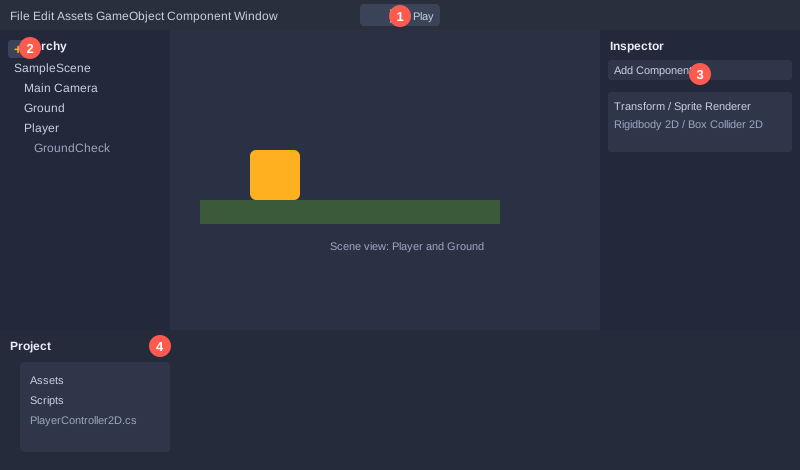
需要准备的东西
- 安装了 **Unity Hub** 的电脑(可从 unity.com 下载)
- 通过 Unity Hub 安装的最新 LTS 版 Unity 编辑器(例如 Unity 6 LTS 或 2022 LTS)
- VS Code 或 Visual Studio。创建项目时 Unity Hub 可能会提示你安装相关集成
- 一张小的角色图片(PNG 格式)。如果没有,可以使用 Unity 生成的彩色方块代替
第 1 步:创建 2D 项目
1. 打开 Unity Hub,点击 **New project**,选择 **Universal 2D**(URP)或 **2D**(Built-in)模板(名称以 Unity Hub 显示为准)。
2. 为项目命名,例如 `MyPlatformer`,然后点击 **Create project**。
3. 等待 Unity 打开,你会看到一个名为 `SampleScene` 的空场景。
场景是游戏的活动区域。场景中的一切,例如角色、地面和摄像机,都是 **GameObject**,附加在上面的组件决定它的行为。
第 2 步:设置输入
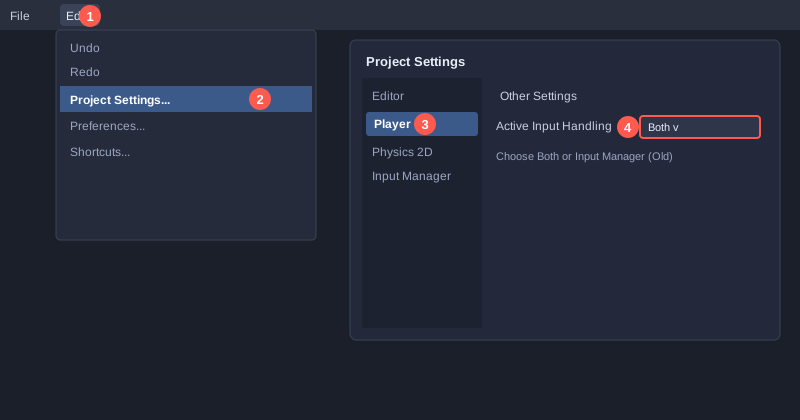
本文的脚本使用经典输入系统(Input Manager)。启用方法如下:
1. 进入 **Edit → Project Settings → Player**。
2. 找到 **Active Input Handling**,选择 **Both** 或 **Input Manager (Old)**。
3. 当 Unity 提示重启编辑器时,点击同意。
默认设置中已经包含 **Horizontal**(左右)和 **Jump**(跳跃,即空格键)。左右移动可使用 A/D 键或方向键。
第 3 步:创建地面
1. 在 Hierarchy 中右键,选择 **2D Object → Sprites → Square**,命名为 `Ground`。
2. 在 Inspector 中将 Scale 设为 `X = 20`、`Y = 1`,做成一条长地面。
3. 将 Position 设为 `X = 0`、`Y = -2`。
4. 点击 **Add Component**,添加 **Box Collider 2D**,这样角色才能站在地面上。
5. 创建名为 `Ground` 的图层:点击 Inspector 顶部的 **Layer** 下拉菜单,选择 **Add Layer**,然后回到 `Ground` 对象,把它的图层设为 `Ground`。
有了这个图层,脚本就能识别角色脚下接触的是地面,而不是墙或敌人。
第 4 步:加入角色
1. 在 Hierarchy 中右键,选择 **2D Object → Sprites → Square**,命名为 `Player`。
2. 将 Position 设为 `X = 0`、`Y = 1`,让角色从地面上方开始。
3. 如果有角色图片,将 PNG 拖到 Sprite Renderer 的 **Sprite** 栏中。
4. 添加 **Rigidbody 2D**,将 **Body Type** 设为 Dynamic,并勾选 **Freeze Rotation Z**,防止角色翻倒。
5. 添加 **Box Collider 2D**。
Rigidbody 2D 会让对象受重力下落,并与其他对象发生碰撞。没有它,角色会悬在原地不动。
第 5 步:创建地面检测点
1. 在 Hierarchy 中右键 `Player`,选择 **Create Empty**,命名为 `GroundCheck`。
2. 把它移动到角色脚下,例如 Position 设为 `X = 0`、`Y = -0.5`。
脚本会以这个点为圆心画一个小圆,检查下方是否有地面。
第 6 步:编写角色控制脚本
在 Project 窗口中右键,选择 **Create → C# Script**,命名为 `PlayerController2D`,打开后粘贴以下代码。
using UnityEngine;

// ควบคุมตัวละคร 2D: เดินซ้ายขวา กระโดด และหันหน้าตามทิศทาง
[RequireComponent(typeof(Rigidbody2D))]
[RequireComponent(typeof(SpriteRenderer))]
public class PlayerController2D : MonoBehaviour
{
    [SerializeField] private float moveSpeed = 5f;      // ความเร็วเดิน
    [SerializeField] private float jumpForce = 12f;     // แรงกระโดด
    [SerializeField] private Transform groundCheck;     // จุดตรวจพื้น
    [SerializeField] private float groundRadius = 0.15f;
    [SerializeField] private LayerMask groundLayer;     // เลเยอร์ที่นับว่าเป็นพื้น

    private Rigidbody2D rb;
    private SpriteRenderer sprite;
    private float moveInput;
    private bool isGrounded;
    private bool jumpRequested;

    public bool IsGrounded => isGrounded;

    private void Awake()
    {
        rb = GetComponent<Rigidbody2D>();
        sprite = GetComponent<SpriteRenderer>();
    }

    // Update ทำงานทุกเฟรม ใช้อ่านปุ่มกด แต่ยังไม่กระโดดทันที
    // เพราะค่า isGrounded ถูกอัปเดตใน FixedUpdate ถ้ากระโดดใน Update อาจใช้สถานะพื้นเก่า
    private void Update()
    {
        moveInput = Input.GetAxisRaw("Horizontal");   // -1 ซ้าย, 0 ไม่กด, 1 ขวา

        if (Input.GetButtonDown("Jump"))
        {
            jumpRequested = true;                      // จำไว้ว่าผู้เล่นกดกระโดด
        }

        if (moveInput != 0)
        {
            sprite.flipX = moveInput < 0;             // หันหน้าไปทางที่เดิน
        }
    }

    // FixedUpdate ทำงานตามจังหวะฟิสิกส์ ตรวจพื้นก่อน แล้วค่อยตัดสินใจกระโดด
    private void FixedUpdate()
    {
        // ถ้ายังไม่ได้ผูก groundCheck ใน Inspector ให้ใช้ตำแหน่งของตัวละครแทน
        Vector2 checkPosition = groundCheck != null ? groundCheck.position : transform.position;
        isGrounded = Physics2D.OverlapCircle(checkPosition, groundRadius, groundLayer);

        float verticalSpeed = rb.velocity.y;
        if (jumpRequested && isGrounded)
        {
            verticalSpeed = jumpForce;
        }
        jumpRequested = false;                         // ใช้คำขอกระโดดแล้ว

        rb.velocity = new Vector2(moveInput * moveSpeed, verticalSpeed);
    }
}
要点说明
- `[SerializeField]` 会让私有字段显示在 Inspector 中,无需改代码就能调整数值。
- `Input.GetAxisRaw("Horizontal")` 返回 -1、0 或 1,方向非常明确。
- `Input.GetButtonDown("Jump")` 只在按下的那一帧为 true,因此按住空格不会连续跳跃。
- `Physics2D.OverlapCircle` 检查以 `groundRadius` 为半径、以地面检测点为圆心的圆是否与地面图层的碰撞体重叠。
- Update 负责读取输入,FixedUpdate 负责物理。如果在 Update 中直接跳跃,角色刚走出平台边缘时可能仍会起跳,因为 `isGrounded` 还是上一帧的值。把跳跃请求保存下来,在 FixedUpdate 中处理,就能避免这个问题。第 10 步的测试会验证这一点。
第 7 步:连接脚本
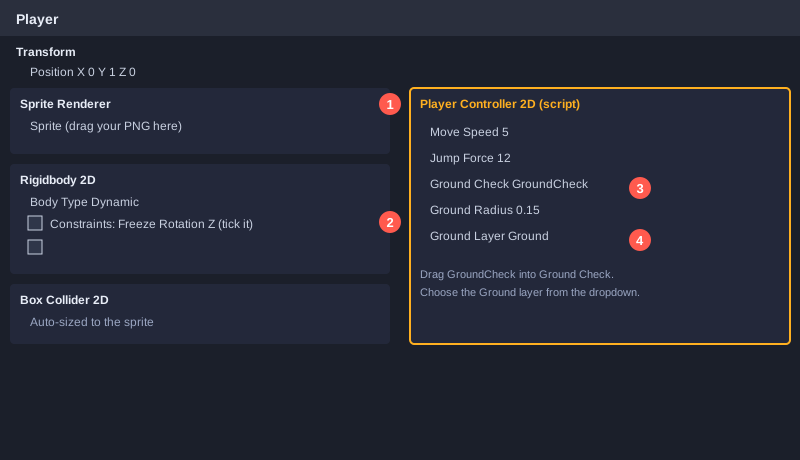
1. 把 `PlayerController2D` 脚本拖到 `Player` 上。
2. 在 Inspector 中,把 `GroundCheck` 拖入 **Ground Check** 栏。
3. 将 **Ground Layer** 设为 `Ground`。
4. 将 **Move Speed** 设为 5,**Jump Force** 设为 12,或选择你喜欢的数值。
第 8 步:让摄像机跟随角色
创建名为 `CameraFollow2D` 的脚本,粘贴以下代码。
using UnityEngine;

// กล้องติดตามตัวละครแบบนุ่มนวล และไม่ให้ตกเกินขอบล่างของฉาก
public class CameraFollow2D : MonoBehaviour
{
    [SerializeField] private Transform target;          // ตัวละครที่จะติดตาม
    [SerializeField] private float smoothTime = 0.2f;   // ยิ่งน้อยยิ่งตามทันเร็ว
    [SerializeField] private float minY = -2f;          // ขอบล่างของกล้อง

    private Vector3 velocity;

    private void LateUpdate()
    {
        if (target == null) return;

        Vector3 desired = new Vector3(target.position.x, Mathf.Max(target.position.y, minY), transform.position.z);
        transform.position = Vector3.SmoothDamp(transform.position, desired, ref velocity, smoothTime);
    }
}
`LateUpdate` 会在所有 Update 之后执行,适合需要跟随本帧刚移动过的角色的摄像机。`Vector3.SmoothDamp` 让移动平滑,不会突然抖动。
选择 **Main Camera**,添加 `CameraFollow2D`,把 `Player` 拖入 **Target** 栏,并将摄像机的 Z 位置设为 `-10`,使场景中的所有对象都位于摄像机前方。
第 9 步:运行游戏
点击编辑器顶部的 **Play**,然后测试:
- A 键或左方向键:角色向左走,并面向左侧。
- D 键或右方向键:角色向右走,并面向右侧。
- 站在地面时按空格:角色跳起。
- 在空中按空格:角色不会再次跳起。
- 摄像机会平滑地跟随角色。
再次点击 Play 即可停止。运行时在 Inspector 中修改的数值,停止后会恢复原样,因此请在停止时调整数值,然后保存项目。
第 10 步:编写自动化测试
手动试玩对小游戏来说足够,但随着代码变复杂,自动化测试能更快发现错误。Unity 自带 Unity Test Framework,值得学习。本文使用一种更简单的方法:用普通 C# 模拟 Unity 的帧循环,这样无需打开编辑器就能测试脚本的逻辑。
下面的测试按顺序调用 Update 和 FixedUpdate,设置输入和地面状态,根据速度移动对象,然后检查结果。
using System;

public static class PlayerTests
{
    private const float Dt = 1f / 50f;   // FixedUpdate 一次等于 1/50 秒
    private static int passed = 0, failed = 0;

    private static void Check(string name, bool condition)
    {
        if (condition) { passed++; Console.WriteLine("PASS  " + name); }
        else { failed++; Console.WriteLine("FAIL  " + name); }
    }

    private static PlayerController2D CreatePlayer(out Rigidbody2D rb, out SpriteRenderer sprite)
    {
        var player = new PlayerController2D();
        rb = new Rigidbody2D();
        sprite = new SpriteRenderer();
        player.Components[typeof(Rigidbody2D)] = rb;
        player.Components[typeof(SpriteRenderer)] = sprite;
        player.Call("Awake");
        return player;
    }

    private static void Step(PlayerController2D player, Rigidbody2D rb)
    {
        player.Call("Update");
        player.Call("FixedUpdate");
        player.transform.position = new Vector3(
            player.transform.position.x + rb.velocity.x * Dt,
            player.transform.position.y + rb.velocity.y * Dt, 0);
    }

    public static int Main()
    {
        // 1. 按右键并向右走
        {
            Rigidbody2D rb; SpriteRenderer sprite;
            var player = CreatePlayer(out rb, out sprite);
            Physics2D.GroundBelowPlayer = true;
            Input.HorizontalAxis = 1f;
            for (int i = 0; i < 50; i++) Step(player, rb);
            Check("walk right: x velocity equals moveSpeed (5)", Math.Abs(rb.velocity.x - 5f) < 0.001f);
            Check("walk right: x position moves about 5 units per second", Math.Abs(player.transform.position.x - 5f) < 0.2f);
            Check("walk right: faces right (flipX = false)", sprite.flipX == false);
        }

        // 2. 按左键并面向左侧
        {
            Rigidbody2D rb; SpriteRenderer sprite;
            var player = CreatePlayer(out rb, out sprite);
            Physics2D.GroundBelowPlayer = true;
            Input.HorizontalAxis = -1f;
            Step(player, rb);
            Check("walk left: x velocity is negative", rb.velocity.x < 0);
            Check("walk left: faces left (flipX = true)", sprite.flipX == true);
        }

        // 3. 没有任何输入时角色应保持静止
        {
            Rigidbody2D rb; SpriteRenderer sprite;
            var player = CreatePlayer(out rb, out sprite);
            Physics2D.GroundBelowPlayer = true;
            Input.HorizontalAxis = 0f;
            Step(player, rb);
            Check("no input: x velocity is 0", rb.velocity.x == 0f);
        }

        // 4. 站在地面上跳跃
        {
            Rigidbody2D rb; SpriteRenderer sprite;
            var player = CreatePlayer(out rb, out sprite);
            Physics2D.GroundBelowPlayer = true;
            Input.HorizontalAxis = 0f;
            Step(player, rb);                    // 先让 FixedUpdate 检测地面
            Input.JumpPressedThisFrame = true;
            Step(player, rb);
            Input.JumpPressedThisFrame = false;
            Check("jump on ground: y velocity equals jumpForce (12)", Math.Abs(rb.velocity.y - 12f) < 0.001f);
        }

        // 5. 在空中按跳跃键不应再次起跳
        {
            Rigidbody2D rb; SpriteRenderer sprite;
            var player = CreatePlayer(out rb, out sprite);
            Physics2D.GroundBelowPlayer = true;
            Input.HorizontalAxis = 0f;
            Step(player, rb);
            Physics2D.GroundBelowPlayer = false; // 角色已离开地面
            rb.velocity = new Vector2(0, -3f);   // 正在下落
            Input.JumpPressedThisFrame = true;
            Step(player, rb);
            Input.JumpPressedThisFrame = false;
            Check("jump in air: y velocity unchanged (still falling)", Math.Abs(rb.velocity.y + 3f) < 0.001f);
        }

        Console.WriteLine();
        Console.WriteLine("Passed " + passed + " / Failed " + failed);
        return failed == 0 ? 0 : 1;
    }
}
模拟库 `UnityStubs.cs`(见泰语版本)提供了 `Vector2`、`Rigidbody2D`、`Input`、`Physics2D` 等所需类型,使测试可以在 Unity 之外运行。这些模拟并不模拟真实的物理或渲染,它们检查的是计算和脚本的执行顺序,这正是本测试的目的。使用较新的 C# 编译器把四个文件一起编译,然后运行生成的 `.exe`。用于 Unity 的脚本中要保留 `using UnityEngine;`,只有在用于模拟测试的副本中才删除这一行。
测试运行结果
使用 Roslyn C# 编译器编译并运行,结果如下:
PASS  walk right: x velocity equals moveSpeed (5)
PASS  walk right: x position moves about 5 units per second
PASS  walk right: faces right (flipX = false)
PASS  walk left: x velocity is negative
PASS  walk left: faces left (flipX = true)
PASS  no input: x velocity is 0
PASS  jump on ground: y velocity equals jumpForce (12)
PASS  jump in air: y velocity unchanged (still falling)

Passed 8 / Failed 0
测试发现的缺陷
控制器的第一个版本直接在 Update 中跳跃。“jump in air”测试失败:Update 读取的 `isGrounded` 仍是上一帧的 true,因此角色在已经离地的情况下又跳了一次。在真实游戏中,这种情况发生在角色走出平台边缘时。修复方法是把跳跃请求保存在 `jumpRequested` 中,让 FixedUpdate 在同一步内检测地面并决定是否跳跃,也就是第 6 步中的代码。
这说明了自动化测试的价值:这类错误用眼睛很难发现,而覆盖边界情况的测试能立刻找到它。
第 11 步:构建游戏
1. 打开 **File → Build Profiles**(旧版本称为 **Build Settings**)。
2. 选择平台,例如 Windows 或 WebGL,然后点击 **Build**。
3. 选择保存文件夹。Unity 会生成可供他人游玩的 `.exe` 文件或网页版本。
常见问题与解决方法
- **角色不移动:** 检查 Active Input Handling 设置,并确认 Rigidbody 2D 的 Body Type 为 Dynamic。
- **角色穿过地面:** 确认地面有 Box Collider 2D,且角色的 Rigidbody 2D 没有设为 Kinematic。
- **无法跳跃:** 确认 Ground Layer 设为 `Ground`,并且 GroundCheck 位于角色脚下。
- **角色翻倒:** 在 Rigidbody 2D 中勾选 Freeze Rotation Z。
- **摄像机不跟随:** 确认 `CameraFollow2D` 的 Target 栏中填入了 `Player`。
- **提示 velocity 已弃用:** Unity 6 提供 `linearVelocity` 属性。如果你的版本提示 `velocity` 的警告,请改名为 `linearVelocity`。
后续方向
角色能行走和跳跃后,你可以用 Trigger Collider 2D 和 `OnTriggerEnter2D` 添加金币,制作来回巡逻的敌人,加入生命值和死亡机制,或用 Tilemap 制作背景。这些都使用与本文相同的思路。
总结
用 Unity 制作 2D 游戏,首先要理解一切都是由组件构成的 GameObject。控制脚本在 Update 中读取输入,在 FixedUpdate 中处理物理;自动化测试能够发现肉眼难以察觉的错误。按步骤一步步完成,在 Inspector 中调整数值,把游戏变成属于你自己的作品。