React Native 入门:安装、测试与发布移动应用
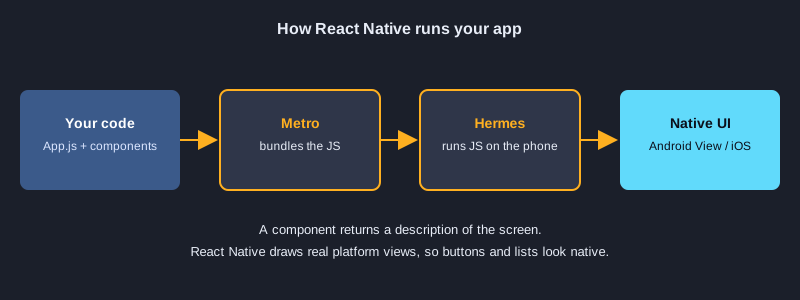
用 React Native,你可以用 JavaScript 和 React 开发 Android 和 iOS 应用。组件只需编写一次,同一份代码就能在两个平台上以真正的原生视图运行。本文用 Expo 创建项目,讲解六个小示例,用 Jest 逐一测试,最后说明如何导出和发布应用。文中的每个代码文件都是经过测试的真实文件,测试结果也是真实输出。
需要准备的东西
需要 Node.js(本文使用 Node 24.19.0 测试)、npm、代码编辑器。运行步骤需要一部安装了 Expo Go 应用的手机,或 Android 模拟器。测试在电脑上运行,不需要手机。发布版本构建需要一个免费的 Expo 账号(用于 EAS Build)。要上架 Google Play,需要 Google Play 开发者账号(一次性费用 25 美元);要上架 App Store,需要 Apple Developer 账号(按年收费)。
示意图
第 1 步:安装并创建项目
从空白模板创建 Expo 项目,然后安装测试和 Web 所需的包。npx expo install 会选择与你的 Expo SDK 匹配的版本,所以对 Expo 支持的包都应使用它。运行 npx expo start 启动应用,用 Expo Go 扫描二维码,或按 w 在浏览器中打开。
npx create-expo-app@latest app --template blank
cd app
npx expo install jest-expo jest react-dom react-native-web @expo/metro-runtime
npm install -D @testing-library/react-native@14 test-renderer@1
npx expo start
安装: `package.json`
"jest": {
  "preset": "jest-expo"
},
"scripts": {
  "test": "jest"
}
示例 1: Hello:组件与 StyleSheet
组件是返回要显示内容的函数。View 和 Text 分别代替 div 和 p,StyleSheet.create 用来组织样式对象。
import { StyleSheet, Text, View } from 'react-native';

// A component is a function that returns what to show on screen.
export default function Hello() {
  return (
    <View style={styles.box}>
      <Text style={styles.title}>Hello, React Native</Text>
    </View>
  );
}

const styles = StyleSheet.create({
  box: { padding: 16, backgroundColor: '#e8f1ff', borderRadius: 8 },
  title: { fontSize: 20, fontWeight: 'bold', color: '#1b3a6b' },
});
真实测试结果
✓ 1. Hello › shows the heading
示例 2: Props:向组件传递数据
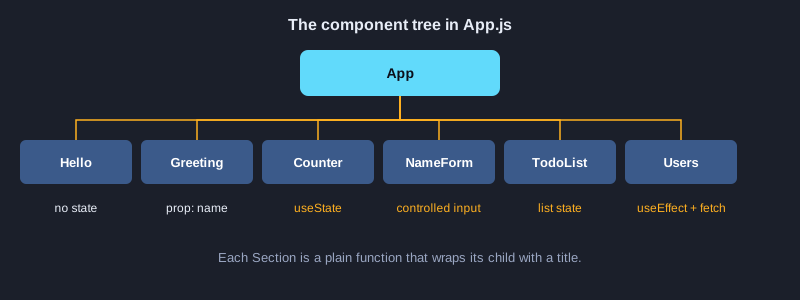
App 通过 props 把 name 传给 Greeting。同一个组件无需修改代码就能显示不同的名字。
import { Text } from 'react-native';

// Props are the data a parent passes in. The same component can show different names.
export default function Greeting({ name }) {
  return <Text style={{ fontSize: 18 }}>{`Hello, ${name}`}</Text>;
}
真实测试结果
✓ 2. Props › uses the name prop
示例 3: State:用 Pressable 做计数器
useState 保存计数值,Pressable 是可以点击的元素。写成 setCount(c => c + 1) 的形式,总是使用最新的值。
import { useState } from 'react';
import { Pressable, StyleSheet, Text, View } from 'react-native';

// State is a value that changes. Calling the setter makes React render again.
export default function Counter() {
  const [count, setCount] = useState(0);

  return (
    <View style={styles.row}>
      <Pressable
        style={styles.button}
        accessibilityRole="button"
        accessibilityLabel="decrease"
        onPress={() => setCount(c => c - 1)}>
        <Text style={styles.buttonText}>-</Text>
      </Pressable>
      <Text testID="count" style={styles.count}>{count}</Text>
      <Pressable
        style={styles.button}
        accessibilityRole="button"
        accessibilityLabel="increase"
        onPress={() => setCount(c => c + 1)}>
        <Text style={styles.buttonText}>+</Text>
      </Pressable>
    </View>
  );
}

const styles = StyleSheet.create({
  row: { flexDirection: 'row', alignItems: 'center', gap: 16 },
  button: { width: 48, height: 48, borderRadius: 24, backgroundColor: '#2f6fed', alignItems: 'center', justifyContent: 'center' },
  buttonText: { color: '#fff', fontSize: 24, fontWeight: 'bold' },
  count: { fontSize: 28, minWidth: 48, textAlign: 'center' },
});
真实测试结果
✓ 3. State › increments and decrements the count
示例 4: 受控的 TextInput
输入框的值保存在 state 中。onChangeText 在每次按键时更新它,预览文字也由这个 state 计算得出。
import { useState } from 'react';
import { StyleSheet, Text, TextInput, View } from 'react-native';

// TextInput is controlled: its value comes from state and onChangeText updates it on each keystroke.
export default function NameForm() {
  const [name, setName] = useState('');
  const trimmed = name.trim();

  return (
    <View style={styles.box}>
      <TextInput
        testID="name-input"
        style={styles.input}
        placeholder="Your name"
        value={name}
        onChangeText={setName}
      />
      <Text testID="preview" style={styles.preview}>
        {trimmed ? `Hi, ${trimmed}!` : 'Type your name above'}
      </Text>
    </View>
  );
}

const styles = StyleSheet.create({
  box: { gap: 8 },
  input: { borderWidth: 1, borderColor: '#9aa6c2', borderRadius: 8, padding: 10, fontSize: 16 },
  preview: { fontSize: 16, color: '#333' },
});
真实测试结果
✓ 4. Controlled input › shows a greeting from the typed name
示例 5: 可添加的列表
用展开语法(spread)创建新数组来添加条目,而不是修改原数组。短列表用 map 即可;长列表应使用带 keyExtractor 的 FlatList。
import { useState } from 'react';
import { Pressable, StyleSheet, Text, TextInput, View } from 'react-native';

// Add an item by creating a new array with spread instead of changing the old one.
export default function TodoList() {
  const [text, setText] = useState('');
  const [items, setItems] = useState([{ id: '1', title: 'Learn components' }]);

  function addItem() {
    const title = text.trim();
    if (!title) return;
    setItems([...items, { id: `${Date.now()}-${items.length}`, title }]);
    setText('');
  }

  return (
    <View style={styles.box}>
      <View style={styles.row}>
        <TextInput
          testID="todo-input"
          style={styles.input}
          placeholder="New task"
          value={text}
          onChangeText={setText}
        />
        <Pressable testID="add" style={styles.button} accessibilityRole="button" onPress={addItem}>
          <Text style={styles.buttonText}>Add</Text>
        </Pressable>
      </View>
      {items.map(item => (
        <Text key={item.id} testID="todo-item" style={styles.item}>{item.title}</Text>
      ))}
    </View>
  );
}

const styles = StyleSheet.create({
  box: { gap: 8 },
  row: { flexDirection: 'row', gap: 8 },
  input: { flex: 1, borderWidth: 1, borderColor: '#9aa6c2', borderRadius: 8, padding: 10, fontSize: 16 },
  button: { backgroundColor: '#2f6fed', borderRadius: 8, paddingHorizontal: 16, justifyContent: 'center' },
  buttonText: { color: '#fff', fontWeight: 'bold' },
  item: { fontSize: 16, paddingVertical: 6, borderBottomWidth: StyleSheet.hairlineWidth, borderBottomColor: '#ccc' },
});
真实测试结果
✓ 5. List with add › adds a task and clears the input
✓ 5. List with add › ignores an empty task
示例 6: 用 useEffect 和 fetch 加载数据
useEffect 在第一次渲染之后运行。请求等待期间显示 ActivityIndicator,然后显示用户列表。清理函数会忽略组件被移除后才到达的响应。
import { useEffect, useState } from 'react';
import { ActivityIndicator, Text, View } from 'react-native';

export const USERS_URL = 'https://jsonplaceholder.typicode.com/users';

// useEffect runs after the first render. Here it loads data from a web API.
// The cleanup function ignores a response that arrives after the component is gone.
export default function Users({ url = USERS_URL }) {
  const [users, setUsers] = useState(null);
  const [error, setError] = useState(null);

  useEffect(() => {
    let active = true;
    fetch(url)
      .then(res => {
        if (!res.ok) throw new Error(`HTTP ${res.status}`);
        return res.json();
      })
      .then(data => { if (active) setUsers(data); })
      .catch(err => { if (active) setError(err.message); });
    return () => { active = false; };
  }, [url]);

  if (error) return <Text testID="error">{`Error: ${error}`}</Text>;
  if (!users) return <ActivityIndicator testID="loading" />;

  return (
    <View testID="users" style={{ gap: 6 }}>
      {users.map(u => <Text key={u.id}>{u.name}</Text>)}
    </View>
  );
}
真实测试结果
✓ 6. Load data › shows a loading indicator while the request is pending
✓ 6. Load data › shows the users after the request finishes
✓ 6. Load data › shows an error when the response is not ok
在 App.js 中组合所有示例
import { StatusBar } from 'expo-status-bar';
import { ScrollView, StyleSheet, Text, View } from 'react-native';

import Hello from './src/examples/Hello';
import Greeting from './src/examples/Greeting';
import Counter from './src/examples/Counter';
import NameForm from './src/examples/NameForm';
import TodoList from './src/examples/TodoList';
import Users from './src/examples/Users';

// The root component combines smaller components, just like the examples in the article.
export default function App() {
  return (
    <ScrollView contentContainerStyle={styles.container}>
      <StatusBar style="auto" />
      <Text style={styles.heading}>React Native Examples</Text>

      <Section title="1. Hello"><Hello /></Section>
      <Section title="2. Props"><Greeting name="Somchai" /></Section>
      <Section title="3. State"><Counter /></Section>
      <Section title="4. Controlled input"><NameForm /></Section>
      <Section title="5. List with add"><TodoList /></Section>
      <Section title="6. Load data"><Users /></Section>
    </ScrollView>
  );
}

function Section({ title, children }) {
  return (
    <View style={styles.section}>
      <Text style={styles.sectionTitle}>{title}</Text>
      {children}
    </View>
  );
}

const styles = StyleSheet.create({
  container: { padding: 20, paddingTop: 60, gap: 24 },
  heading: { fontSize: 26, fontWeight: 'bold' },
  section: { gap: 10 },
  sectionTitle: { fontSize: 14, fontWeight: '600', color: '#2f6fed', textTransform: 'uppercase' },
});
第 2 步:用 Jest 测试每个示例
测试运行器是 Jest,并使用 jest-expo 预设,让 React Native 能在 Node 中运行。@testing-library/react-native 负责渲染组件,并像用户一样操作它:查找文字或标签、按下按钮、修改文字。在 14 版本中,render 和 fireEvent 都是异步的,因此每次调用都要写 await。Users 的测试把 global.fetch 替换成模拟函数,所以测试期间不会发出真实的网络请求。运行 npm test 即可执行全部测试。
npm test
测试文件
import { fireEvent, render, screen } from '@testing-library/react-native';

import Hello from '../src/examples/Hello';
import Greeting from '../src/examples/Greeting';
import Counter from '../src/examples/Counter';
import NameForm from '../src/examples/NameForm';
import TodoList from '../src/examples/TodoList';
import Users from '../src/examples/Users';

describe('1. Hello', () => {
  it('shows the heading', async () => {
    await render(<Hello />);
    expect(screen.getByText('Hello, React Native')).toBeTruthy();
  });
});

describe('2. Props', () => {
  it('uses the name prop', async () => {
    await render(<Greeting name="Somchai" />);
    expect(screen.getByText('Hello, Somchai')).toBeTruthy();
  });
});

describe('3. State', () => {
  it('increments and decrements the count', async () => {
    await render(<Counter />);
    expect(screen.getByTestId('count')).toHaveTextContent('0');
    await fireEvent.press(screen.getByLabelText('increase'));
    await fireEvent.press(screen.getByLabelText('increase'));
    expect(screen.getByTestId('count')).toHaveTextContent('2');
    await fireEvent.press(screen.getByLabelText('decrease'));
    expect(screen.getByTestId('count')).toHaveTextContent('1');
  });
});

describe('4. Controlled input', () => {
  it('shows a greeting from the typed name', async () => {
    await render(<NameForm />);
    expect(screen.getByTestId('preview')).toHaveTextContent('Type your name above');
    await fireEvent.changeText(screen.getByTestId('name-input'), '  Somchai ');
    expect(screen.getByTestId('preview')).toHaveTextContent('Hi, Somchai!');
  });
});

describe('5. List with add', () => {
  it('adds a task and clears the input', async () => {
    await render(<TodoList />);
    await fireEvent.changeText(screen.getByTestId('todo-input'), 'Buy milk');
    await fireEvent.press(screen.getByTestId('add'));
    expect(screen.getByText('Buy milk')).toBeTruthy();
    expect(screen.getByTestId('todo-input')).toHaveProp('value', '');
  });

  it('ignores an empty task', async () => {
    await render(<TodoList />);
    await fireEvent.press(screen.getByTestId('add'));
    expect(screen.getAllByTestId('todo-item')).toHaveLength(1);
  });
});

describe('6. Load data', () => {
  afterEach(() => {
    delete global.fetch;
  });

  it('shows a loading indicator while the request is pending', async () => {
    global.fetch = jest.fn(() => new Promise(() => {}));
    await render(<Users url="https://test.local/users" />);
    expect(screen.getByTestId('loading')).toBeTruthy();
  });

  it('shows the users after the request finishes', async () => {
    global.fetch = jest.fn(() =>
      Promise.resolve({ ok: true, json: () => Promise.resolve([{ id: 1, name: 'Leanne Graham' }]) }),
    );
    await render(<Users url="https://test.local/users" />);
    expect(await screen.findByText('Leanne Graham')).toBeTruthy();
    expect(global.fetch).toHaveBeenCalledWith('https://test.local/users');
  });

  it('shows an error when the response is not ok', async () => {
    global.fetch = jest.fn(() => Promise.resolve({ ok: false, status: 500 }));
    await render(<Users url="https://test.local/broken" />);
    expect(await screen.findByTestId('error')).toHaveTextContent('Error: HTTP 500');
  });
});
真实输出
Test Suites: 1 passed, 1 total
Tests:       9 passed, 9 total
Snapshots:   0 total
Time:        1.934 s, estimated 3 s
Ran all test suites.
第 3 步:导出与发布
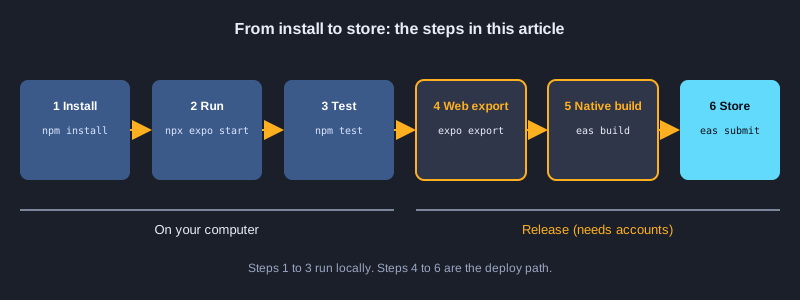
npx expo export --platform web 会把静态网站输出到 dist 文件夹。你可以把这个文件夹部署到 Cloudflare Pages、Netlify 或其他静态托管服务。npx expo export --platform android 会输出原生应用加载的 JavaScript 包,并显示其大小。应用商店发布使用 EAS Build,它在 Expo 的云端构建 APK 或 AAB,然后提交上架。EAS 命令需要 Expo 账号和应用商店账号,因此本文没有运行这些命令。两个导出命令已经运行,并展示了真实输出。
npx expo export --platform web
npx expo export --platform android
npx eas-cli@latest login
npx eas-cli@latest build --platform android --profile preview
npx eas-cli@latest submit --platform android
真实输出 (export --platform web)
Starting Metro Bundler

Web Bundled 324ms index.js (155 modules)

› web bundles (1):
_expo/static/js/web/index-2cd770f3379787ce05344930a3b77994.js (411KB)

› Files (3):
favicon.ico (15KB)
index.html (1.2KB)
metadata.json (49B)

Exported: dist
真实输出 (export --platform android)
Starting Metro Bundler

Android Bundled 4251ms index.js (622 modules)

› android bundles (1):
_expo/static/js/android/index-2f8b5ff9ff67c29c92fd35ff3cb9dfec.hbc (1.6MB)

› Files (1):
metadata.json (150B)

Exported: dist
下一步
下一步,可以用 Expo Router 添加导航,它每个页面对应一个文件。用 AsyncStorage 或 expo-sqlite 保存数据。发布前,准备应用名称、图标、隐私政策和商店截图,并在真机上测试,因为模拟器无法显示所有情况。iOS 需要 Apple Developer 账号,但使用 EAS Build 可以不需要 Mac 也能完成构建。
总结
React Native 应用就是一棵绘制原生视图的组件树。Expo 负责准备项目,Jest 检查每个示例,导出或 EAS Build 把项目变成网站或发布文件。从小组件开始,逐个测试,应用可用后再发布。