สอน React Native ตั้งแต่ต้น: ติดตั้ง ทดสอบ และนำแอปขึ้นใช้งานจริง
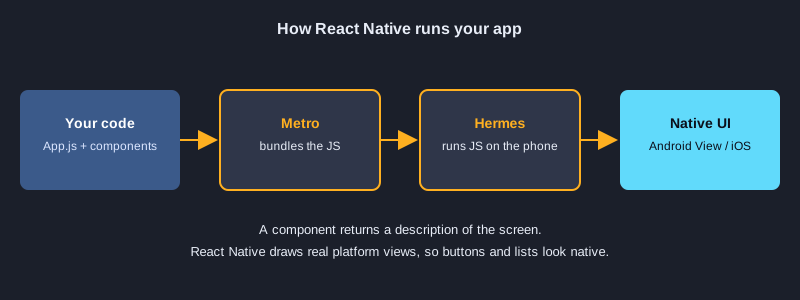
React Native ช่วยให้คุณสร้างแอป Android และ iOS ด้วย JavaScript และ React โดยเขียนคอมโพเนนต์ครั้งเดียว โค้ดชุดเดียวทำงานได้ทั้งสองระบบเป็นหน้าจอ native จริง บทความนี้เริ่มโปรเจกต์ด้วย Expo อธิบายตัวอย่างขนาดเล็กหกตัว ทดสอบแต่ละตัวด้วย Jest แล้วแสดงวิธีส่งออกและเผยแพร่แอป ทุกไฟล์โค้ดคือไฟล์ที่ทดสอบจริง และผลการทดสอบที่แสดงคือผลลัพธ์จริง
สิ่งที่ต้องเตรียม
ต้องมี Node.js (บทความนี้ทดสอบกับ Node 24.19.0) npm โปรแกรมแก้โค้ด และโทรศัพท์ที่ติดตั้งแอป Expo Go หรือ Android emulator สำหรับขั้นตอนรันแอป การทดสอบรันบนคอมพิวเตอร์ ไม่ต้องใช้โทรศัพท์ การ build เพื่อเผยแพร่ต้องมีบัญชี Expo ฟรีสำหรับ EAS Build ถ้าจะขึ้น Google Play ต้องมีบัญชีนักพัฒนา Google Play (ค่าธรรมเนียมครั้งเดียว 25 ดอลลาร์สหรัฐ) ถ้าจะขึ้น App Store ต้องมีบัญชี Apple Developer (เสียค่าบริการรายปี)
ภาพประกอบ
ขั้นที่ 1: ติดตั้งและสร้างโปรเจกต์
สร้างโปรเจกต์ Expo จากเทมเพลตเปล่า แล้วติดตั้งแพ็กเกจสำหรับการทดสอบและเว็บ คำสั่ง npx expo install จะเลือกเวอร์ชันที่เข้ากับ Expo SDK ให้ จากนั้นรัน npx expo start แล้วสแกน QR code ด้วย Expo Go หรือกด w เพื่อเปิดในเบราว์เซอร์
npx create-expo-app@latest app --template blank
cd app
npx expo install jest-expo jest react-dom react-native-web @expo/metro-runtime
npm install -D @testing-library/react-native@14 test-renderer@1
npx expo start
ติดตั้ง: `package.json`
"jest": {
  "preset": "jest-expo"
},
"scripts": {
  "test": "jest"
}
ตัวอย่างที่ 1: Hello: คอมโพเนนต์และ StyleSheet
คอมโพเนนต์คือฟังก์ชันที่คืนค่าสิ่งที่จะแสดง View และ Text ใช้แทน div และ p ส่วน StyleSheet.create ใช้จัดกลุ่มออบเจกต์ของสไตล์
import { StyleSheet, Text, View } from 'react-native';

// A component is a function that returns what to show on screen.
export default function Hello() {
  return (
    <View style={styles.box}>
      <Text style={styles.title}>Hello, React Native</Text>
    </View>
  );
}

const styles = StyleSheet.create({
  box: { padding: 16, backgroundColor: '#e8f1ff', borderRadius: 8 },
  title: { fontSize: 20, fontWeight: 'bold', color: '#1b3a6b' },
});
ผลการทดสอบจริง
✓ 1. Hello › shows the heading
ตัวอย่างที่ 2: Props: ส่งข้อมูลเข้าคอมโพเนนต์
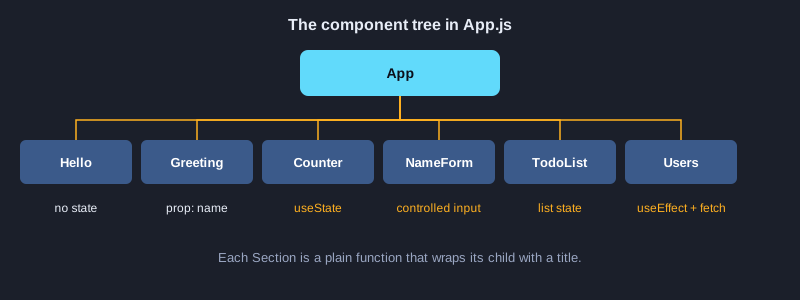
App ส่งค่า name ให้ Greeting ผ่าน props คอมโพเนนต์เดียวกันแสดงชื่ออื่นได้โดยไม่ต้องแก้โค้ด
import { Text } from 'react-native';

// Props are the data a parent passes in. The same component can show different names.
export default function Greeting({ name }) {
  return <Text style={{ fontSize: 18 }}>{`Hello, ${name}`}</Text>;
}
ผลการทดสอบจริง
✓ 2. Props › uses the name prop
ตัวอย่างที่ 3: State: ตัวนับด้วย Pressable
useState เก็บค่าตัวนับ และ Pressable คือปุ่มที่กดได้ รูปแบบ setCount(c => c + 1) ใช้ค่าล่าสุดเสมอ
import { useState } from 'react';
import { Pressable, StyleSheet, Text, View } from 'react-native';

// State is a value that changes. Calling the setter makes React render again.
export default function Counter() {
  const [count, setCount] = useState(0);

  return (
    <View style={styles.row}>
      <Pressable
        style={styles.button}
        accessibilityRole="button"
        accessibilityLabel="decrease"
        onPress={() => setCount(c => c - 1)}>
        <Text style={styles.buttonText}>-</Text>
      </Pressable>
      <Text testID="count" style={styles.count}>{count}</Text>
      <Pressable
        style={styles.button}
        accessibilityRole="button"
        accessibilityLabel="increase"
        onPress={() => setCount(c => c + 1)}>
        <Text style={styles.buttonText}>+</Text>
      </Pressable>
    </View>
  );
}

const styles = StyleSheet.create({
  row: { flexDirection: 'row', alignItems: 'center', gap: 16 },
  button: { width: 48, height: 48, borderRadius: 24, backgroundColor: '#2f6fed', alignItems: 'center', justifyContent: 'center' },
  buttonText: { color: '#fff', fontSize: 24, fontWeight: 'bold' },
  count: { fontSize: 28, minWidth: 48, textAlign: 'center' },
});
ผลการทดสอบจริง
✓ 3. State › increments and decrements the count
ตัวอย่างที่ 4: TextInput แบบควบคุมค่า
ค่าในช่องกรอกเก็บไว้ใน state onChangeText อัปเดตค่าทุกครั้งที่พิมพ์ และข้อความตัวอย่างคำนวณจาก state นั้น
import { useState } from 'react';
import { StyleSheet, Text, TextInput, View } from 'react-native';

// TextInput is controlled: its value comes from state and onChangeText updates it on each keystroke.
export default function NameForm() {
  const [name, setName] = useState('');
  const trimmed = name.trim();

  return (
    <View style={styles.box}>
      <TextInput
        testID="name-input"
        style={styles.input}
        placeholder="Your name"
        value={name}
        onChangeText={setName}
      />
      <Text testID="preview" style={styles.preview}>
        {trimmed ? `Hi, ${trimmed}!` : 'Type your name above'}
      </Text>
    </View>
  );
}

const styles = StyleSheet.create({
  box: { gap: 8 },
  input: { borderWidth: 1, borderColor: '#9aa6c2', borderRadius: 8, padding: 10, fontSize: 16 },
  preview: { fontSize: 16, color: '#333' },
});
ผลการทดสอบจริง
✓ 4. Controlled input › shows a greeting from the typed name
ตัวอย่างที่ 5: รายการพร้อมเพิ่มข้อมูล
เพิ่มรายการด้วยการสร้างอาร์เรย์ใหม่ด้วย spread แทนการแก้อาร์เรย์เดิม map ใช้ได้กับรายการสั้น ถ้ารายการยาวควรใช้ FlatList พร้อม keyExtractor
import { useState } from 'react';
import { Pressable, StyleSheet, Text, TextInput, View } from 'react-native';

// Add an item by creating a new array with spread instead of changing the old one.
export default function TodoList() {
  const [text, setText] = useState('');
  const [items, setItems] = useState([{ id: '1', title: 'Learn components' }]);

  function addItem() {
    const title = text.trim();
    if (!title) return;
    setItems([...items, { id: `${Date.now()}-${items.length}`, title }]);
    setText('');
  }

  return (
    <View style={styles.box}>
      <View style={styles.row}>
        <TextInput
          testID="todo-input"
          style={styles.input}
          placeholder="New task"
          value={text}
          onChangeText={setText}
        />
        <Pressable testID="add" style={styles.button} accessibilityRole="button" onPress={addItem}>
          <Text style={styles.buttonText}>Add</Text>
        </Pressable>
      </View>
      {items.map(item => (
        <Text key={item.id} testID="todo-item" style={styles.item}>{item.title}</Text>
      ))}
    </View>
  );
}

const styles = StyleSheet.create({
  box: { gap: 8 },
  row: { flexDirection: 'row', gap: 8 },
  input: { flex: 1, borderWidth: 1, borderColor: '#9aa6c2', borderRadius: 8, padding: 10, fontSize: 16 },
  button: { backgroundColor: '#2f6fed', borderRadius: 8, paddingHorizontal: 16, justifyContent: 'center' },
  buttonText: { color: '#fff', fontWeight: 'bold' },
  item: { fontSize: 16, paddingVertical: 6, borderBottomWidth: StyleSheet.hairlineWidth, borderBottomColor: '#ccc' },
});
ผลการทดสอบจริง
✓ 5. List with add › adds a task and clears the input
✓ 5. List with add › ignores an empty task
ตัวอย่างที่ 6: โหลดข้อมูลด้วย useEffect และ fetch
useEffect ทำงานหลังการ render ครั้งแรก ระหว่างรอคำตอบคอมโพเนนต์แสดง ActivityIndicator แล้วจึงแสดงรายชื่อ ฟังก์ชันทำความสะอาดจะไม่รับคำตอบที่มาถึงหลังคอมโพเนนต์ถูกถอดออกแล้ว
import { useEffect, useState } from 'react';
import { ActivityIndicator, Text, View } from 'react-native';

export const USERS_URL = 'https://jsonplaceholder.typicode.com/users';

// useEffect runs after the first render. Here it loads data from a web API.
// The cleanup function ignores a response that arrives after the component is gone.
export default function Users({ url = USERS_URL }) {
  const [users, setUsers] = useState(null);
  const [error, setError] = useState(null);

  useEffect(() => {
    let active = true;
    fetch(url)
      .then(res => {
        if (!res.ok) throw new Error(`HTTP ${res.status}`);
        return res.json();
      })
      .then(data => { if (active) setUsers(data); })
      .catch(err => { if (active) setError(err.message); });
    return () => { active = false; };
  }, [url]);

  if (error) return <Text testID="error">{`Error: ${error}`}</Text>;
  if (!users) return <ActivityIndicator testID="loading" />;

  return (
    <View testID="users" style={{ gap: 6 }}>
      {users.map(u => <Text key={u.id}>{u.name}</Text>)}
    </View>
  );
}
ผลการทดสอบจริง
✓ 6. Load data › shows a loading indicator while the request is pending
✓ 6. Load data › shows the users after the request finishes
✓ 6. Load data › shows an error when the response is not ok
รวมทุกตัวอย่างใน App.js
import { StatusBar } from 'expo-status-bar';
import { ScrollView, StyleSheet, Text, View } from 'react-native';

import Hello from './src/examples/Hello';
import Greeting from './src/examples/Greeting';
import Counter from './src/examples/Counter';
import NameForm from './src/examples/NameForm';
import TodoList from './src/examples/TodoList';
import Users from './src/examples/Users';

// The root component combines smaller components, just like the examples in the article.
export default function App() {
  return (
    <ScrollView contentContainerStyle={styles.container}>
      <StatusBar style="auto" />
      <Text style={styles.heading}>React Native Examples</Text>

      <Section title="1. Hello"><Hello /></Section>
      <Section title="2. Props"><Greeting name="Somchai" /></Section>
      <Section title="3. State"><Counter /></Section>
      <Section title="4. Controlled input"><NameForm /></Section>
      <Section title="5. List with add"><TodoList /></Section>
      <Section title="6. Load data"><Users /></Section>
    </ScrollView>
  );
}

function Section({ title, children }) {
  return (
    <View style={styles.section}>
      <Text style={styles.sectionTitle}>{title}</Text>
      {children}
    </View>
  );
}

const styles = StyleSheet.create({
  container: { padding: 20, paddingTop: 60, gap: 24 },
  heading: { fontSize: 26, fontWeight: 'bold' },
  section: { gap: 10 },
  sectionTitle: { fontSize: 14, fontWeight: '600', color: '#2f6fed', textTransform: 'uppercase' },
});
ขั้นที่ 2: ทดสอบทุกตัวอย่างด้วย Jest
ตัวรันเทสต์คือ Jest พร้อม preset ชื่อ jest-expo ซึ่งเตรียม React Native ให้รันบน Node ได้ @testing-library/react-native จะ render คอมโพเนนต์และทำงานกับมันเหมือนผู้ใช้จริง คือหาข้อความหรือป้ายกำกับ กดปุ่ม หรือเปลี่ยนข้อความ ใน version 14 render และ fireEvent เป็น async จึงต้องเขียน await ทุกครั้ง เทสต์ของ Users แทน global.fetch ด้วยฟังก์ชันจำลอง จึงไม่มีการส่งคำขอเครือข่ายจริงระหว่างทดสอบ รัน npm test เพื่อรันทั้งหมด
npm test
ไฟล์ทดสอบ
import { fireEvent, render, screen } from '@testing-library/react-native';

import Hello from '../src/examples/Hello';
import Greeting from '../src/examples/Greeting';
import Counter from '../src/examples/Counter';
import NameForm from '../src/examples/NameForm';
import TodoList from '../src/examples/TodoList';
import Users from '../src/examples/Users';

describe('1. Hello', () => {
  it('shows the heading', async () => {
    await render(<Hello />);
    expect(screen.getByText('Hello, React Native')).toBeTruthy();
  });
});

describe('2. Props', () => {
  it('uses the name prop', async () => {
    await render(<Greeting name="Somchai" />);
    expect(screen.getByText('Hello, Somchai')).toBeTruthy();
  });
});

describe('3. State', () => {
  it('increments and decrements the count', async () => {
    await render(<Counter />);
    expect(screen.getByTestId('count')).toHaveTextContent('0');
    await fireEvent.press(screen.getByLabelText('increase'));
    await fireEvent.press(screen.getByLabelText('increase'));
    expect(screen.getByTestId('count')).toHaveTextContent('2');
    await fireEvent.press(screen.getByLabelText('decrease'));
    expect(screen.getByTestId('count')).toHaveTextContent('1');
  });
});

describe('4. Controlled input', () => {
  it('shows a greeting from the typed name', async () => {
    await render(<NameForm />);
    expect(screen.getByTestId('preview')).toHaveTextContent('Type your name above');
    await fireEvent.changeText(screen.getByTestId('name-input'), '  Somchai ');
    expect(screen.getByTestId('preview')).toHaveTextContent('Hi, Somchai!');
  });
});

describe('5. List with add', () => {
  it('adds a task and clears the input', async () => {
    await render(<TodoList />);
    await fireEvent.changeText(screen.getByTestId('todo-input'), 'Buy milk');
    await fireEvent.press(screen.getByTestId('add'));
    expect(screen.getByText('Buy milk')).toBeTruthy();
    expect(screen.getByTestId('todo-input')).toHaveProp('value', '');
  });

  it('ignores an empty task', async () => {
    await render(<TodoList />);
    await fireEvent.press(screen.getByTestId('add'));
    expect(screen.getAllByTestId('todo-item')).toHaveLength(1);
  });
});

describe('6. Load data', () => {
  afterEach(() => {
    delete global.fetch;
  });

  it('shows a loading indicator while the request is pending', async () => {
    global.fetch = jest.fn(() => new Promise(() => {}));
    await render(<Users url="https://test.local/users" />);
    expect(screen.getByTestId('loading')).toBeTruthy();
  });

  it('shows the users after the request finishes', async () => {
    global.fetch = jest.fn(() =>
      Promise.resolve({ ok: true, json: () => Promise.resolve([{ id: 1, name: 'Leanne Graham' }]) }),
    );
    await render(<Users url="https://test.local/users" />);
    expect(await screen.findByText('Leanne Graham')).toBeTruthy();
    expect(global.fetch).toHaveBeenCalledWith('https://test.local/users');
  });

  it('shows an error when the response is not ok', async () => {
    global.fetch = jest.fn(() => Promise.resolve({ ok: false, status: 500 }));
    await render(<Users url="https://test.local/broken" />);
    expect(await screen.findByTestId('error')).toHaveTextContent('Error: HTTP 500');
  });
});
ผลลัพธ์จริงจากการรัน
Test Suites: 1 passed, 1 total
Tests:       9 passed, 9 total
Snapshots:   0 total
Time:        1.934 s, estimated 3 s
Ran all test suites.
ขั้นที่ 3: ส่งออกและเผยแพร่
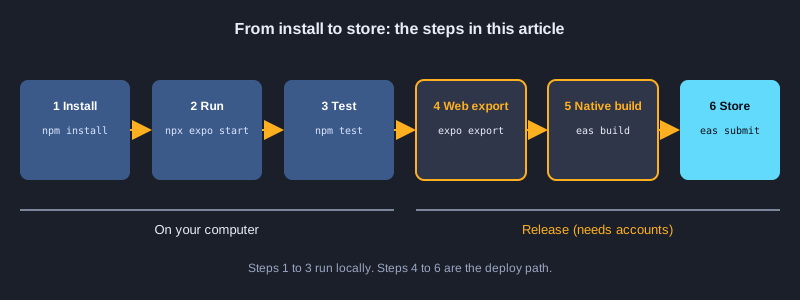
npx expo export --platform web เขียนเว็บไซต์แบบ static ลงโฟลเดอร์ dist คุณนำโฟลเดอร์นี้ไปโฮสต์บน Cloudflare Pages, Netlify หรือโฮสต์ static อื่นได้ npx expo export --platform android เขียนไฟล์ JavaScript bundle ที่แอป native โหลด และแสดงขนาดไฟล์ การขึ้นร้านแอปใช้ EAS Build ซึ่ง build ไฟล์ APK หรือ AAB บนคลาวด์ของ Expo แล้วส่งขึ้นร้าน คำสั่ง EAS ต้องมีบัญชี Expo และบัญชีร้านแอป จึงยังไม่ได้รันในบทความนี้ ส่วนคำสั่ง export ทั้งสองรันแล้ว และแสดงผลลัพธ์จริงให้ดู
npx expo export --platform web
npx expo export --platform android
npx eas-cli@latest login
npx eas-cli@latest build --platform android --profile preview
npx eas-cli@latest submit --platform android
ผลลัพธ์จริงจากการรัน (export --platform web)
Starting Metro Bundler

Web Bundled 324ms index.js (155 modules)

› web bundles (1):
_expo/static/js/web/index-2cd770f3379787ce05344930a3b77994.js (411KB)

› Files (3):
favicon.ico (15KB)
index.html (1.2KB)
metadata.json (49B)

Exported: dist
ผลลัพธ์จริงจากการรัน (export --platform android)
Starting Metro Bundler

Android Bundled 4251ms index.js (622 modules)

› android bundles (1):
_expo/static/js/android/index-2f8b5ff9ff67c29c92fd35ff3cb9dfec.hbc (1.6MB)

› Files (1):
metadata.json (150B)

Exported: dist
ขั้นต่อไป
ขั้นต่อไป เพิ่มการนำทางด้วย Expo Router ซึ่งใช้หนึ่งไฟล์ต่อหนึ่งหน้า บันทึกข้อมูลด้วย AsyncStorage หรือ expo-sqlite ก่อนเผยแพร่ ให้เตรียมชื่อแอป ไอคอน นโยบายความเป็นส่วนตัว และภาพหน้าจอสำหรับร้าน และทดสอบบนโทรศัพท์จริง เพราะ emulator ไม่แสดงทุกอย่าง สำหรับ iOS ต้องมีบัญชี Apple Developer และ EAS Build สามารถ build ได้โดยไม่ต้องใช้ Mac
สรุป
แอป React Native คือต้นไม้ของคอมโพเนนต์ที่วาดหน้าจอ native Expo จัดเตรียมโปรเจกต์ Jest ตรวจทุกตัวอย่าง และขั้นตอน export หรือ EAS Build เปลี่ยนโปรเจกต์เป็นเว็บไซต์หรือไฟล์สำหรับเผยแพร่ เริ่มจากคอมโพเนนต์เล็ก ๆ ทดสอบทีละตัว แล้วจึงเผยแพร่เมื่อแอปทำงานได้