React Nativeの基礎:インストール、テスト、公開まで
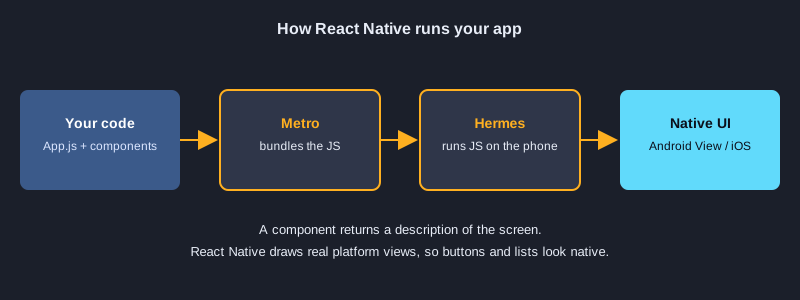
React Nativeを使うと、JavaScriptとReactでAndroidとiOSのアプリを作れます。コンポーネントは一度書けば、同じコードが両方のプラットフォームで本物のネイティブ画面として動きます。この記事ではExpoでプロジェクトを作り、小さな例を6つ紹介し、それぞれをJestでテストして、最後にアプリの書き出しと公開の方法を示します。ここに載せたコードファイルはすべてテスト済みの実物で、テスト結果も実際の出力です。
必要なもの
Node.js(この記事はNode 24.19.0でテストしました)、npm、コードエディタが必要です。実行の手順にはExpo Goアプリを入れたスマートフォンか、Androidのエミュレーターを用意してください。テストはパソコンで実行するので、スマートフォンは不要です。リリース用のビルドには無料のExpoアカウント(EAS Build用)が必要です。Google Playに公開するにはGoogle Play開発者アカウント(登録料は1回25米ドル)、App Storeに公開するにはApple Developerアカウント(年額料金)が必要です。
図解
手順1:インストールとプロジェクトの作成
空のテンプレートからExpoプロジェクトを作成し、テストとWeb用のパッケージを追加します。npx expo installはExpo SDKに合ったバージョンを選ぶので、Expoが対応するパッケージにはこれを使います。npx expo startでアプリを起動し、Expo GoでQRコードを読み取るか、wキーを押してブラウザで開きます。
npx create-expo-app@latest app --template blank
cd app
npx expo install jest-expo jest react-dom react-native-web @expo/metro-runtime
npm install -D @testing-library/react-native@14 test-renderer@1
npx expo start
インストール: `package.json`
"jest": {
  "preset": "jest-expo"
},
"scripts": {
  "test": "jest"
}
例 1: Hello:コンポーネントとStyleSheet
コンポーネントは表示する内容を返す関数です。ViewとTextはdivやpの代わりになり、StyleSheet.createでスタイルをまとめます。
import { StyleSheet, Text, View } from 'react-native';

// A component is a function that returns what to show on screen.
export default function Hello() {
  return (
    <View style={styles.box}>
      <Text style={styles.title}>Hello, React Native</Text>
    </View>
  );
}

const styles = StyleSheet.create({
  box: { padding: 16, backgroundColor: '#e8f1ff', borderRadius: 8 },
  title: { fontSize: 20, fontWeight: 'bold', color: '#1b3a6b' },
});
実際のテスト結果
✓ 1. Hello › shows the heading
例 2: Props:コンポーネントにデータを渡す
Appは props を通じて Greeting に name を渡します。同じコンポーネントを、コードを変えずに別の名前で表示できます。
import { Text } from 'react-native';

// Props are the data a parent passes in. The same component can show different names.
export default function Greeting({ name }) {
  return <Text style={{ fontSize: 18 }}>{`Hello, ${name}`}</Text>;
}
実際のテスト結果
✓ 2. Props › uses the name prop
例 3: State:Pressableを使ったカウンター
useStateが数値を保持し、Pressableはタップできる要素です。setCount(c => c + 1) の形式は、常に最新の値を使います。
import { useState } from 'react';
import { Pressable, StyleSheet, Text, View } from 'react-native';

// State is a value that changes. Calling the setter makes React render again.
export default function Counter() {
  const [count, setCount] = useState(0);

  return (
    <View style={styles.row}>
      <Pressable
        style={styles.button}
        accessibilityRole="button"
        accessibilityLabel="decrease"
        onPress={() => setCount(c => c - 1)}>
        <Text style={styles.buttonText}>-</Text>
      </Pressable>
      <Text testID="count" style={styles.count}>{count}</Text>
      <Pressable
        style={styles.button}
        accessibilityRole="button"
        accessibilityLabel="increase"
        onPress={() => setCount(c => c + 1)}>
        <Text style={styles.buttonText}>+</Text>
      </Pressable>
    </View>
  );
}

const styles = StyleSheet.create({
  row: { flexDirection: 'row', alignItems: 'center', gap: 16 },
  button: { width: 48, height: 48, borderRadius: 24, backgroundColor: '#2f6fed', alignItems: 'center', justifyContent: 'center' },
  buttonText: { color: '#fff', fontSize: 24, fontWeight: 'bold' },
  count: { fontSize: 28, minWidth: 48, textAlign: 'center' },
});
実際のテスト結果
✓ 3. State › increments and decrements the count
例 4: 制御されたTextInput
入力欄の値は state に保存されます。onChangeTextが1文字ごとに値を更新し、プレビューの文字もその state から計算されます。
import { useState } from 'react';
import { StyleSheet, Text, TextInput, View } from 'react-native';

// TextInput is controlled: its value comes from state and onChangeText updates it on each keystroke.
export default function NameForm() {
  const [name, setName] = useState('');
  const trimmed = name.trim();

  return (
    <View style={styles.box}>
      <TextInput
        testID="name-input"
        style={styles.input}
        placeholder="Your name"
        value={name}
        onChangeText={setName}
      />
      <Text testID="preview" style={styles.preview}>
        {trimmed ? `Hi, ${trimmed}!` : 'Type your name above'}
      </Text>
    </View>
  );
}

const styles = StyleSheet.create({
  box: { gap: 8 },
  input: { borderWidth: 1, borderColor: '#9aa6c2', borderRadius: 8, padding: 10, fontSize: 16 },
  preview: { fontSize: 16, color: '#333' },
});
実際のテスト結果
✓ 4. Controlled input › shows a greeting from the typed name
例 5: 追加できるリスト
既存の配列を変えず、spreadで新しい配列を作って項目を追加します。短いリストならmapで十分です。長いリストではkeyExtractorを付けたFlatListを使います。
import { useState } from 'react';
import { Pressable, StyleSheet, Text, TextInput, View } from 'react-native';

// Add an item by creating a new array with spread instead of changing the old one.
export default function TodoList() {
  const [text, setText] = useState('');
  const [items, setItems] = useState([{ id: '1', title: 'Learn components' }]);

  function addItem() {
    const title = text.trim();
    if (!title) return;
    setItems([...items, { id: `${Date.now()}-${items.length}`, title }]);
    setText('');
  }

  return (
    <View style={styles.box}>
      <View style={styles.row}>
        <TextInput
          testID="todo-input"
          style={styles.input}
          placeholder="New task"
          value={text}
          onChangeText={setText}
        />
        <Pressable testID="add" style={styles.button} accessibilityRole="button" onPress={addItem}>
          <Text style={styles.buttonText}>Add</Text>
        </Pressable>
      </View>
      {items.map(item => (
        <Text key={item.id} testID="todo-item" style={styles.item}>{item.title}</Text>
      ))}
    </View>
  );
}

const styles = StyleSheet.create({
  box: { gap: 8 },
  row: { flexDirection: 'row', gap: 8 },
  input: { flex: 1, borderWidth: 1, borderColor: '#9aa6c2', borderRadius: 8, padding: 10, fontSize: 16 },
  button: { backgroundColor: '#2f6fed', borderRadius: 8, paddingHorizontal: 16, justifyContent: 'center' },
  buttonText: { color: '#fff', fontWeight: 'bold' },
  item: { fontSize: 16, paddingVertical: 6, borderBottomWidth: StyleSheet.hairlineWidth, borderBottomColor: '#ccc' },
});
実際のテスト結果
✓ 5. List with add › adds a task and clears the input
✓ 5. List with add › ignores an empty task
例 6: useEffectとfetchでデータを読み込む
useEffectは最初の描画の後に実行されます。通信の完了を待つ間はActivityIndicatorを表示し、その後ユーザー一覧を表示します。クリーンアップ関数は、コンポーネントが外れた後に届く応答を無視します。
import { useEffect, useState } from 'react';
import { ActivityIndicator, Text, View } from 'react-native';

export const USERS_URL = 'https://jsonplaceholder.typicode.com/users';

// useEffect runs after the first render. Here it loads data from a web API.
// The cleanup function ignores a response that arrives after the component is gone.
export default function Users({ url = USERS_URL }) {
  const [users, setUsers] = useState(null);
  const [error, setError] = useState(null);

  useEffect(() => {
    let active = true;
    fetch(url)
      .then(res => {
        if (!res.ok) throw new Error(`HTTP ${res.status}`);
        return res.json();
      })
      .then(data => { if (active) setUsers(data); })
      .catch(err => { if (active) setError(err.message); });
    return () => { active = false; };
  }, [url]);

  if (error) return <Text testID="error">{`Error: ${error}`}</Text>;
  if (!users) return <ActivityIndicator testID="loading" />;

  return (
    <View testID="users" style={{ gap: 6 }}>
      {users.map(u => <Text key={u.id}>{u.name}</Text>)}
    </View>
  );
}
実際のテスト結果
✓ 6. Load data › shows a loading indicator while the request is pending
✓ 6. Load data › shows the users after the request finishes
✓ 6. Load data › shows an error when the response is not ok
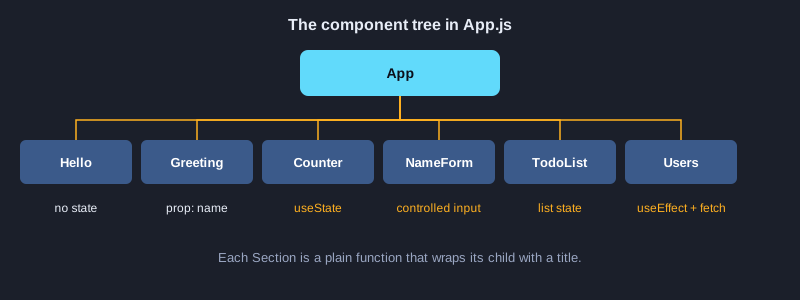
App.js ですべてをまとめる
import { StatusBar } from 'expo-status-bar';
import { ScrollView, StyleSheet, Text, View } from 'react-native';

import Hello from './src/examples/Hello';
import Greeting from './src/examples/Greeting';
import Counter from './src/examples/Counter';
import NameForm from './src/examples/NameForm';
import TodoList from './src/examples/TodoList';
import Users from './src/examples/Users';

// The root component combines smaller components, just like the examples in the article.
export default function App() {
  return (
    <ScrollView contentContainerStyle={styles.container}>
      <StatusBar style="auto" />
      <Text style={styles.heading}>React Native Examples</Text>

      <Section title="1. Hello"><Hello /></Section>
      <Section title="2. Props"><Greeting name="Somchai" /></Section>
      <Section title="3. State"><Counter /></Section>
      <Section title="4. Controlled input"><NameForm /></Section>
      <Section title="5. List with add"><TodoList /></Section>
      <Section title="6. Load data"><Users /></Section>
    </ScrollView>
  );
}

function Section({ title, children }) {
  return (
    <View style={styles.section}>
      <Text style={styles.sectionTitle}>{title}</Text>
      {children}
    </View>
  );
}

const styles = StyleSheet.create({
  container: { padding: 20, paddingTop: 60, gap: 24 },
  heading: { fontSize: 26, fontWeight: 'bold' },
  section: { gap: 10 },
  sectionTitle: { fontSize: 14, fontWeight: '600', color: '#2f6fed', textTransform: 'uppercase' },
});
手順2:Jestで各例をテストする
テストランナーはJestで、React NativeをNodeで動かすための jest-expo プリセットを使います。@testing-library/react-native はコンポーネントを描画し、ユーザーと同じように操作します。文字やラベルを探す、ボタンを押す、文字を入力する、といった操作です。バージョン14では render と fireEvent が非同期なので、すべての呼び出しに await を付けます。Usersのテストでは global.fetch をモック関数に置き換えているため、テスト中にネットワーク通信は発生しません。npm test で全部実行できます。
npm test
テストファイル
import { fireEvent, render, screen } from '@testing-library/react-native';

import Hello from '../src/examples/Hello';
import Greeting from '../src/examples/Greeting';
import Counter from '../src/examples/Counter';
import NameForm from '../src/examples/NameForm';
import TodoList from '../src/examples/TodoList';
import Users from '../src/examples/Users';

describe('1. Hello', () => {
  it('shows the heading', async () => {
    await render(<Hello />);
    expect(screen.getByText('Hello, React Native')).toBeTruthy();
  });
});

describe('2. Props', () => {
  it('uses the name prop', async () => {
    await render(<Greeting name="Somchai" />);
    expect(screen.getByText('Hello, Somchai')).toBeTruthy();
  });
});

describe('3. State', () => {
  it('increments and decrements the count', async () => {
    await render(<Counter />);
    expect(screen.getByTestId('count')).toHaveTextContent('0');
    await fireEvent.press(screen.getByLabelText('increase'));
    await fireEvent.press(screen.getByLabelText('increase'));
    expect(screen.getByTestId('count')).toHaveTextContent('2');
    await fireEvent.press(screen.getByLabelText('decrease'));
    expect(screen.getByTestId('count')).toHaveTextContent('1');
  });
});

describe('4. Controlled input', () => {
  it('shows a greeting from the typed name', async () => {
    await render(<NameForm />);
    expect(screen.getByTestId('preview')).toHaveTextContent('Type your name above');
    await fireEvent.changeText(screen.getByTestId('name-input'), '  Somchai ');
    expect(screen.getByTestId('preview')).toHaveTextContent('Hi, Somchai!');
  });
});

describe('5. List with add', () => {
  it('adds a task and clears the input', async () => {
    await render(<TodoList />);
    await fireEvent.changeText(screen.getByTestId('todo-input'), 'Buy milk');
    await fireEvent.press(screen.getByTestId('add'));
    expect(screen.getByText('Buy milk')).toBeTruthy();
    expect(screen.getByTestId('todo-input')).toHaveProp('value', '');
  });

  it('ignores an empty task', async () => {
    await render(<TodoList />);
    await fireEvent.press(screen.getByTestId('add'));
    expect(screen.getAllByTestId('todo-item')).toHaveLength(1);
  });
});

describe('6. Load data', () => {
  afterEach(() => {
    delete global.fetch;
  });

  it('shows a loading indicator while the request is pending', async () => {
    global.fetch = jest.fn(() => new Promise(() => {}));
    await render(<Users url="https://test.local/users" />);
    expect(screen.getByTestId('loading')).toBeTruthy();
  });

  it('shows the users after the request finishes', async () => {
    global.fetch = jest.fn(() =>
      Promise.resolve({ ok: true, json: () => Promise.resolve([{ id: 1, name: 'Leanne Graham' }]) }),
    );
    await render(<Users url="https://test.local/users" />);
    expect(await screen.findByText('Leanne Graham')).toBeTruthy();
    expect(global.fetch).toHaveBeenCalledWith('https://test.local/users');
  });

  it('shows an error when the response is not ok', async () => {
    global.fetch = jest.fn(() => Promise.resolve({ ok: false, status: 500 }));
    await render(<Users url="https://test.local/broken" />);
    expect(await screen.findByTestId('error')).toHaveTextContent('Error: HTTP 500');
  });
});
実際の出力
Test Suites: 1 passed, 1 total
Tests:       9 passed, 9 total
Snapshots:   0 total
Time:        1.934 s, estimated 3 s
Ran all test suites.
手順3:書き出しと公開
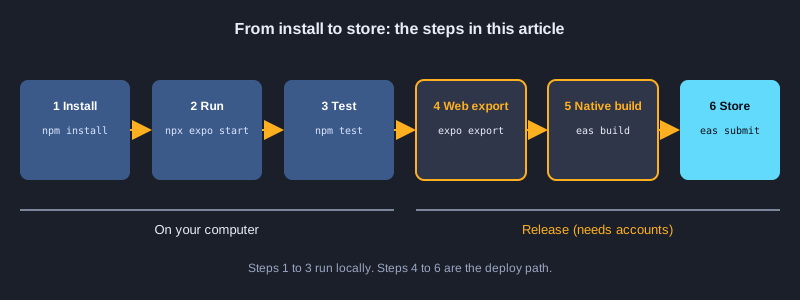
npx expo export --platform web は、dist フォルダに静的なWebサイトを書き出します。このフォルダは Cloudflare Pages、Netlify などの静的ホスティングに置けます。npx expo export --platform android は、ネイティブアプリが読み込む JavaScript バンドルを書き出し、そのサイズを表示します。ストアへの公開には EAS Build を使い、Expoのクラウドで APK または AAB をビルドして提出します。EASのコマンドはExpoアカウントとストアのアカウントが必要なため、この記事では実行していません。書き出しの2つのコマンドは実行し、その実際の出力を示しています。
npx expo export --platform web
npx expo export --platform android
npx eas-cli@latest login
npx eas-cli@latest build --platform android --profile preview
npx eas-cli@latest submit --platform android
実際の出力 (export --platform web)
Starting Metro Bundler

Web Bundled 324ms index.js (155 modules)

› web bundles (1):
_expo/static/js/web/index-2cd770f3379787ce05344930a3b77994.js (411KB)

› Files (3):
favicon.ico (15KB)
index.html (1.2KB)
metadata.json (49B)

Exported: dist
実際の出力 (export --platform android)
Starting Metro Bundler

Android Bundled 4251ms index.js (622 modules)

› android bundles (1):
_expo/static/js/android/index-2f8b5ff9ff67c29c92fd35ff3cb9dfec.hbc (1.6MB)

› Files (1):
metadata.json (150B)

Exported: dist
次のステップ
次のステップとして、画面ごとにファイルを作るExpo Routerでナビゲーションを追加し、AsyncStorageまたはexpo-sqliteでデータを保存しましょう。公開前には、アプリ名、アイコン、プライバシーポリシー、ストア用のスクリーンショットを準備し、エミュレーターでは確認しきれない点があるので実機でテストしてください。iOSにはApple Developerアカウントが必要ですが、EAS BuildならMacがなくてもビルドできます。
まとめ
React Nativeのアプリは、ネイティブ画面を描くコンポーネントのツリーです。Expoがプロジェクトを準備し、Jestが各例を確認し、書き出しまたはEAS Buildでウェブサイトや公開用ファイルにします。小さなコンポーネントから始め、ひとつずつテストし、動いたら公開しましょう。