React Native dari Nol: Memasang, Menguji, dan Merilis Aplikasi Seluler
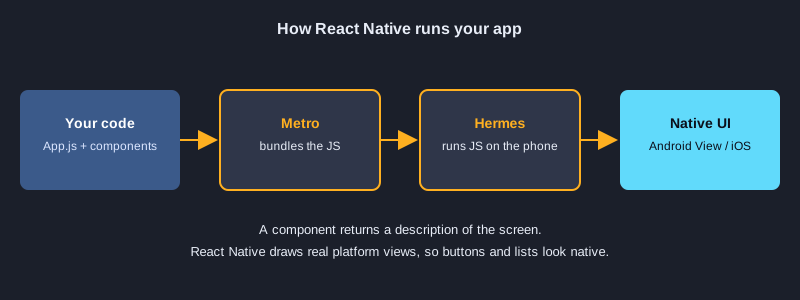
React Native memungkinkan Anda membangun aplikasi Android dan iOS dengan JavaScript dan React. Anda menulis komponen sekali, dan kode yang sama berjalan di kedua platform sebagai tampilan native sungguhan. Artikel ini memulai proyek dengan Expo, membahas enam contoh kecil, menguji setiap contoh dengan Jest, lalu menunjukkan cara mengekspor dan merilis aplikasi. Setiap berkas kode di sini adalah berkas sungguhan yang sudah diuji, dan keluaran pengujiannya adalah keluaran sebenarnya.
Yang Anda butuhkan
Anda memerlukan Node.js (artikel ini diuji dengan Node 24.19.0), npm, editor kode, dan ponsel dengan aplikasi Expo Go atau emulator Android untuk langkah menjalankan. Pengujian berjalan di komputer Anda dan tidak memerlukan ponsel. Build rilis memerlukan akun Expo gratis untuk EAS Build. Menerbitkan ke Google Play memerlukan akun pengembang Google Play (biaya sekali bayar 25 dolar AS). Menerbitkan ke App Store memerlukan akun Apple Developer (biaya tahunan).
Ilustrasi
1. Pasang dan buat proyek
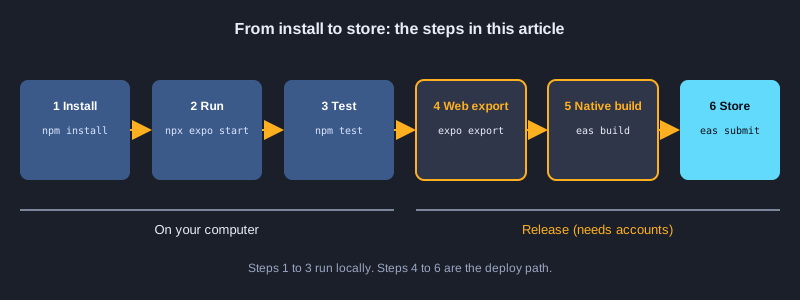
Buat proyek Expo dari templat kosong, lalu pasang paket pengujian dan web. npx expo install memilih versi yang cocok dengan SDK Expo Anda, jadi gunakan perintah ini untuk paket yang didukung Expo. Jalankan aplikasi dengan npx expo start, lalu pindai kode QR dengan Expo Go, atau tekan w untuk membukanya di browser.
npx create-expo-app@latest app --template blank
cd app
npx expo install jest-expo jest react-dom react-native-web @expo/metro-runtime
npm install -D @testing-library/react-native@14 test-renderer@1
npx expo start
Pasang: `package.json`
"jest": {
  "preset": "jest-expo"
},
"scripts": {
  "test": "jest"
}
Contoh 1: Halo: komponen dan StyleSheet
Komponen adalah fungsi yang mengembalikan apa yang harus ditampilkan. View dan Text menggantikan div dan p, dan StyleSheet.create mengatur objek style.
import { StyleSheet, Text, View } from 'react-native';

// Komponen adalah fungsi yang mengembalikan apa yang ditampilkan di layar.
export default function Hello() {
  return (
    <View style={styles.box}>
      <Text style={styles.title}>Hello, React Native</Text>
    </View>
  );
}

const styles = StyleSheet.create({
  box: { padding: 16, backgroundColor: '#e8f1ff', borderRadius: 8 },
  title: { fontSize: 20, fontWeight: 'bold', color: '#1b3a6b' },
});
Hasil uji sebenarnya
✓ 1. Hello › shows the heading
Contoh 2: Props: mengirim data ke komponen
App memberikan name kepada Greeting melalui props. Komponen yang sama bisa menampilkan nama yang berbeda tanpa diedit.
import { Text } from 'react-native';

// Props adalah data yang diberikan komponen induk. Komponen yang sama bisa menampilkan nama yang berbeda.
export default function Greeting({ name }) {
  return <Text style={{ fontSize: 18 }}>{`Hello, ${name}`}</Text>;
}
Hasil uji sebenarnya
✓ 2. Props › uses the name prop
Contoh 3: State: penghitung dengan Pressable
useState menyimpan hitungan, dan Pressable adalah elemen yang bisa disentuh. Bentuk fungsi setCount(c => c + 1) selalu memakai nilai terbaru.
import { useState } from 'react';
import { Pressable, StyleSheet, Text, View } from 'react-native';

// State adalah nilai yang berubah. Memanggil setter membuat React merender ulang.
export default function Counter() {
  const [count, setCount] = useState(0);

  return (
    <View style={styles.row}>
      <Pressable
        style={styles.button}
        accessibilityRole="button"
        accessibilityLabel="decrease"
        onPress={() => setCount(c => c - 1)}>
        <Text style={styles.buttonText}>-</Text>
      </Pressable>
      <Text testID="count" style={styles.count}>{count}</Text>
      <Pressable
        style={styles.button}
        accessibilityRole="button"
        accessibilityLabel="increase"
        onPress={() => setCount(c => c + 1)}>
        <Text style={styles.buttonText}>+</Text>
      </Pressable>
    </View>
  );
}

const styles = StyleSheet.create({
  row: { flexDirection: 'row', alignItems: 'center', gap: 16 },
  button: { width: 48, height: 48, borderRadius: 24, backgroundColor: '#2f6fed', alignItems: 'center', justifyContent: 'center' },
  buttonText: { color: '#fff', fontSize: 24, fontWeight: 'bold' },
  count: { fontSize: 28, minWidth: 48, textAlign: 'center' },
});
Hasil uji sebenarnya
✓ 3. State › increments and decrements the count
Contoh 4: TextInput terkendali
Nilai input disimpan dalam state. onChangeText memperbaruinya pada setiap ketukan, dan teks pratinjau dihitung dari state tersebut.
import { useState } from 'react';
import { StyleSheet, Text, TextInput, View } from 'react-native';

// TextInput terkendali: nilainya berasal dari state, dan onChangeText memperbaruinya pada setiap ketukan.
export default function NameForm() {
  const [name, setName] = useState('');
  const trimmed = name.trim();

  return (
    <View style={styles.box}>
      <TextInput
        testID="name-input"
        style={styles.input}
        placeholder="Nama Anda"
        value={name}
        onChangeText={setName}
      />
      <Text testID="preview" style={styles.preview}>
        {trimmed ? `Hi, ${trimmed}!` : 'Ketik nama Anda di atas'}
      </Text>
    </View>
  );
}

const styles = StyleSheet.create({
  box: { gap: 8 },
  input: { borderWidth: 1, borderColor: '#9aa6c2', borderRadius: 8, padding: 10, fontSize: 16 },
  preview: { fontSize: 16, color: '#333' },
});
Hasil uji sebenarnya
✓ 4. Controlled input › shows a greeting from the typed name
Contoh 5: Daftar dengan tambah item
Tambahkan item dengan membuat larik baru memakai spread, bukan mengubah larik lama. map cukup untuk daftar pendek; untuk daftar panjang, gunakan FlatList dengan keyExtractor.
import { useState } from 'react';
import { Pressable, StyleSheet, Text, TextInput, View } from 'react-native';

// Tambahkan item dengan membuat larik baru memakai spread, bukan mengubah larik lama.
export default function TodoList() {
  const [text, setText] = useState('');
  const [items, setItems] = useState([{ id: '1', title: 'Learn components' }]);

  function addItem() {
    const title = text.trim();
    if (!title) return;
    setItems([...items, { id: `${Date.now()}-${items.length}`, title }]);
    setText('');
  }

  return (
    <View style={styles.box}>
      <View style={styles.row}>
        <TextInput
          testID="todo-input"
          style={styles.input}
          placeholder="Tugas baru"
          value={text}
          onChangeText={setText}
        />
        <Pressable testID="add" style={styles.button} accessibilityRole="button" onPress={addItem}>
          <Text style={styles.buttonText}>Add</Text>
        </Pressable>
      </View>
      {items.map(item => (
        <Text key={item.id} testID="todo-item" style={styles.item}>{item.title}</Text>
      ))}
    </View>
  );
}

const styles = StyleSheet.create({
  box: { gap: 8 },
  row: { flexDirection: 'row', gap: 8 },
  input: { flex: 1, borderWidth: 1, borderColor: '#9aa6c2', borderRadius: 8, padding: 10, fontSize: 16 },
  button: { backgroundColor: '#2f6fed', borderRadius: 8, paddingHorizontal: 16, justifyContent: 'center' },
  buttonText: { color: '#fff', fontWeight: 'bold' },
  item: { fontSize: 16, paddingVertical: 6, borderBottomWidth: StyleSheet.hairlineWidth, borderBottomColor: '#ccc' },
});
Hasil uji sebenarnya
✓ 5. List with add › adds a task and clears the input
✓ 5. List with add › ignores an empty task
Contoh 6: Memuat data dengan useEffect dan fetch
useEffect berjalan setelah render pertama. Komponen menampilkan ActivityIndicator selama permintaan masih berjalan, lalu menampilkan daftar pengguna. Fungsi pembersih mengabaikan respons yang terlambat setelah komponen dilepas.
import { useEffect, useState } from 'react';
import { ActivityIndicator, Text, View } from 'react-native';

export const USERS_URL = 'https://jsonplaceholder.typicode.com/users';

// useEffect berjalan setelah render pertama. Di sini ia memuat data dari web API.
// Fungsi pembersih mengabaikan respons yang datang setelah komponen sudah tidak ada.
export default function Users({ url = USERS_URL }) {
  const [users, setUsers] = useState(null);
  const [error, setError] = useState(null);

  useEffect(() => {
    let active = true;
    fetch(url)
      .then(res => {
        if (!res.ok) throw new Error(`HTTP ${res.status}`);
        return res.json();
      })
      .then(data => { if (active) setUsers(data); })
      .catch(err => { if (active) setError(err.message); });
    return () => { active = false; };
  }, [url]);

  if (error) return <Text testID="error">{`Error: ${error}`}</Text>;
  if (!users) return <ActivityIndicator testID="loading" />;

  return (
    <View testID="users" style={{ gap: 6 }}>
      {users.map(u => <Text key={u.id}>{u.name}</Text>)}
    </View>
  );
}
Hasil uji sebenarnya
✓ 6. Load data › shows a loading indicator while the request is pending
✓ 6. Load data › shows the users after the request finishes
✓ 6. Load data › shows an error when the response is not ok
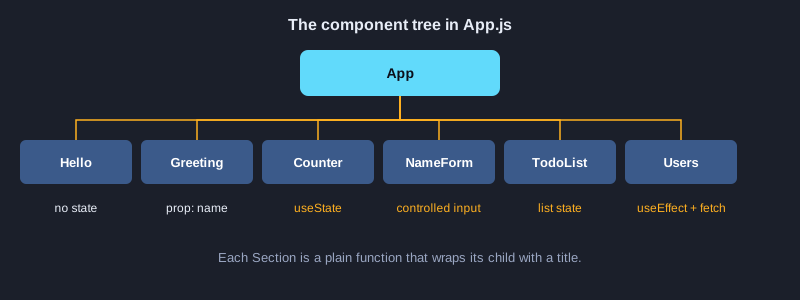
Satukan semuanya di App.js
import { StatusBar } from 'expo-status-bar';
import { ScrollView, StyleSheet, Text, View } from 'react-native';

import Hello from './src/examples/Hello';
import Greeting from './src/examples/Greeting';
import Counter from './src/examples/Counter';
import NameForm from './src/examples/NameForm';
import TodoList from './src/examples/TodoList';
import Users from './src/examples/Users';

// Komponen akar menggabungkan komponen-komponen kecil, seperti contoh dalam artikel.
export default function App() {
  return (
    <ScrollView contentContainerStyle={styles.container}>
      <StatusBar style="auto" />
      <Text style={styles.heading}>React Native Examples</Text>

      <Section title="1. Hello"><Hello /></Section>
      <Section title="2. Props"><Greeting name="Budi" /></Section>
      <Section title="3. State"><Counter /></Section>
      <Section title="4. Controlled input"><NameForm /></Section>
      <Section title="5. List with add"><TodoList /></Section>
      <Section title="6. Load data"><Users /></Section>
    </ScrollView>
  );
}

function Section({ title, children }) {
  return (
    <View style={styles.section}>
      <Text style={styles.sectionTitle}>{title}</Text>
      {children}
    </View>
  );
}

const styles = StyleSheet.create({
  container: { padding: 20, paddingTop: 60, gap: 24 },
  heading: { fontSize: 26, fontWeight: 'bold' },
  section: { gap: 10 },
  sectionTitle: { fontSize: 14, fontWeight: '600', color: '#2f6fed', textTransform: 'uppercase' },
});
2. Uji setiap contoh dengan Jest
Penguji yang dipakai adalah Jest dengan preset jest-expo, yang menyiapkan React Native agar berjalan di Node. @testing-library/react-native merender komponen dan bekerja dengannya seperti pengguna: mencari teks atau label, menekannya, atau mengubah teksnya. Pada versi 14, render dan fireEvent bersifat async, jadi setiap pemanggilan ditulis dengan await. Pengujian Users mengganti global.fetch dengan fungsi tiruan, sehingga tidak ada permintaan jaringan yang dikirim selama pengujian. Jalankan npm test untuk menjalankan semuanya.
npm test
Berkas pengujian
import { fireEvent, render, screen } from '@testing-library/react-native';

import Hello from '../src/examples/Hello';
import Greeting from '../src/examples/Greeting';
import Counter from '../src/examples/Counter';
import NameForm from '../src/examples/NameForm';
import TodoList from '../src/examples/TodoList';
import Users from '../src/examples/Users';

describe('1. Hello', () => {
  it('shows the heading', async () => {
    await render(<Hello />);
    expect(screen.getByText('Hello, React Native')).toBeTruthy();
  });
});

describe('2. Props', () => {
  it('uses the name prop', async () => {
    await render(<Greeting name="Budi" />);
    expect(screen.getByText('Hello, Budi')).toBeTruthy();
  });
});

describe('3. State', () => {
  it('increments and decrements the count', async () => {
    await render(<Counter />);
    expect(screen.getByTestId('count')).toHaveTextContent('0');
    await fireEvent.press(screen.getByLabelText('increase'));
    await fireEvent.press(screen.getByLabelText('increase'));
    expect(screen.getByTestId('count')).toHaveTextContent('2');
    await fireEvent.press(screen.getByLabelText('decrease'));
    expect(screen.getByTestId('count')).toHaveTextContent('1');
  });
});

describe('4. Controlled input', () => {
  it('shows a greeting from the typed name', async () => {
    await render(<NameForm />);
    expect(screen.getByTestId('preview')).toHaveTextContent('Ketik nama Anda di atas');
    await fireEvent.changeText(screen.getByTestId('name-input'), '  Budi ');
    expect(screen.getByTestId('preview')).toHaveTextContent('Hi, Budi!');
  });
});

describe('5. List with add', () => {
  it('adds a task and clears the input', async () => {
    await render(<TodoList />);
    await fireEvent.changeText(screen.getByTestId('todo-input'), 'Buy milk');
    await fireEvent.press(screen.getByTestId('add'));
    expect(screen.getByText('Buy milk')).toBeTruthy();
    expect(screen.getByTestId('todo-input')).toHaveProp('value', '');
  });

  it('ignores an empty task', async () => {
    await render(<TodoList />);
    await fireEvent.press(screen.getByTestId('add'));
    expect(screen.getAllByTestId('todo-item')).toHaveLength(1);
  });
});

describe('6. Load data', () => {
  afterEach(() => {
    delete global.fetch;
  });

  it('shows a loading indicator while the request is pending', async () => {
    global.fetch = jest.fn(() => new Promise(() => {}));
    await render(<Users url="https://test.local/users" />);
    expect(screen.getByTestId('loading')).toBeTruthy();
  });

  it('shows the users after the request finishes', async () => {
    global.fetch = jest.fn(() =>
      Promise.resolve({ ok: true, json: () => Promise.resolve([{ id: 1, name: 'Leanne Graham' }]) }),
    );
    await render(<Users url="https://test.local/users" />);
    expect(await screen.findByText('Leanne Graham')).toBeTruthy();
    expect(global.fetch).toHaveBeenCalledWith('https://test.local/users');
  });

  it('shows an error when the response is not ok', async () => {
    global.fetch = jest.fn(() => Promise.resolve({ ok: false, status: 500 }));
    await render(<Users url="https://test.local/broken" />);
    expect(await screen.findByTestId('error')).toHaveTextContent('Error: HTTP 500');
  });
});
Keluaran sebenarnya
Test Suites: 1 passed, 1 total
Tests:       9 passed, 9 total
Snapshots:   0 total
Time:        1.934 s, estimated 3 s
Ran all test suites.
3. Ekspor dan rilis
npx expo export --platform web menulis situs web statis ke folder dist. Anda bisa menjadikan folder itu sebagai host di Cloudflare Pages, Netlify, atau host statis apa pun. npx expo export --platform android menulis bundel JavaScript yang dimuat aplikasi native, dan menampilkan ukurannya. Rilis ke toko memakai EAS Build, yang membangun APK atau AAB di cloud Expo lalu mengirimkannya. Perintah EAS di bawah memerlukan akun Expo dan akun toko, jadi tidak dijalankan untuk artikel ini. Kedua perintah ekspor dijalankan, dan keluaran sebenarnya ditampilkan.
npx expo export --platform web
npx expo export --platform android
npx eas-cli@latest login
npx eas-cli@latest build --platform android --profile preview
npx eas-cli@latest submit --platform android
Keluaran sebenarnya (export --platform web)
Starting Metro Bundler

Web Bundled 324ms index.js (155 modules)

› web bundles (1):
_expo/static/js/web/index-2cd770f3379787ce05344930a3b77994.js (411KB)

› Files (3):
favicon.ico (15KB)
index.html (1.2KB)
metadata.json (49B)

Exported: dist
Keluaran sebenarnya (export --platform android)
Starting Metro Bundler

Android Bundled 4251ms index.js (622 modules)

› android bundles (1):
_expo/static/js/android/index-2f8b5ff9ff67c29c92fd35ff3cb9dfec.hbc (1.6MB)

› Files (1):
metadata.json (150B)

Exported: dist
Langkah berikutnya
Berikutnya, tambahkan navigasi dengan Expo Router, yang memakai satu berkas untuk setiap layar. Simpan data dengan AsyncStorage atau expo-sqlite. Sebelum menerbitkan, siapkan nama aplikasi, ikon, kebijakan privasi, dan tangkapan layar untuk toko, serta uji di ponsel sungguhan, karena emulator tidak menampilkan semuanya. Untuk iOS Anda memerlukan akun Apple Developer, dan EAS Build dapat membangunnya tanpa Mac.
Ringkasan
Aplikasi React Native adalah pohon komponen yang menggambar tampilan native. Expo menyiapkan proyek, Jest memeriksa setiap contoh, dan langkah ekspor atau EAS Build mengubah proyek menjadi situs web atau berkas rilis. Mulailah dengan komponen kecil, uji masing-masing, dan terbitkan ketika aplikasi sudah berfungsi.