تعلم React Native من الصفر: التثبيت والاختبار والنشر لتطبيق جوال
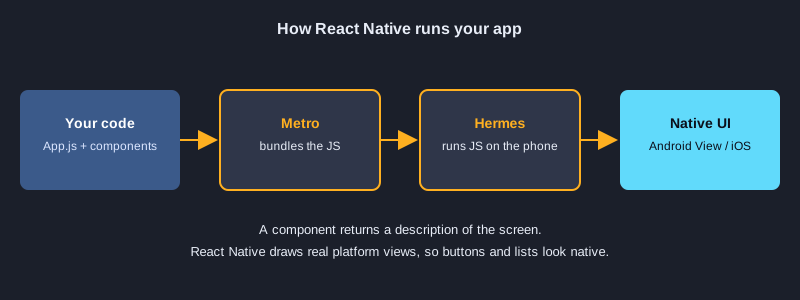
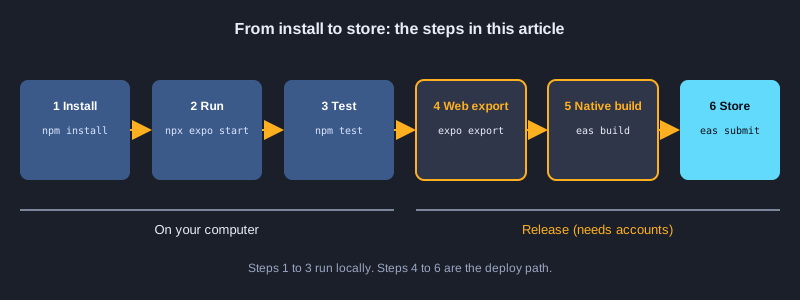
تتيح لك React Native بناء تطبيقات Android وiOS باستخدام JavaScript وReact. تكتب المكوّنات مرة واحدة فيعمل الكود نفسه على المنصتين بواجهات أصلية حقيقية. يبدأ هذا المقال بمشروع Expo، ويشرح ستة أمثلة صغيرة، ويختبر كل مثال باستخدام Jest، ثم يوضح كيفية تصدير التطبيق ونشره. كل ملف برمجي هنا هو الملف الذي تم اختباره فعلًا، ونتائج الاختبار هي المخرجات الفعلية.
ما الذي تحتاجه
تحتاج إلى Node.js (تم اختبار هذا المقال باستخدام Node 24.19.0) وnpm ومحرر أكواد، وهاتف عليه تطبيق Expo Go أو محاكي Android لخطوة التشغيل. تعمل الاختبارات على حاسوبك ولا تحتاج إلى هاتف. يحتاج بناء نسخة للنشر إلى حساب Expo مجاني لخدمة EAS Build. للنشر على Google Play تحتاج إلى حساب مطوّر في Google Play برسوم لمرة واحدة قدرها 25 دولارًا أمريكيًا. وللنشر على App Store تحتاج إلى حساب Apple Developer برسوم سنوية.
رسوم توضيحية
الخطوة 1: التثبيت وإنشاء المشروع
أنشئ مشروع Expo من القالب الفارغ، ثم ثبّت الحزم الخاصة بالاختبار وبالويب. يختار الأمر npx expo install إصدارات متوافقة مع إصدار Expo SDK لديك، لذلك استخدمه مع الحزم التي يدعمها Expo. شغّل التطبيق بالأمر npx expo start، ثم امسح رمز QR بتطبيق Expo Go، أو اضغط المفتاح w لفتحه في المتصفح.
npx create-expo-app@latest app --template blank
cd app
npx expo install jest-expo jest react-dom react-native-web @expo/metro-runtime
npm install -D @testing-library/react-native@14 test-renderer@1
npx expo start
التثبيت: `package.json`
"jest": {
  "preset": "jest-expo"
},
"scripts": {
  "test": "jest"
}
المثال 1: Hello: مكوّن وStyleSheet
المكوّن دالة تعيد ما يُعرض على الشاشة. يحل View وText محل div وp، ويرتّب StyleSheet.create كائنات التنسيق.
import { StyleSheet, Text, View } from 'react-native';

// A component is a function that returns what to show on screen.
export default function Hello() {
  return (
    <View style={styles.box}>
      <Text style={styles.title}>Hello, React Native</Text>
    </View>
  );
}

const styles = StyleSheet.create({
  box: { padding: 16, backgroundColor: '#e8f1ff', borderRadius: 8 },
  title: { fontSize: 20, fontWeight: 'bold', color: '#1b3a6b' },
});
نتيجة الاختبار الفعلية
✓ 1. Hello › shows the heading
المثال 2: Props: تمرير البيانات إلى مكوّن
يمرر App القيمة name إلى Greeting عبر props. يمكن للمكوّن نفسه أن يعرض أسماء مختلفة دون تعديل الكود.
import { Text } from 'react-native';

// Props are the data a parent passes in. The same component can show different names.
export default function Greeting({ name }) {
  return <Text style={{ fontSize: 18 }}>{`Hello, ${name}`}</Text>;
}
نتيجة الاختبار الفعلية
✓ 2. Props › uses the name prop
المثال 3: State: عدّاد بـ Pressable
يحفظ useState قيمة العداد، وPressable هو العنصر القابل للضغط. الصيغة setCount(c => c + 1) تستخدم دائمًا أحدث قيمة.
import { useState } from 'react';
import { Pressable, StyleSheet, Text, View } from 'react-native';

// State is a value that changes. Calling the setter makes React render again.
export default function Counter() {
  const [count, setCount] = useState(0);

  return (
    <View style={styles.row}>
      <Pressable
        style={styles.button}
        accessibilityRole="button"
        accessibilityLabel="decrease"
        onPress={() => setCount(c => c - 1)}>
        <Text style={styles.buttonText}>-</Text>
      </Pressable>
      <Text testID="count" style={styles.count}>{count}</Text>
      <Pressable
        style={styles.button}
        accessibilityRole="button"
        accessibilityLabel="increase"
        onPress={() => setCount(c => c + 1)}>
        <Text style={styles.buttonText}>+</Text>
      </Pressable>
    </View>
  );
}

const styles = StyleSheet.create({
  row: { flexDirection: 'row', alignItems: 'center', gap: 16 },
  button: { width: 48, height: 48, borderRadius: 24, backgroundColor: '#2f6fed', alignItems: 'center', justifyContent: 'center' },
  buttonText: { color: '#fff', fontSize: 24, fontWeight: 'bold' },
  count: { fontSize: 28, minWidth: 48, textAlign: 'center' },
});
نتيجة الاختبار الفعلية
✓ 3. State › increments and decrements the count
المثال 4: حقل إدخال TextInput مُتحكَّم به
تُحفظ قيمة حقل الإدخال في state. يحدّثها onChangeText مع كل ضغطة مفتاح، ويُحسب نص المعاينة من هذه الحالة.
import { useState } from 'react';
import { StyleSheet, Text, TextInput, View } from 'react-native';

// TextInput is controlled: its value comes from state and onChangeText updates it on each keystroke.
export default function NameForm() {
  const [name, setName] = useState('');
  const trimmed = name.trim();

  return (
    <View style={styles.box}>
      <TextInput
        testID="name-input"
        style={styles.input}
        placeholder="Your name"
        value={name}
        onChangeText={setName}
      />
      <Text testID="preview" style={styles.preview}>
        {trimmed ? `Hi, ${trimmed}!` : 'Type your name above'}
      </Text>
    </View>
  );
}

const styles = StyleSheet.create({
  box: { gap: 8 },
  input: { borderWidth: 1, borderColor: '#9aa6c2', borderRadius: 8, padding: 10, fontSize: 16 },
  preview: { fontSize: 16, color: '#333' },
});
نتيجة الاختبار الفعلية
✓ 4. Controlled input › shows a greeting from the typed name
المثال 5: قائمة مع إضافة عنصر
أضف عنصرًا بإنشاء مصفوفة جديدة باستخدام spread بدلًا من تعديل المصفوفة القديمة. تكفي map للقائمة القصيرة، أما القائمة الطويلة فاستخدم FlatList مع keyExtractor.
import { useState } from 'react';
import { Pressable, StyleSheet, Text, TextInput, View } from 'react-native';

// Add an item by creating a new array with spread instead of changing the old one.
export default function TodoList() {
  const [text, setText] = useState('');
  const [items, setItems] = useState([{ id: '1', title: 'Learn components' }]);

  function addItem() {
    const title = text.trim();
    if (!title) return;
    setItems([...items, { id: `${Date.now()}-${items.length}`, title }]);
    setText('');
  }

  return (
    <View style={styles.box}>
      <View style={styles.row}>
        <TextInput
          testID="todo-input"
          style={styles.input}
          placeholder="New task"
          value={text}
          onChangeText={setText}
        />
        <Pressable testID="add" style={styles.button} accessibilityRole="button" onPress={addItem}>
          <Text style={styles.buttonText}>Add</Text>
        </Pressable>
      </View>
      {items.map(item => (
        <Text key={item.id} testID="todo-item" style={styles.item}>{item.title}</Text>
      ))}
    </View>
  );
}

const styles = StyleSheet.create({
  box: { gap: 8 },
  row: { flexDirection: 'row', gap: 8 },
  input: { flex: 1, borderWidth: 1, borderColor: '#9aa6c2', borderRadius: 8, padding: 10, fontSize: 16 },
  button: { backgroundColor: '#2f6fed', borderRadius: 8, paddingHorizontal: 16, justifyContent: 'center' },
  buttonText: { color: '#fff', fontWeight: 'bold' },
  item: { fontSize: 16, paddingVertical: 6, borderBottomWidth: StyleSheet.hairlineWidth, borderBottomColor: '#ccc' },
});
نتيجة الاختبار الفعلية
✓ 5. List with add › adds a task and clears the input
✓ 5. List with add › ignores an empty task
المثال 6: تحميل البيانات بـ useEffect وfetch
يعمل useEffect بعد أول عرض للمكوّن. يعرض ActivityIndicator أثناء انتظار الطلب، ثم يعرض قائمة المستخدمين. تتجاهل دالة التنظيف الاستجابة التي تصل بعد إزالة المكوّن.
import { useEffect, useState } from 'react';
import { ActivityIndicator, Text, View } from 'react-native';

export const USERS_URL = 'https://jsonplaceholder.typicode.com/users';

// useEffect runs after the first render. Here it loads data from a web API.
// The cleanup function ignores a response that arrives after the component is gone.
export default function Users({ url = USERS_URL }) {
  const [users, setUsers] = useState(null);
  const [error, setError] = useState(null);

  useEffect(() => {
    let active = true;
    fetch(url)
      .then(res => {
        if (!res.ok) throw new Error(`HTTP ${res.status}`);
        return res.json();
      })
      .then(data => { if (active) setUsers(data); })
      .catch(err => { if (active) setError(err.message); });
    return () => { active = false; };
  }, [url]);

  if (error) return <Text testID="error">{`Error: ${error}`}</Text>;
  if (!users) return <ActivityIndicator testID="loading" />;

  return (
    <View testID="users" style={{ gap: 6 }}>
      {users.map(u => <Text key={u.id}>{u.name}</Text>)}
    </View>
  );
}
نتيجة الاختبار الفعلية
✓ 6. Load data › shows a loading indicator while the request is pending
✓ 6. Load data › shows the users after the request finishes
✓ 6. Load data › shows an error when the response is not ok
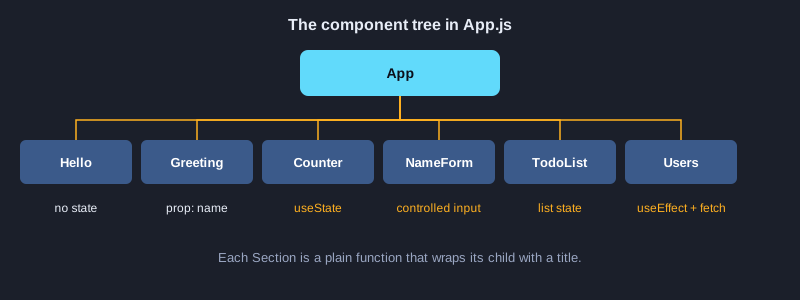
جمع كل الأمثلة في App.js
import { StatusBar } from 'expo-status-bar';
import { ScrollView, StyleSheet, Text, View } from 'react-native';

import Hello from './src/examples/Hello';
import Greeting from './src/examples/Greeting';
import Counter from './src/examples/Counter';
import NameForm from './src/examples/NameForm';
import TodoList from './src/examples/TodoList';
import Users from './src/examples/Users';

// The root component combines smaller components, just like the examples in the article.
export default function App() {
  return (
    <ScrollView contentContainerStyle={styles.container}>
      <StatusBar style="auto" />
      <Text style={styles.heading}>React Native Examples</Text>

      <Section title="1. Hello"><Hello /></Section>
      <Section title="2. Props"><Greeting name="Somchai" /></Section>
      <Section title="3. State"><Counter /></Section>
      <Section title="4. Controlled input"><NameForm /></Section>
      <Section title="5. List with add"><TodoList /></Section>
      <Section title="6. Load data"><Users /></Section>
    </ScrollView>
  );
}

function Section({ title, children }) {
  return (
    <View style={styles.section}>
      <Text style={styles.sectionTitle}>{title}</Text>
      {children}
    </View>
  );
}

const styles = StyleSheet.create({
  container: { padding: 20, paddingTop: 60, gap: 24 },
  heading: { fontSize: 26, fontWeight: 'bold' },
  section: { gap: 10 },
  sectionTitle: { fontSize: 14, fontWeight: '600', color: '#2f6fed', textTransform: 'uppercase' },
});
الخطوة 2: اختبار كل مثال باستخدام Jest
مشغّل الاختبارات هو Jest مع الإعداد المسبق jest-expo الذي يجهّز React Native للعمل على Node. تعرض مكتبة @testing-library/react-native المكوّن وتتعامل معه كما يفعل المستخدم: تبحث عن نص أو تسمية، وتضغط زرًا، أو تغيّر نصًا. في الإصدار 14 تكون render وfireEvent غير متزامنة، لذلك تُكتب كل استدعاءاتها مع await. تستبدل اختبارات Users الدالة global.fetch بدالة وهمية، فلا يُرسل أي طلب شبكة حقيقي أثناء الاختبار. شغّل الأمر npm test لتنفيذ الاختبارات كلها.
npm test
ملف الاختبار
import { fireEvent, render, screen } from '@testing-library/react-native';

import Hello from '../src/examples/Hello';
import Greeting from '../src/examples/Greeting';
import Counter from '../src/examples/Counter';
import NameForm from '../src/examples/NameForm';
import TodoList from '../src/examples/TodoList';
import Users from '../src/examples/Users';

describe('1. Hello', () => {
  it('shows the heading', async () => {
    await render(<Hello />);
    expect(screen.getByText('Hello, React Native')).toBeTruthy();
  });
});

describe('2. Props', () => {
  it('uses the name prop', async () => {
    await render(<Greeting name="Somchai" />);
    expect(screen.getByText('Hello, Somchai')).toBeTruthy();
  });
});

describe('3. State', () => {
  it('increments and decrements the count', async () => {
    await render(<Counter />);
    expect(screen.getByTestId('count')).toHaveTextContent('0');
    await fireEvent.press(screen.getByLabelText('increase'));
    await fireEvent.press(screen.getByLabelText('increase'));
    expect(screen.getByTestId('count')).toHaveTextContent('2');
    await fireEvent.press(screen.getByLabelText('decrease'));
    expect(screen.getByTestId('count')).toHaveTextContent('1');
  });
});

describe('4. Controlled input', () => {
  it('shows a greeting from the typed name', async () => {
    await render(<NameForm />);
    expect(screen.getByTestId('preview')).toHaveTextContent('Type your name above');
    await fireEvent.changeText(screen.getByTestId('name-input'), '  Somchai ');
    expect(screen.getByTestId('preview')).toHaveTextContent('Hi, Somchai!');
  });
});

describe('5. List with add', () => {
  it('adds a task and clears the input', async () => {
    await render(<TodoList />);
    await fireEvent.changeText(screen.getByTestId('todo-input'), 'Buy milk');
    await fireEvent.press(screen.getByTestId('add'));
    expect(screen.getByText('Buy milk')).toBeTruthy();
    expect(screen.getByTestId('todo-input')).toHaveProp('value', '');
  });

  it('ignores an empty task', async () => {
    await render(<TodoList />);
    await fireEvent.press(screen.getByTestId('add'));
    expect(screen.getAllByTestId('todo-item')).toHaveLength(1);
  });
});

describe('6. Load data', () => {
  afterEach(() => {
    delete global.fetch;
  });

  it('shows a loading indicator while the request is pending', async () => {
    global.fetch = jest.fn(() => new Promise(() => {}));
    await render(<Users url="https://test.local/users" />);
    expect(screen.getByTestId('loading')).toBeTruthy();
  });

  it('shows the users after the request finishes', async () => {
    global.fetch = jest.fn(() =>
      Promise.resolve({ ok: true, json: () => Promise.resolve([{ id: 1, name: 'Leanne Graham' }]) }),
    );
    await render(<Users url="https://test.local/users" />);
    expect(await screen.findByText('Leanne Graham')).toBeTruthy();
    expect(global.fetch).toHaveBeenCalledWith('https://test.local/users');
  });

  it('shows an error when the response is not ok', async () => {
    global.fetch = jest.fn(() => Promise.resolve({ ok: false, status: 500 }));
    await render(<Users url="https://test.local/broken" />);
    expect(await screen.findByTestId('error')).toHaveTextContent('Error: HTTP 500');
  });
});
المخرجات الفعلية
Test Suites: 1 passed, 1 total
Tests:       9 passed, 9 total
Snapshots:   0 total
Time:        1.934 s, estimated 3 s
Ran all test suites.
الخطوة 3: التصدير والنشر
يكتب الأمر npx expo export --platform web موقعًا ثابتًا داخل مجلد dist. يمكنك استضافة هذا المجلد على Cloudflare Pages أو Netlify أو أي خدمة استضافة ثابتة. ويكتب الأمر npx expo export --platform android ملف JavaScript الذي يحمّله التطبيق الأصلي، ويعرض حجمه. ينشر النسخة النهائية إلى المتاجر خدمة EAS Build، التي تبني ملف APK أو AAB على سحابة Expo ثم ترفعه. أوامر EAS تحتاج إلى حساب Expo وحسابات المتاجر، لذلك لم تُشغَّل في هذا المقال. أما أمرا التصدير فقد تم تشغيلهما، وتعرض النتائج أدناه مخرجاتهما الفعلية.
npx expo export --platform web
npx expo export --platform android
npx eas-cli@latest login
npx eas-cli@latest build --platform android --profile preview
npx eas-cli@latest submit --platform android
المخرجات الفعلية (export --platform web)
Starting Metro Bundler

Web Bundled 324ms index.js (155 modules)

› web bundles (1):
_expo/static/js/web/index-2cd770f3379787ce05344930a3b77994.js (411KB)

› Files (3):
favicon.ico (15KB)
index.html (1.2KB)
metadata.json (49B)

Exported: dist
المخرجات الفعلية (export --platform android)
Starting Metro Bundler

Android Bundled 4251ms index.js (622 modules)

› android bundles (1):
_expo/static/js/android/index-2f8b5ff9ff67c29c92fd35ff3cb9dfec.hbc (1.6MB)

› Files (1):
metadata.json (150B)

Exported: dist
الخطوات التالية
الخطوة التالية هي إضافة التنقل باستخدام Expo Router الذي يستخدم ملفًا لكل شاشة، وحفظ البيانات باستخدام AsyncStorage أو expo-sqlite. قبل النشر، جهّز اسم التطبيق والأيقونات وسياسة الخصوصية ولقطات الشاشة للمتجر، واختبر التطبيق على هاتف حقيقي لأن المحاكي لا يُظهر كل شيء. أما iOS فيحتاج إلى حساب Apple Developer، ويمكن لـ EAS Build بناء النسخة دون الحاجة إلى جهاز Mac.
الخلاصة
تطبيق React Native هو شجرة من المكوّنات ترسم واجهات أصلية. يجهّز Expo المشروع، ويتحقق Jest من كل مثال، ثم يحوّل التصدير أو EAS Build المشروع إلى موقع ويب أو ملف جاهز للنشر. ابدأ بمكوّنات صغيرة واختبر كل واحد منها، وانشر التطبيق عندما يعمل.